On-hold reasons and paused SLAs
Put a ticket on hold with a reason and a date, use Scheduled and Awaiting parts or order, pause only some SLA clocks, and work from the On hold view.
Some tickets cannot move for a good reason: the engineer is booked for Thursday, the replacement drive is on order, the customer's line provider is coming next week. Put them on hold with a reason and a date, and Tenvara tells everyone why, keeps the right SLA clocks still, and brings the ticket back when the time comes.
The hold statuses
Every install has these waiting (pending) statuses for holds, beside Waiting on customer:
| Status | Asks for | What happens |
|---|---|---|
| On hold | A reason, and a date if you like | The assignee is told when the date passes |
| Waiting on third party | A reason, and a date if you like | The assignee is told when the date passes |
| Scheduled | A date and time | Comes back by itself at that time. Customers see "Scheduled" |
| Awaiting parts or order | The supplier and an expected date, if you like | The assignee is told when the date passes. Customers see "Waiting for parts or an order" |
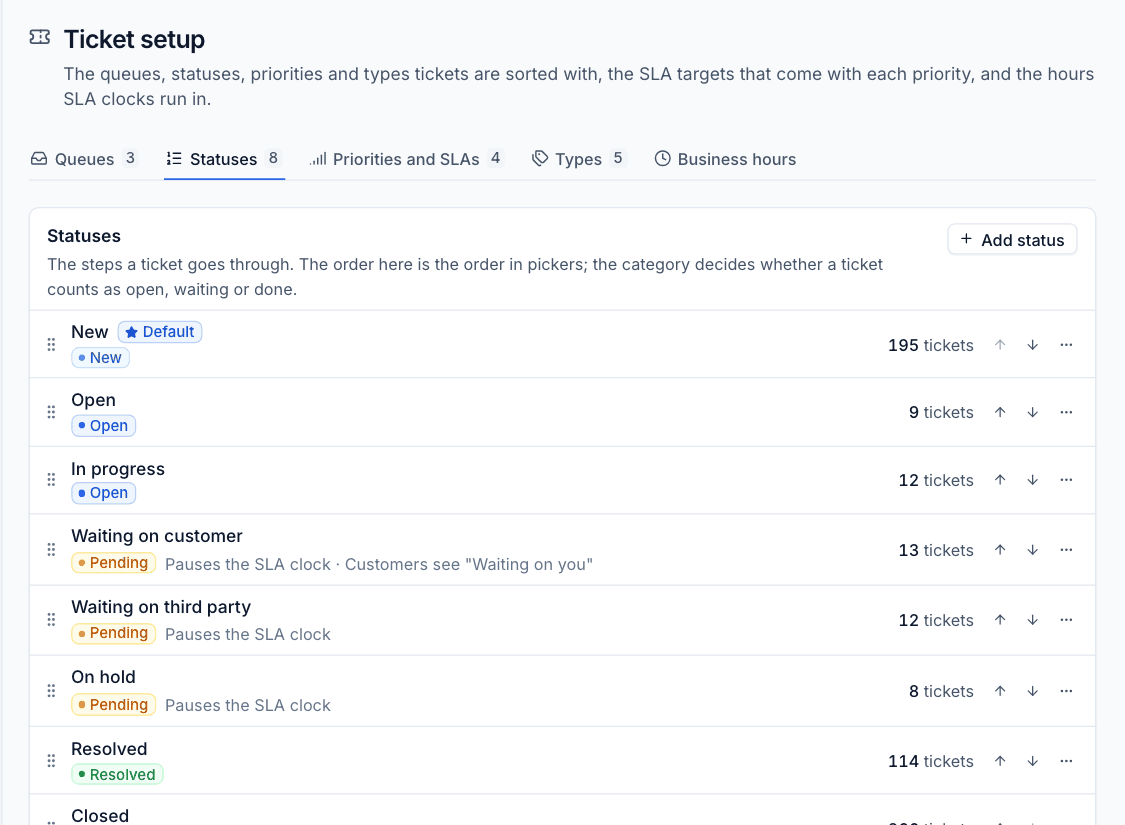
Put a ticket on hold
- On the ticket, click the status (or press
s) and choose a hold status, such as Scheduled. - A small dialog asks what the status needs: the reason, the date and time (with the same quick choices as snooze) and, for parts, the supplier.
- Confirm it.
The header then shows a line with the status, until when (or "Comes back" and the date for a status that wakes up by itself), the supplier and the reason, with a pencil to change them. The activity reads, for example, "Sam set it Scheduled until Fri 14 Nov 16:00: engineer on site". A date in the past or more than a year ahead is refused.
Moving the ticket to any other status, by hand, by a reply, a rule or a bulk change, ends the hold.
When the date comes
- A status that comes back by itself, such as Scheduled, leaves the open lists until its time, then returns to its queue in the queue's status for an arriving ticket (else the first open status). The assignee hears "#1234 is back".
- For any other hold, the ticket stays where it is and the assignee (else whoever put it on hold) is told once that the date has passed. The date shows amber with "passed". Setting a new date reminds again when that one passes.
Pause only some SLA clocks
A status that pauses the SLA can pause every clock or only some. Edit the status on the Statuses tab of Settings > Ticket setup and choose Clocks it pauses: First response, Next update and Resolution. The others keep running.
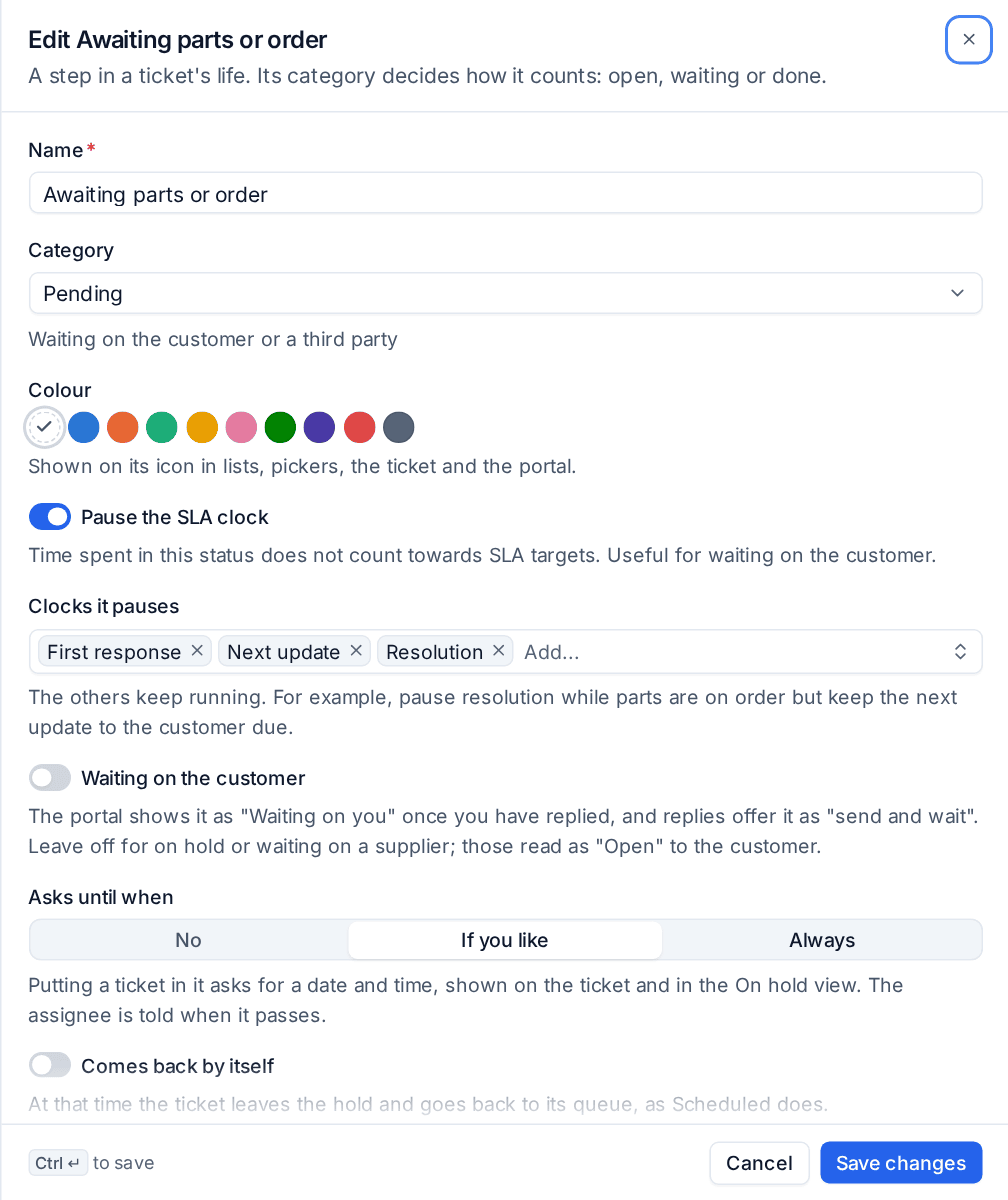
For example, pause Resolution while parts are on order but keep Next update running, so the customer still hears from you every day while the fix waits on the courier. On the ticket's SLA panel a held clock reads as paused with the time it stopped; when the ticket moves on, the held time is added back to its due time. A ticket whose running clocks are all held reads "paused" in lists. An SLA policy can choose its own pause statuses too (see SLA policies and escalations).
Make your own hold statuses
Any pending status can work this way. On the Statuses tab, add or edit a status with the Pending category, then set:
- Asks until when: No, If you like or Always. The date shows on the ticket and in the On hold view.
- Comes back by itself: at that time the ticket leaves the hold and goes back to its queue, as Scheduled does.
- Asks for the supplier: for parts or an order, shown on the ticket.
- Name for customers, if the portal should call it something else.
The On hold view
On hold in the Service desk sidebar (it shows while there are tickets on hold, and is always in the view picker) lists every open ticket in a hold status, including scheduled ones that are out of the way until their time. Tickets waiting on the customer are left to the Waiting view.
The list is grouped by reason (the status) and then by when each is due back: date passed, today, this week, later and no date, soonest first. It is the place to start the day: what has come back, what is overdue from a supplier, and what is due this week.
Tip: Use Scheduled for a ticket waiting on a booked visit instead of snoozing it: the customer sees "Scheduled" in the portal, and the reason is on the ticket for anyone who opens it.
Related
Was this page helpful?
Thanks for the feedback.