The Toolbox, Terminal and your default viewer
Choose where Remote in opens for you and for your team, open a terminal on any computer, and reach background tools, scripts and quick actions from the Toolbox.
Two buttons sit side by side wherever you work with a device: Remote in and Toolbox. Remote in takes you onto the device, in the viewer you prefer or straight into a terminal when the device has no screen. The Toolbox gathers everything you can do to a device without taking its screen: background tools, scripts and quick actions.
Where Remote in opens
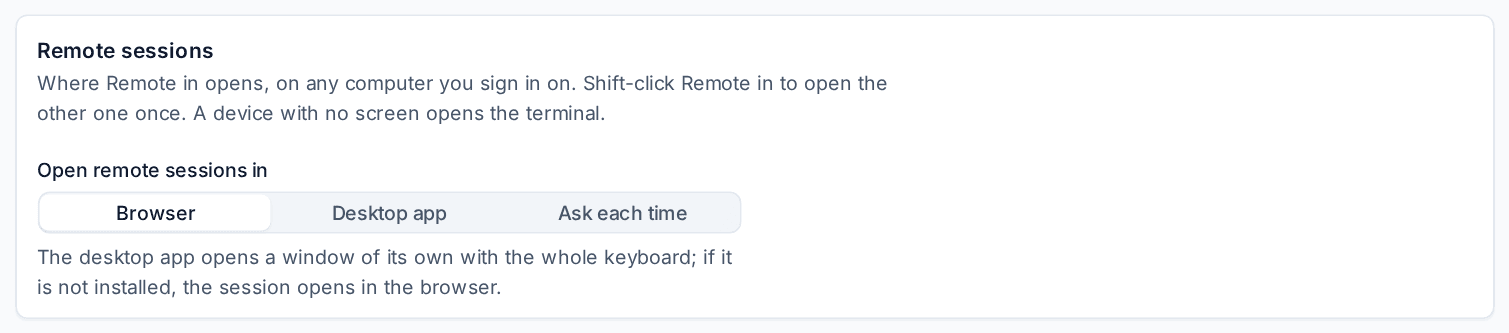
Remote in can open the browser viewer or the desktop viewer. Each technician chooses, and the choice follows them to every computer they sign in on.
- Go to Settings > Profile and find the Remote sessions section.
- Under Open remote sessions in, choose Browser, Desktop app or Ask each time.
| Choice | What Remote in does |
|---|---|
| Browser | Opens the session in a browser tab. Nothing to install. |
| Desktop app | Opens the desktop viewer, a window of its own with the whole keyboard. If it is not installed, the session opens in the browser instead and the download is offered. |
| Ask each time | Shows both, with Remember this to save your answer. |
You can also set it without leaving the device: click the arrow beside Remote in and pick one under Remember as my default.
Tip: Shift-click Remote in to open the other viewer once, without changing your default.
The default for your team
An administrator sets what Remote in does for technicians who have not chosen for themselves.
- Go to Settings > Remote access and choose the Desktop viewer tab.
- Under Where Remote in opens, choose Browser, Desktop app or Ask each time.

A technician's own choice always wins over this default. Installing the desktop viewer is covered in The desktop viewer.
The Remote in menu
The arrow beside Remote in opens the full menu:
| Entry | What it opens |
|---|---|
| Screen (browser) | The browser viewer. |
| Screen (desktop app) | The desktop viewer. |
| Terminal | A terminal on the device, with no screen session. On Windows there are two entries, Terminal (PowerShell) and Terminal (Command Prompt). On macOS and Linux it is the login shell. |
| View only | The browser viewer without control. |
| Open in a new window | The browser viewer in a window of its own. |
| Desktop app, a window per screen | The desktop viewer with one window for each of the device's screens. |
| Remember as my default | Browser, Desktop app or Ask each time, saved at once. |
The same rules apply however you open a session: your access level, the session policy, consent, approval for sensitive devices and recording. See Remote control.
Terminal on every computer
Terminal is in the Remote in menu on every computer with an agent. It opens the Terminal tab of the device's Tools tab and starts a shell over the agent's own connection, so there is no port to open and no password to type.
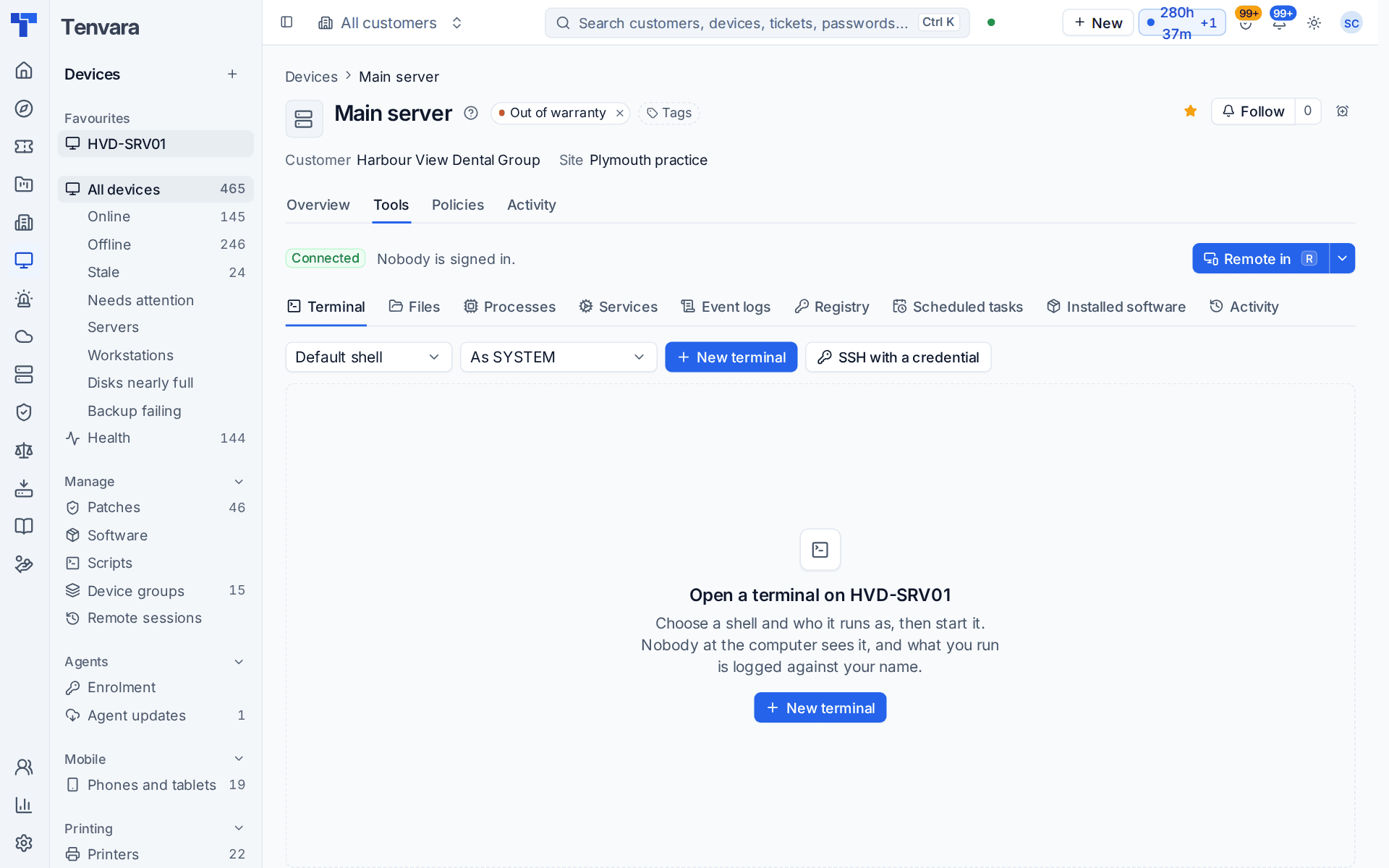
In the desktop viewer, Terminal on a session's toolbar opens a terminal on the device in a window of its own while the session carries on. Paste arrives as text, whole, and copying works with the usual keys; up to four terminals can be open on a device at once. In the browser viewer, Terminal opens the device's Terminal tab in a new browser tab. See The desktop viewer.
Devices with no screen
The agent tells Tenvara whether a device has a screen. A Linux server without a desktop, or a Windows Server Core install, has none, so a screen session would have nothing to show. On such a device Remote in opens the terminal directly, and its menu offers only Terminal. The same happens on a device where remote control is switched off.
The Toolbox
Click Toolbox beside Remote in. It is on the device page, on each row of the device list, and in the command menu: with a device page open, press Ctrl+K (Cmd+K on a Mac) and the same entries are listed under the device's name.
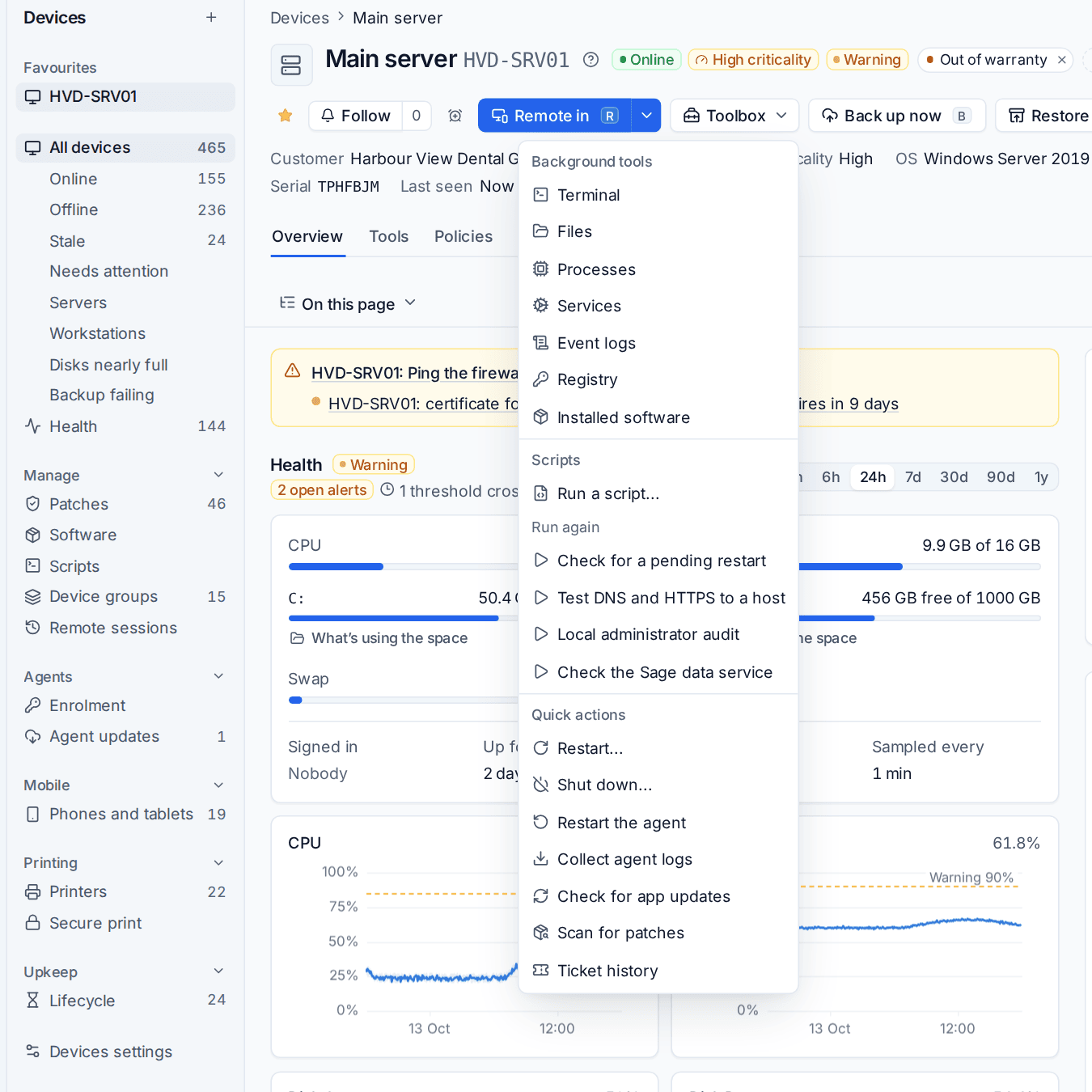
Background tools
Each entry opens its tab of the device's Tools tab, with nothing shown on the device's screen:
- Terminal, Files, Processes, Services and Event logs.
- Registry, on Windows.
- Scheduled tasks: Task Scheduler on Windows, systemd timers and cron on Linux, and launchd jobs on macOS. Run a task now or switch it on and off where the system allows it; cron jobs are listed only.
- Installed software, once the agent has sent an inventory.
See File transfer, recording and background tools.
Scripts
- Run a script... opens the usual dialog for this device, with scripts for another operating system greyed out.
- Run again lists the last scripts run on this device, so the one you used yesterday is one click away.
Quick actions
- Restart... and Shut down....
- Wake up, while the device is offline.
- Restart the agent and Collect agent logs.
- Check for app updates and Scan for patches.
- Ticket history, which shows the device's tickets in a side sheet.
What the Toolbox does not change
The Toolbox is a shorter route, not a way round your rules. Each entry opens the same dialog or tool as before, so approvals, access rules, the session policy's allowed hours and the audit log apply exactly as they do elsewhere. You see only the entries your role allows and the device's operating system supports: the background tools need full remote access, and scripts, software and patches need their own permissions.
Related
Was this page helpful?
Thanks for the feedback.