Conditional Access policies in detail
Open any Conditional Access policy in words, see who it covers and what it did to real sign-ins, ask What if for one person, follow its history, change who it leaves out and copy it as a template for other tenants.
A Conditional Access policy in the Entra admin centre is a page of ids and toggles. In Tenvara you open it in words: who it covers and who it leaves out by name, what it asks for, what it actually did to sign-ins over the last week or month, and who changed it. You can also ask what happens when one person signs in a particular way, and change the policy's state or exclusions through the change log.
Policies need Entra ID P1 in the tenant. For the list of policies, the built-in templates and named locations, see Sign-ins, apps and policies.
Opening a policy
- Go to Cloud > Tenants, open the tenant and choose its Policies tab.
- Click a policy. It opens in a side panel. Open as page gives it its own address, to share with a colleague.
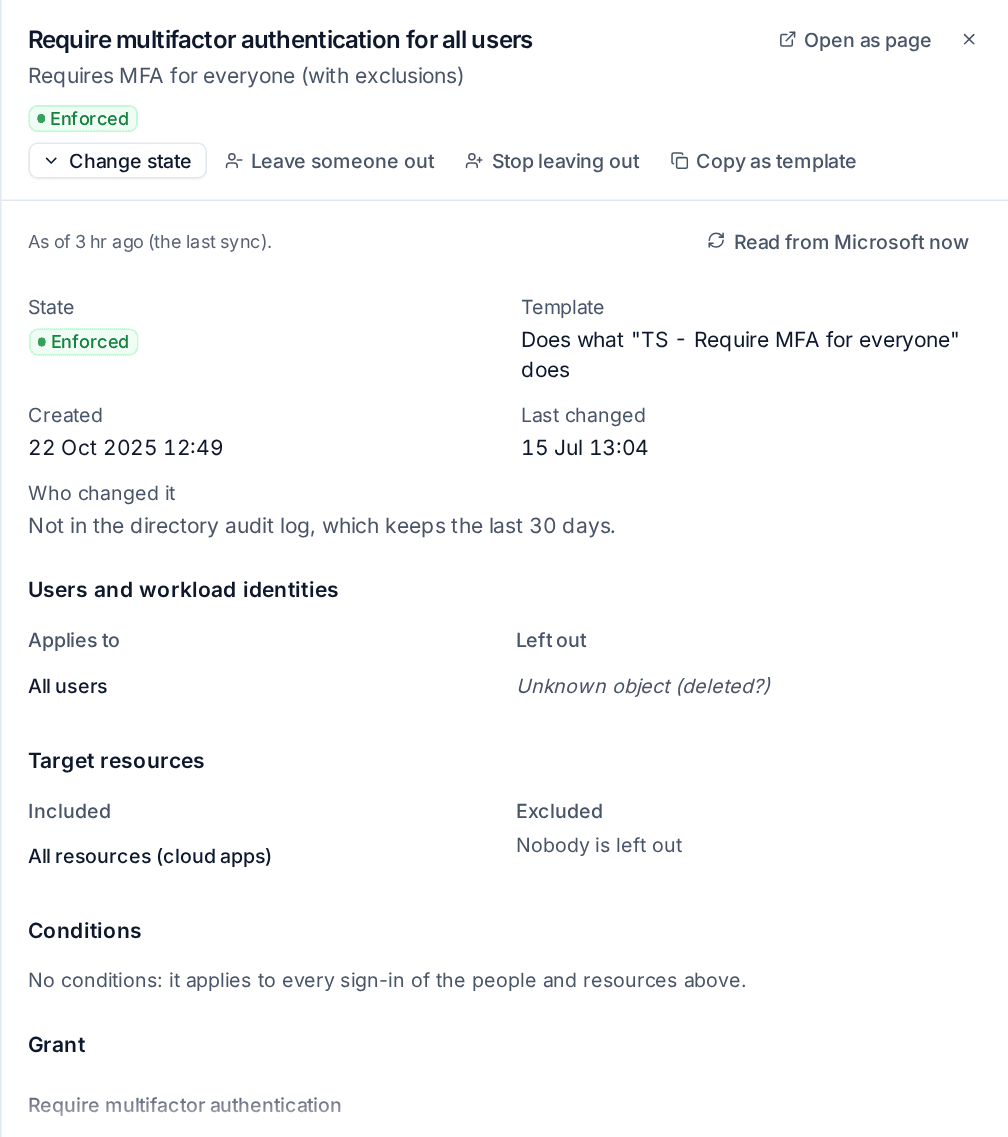
The panel reads, top to bottom:
- State (Enforced, Report-only or Off), when it was Created and Last changed, and Who changed it from the directory audit log (Microsoft keeps 30 days of it). Template says which template it was deployed from or does the same as.
- Users and workload identities: who it Applies to and who is Left out, by name. Groups list their people (nested groups included, with Show members), roles list who holds them.
- Target resources: the apps, user actions or authentication contexts it covers and excludes.
- Conditions: risk, device platforms, locations, client apps and device filters, in words. "No conditions" means it applies to every sign-in of the people and resources above.
- Grant and Session: every control, whether all or one of them is needed, and session settings such as sign-in frequency.
- The policy as Microsoft returns it: every field, including ones the sections above do not use.
Each exclusion says why it matters: Emergency access (keep your break-glass accounts left out), Disabled (a left-over exclusion that can go), Guest (someone outside the organisation left without the protection), and deleted, privileged, nested, dynamic or empty groups. Something Microsoft no longer has shows as "Unknown object (deleted?)".
The panel shows what the last sync read, "As of" that time. When that is older than the security sync interval it reads the policy from Microsoft as it opens, and Read from Microsoft now reads it again on request.
Who it covers and what it did
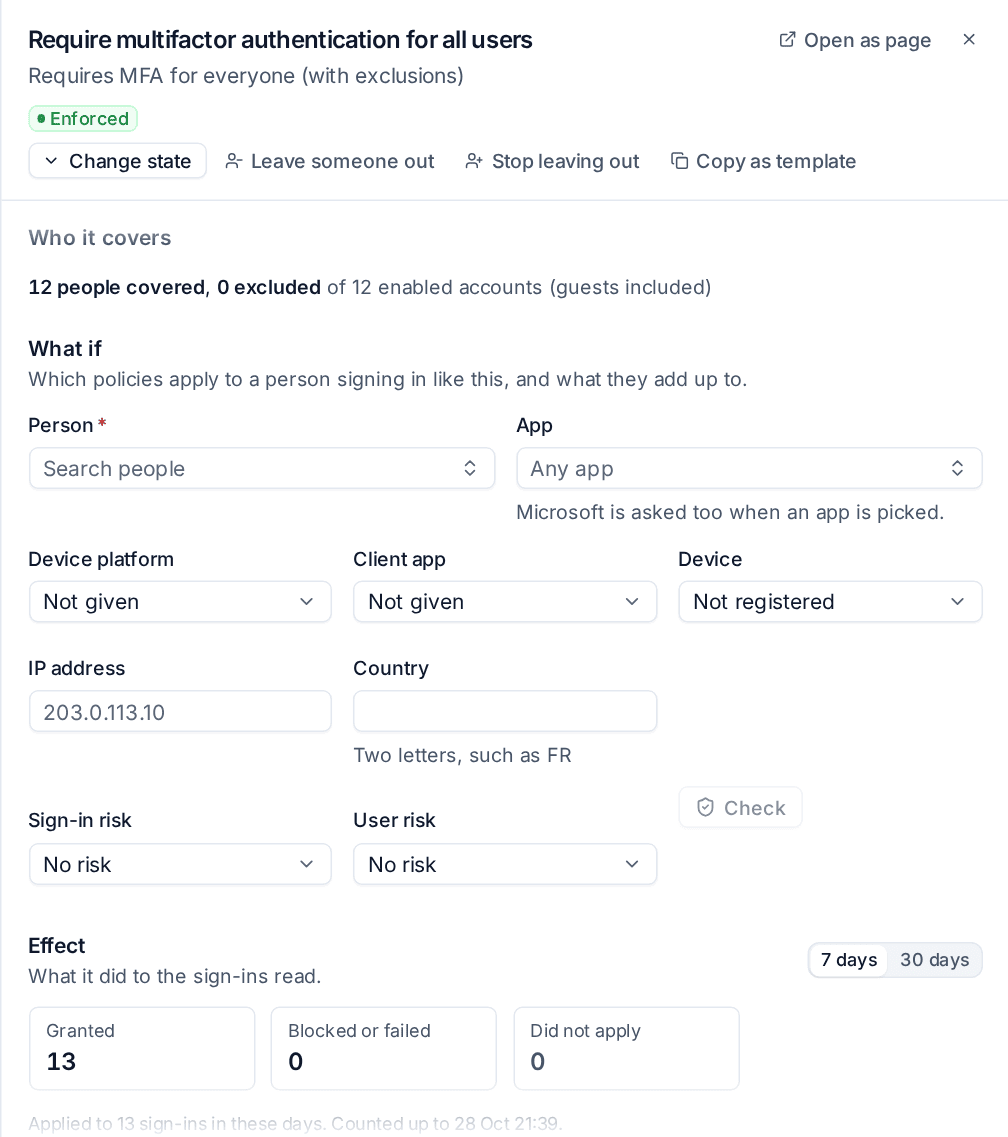
Who it covers counts the enabled accounts (guests included) the policy is for, and how many it leaves out, from its users, groups, roles and guest types. People whose group membership was not read are counted as not known, never as not covered.
Effect shows what the policy did to sign-ins over 7 days or 30 days:
- Granted, Blocked or failed and Did not apply.
- For a report-only policy: what enforcing it would do, Would allow, Would block and Would ask for more (an MFA prompt, for example). This is the best way to decide whether a report-only policy is safe to enforce.
- The people and apps it applied to most, with how many sign-ins each, and Day by day.
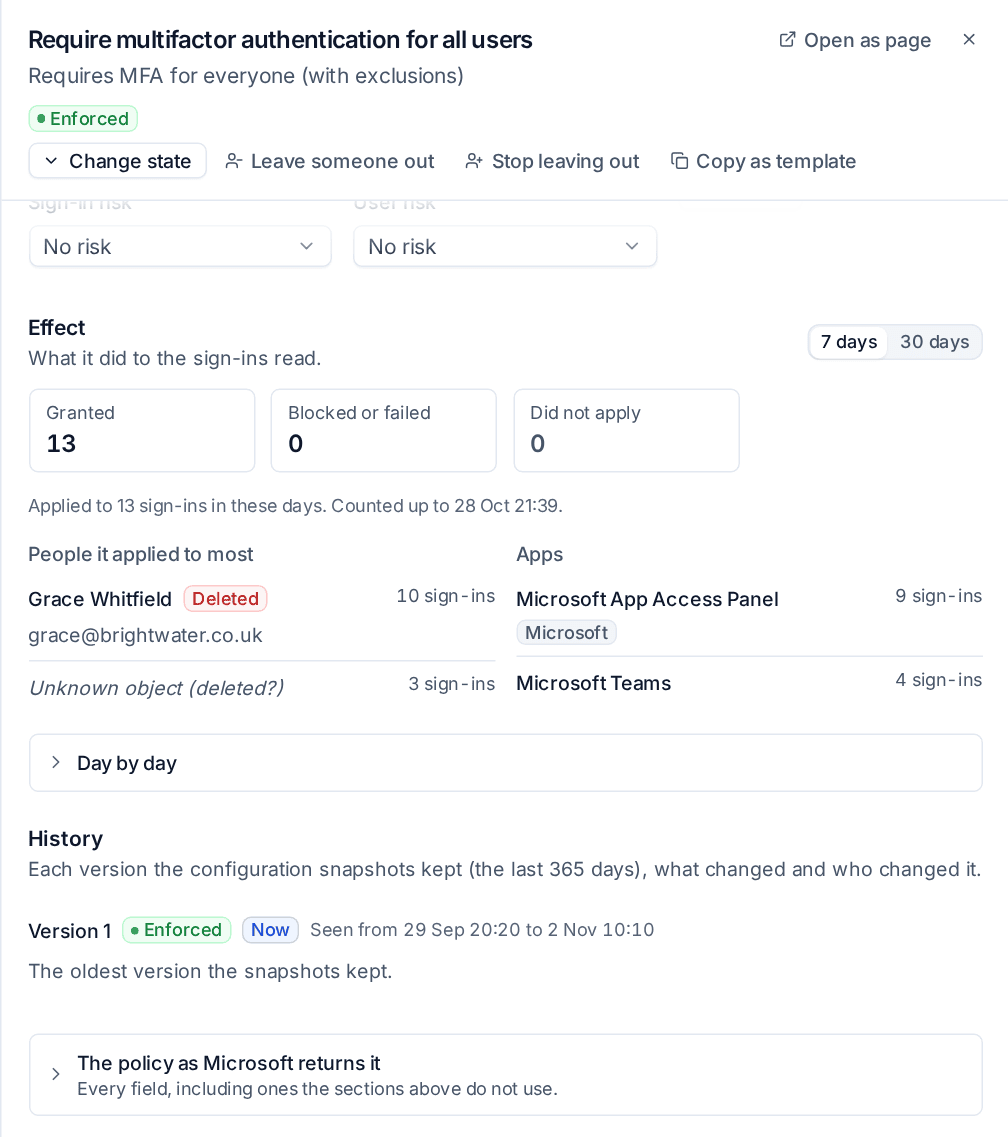
Effect counts the interactive sign-ins Tenvara reads from the tenant's sign-in log. When the counting started later than the period you asked for, it says so ("covers N of the 30 days asked").
What if
What if answers "what happens when this person signs in like this?" for every policy in the tenant, not only the open one.
- Choose the Person.
- Optionally choose the App, Device platform, Client app, Device (not registered, or registered and compliant or not), IP address, Country, Sign-in risk and User risk.
- Press Check.
Every policy is listed as applies, may apply or does not apply, with why in words, and the result adds them up: a block wins; otherwise every grant control must be met; session controls are listed; report-only policies are shown apart as what enforcing them would add. Anything you leave out that a policy depends on makes it "may apply".
When you pick an app, Microsoft's own What if is asked too, and Microsoft's answer is shown beside Tenvara's, with any difference named policy by policy.
A person's user panel also has Conditional Access that applies to this person, listing the policies that apply to them or may, each linked here. See Users, groups and mailboxes.
History
History lists each version of the policy that the configuration snapshots kept, newest first, with what changed from the version before in words and names (state, who it covers and leaves out, apps, conditions, controls). Each change says who made it: from the directory audit log, or, for a change made in Tenvara, who ran it and who approved it. Compare with now shows every change from an older version to the current one. A change still waiting on the Changes to review tab says Not reviewed yet. See Configuration snapshots.
Changing a policy
The buttons at the top of the panel make changes through the change log, with a preview, approval where needed and undo. See Making changes safely.
- Change state: enforce it, set it to report-only or turn it off. Enforcing asks whether to leave the emergency access accounts out. Anyone who is not an administrator needs an administrator's approval. Moving from enforced to report-only or off is shown as allowing more than now.
- Leave someone out: exclude a user or group of the tenant. Tenvara reads the policy from Microsoft first, so exclusions made since the last sync are kept. On an enforced policy it warns that the person (or the people in the group) will no longer be protected, and that leaving out an administrator matters more.
- Stop leaving out: take an exclusion away. Taking an emergency access account, or a group holding one, out of an enforced policy's exclusions is refused with the reason: set the policy to report-only first. That rule is what stops one mistake locking every administrator out.
Warning: Leaving someone out of an enforced policy weakens it at once. Use a time-limited change if the exclusion is for a few days only (see Bulk, scheduled and time-limited changes).
Copy as template
Copy as template saves the policy as a template for every tenant. It then shows beside the built-in templates on each tenant's Policies tab and deploys the same way: report-only unless you enforce it, named with your prefix, with the emergency access choice and the exclusions picked when deploying.
A template keeps only what means the same in every tenant: all users, guests, roles, apps, platforms, client apps, risk, filters and the controls. The people, groups and service principals the policy left out are not copied (the dialog names them). A policy that depends on its own tenant's objects, such as particular people or groups it applies to, named locations or terms of use, cannot be copied, and the dialog says what stops it.
Related
- Sign-ins, apps and policies
- Security findings: findings that name a policy link to it.
- Baselines and drift
Was this page helpful?
Thanks for the feedback.