Remote access
The setup section for remote access: whether people are told or asked before a technician connects, recording and how long it is kept, file transfer, the background tools and emergency access.
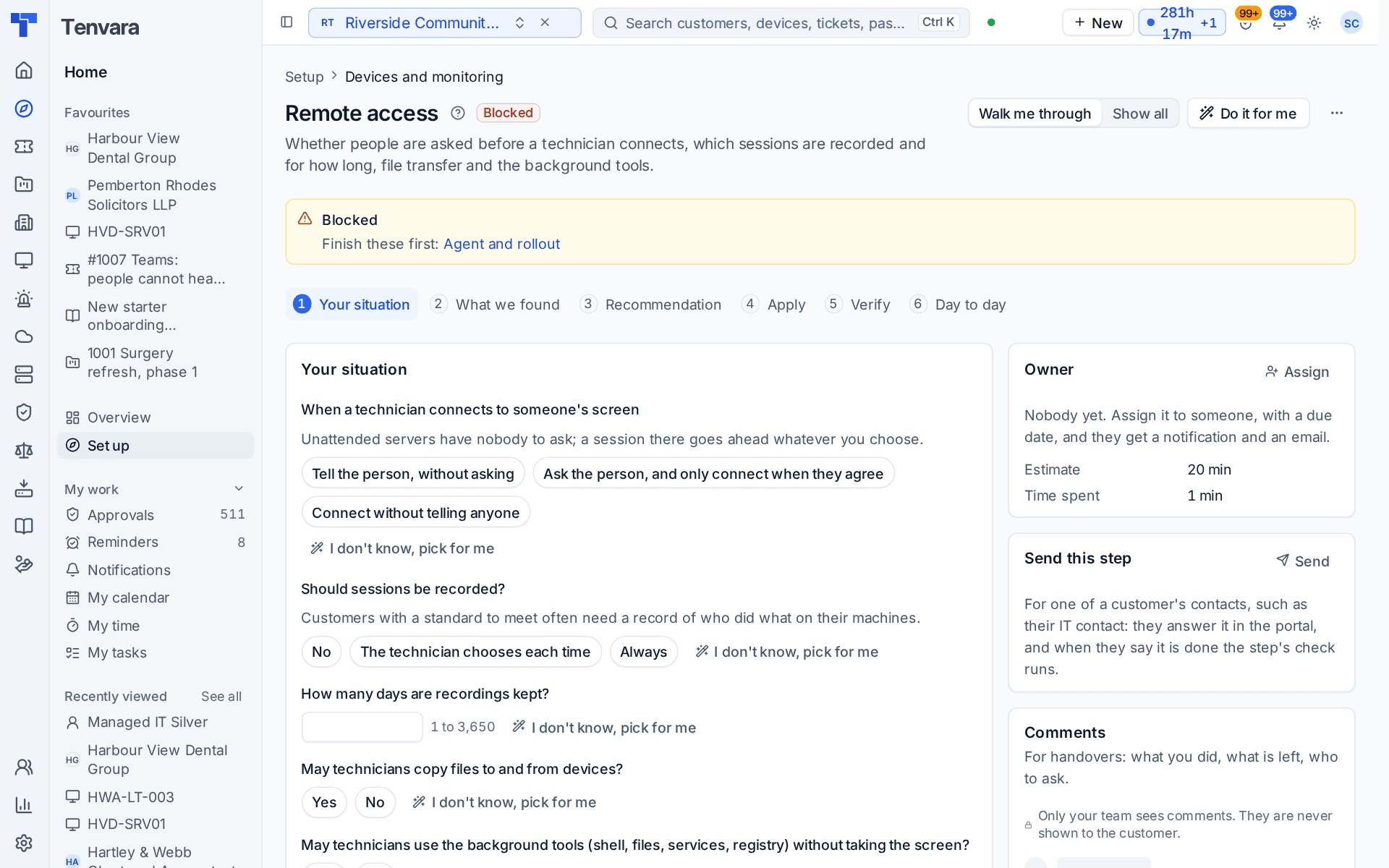
This section of the setup helper sets the rules for remote sessions: whether the person at the machine is told or asked before a technician connects, which sessions are recorded and for how long, and whether technicians may copy files and use the background tools. It sits in the Devices and monitoring phase and takes about 20 minutes.
Open it from Home > Set up, then Remote access. It runs through the same six beats as every section: see Working through a section.
Before you start
Finish Agent and rollout first. Until then the section shows Blocked and says what to finish, because its checks need at least one device with the agent connected.
What it reads from your data
What we found shows:
- whether people are asked before a session today;
- whether sessions are recorded;
- remote sessions in the last 30 days;
- how many rules you have for who may connect to what.
The questions it asks
| Question | Choices | Pick for me |
|---|---|---|
| When a technician connects to someone's screen | Tell the person without asking; ask the person and only connect when they agree; or connect without telling anyone | Tell the person, without asking |
| Should sessions be recorded? | No, the technician chooses each time, or always | No |
| How many days are recordings kept? | 1 to 3,650 | 90 |
| May technicians copy files to and from devices? | Yes or no | Yes |
| May technicians use the background tools (shell, files, services, registry) without taking the screen? | Yes or no | Yes |
| May an administrator connect without approval in an emergency, with a reason? | Yes or no | Yes |
An unattended server has nobody to ask, so a session there goes ahead whatever you choose for consent.
What it recommends and why
- One session policy for every device. People are told or asked as you chose, with a banner on screen while a technician is connected. When you record every session, the recommendation says how many days recordings are kept.
- Why: telling people keeps trust without slowing the desk down, and asking suits customers who want a say each time. If discovery says some of your customers must meet a standard, the helper points out that a recording shows exactly what was done on their machines.
- Emergency access. Sessions that need approval can still be started by an administrator in an emergency, with the reason kept in the audit log.
What changes shows the session policy as it is Now and as it Will be. Press Apply to save it. An apply can be undone for 7 days.
Tip: This is the policy for every device. A customer, a device group or one device can have rules of its own in Settings > Remote access, the Session policy and Access rules tabs.
Checking it worked
Verify runs four live checks:
- The remote service answers and devices are connected. If it fails, the fix opens Settings > System status.
- A remote session has connected. It waits until you start a session to a test device from its page. A session that failed to connect is reported with its reason and a link to Devices > Remote sessions.
- Consent works on a device. Connect to a test device with someone at it: they see the prompt and accept. If you chose not to ask, there is no prompt to test and the check passes.
- Recordings are stored. Record a test session to see it stored. If you do not record, the check passes.
Day to day
- Technicians connect from the device page or from a ticket. The person at the machine is told or asked as you chose.
- Recorded sessions are kept with the ticket and the device for the days you set, then removed. Find them in Devices > Remote sessions, the Recordings tab.
Related guides
Was this page helpful?
Thanks for the feedback.