Alert types
See every kind of alert Tenvara can raise with its noise over 30 days, turn a type or a whole group off or on, overall or for one customer, with an end date and a reason, undo an automatic lowering, and choose whether each type makes tickets.
Tenvara can raise hundreds of kinds of alert across every module. Alert types is one page that lists them all, so you can turn a kind of alert off without hunting through each module's settings, and see at any time what is switched off and why.
Off means no alert, no notification and no ticket for that type. The data is still collected: detections, monitoring results and findings stay on their own pages.
The Alert types page
Open Alerts > Alert types. The same page is the Alert types tab of Settings > Alert rules, and you can reach it from search (Cmd+K or Ctrl+K) by typing "alert types".
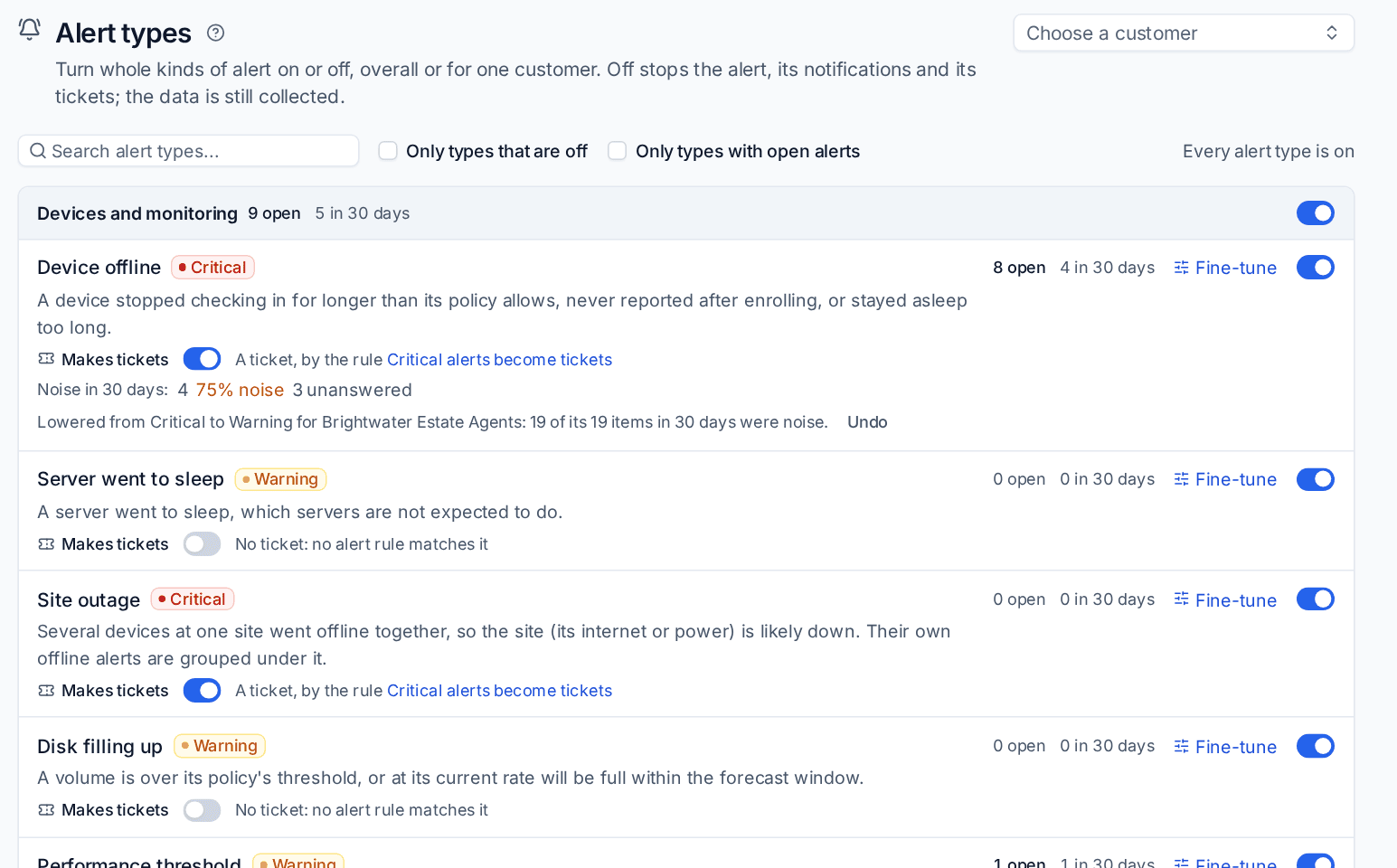
The page has a card for each area: Devices and monitoring, Agent protection, Patching, Software, Printers, Backup, Microsoft 365, Email and domains, Security, Vulnerabilities, Credentials and vault, Infrastructure, Telephony, Licences and billing, Procurement, AI readiness and Platform.
- Each group has its own switch, and counts of alerts open and raised in the last 30 days.
- Each type shows its name, its default severity, one line on what raises it, how many are open and how many were raised in 30 days, a Fine-tune link to the settings page that adjusts it, its Makes tickets switch and its on or off switch.
- Noise in 30 days: how many of the type's alerts first seen in the last 30 days were noise (closed as a false positive, expected, our own work or a vendor routine, or with a ticket nobody answered), as a share, with the breakdown on hover. See below.
- A shield marks security-critical types and the groups that hold one.
- Search alert types, Only types that are off and Only types with open alerts narrow the list.
- Recent changes at the foot of the page lists the latest switches, with who made each.
A type alerts only when both its group and the type itself are on.
The number beside Alert types in the Alerts sidebar is how many types are off. The alert list shows the same count beside its title (for example 1 alert type off), as a link to the types that are off.
Noise figures and automatic lowering
Each type keeps score of how often it was worth someone's time. When a type raised at least 10 alerts for one customer in 30 days and 80% or more of them were noise, Tenvara lowers it one step for that customer (critical to warning, warning to information) the next morning. The type then says so, for example Lowered from Critical to Warning for Brightwater Estate Agents: 19 of its 19 items in 30 days were noise., with Undo.

- Other customers are not touched.
- A lowering stays until someone presses Undo. Undo puts the severity back at once, and only alerts first seen after it count towards lowering it again.
- Lowering and undoing are in the activity log, and the weekly alert digest names the noisiest five.
Severity has a meaning: Critical is for something broken or under attack now that someone must act on. Every alert type has a highest severity it can reach, so a step up for a VIP or a critical device, or for a repeat, never takes it above that. See How did it end? Closing alerts and the noise figures.
Turn a type or a group off
- Go to Alerts > Alert types and find the type, or the group to turn off a whole area.
- Click its switch.
- If the type has open alerts, choose Leave them open (they stay in the list until someone resolves them) or Resolve them (resolved with the reason "Alert type turned off" and your note).
- Say Why. The reason is shown on the page and in the audit log.
- Optionally set Off until. The type comes back on by itself at the start of that day.
- Click Turn off.
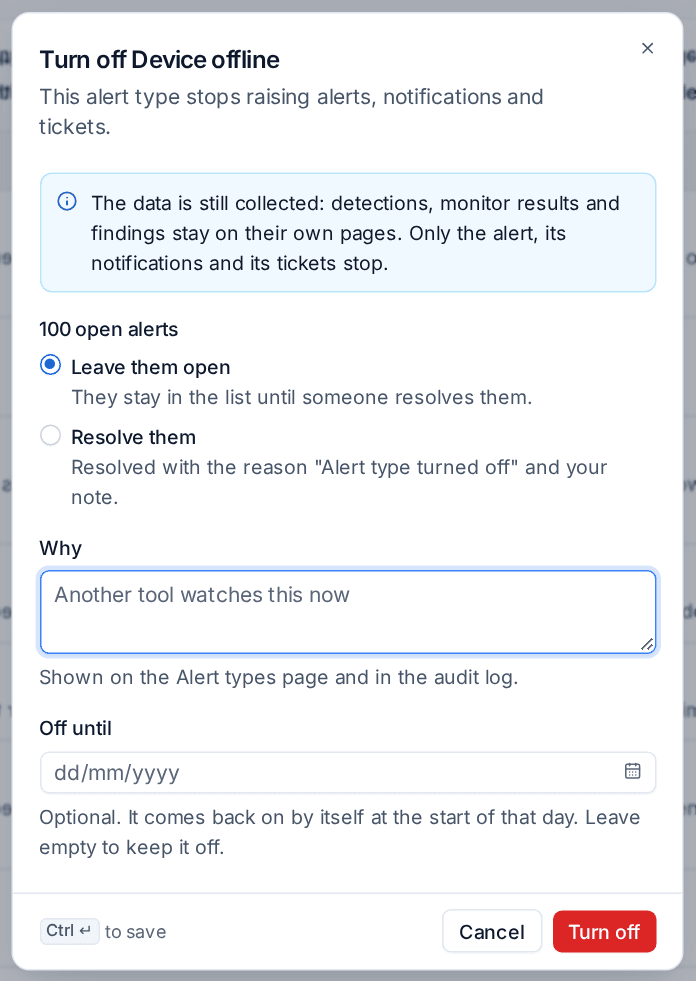
An off shows its end date (or that it has none), who turned it off, when and why. Turning a type back on takes effect at once. Nothing is raised for the time it was off: the alert opens again at the type's next check if the problem is still there.
Warning: Security-critical types, such as the agent being stopped or removed, audit log tampering, credentials found in a breach, privileged group changes and ransomware detections, ask for a reason and an I understand confirmation before they go off. Give them an end date whenever you can.
Off for one customer
Each switch can also be set for a single customer, for example to stop toner alerts for a customer who orders their own supplies.
- On Alert types, click Choose a customer and pick the customer.
- Each switch now has three values: Inherit (follow the overall switch), On or Off. Differs from overall marks the ones where the customer's result is not the overall one.
- Change the switch. Turning it off asks the same questions as above.
The same switches are on the customer's own Settings tab, under Alerts, and the customer's page shows a badge such as 2 alert types off in its header.
Back on the overall list, a type that differs somewhere says so, for example Off for 3 customers, with the customers listed.
Which types make tickets
Each type has a Makes tickets switch, so you can see and change whether its alerts become tickets without working out which alert rule applies. Beside the switch, a line names the rule that decides, with a link, for example "A ticket, by the rule Critical alerts become tickets" or "No ticket: no alert rule matches it".
Your alert rules stay the one place that decides. Moving the switch writes an ordinary alert rule at the top of Settings > Alert rules, named Alert type: followed by the type and makes tickets (a ticket in the Alerts queue, closed when the alert clears) or never makes tickets. Those rules carry a From Alert types badge and can be edited, moved, turned off or deleted like any other rule; the switch then shows what the rules do. When the other rules already give the answer you ask for, no extra rule is written, so a switch put back leaves the rules as they were.
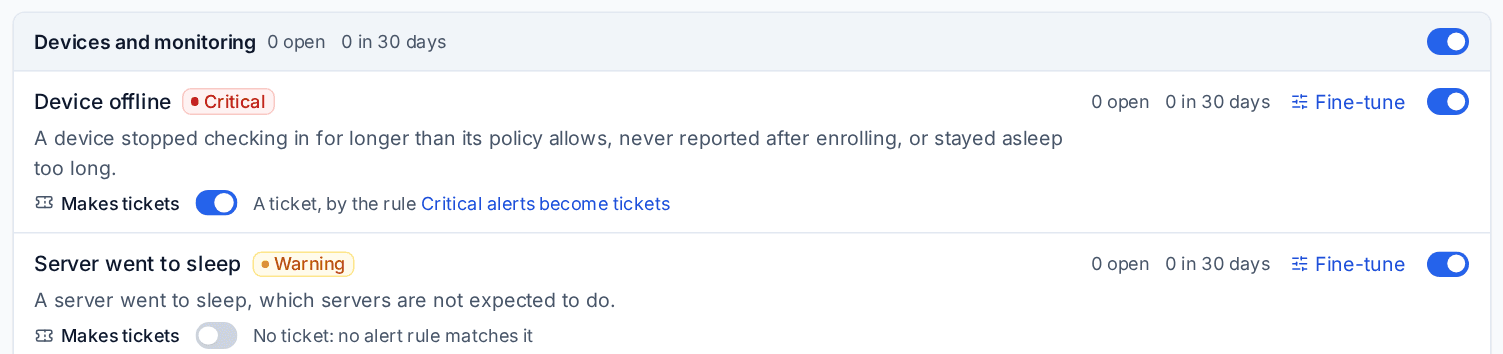
With a customer chosen, the switch is Inherit, On or Off for that customer, showing what Inherit gives (for example Inherit (on)). A customer's choice writes a rule for that customer only, ahead of the overall one, and Inherit removes it. Only an administrator can change the overall switch; a customer's switch needs permission to manage alert rules for that customer. Rules limited to some sites or device groups decide for some devices only, so the switch does not count them as the answer for the type. Each change is in Recent changes and the audit log.
The switch shows only when the service desk is in use.
How this fits with each module's own switches
Some modules already had a switch for an alert, such as Raise an alert for new exposures in dark web monitoring. That switch and the one on Alert types are the same setting: change either and both pages show the new value. Where a module's setting cannot differ per customer, Alert types says On for everyone for that type.
Thresholds, timings and severities stay where they were. Fine-tune on each type takes you to the right settings page. For monitoring, those are the policies in Policies, checks and thresholds.
Changing a switch needs the same permission as changing alert rules. Everyone else sees the switches read-only.
Nothing stays off unseen
A type that is off should be a decision, not something forgotten.
- The count beside Alert types, on the alert list and on the customer's page is always there.
- The audit log records every change: who, when, overall or for which customer, the old and new value, the reason and the end date.
- The business review lists the alert types turned off for that customer, each with who turned it off, when, until when and why. See Business reviews.
- The alert digest asks Still off, still wanted? in its first email of each month, listing every type that has been off for more than 90 days with no end date. See Alerts into tickets and notifications.
Related
Was this page helpful?
Thanks for the feedback.