Updates
Which version of Tenvara you run, what is newer and whether your licence covers it, how an update of a self-hosted install runs, what it checks first, how it waits for running backups, how it upgrades the database first and rolls back if that fails, and what it tells you when it stops.
Settings > Updates shows which version of Tenvara you run, what is newer and how to upgrade. It is for administrators. On a hosted instance we install updates for you, and the page shows the version you are on. Agents on devices update themselves separately: see Agent updates and release channels.
The update check
Each morning Tenvara asks the licence server which versions are newer than yours, on your licence's release channels. Check now asks straight away. The top of the page shows:
- This install: the version you run.
- Newest: the newest version your licence offers.
- Support until: your licence covers every version published before this date.
- Checked: when the last check ran.
The page only says Up to date once a check has worked. Until then it says that it has not been able to check, rather than claiming there is nothing newer.
Newer versions lists each version newer than yours, newest first, with its date, its channel (Beta where it applies) and its release notes. A version published after your support ended is marked Outside your support: renew support with us and the next check offers it. Nothing stops working when support ends; you stay on the versions it covered.
Note: An install with an offline licence cannot ask the licence server. New versions for it are downloaded and brought to the server by hand. See Licence and updates.
How an update runs
When something newer is on offer, How to upgrade shows the commands for your install. On the Docker host, in the install folder:
-
Take a backup of the install first. The page shows the command, and Installing self-hosted lists the volumes that matter.
-
Read the release notes for the version you are moving to.
-
Run the installer with
--upgrade:./install.sh --upgradeAdd
--versionand a version number to pick a version rather than the newest. -
Wait a few minutes while Tenvara restarts. People are signed out while it does, so pick a quiet time.
Afterwards, What's new in the account menu's Help shows everyone what changed.
The database goes first
The database is upgraded in a step of its own, before anything of the new version starts:
- The running version is stopped. The database and the services it needs keep running.
- The database changes for the core and for the backup service run, with their output shown as they go.
- Only when both have passed does the new version start.
If a database change fails, the update stops and rolls back by itself:
- the files the update changed (the settings file and the compose file) are put back as they were;
- the previous version starts again, exactly as it ran, and the update waits until it is healthy;
- the message names the database change that failed and its last error, says that the previous version is running again, and says how to try again.
Each database change runs on its own, so the changes before the failed one stay in place (the previous version runs on them without trouble) and the failed one leaves nothing half done. Fix the cause and run the same update again: it carries on from the change that failed. When the message says the change ran out of memory, raise TENVARA_MIGRATE_MEMORY in the settings file (2G unless you set it) and run the update again.
What it checks first
An update does its checking before it changes anything, so a problem leaves you on the version you had, still running.
- Signatures: every new image's signature is checked before anything starts.
- Your settings: the install's settings file is read. If a setting the new version needs is missing or still has an older name, the update stops and names it. See Install settings and profiles.
- Files it must write: the update checks that it can write every file it is about to change, and keeps a copy of each one before changing it.
- Your own override file: if you keep a compose override of your own beside the install (for a memory limit or an extra container), the update reads it first. Where it names a service that the new version no longer has, the update takes that entry out, carries a memory limit across to the service that replaced it, and prints every change it made. Your original is copied beside it first. Containers of your own with their own image are left alone.
- The install profile: the profile is picked again from the server's CPUs and memory, unless you set your own.
Waiting for running backups
An update restarts the install. A device backup or restore that is running at that moment would pause and carry on afterwards, so an update first waits for them to finish.
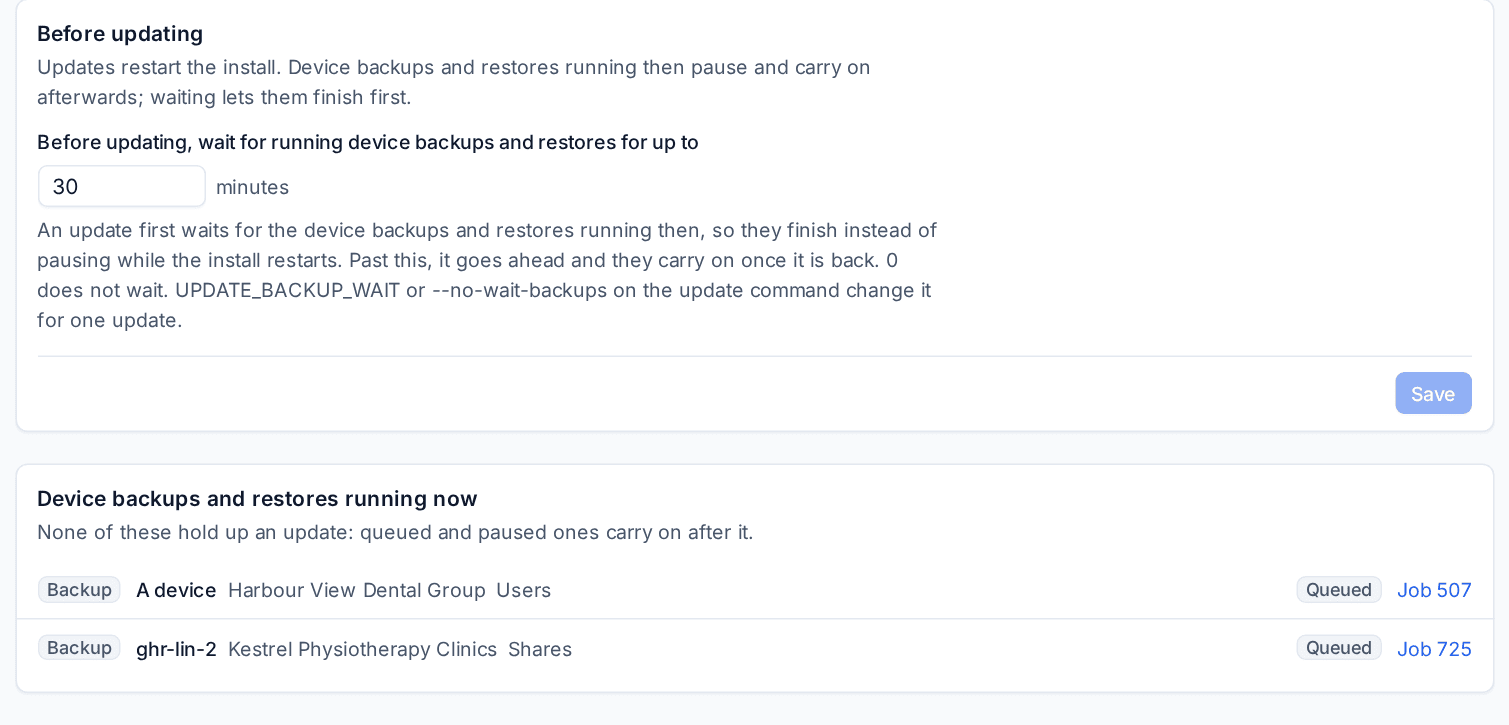
- Go to Settings > Updates.
- Under Before updating, set how many minutes an update waits for running device backups and restores. The default is 30; 0 does not wait.
- Press Save.
Device backups and restores running now lists what an update started this minute would meet. Queued jobs and jobs paused for a sleeping device never hold an update up: they carry on after it.
While it waits, the update lists each running job with its device, customer and progress. When they have finished it goes ahead. At the limit it goes ahead anyway, and the jobs still running carry on from where they stopped once the install is back. Each job's own log says that the install was updating.
To change the wait for one update only, without touching the setting:
./install.sh --upgrade --no-wait-backups      # do not wait this once
UPDATE_BACKUP_WAIT=60 ./install.sh --upgrade   # wait up to an hour this once
See Backups through restarts and updates for what a backup does while the install restarts.
When an update stops
When a check fails, the update stops before anything has been restarted, and says so. When a database change fails, it puts the previous version back first (see above). The message tells you what to do:
| What it says | What to do |
|---|---|
| It names settings to rename | Rename them in the settings file as the message shows, then run the update again. |
| It names a file it cannot write | Fix the file's owner or permissions as the message says (or run the update as the user it names), then run it again. |
| It names your override file | The override has something the update could not carry across. The message quotes the lines; correct the file, or restore the copy the update kept, then run it again. |
| A setting has a value that is not allowed | Correct the line it names in the settings file. |
| It names a database change that failed | The previous version is running again. Fix the cause the message gives (for memory, raise TENVARA_MIGRATE_MEMORY) and run the update again, or send the update's output to whoever supports your install. |
If an update does go wrong after the restart, Settings > System status shows which part is not answering, and the support bundle on that page is what to send us. See System status.
Related
Was this page helpful?
Thanks for the feedback.