App cleanup, approved apps and the watchlist
Clear out enterprise apps nobody needs with the customer's approval and a report for them, keep a list of the apps you allow, and get one critical alert when a known-bad app turns up in any tenant.
Three tools keep the enterprise apps in your customers' tenants tidy: the cleanup review suggests apps worth removing and removes them in stages, approved apps flags every app you have not allowed, and the app watchlist raises a critical alert the moment a known-bad app is found. All three sit on Cloud > Apps across tenants (Enterprise apps in the Company edition) and in Settings > Microsoft 365. For the inventory and the kill switch, see Apps across tenants and the kill switch.
The cleanup review
Cleanup review on Cloud > Apps across tenants lists each customer and tenant with how many apps are suggested for removal, why, and what is already under way. Press Review to open one tenant's review.
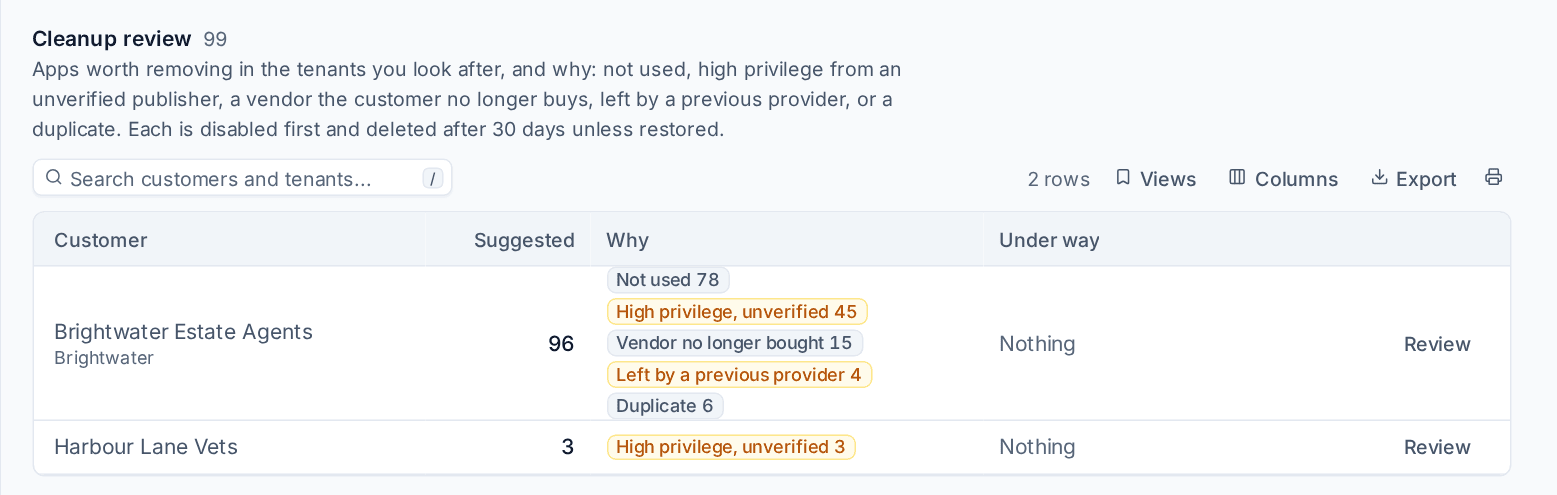
Each third-party app is checked against five reasons, and every reason is said in words:
| Reason | When it applies |
|---|---|
| Not used | Nothing has signed in to it, as itself or for anyone, for 90 days (Count an app as unused after in Settings > Microsoft 365) |
| High privilege, unverified | It holds high-privilege permissions and Microsoft has not verified who publishes it |
| Vendor no longer bought | The app belongs to a known vendor and the customer has no licence subscription, catalogue item or contract line for that vendor now. Only judged when Tenvara knows something about what the customer buys |
| Left by a previous provider | It was there before you connected the tenant, and someone from outside the tenant consented to it, or it is another provider's RMM, PSA or documentation tool that is not one of yours (Tools we use ourselves in Settings > Microsoft 365) |
| Duplicate | Two or more apps from the same vendor: every one but the most recently used |
Microsoft's own apps and Tenvara's own apps are never suggested. A tenant is reviewed again after each full sync, so a newly connected tenant's leftovers show during onboarding. Review again reviews it now; it reads only what the last sync saw.
Removing apps in stages
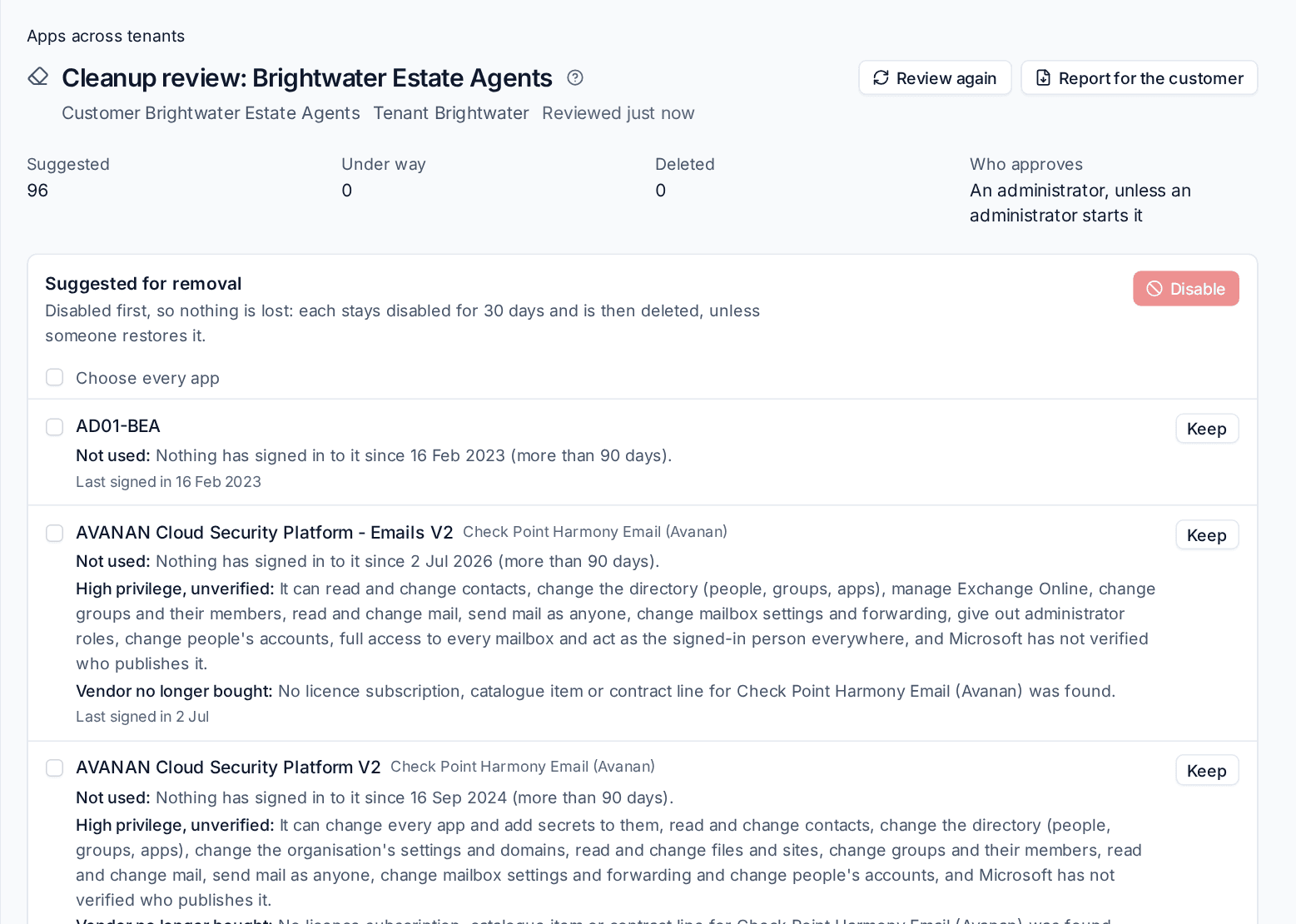
- Open the tenant's review. The top shows how many apps are Suggested, Under way and Deleted, and Who approves.
- Tick the apps to remove (or Choose every app) and press Disable.
- If the customer's setting needs an approval, the plan goes for approval first. One approval covers both stages, so nobody is asked again 30 days later.
- Each app is disabled through the change log: nobody can sign in to it and it cannot use its permissions, but nothing is lost.
- It stays disabled for 30 days (Keep apps the cleanup disabled for, per customer), then it is deleted, unless someone pressed Restore in the meantime. A restored app is kept from then on.
Delete now (with the app's name typed) skips the wait. Keep, with a reason, stops an app being suggested; Suggest again undoes that. A change Microsoft refuses for a passing reason is tried again; one that fails for good says why, with Try again. A suggestion whose reasons have gone is withdrawn, and an app removed some other way closes as removed elsewhere.
Who approves
Who approves removing apps in Settings > Microsoft 365 is set per customer:
- Nobody: the technician's start is enough.
- An administrator (the default), unless an administrator starts it.
- The customer's own approver: their approval matrix, else their fallback approver, deciding in the portal or by email. In the Company edition, the organisation's own approvers.
Turned down, expired or withdrawn, the apps go back to suggestions untouched. The change runs as the person who asked.
The report for the customer
Report for the customer on the tenant's review downloads a PDF in your branding: what was deleted in the period (the last 90 days to start with), what is disabled and waiting to be deleted, what was turned back on and what was kept, each with its reasons, dates and who approved it. The customer's portal shows the same on its Reports page to contacts who may see the company's reports, unless Show the app cleanup report in the portal is off for that customer. In the Company edition it is an internal report.
Tip: Run the cleanup review as part of onboarding a new customer. Apps a previous provider left behind are easy wins to show in the first month.
Approved apps
The approved apps list is the apps you allow, by App ID. Keep it in Settings > Microsoft 365, the Approved apps tab, for every customer, and on a customer's Microsoft 365 tab for that customer only (MSP edition). Each entry has a name and a note saying why it is approved. Press Add an App ID to add one.
Nothing is flagged until the list has an app. Once a customer's tenants have a list, every other third-party enterprise app in them is Not approved:
- The inventory has an Approved column and a Not approved filter. An app approved for some customers but not others says which tenants it is not approved in, with Approve.
- When a tenant is connected, its apps that are not on the list become one finding of the onboarding report, high privilege first. It is never an alert.
- The Approved apps section of Cloud > Apps across tenants lists the admin consent requests people have made in your tenants, with who asked, why and the permissions asked for, each marked approved or Not approved, with Approve for that customer or for everyone. Reading these requests needs a permission tenants consented before it was added do not have yet; the section says so per tenant until it consents again.
Microsoft's own apps and Tenvara's own apps are never flagged.
The app watchlist
Settings > Microsoft 365, the App watchlist tab, lists App IDs known to be compromised or malicious. Part of the list comes with each release of Tenvara; you can add your own with Add an App ID (a name, a note and a reference link are optional) and remove the ones you added.
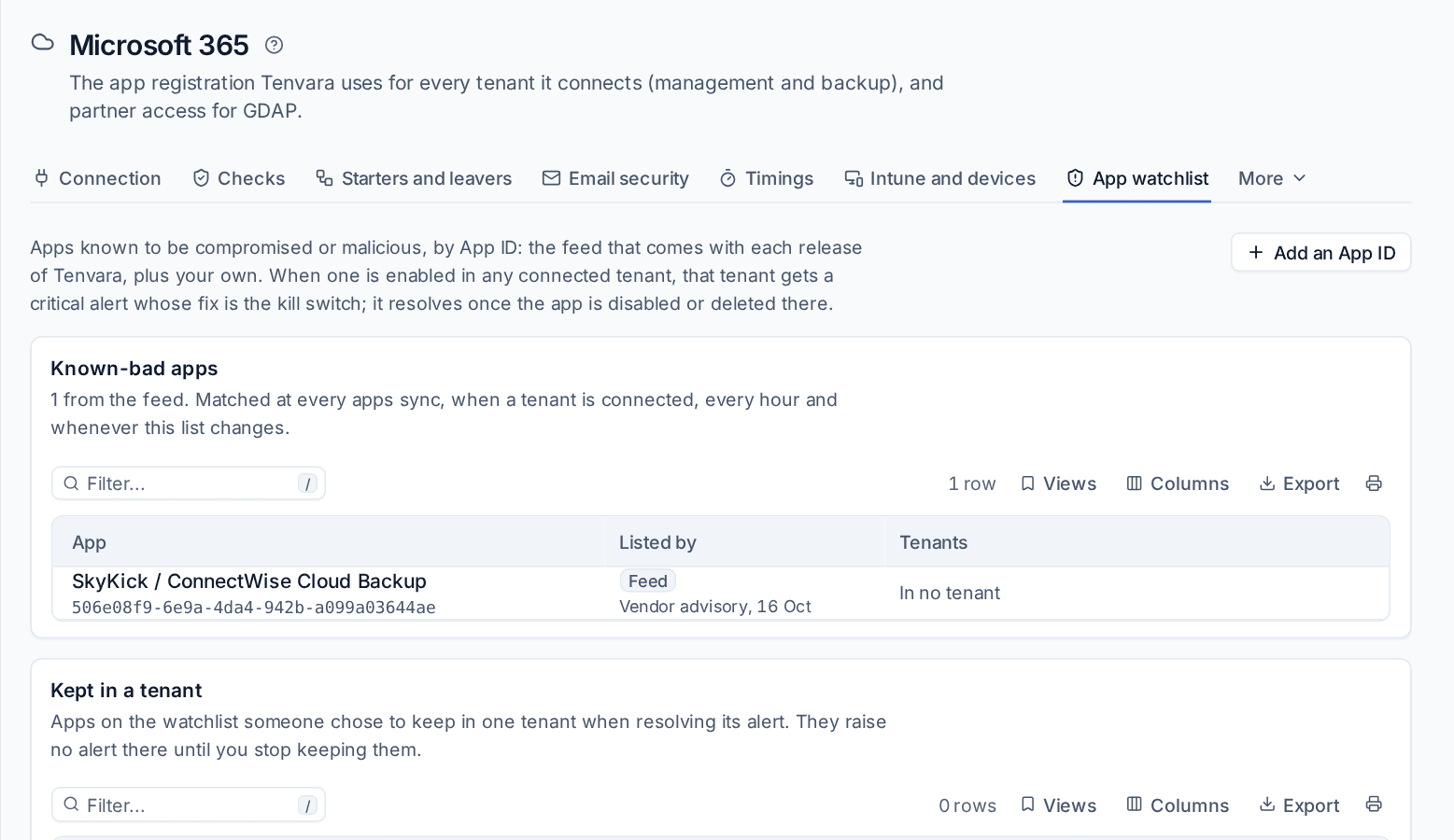
The list is matched against every tenant's enterprise apps at each apps sync, when a tenant is connected, every hour and whenever the list changes. Each listed app enabled in a tenant raises one critical Known-bad app alert for that tenant, never gathered into an onboarding report, because a known-bad app is an emergency. Its fix is the kill switch for that App ID, and the alert resolves once the app is disabled or deleted there.
If an app on the list is there on purpose, resolving the alert offers Keep this app in this tenant with a note. It then raises no alert in that tenant, and the watchlist page lists it under Kept in a tenant with Stop keeping. Resolve anyway only resolves it for now: the next match raises it again.
Note: When a vendor breach is reported between releases, add the App ID to your own list. Every tenant is checked straight away.
Related
- Apps across tenants and the kill switch
- Security findings: the app checks, such as admin consent requests and the app instance property lock.
- SaaS discovery
Was this page helpful?
Thanks for the feedback.