Presenting, publishing and the ask
Present a deck with a presenter view, notes and a timer, download it as a PDF or an editable PowerPoint file, publish it to the customer's portal or email it, and record what the customer agreed to and declined.
Once a presentation is made and approved (see Presentations), you present it, leave it behind, and turn the customer's answers into a quote and a record of the risks they accepted.
Everything that leaves your team is the customer's copy of the deck. Hidden slides, slides marked Staff only and every internal fact (your margin, file names, people's names and internal notes) are taken out of present mode, the downloads, the email and the portal alike.
Presenting
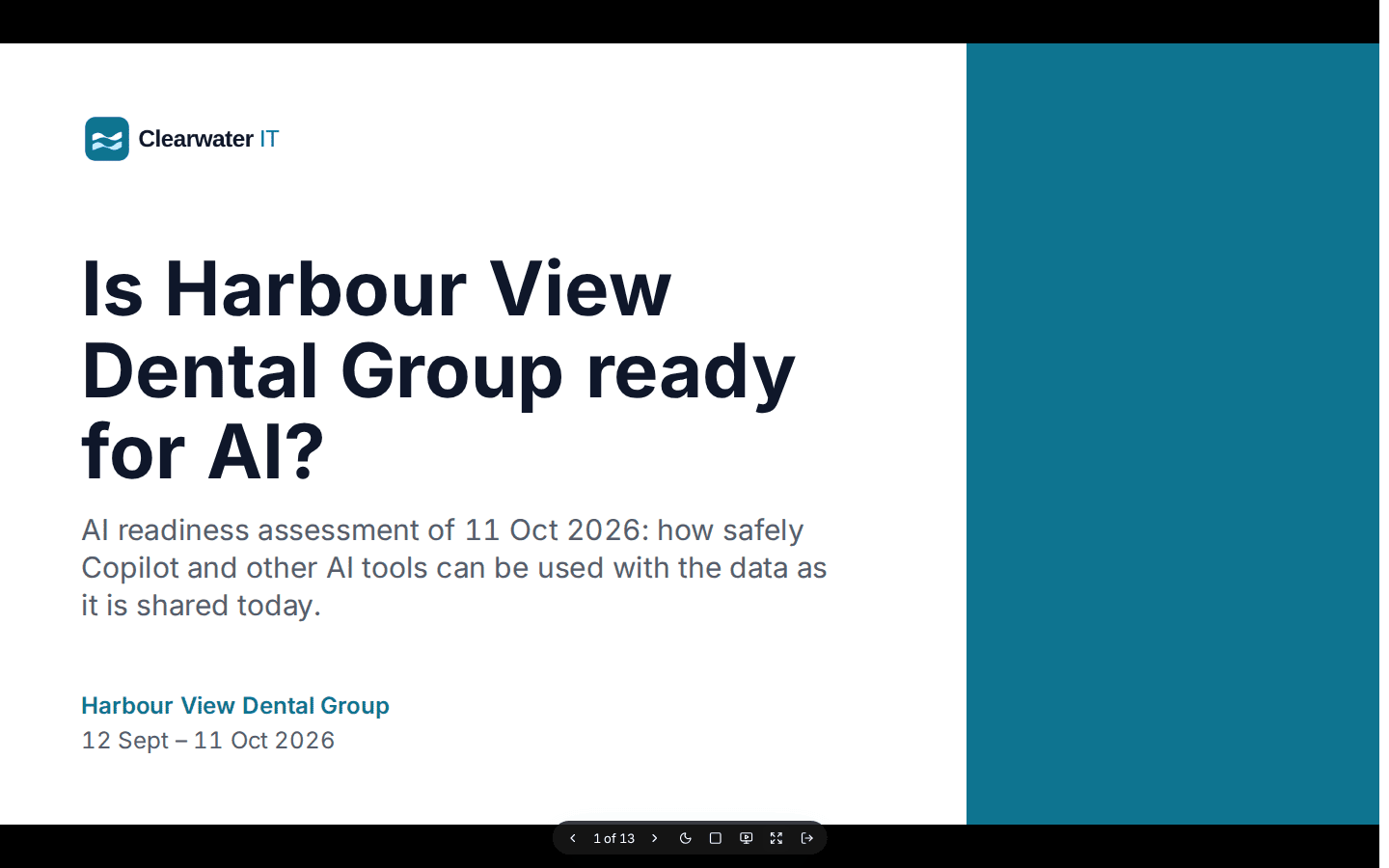
Open the deck and press Present. The deck fills the screen, one slide at a time on black.
The keys are the ones you know from PowerPoint:
| Key | What it does |
|---|---|
| Right, Down, Page Down, Space, Enter or N | Next slide |
| Left, Up, Page Up or Backspace | Previous slide |
| Home and End | First and last slide |
| B or full stop | Black screen. Any move brings the slide back |
| P | Presenter view in this window, and back |
| Esc | Leave, back to the editor |
The controls show while the mouse moves.
A draft has Rehearse in place of Present, for people who manage presentations. A rehearsal shows a Draft mark on every slide and a Rehearsal: draft badge, and does not count as presented. When Settings > Presentations does not ask for approval, a draft can be presented as it is.
The presenter view
The presenter view is for you, not the audience. It shows the slide on screen Now and the one coming Next, the Speaker notes (what to say, the likely questions with their answers, and Don't promise in its own box), a timer you can pause and reset, and the clock.
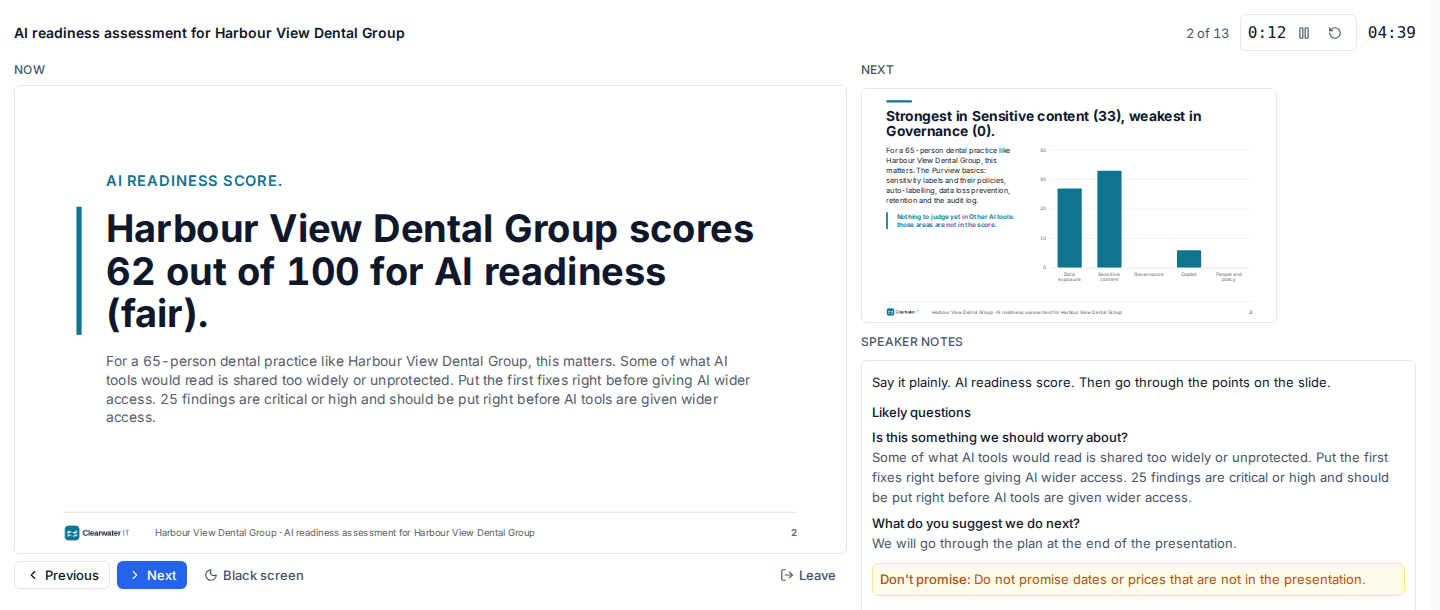
- With a projector or a second screen: press Open the presenter view in a new window in the controls. Keep the presenter view on your laptop and put the slides on the big screen. The two windows keep in step, and a presenter view opened part way through lands on the current slide and time.
- With one screen: press
Pto switch the same window between the slide and the presenter view.
The first time a deck is presented, the list's Presented column records when, and the audit log records who.
Downloading
Export in the editor has two downloads:
- PDF (16:9): the slides in the deck's brand colours, to leave behind or attach.
- PowerPoint (.pptx): an editable PowerPoint file, for when you want to change the deck before the meeting. Headlines, text and tables are ordinary PowerPoint text and tables, charts are PowerPoint charts whose figures you can edit, and the speaker notes are in the notes pane.
A draft downloads with a Draft mark on every slide. Each download is in the audit log.
Publishing to the portal
An approved deck gains three actions beside Export: Publish to the portal, Email and Withdraw. A draft has none of them, whatever the approval setting says.

- Press Publish to the portal and confirm.
- The deck appears on the Presentations page of the customer's portal, in the My company group, where contacts read it in a slide viewer and can download the PDF.
Who sees it follows the deck's audience:
| Audience | Who sees it in the portal, and who it can be emailed to |
|---|---|
| Board | Contacts with the portal's reports permission (portal managers) |
| IT contact | Those, and contacts with the technical permission |
| Everyone | Whoever Settings > Reports lets see the customer's reports in the portal |
What is published is kept exactly as it was on that day, without the speaker notes, and cannot be changed. The editor then shows In the portal since with the date, View in the portal, and a clock icon that opens the Publishing history: approved, published, emailed and to whom, opened and downloaded in the portal, and withdrawn.
See To do, sign-offs and presentations in the portal for the customer's side.
Emailing it
- Press Email.
- Under Send it to, tick the contacts. Only the customer's active contacts whom the audience lets see the deck are listed, with those who get reports already ticked. Contacts who turned report emails off are left out.
- Add a Message if you like, and press Send.
The PDF is attached, and once the deck is published the email also links to it in the portal. Each contact gets it in their own language, in your brand, and replies come to you. The wording is the Presentation email template in Settings > Support email, on the Email templates tab.
Withdrawing
Withdraw takes a deck back. It leaves the portal at once, its download links stop working, and it can no longer be presented, published or sent. To show the customer something again, make a new presentation.
The ask
A deck ends with what you propose. The closing slides are built from the recommended work the deck already holds (the fix-first plan of an AI readiness assessment, a business review's recommendations, the decisions in onboarding findings) and from the catalogue item and project template that go with it:
- What we propose: each line with its effort and its price.
- The effort, by phase, with the total hours and weeks.
- The one-off and the monthly prices, with their totals.
- The timeline, by week from the start.
Prices are your catalogue prices or the recommendation's estimate, never your cost or margin. A slide with nothing to show is left out.
Choosing the lines
In the editor, The ask lists the lines. Use the arrows to reorder them and Leave out to drop one (Put back returns it). The closing slides are rebuilt from the lines you keep, in that order. Changing them on an approved deck sends it back for approval.
After the meeting
Once the deck has been presented, record what the customer said. Tick the lines and choose:
- Agreed: the lines go into one quote draft at the prices on the slides, for you to check and send, with an optional Note. The project template that goes with the deck is set on the quote, so accepting the quote lays the project out. Press Make the quote draft. See Acceptance and what happens next.
- Declined: each line becomes a sign-off draft from the Declined security recommendation template, with the recommendation, the risk and Why they declined filled in, addressed to the customer's decision-maker. Send it from the sign-off, and the accepted risk is on record once they sign. See Customer sign-offs.
Each line is decided once and then links to what it became: the quote or the sign-off. Agreeing needs permission to manage quotes, and declining needs permission to manage sign-offs.
Related: Presentations, Business reviews.
Was this page helpful?
Thanks for the feedback.