Overlays and Send to screens
Put a message, an alarm, a camera or a dashboard over your screens by hand with Send to screens, see and clear what is showing, group screens for rules, and understand priority, sound, quiet hours and what a customer's screen may show.
An overlay is something shown over a screen's dashboard for a while: a message, an alarm, a caller card, a camera, another dashboard or a picture. Rules put overlays up with the action Show on TV screens, and you can send one yourself with Send to screens. When it ends, the screen goes back to its playlist.
This guide covers sending by hand, what is on the screens now, screen groups and the rules every overlay follows. For rules, see TV screens, doorbells and phone calls.
Send to screens
-
Go to Settings > TV dashboards and open the Screens tab.
-
Click Send to screens.
-
Under Screens, choose the screens. Every screen adds them all, and Add the NOC group (one button for each of your screen groups) adds a group.
-
Under Show, choose the kind:
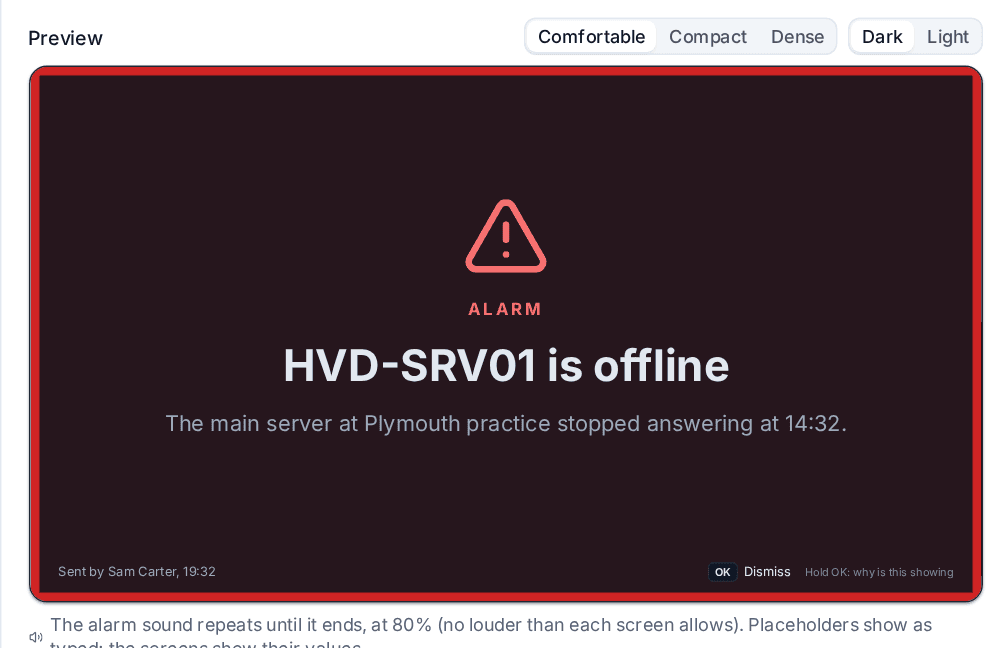
Kind What the screens show Message A Title and Text in a Style (Information, Good news, Warning or Critical) with an Icon, shown Full screen or as A banner Alarm A full-screen alarm in the critical style with a pulsing border Camera One of your cameras, full screen. See Cameras Dashboard One of your TV dashboards, in place of what the screen was playing -
Under For how long, choose For a time (seconds or minutes) or Until dismissed. At most is a hard limit in minutes: nothing stays on a screen longer than this, whatever happens.
-
Decide whether The TV remote may dismiss it. From Tenvara an overlay can always be dismissed.
-
Under Sound, choose None, A chime or Alarm, repeating, and a Volume. For an alarm, Even in quiet hours lets it sound when the playlist's quiet hours would mute it.
-
Check the Preview, which draws the overlay as the screens will, at each density and in dark and light.
-
Click Send.
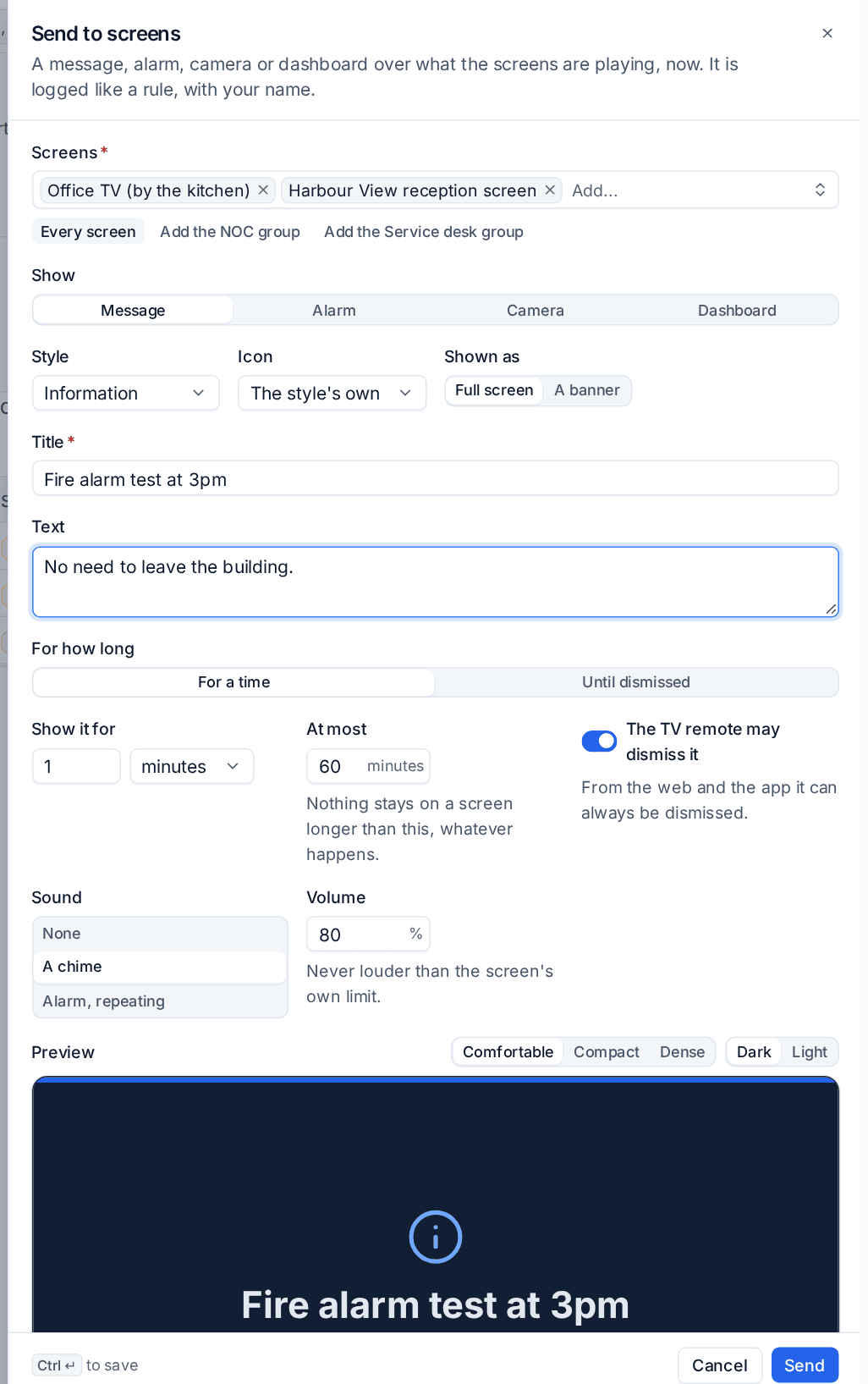
The overlay is on the screens at once. It is logged with your name, the screens show "Sent by" with your name and the time in its footer, and the audit log records what you sent and to how many screens.
What is on the screens now
Click On the screens now on the Screens tab. It lists every live overlay from rules and from Send to screens, most urgent first, with what it is doing on each screen: showing, waiting its turn, behind a more urgent one, or waiting for a screen to come back online.
- Clear ends one overlay on its screens at once.
- Clear all overlays ends everything, after a confirmation.
- Clear its overlays in a screen's ... menu ends what is on that one screen.
Groups, site and alarms
Rules and Send to screens pick screens by group or by site, so set these once per screen. Open a screen's ... menu and choose Groups, site and alarms.
- Screen groups: names such as NOC, Service desk or Reception. A rule that shows on a group shows on every screen in it, so a new screen joins in when you add it to the group, without changing any rule.
- Site: where the screen stands. Rules can show on every screen at a site.
- Max overlay volume: the loudest an overlay sound plays on this screen, whatever the rule asks. 0 keeps it silent.
The rules every overlay follows
Whose content reaches which screen
- An office screen can show anything.
- A customer's screen shows only that customer's own content: never your internal content, never another customer's, and a camera only when it is that customer's.
- A customer-screen playlist that has no customer yet shows no overlays.
This is checked on the server when the overlay is sent and again whenever a screen reads it. A screen that was refused is a line in the rule's run log, naming the screen and why.
Priority and replacing
- One full-screen overlay at a time per screen. The most urgent wins (critical, then warning, then information and good news), then the oldest. The others wait their turn, and one that was pushed aside comes back when the more urgent one ends.
- Banners show up to three at a time, and wait while a full-screen overlay is showing so nothing covers an alarm or a camera.
- The same rule and subject replaces its own overlay instead of stacking. An alert that keeps opening and clearing shows one alarm, not a pile of them.
How an overlay ends
- For a time: when the time is up.
- Until it clears (rules only): when the alert is resolved, the device is heard from again, or the call is answered or ends.
- Until dismissed: the first dismissal ends it on every screen it was sent to.
- At most always applies: an hour unless you change it, and never more than 24 hours.
At the screen, Enter (OK on a remote control) dismisses an overlay the sender allowed to be dismissed, and holding it shows why the overlay is there: the rule or person, and what ends it. Escape (Back) never dismisses an alarm.
Sound and quiet hours
A chime plays once; the alarm repeats while its overlay is in front. The volume is never louder than the screen's Max overlay volume. A playlist's quiet hours mute every sound except an alarm sent with Even in quiet hours.
Note: Web browsers block sound on a page until someone has interacted with it. On a screen that must make a sound, press a key once after the page opens, or allow sound for your Tenvara address in the browser's settings.
Screens that are offline
A screen that is offline when an overlay is sent gets it when it reconnects, if the overlay is still live. One that ended first is dropped. Both are recorded.
Where it is recorded
- A rule's step in the run log lists what happened on each screen: shown, queued, pushed aside and resumed, delivered on reconnect, dropped, dismissed (on which screen and when), ended, or cleared by a person.
- Dismissing the overlay of an alert is also on the alert's timeline.
- Overlays sent or cleared by hand are in the audit log.
Related
Was this page helpful?
Thanks for the feedback.