What is different from the MSP edition
Everything the Company edition leaves out, what reads differently, how wording and Terminology work, and what changes in Microsoft 365, Docs, sign-offs, governance, reports and the setup helper.
The Company edition is the MSP edition with the parts about selling to and billing customers taken away, and three things added for an internal IT team. This guide is the full list, so you know what to expect when another guide in this knowledge base mentions something you cannot find.
What is not there
These are absent from the menus, settings, reports, search, emails, PDFs and the AI assistant's tools. There is nothing to switch off.
| Not in the Company edition | What you have in its place |
|---|---|
| Invoices, credit notes, invoice runs, payments, statements and credit control | Nothing to bill. Time is logged as internal effort |
| Accounting sync and online payments | None needed |
| Quotes, proposals, leads, opportunities, commission and the CRM (My sales day, My mailbox, account management, marketing, newsletters, sequences and the Outlook add-in) | Purchase requests and purchase orders |
| Customer contracts, renewals, prepaid hours, billable units and price uplifts | Supplier contracts, for what you buy |
| Charge rates and billable time on tickets | Time, timers and timesheets, with no charge |
| Call billing: call records, rating, rate cards and call charges | Lines, phone systems, monitoring and outages stay |
| Takeover mode | Getting started mode, from the setup helper |
| Licence resale and billing licences into contracts | Subscriptions with seats, cost, reconciliation and renewals stay, as IT spend |
| The customer approval matrix | Manager approvals by department |
| Co-managed IT sign-ins | Your own staff and their roles |
| The business review deck for customers | The IT leadership update |
| Profitability, recurring revenue, utilisation, unbilled work and aged debtors reports | Reports > Budgets and the IT spend report |
If you follow an old link or type the address of one of these pages, Tenvara answers "This is not part of this edition."
What it adds
- Manager approvals, in Settings > Approvals. See The employee portal and manager approvals.
- The employee portal, with equipment, software and access to ask for, and purchase requests.
- Purchasing and IT spend. See Purchasing and IT spend.
Wording
Where the MSP edition says customer and contact, your screens say organisation and employee. Search reads "Search organisations, devices, tickets", the customer portal settings are the Organisation portal, contact roles are Employee roles, and the service desk view for tickets with a new reply is Employee replied.
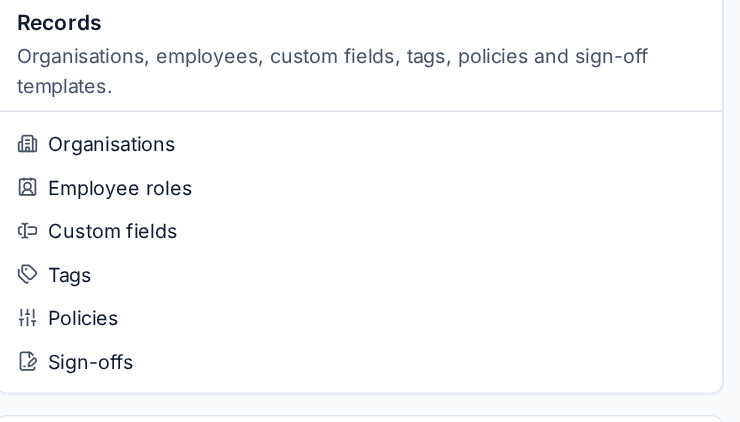
Settings > Terminology still lets you choose other words. Your choices sit on top of the edition's own. See Terminology, numbering and email templates.
Guides in this knowledge base are mostly written for both editions and use the MSP words. Read "customer" as your organisation or one of its departments, and "contact" as an employee.
The menu
- Organisation takes the place of Customers and opens your organisation's page.
- Purchasing takes the place of Sales and billing, with only the subscriptions and purchasing items.
- In Settings, the Sales and billing group is called Purchasing, and pages that only make sense for billing customers are not listed.
- The top bar has no customer switcher, and New has no quote.
- Home has no card for money owed.
Modules at the start
A new MSP install starts with the service desk alone. A new Company install starts with the service desk and Devices, because an internal IT team looks after its own computers from day one. Switch on the rest in Settings > Modules. See Modules.
Microsoft 365
You connect one tenant: your own. You give admin consent once and there is nothing to map, so employees, licences and security settings arrive without a tenant list to work through. Partner access, which an MSP uses to reach its customers' tenants, is folded away at the end of Settings > Microsoft 365, because an organisation consenting in its own tenant does not need it. Everything else in the Cloud area works as the Microsoft 365 guides describe, with these differences:
- Cloud > Enterprise apps is the Company edition's name for Apps across tenants: every enterprise app in your tenant, cleanup suggestions and the watchlist. The kill switch is Disable this app, and there is one approved apps list, your own.
- The app cleanup report stays inside IT: there is no customer to send it to.
- Cloud > Sync timeline shows in the menu only when you connect more than one tenant. Each tenant's own sync tab is there either way.
Docs and the vault
The MSP edition keeps two sets of credentials: each customer's, and "our company" for the MSP's own. With one organisation there is nothing to tell apart, so the Company edition has one Credentials area, and Docs has no Our company item. Permissions follow suit: there is one vault permission to grant.
The browser extension
The MSP edition lets each customer's admin set a policy for their own people in the portal. With one organisation there is one policy: set it in Settings > Documentation, the Browser extension policy tab. The portal has no Browser extension policy page in this edition. See Browser extension settings and policy.
Sign-offs
Sign-offs are internal acknowledgements, for example a director accepting a risk, or an employee acknowledging the acceptable use policy. You send them to people in your organisation from Organisation > Sign-offs, and they sign in the portal under Sign-offs. The starter templates about selling, such as a declined upgrade or a declined quote, are not offered. The portal's Is it legally binding? page speaks of sign-offs only, and PDF readers can check the certificate behind a signed sign-off. See Customer sign-offs for how templates, sending and certificates work.
Governance and compliance
The area is your organisation's own programme.
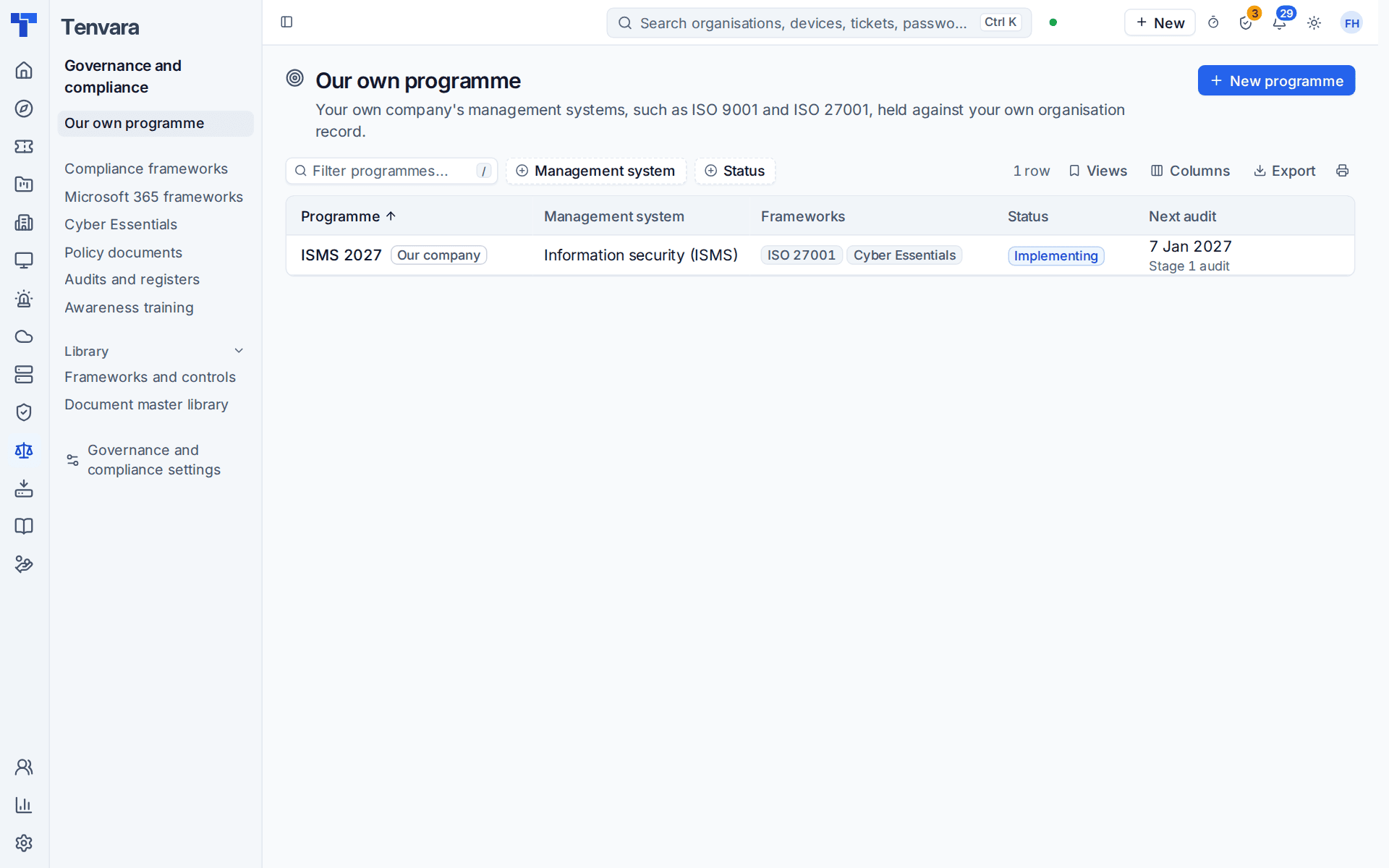
- It opens on Our own programme. There is no customers overview and no Management systems list across customers.
- Compliance frameworks, Microsoft 365 frameworks, Cyber Essentials, Policy documents, Audits and registers and Awareness training are all about your organisation.
- The Library stays: Frameworks and controls and the Document master library.
- The readiness snapshot for prospects and the compliance items for the sales catalogue are not there, because they exist for selling compliance as a service.
See Management systems overview.
Reports and the IT leadership update
Reports keeps the service desk, project and operations reports, dashboards and the report builder. The finance group has Budgets, which gains IT spend lines.
In place of the business review deck there is the IT leadership update: a quarterly deck from the IT team to its own management. Make it from a review in Reports > Business reviews with Make a presentation, from Reports > Presentations, or from the organisation's Presentations tab. It covers one quarter, counts requests and spend by department, and ends with a slide of decisions needed and the budget in place of a price. When a decision is agreed it becomes a planned project. See Presentations.
Projects and time
Projects are internal: no customer to choose, and no prices, billing or margin. Time is logged against tickets and projects as effort, with nothing to bill.
The setup helper and help
- Discovery does not ask who you are, and the plan has no customer import, billing, sales or customer report sections.
- Your organisation is in Getting started until you press We're live. See Go-live and Health.
- The ? on Home and in Setup opens Getting started for IT teams. A page whose guide is only about the MSP edition shows no ?.
Related guides
Was this page helpful?
Thanks for the feedback.