Apps across tenants and the kill switch
See every enterprise app in your customers' tenants once by its App ID, with what it holds, who consented and when it last signed in, and switch an app off in every tenant at once when it can no longer be trusted.
Every Microsoft 365 tenant collects enterprise apps: backup tools, signature services, line-of-business add-ins, and the odd app a previous provider left behind. Each holds permissions, some of them as powerful as an administrator. Cloud > Apps across tenants puts every one of them in one place, one row per app across all the tenants you look after, and gives you a kill switch for the day a vendor's app is compromised and has to be stopped everywhere at once.
In the Company edition the same page is Cloud > Enterprise apps and covers your organisation's own tenants.
The page has four parts, top to bottom: Disable an app everywhere (the kill switch), Inventory, Cleanup review and Approved apps. The last two are covered in App cleanup, approved apps and the watchlist.
The inventory
Inventory lists every enterprise app in the tenants you look after. An app has the same App ID in every tenant, so it appears once, however many tenants have it.
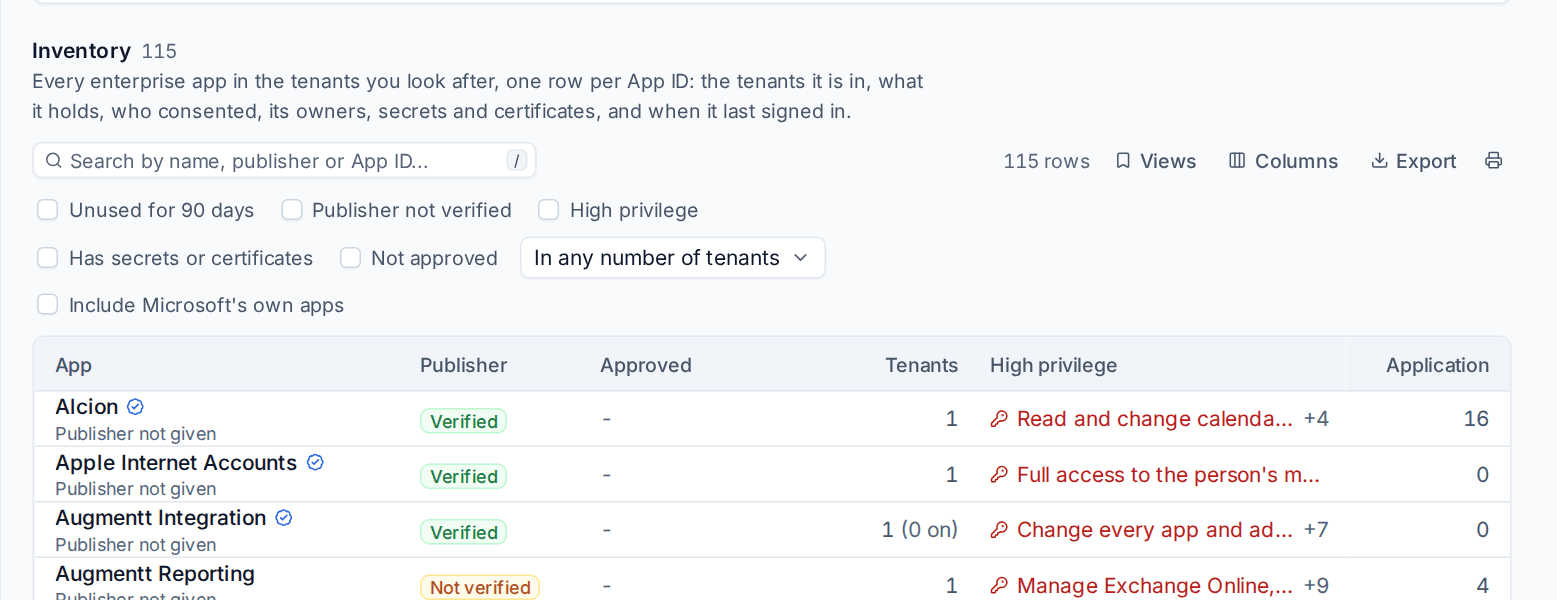
Each row shows:
- The App and its Publisher, and whether Microsoft has verified the publisher.
- Approved, once you keep an approved apps list.
- Tenants: how many tenants it is in, and in how many it is enabled.
- High privilege: the high-privilege permissions it holds, in plain English, such as "Read and change mail" or "Give out administrator roles".
- Its application and delegated permission counts, the newest consent (who, when, and whether it was for everyone), owners, secrets and certificates (how many, and the next to end), the last sign-in, and sign-ins in the last 30 days. Columns chooses which show.
Microsoft's own apps are hidden unless you tick Include Microsoft's own apps. Search takes a name, publisher or App ID, and the filters narrow the list:
| Filter | Shows |
|---|---|
| Unused for 90 days | Nothing signed in to it in any of its tenants in that time (the number of days is Count an app as unused after in Settings > Microsoft 365) |
| Publisher not verified | Microsoft has not verified who publishes it |
| High privilege | It can read or send everyone's mail, read every file, change the directory or give itself more rights |
| Has secrets or certificates | The app itself has credentials that could be used to sign in as it |
| Not approved | It is not on your approved apps list for that customer |
| In any number of tenants | Choose a minimum number of tenants (MSP edition) |
Under the list a line sums it up, for example how many apps are high privilege, how many have an unverified publisher and how many are unused. Export downloads what is on screen as CSV or Excel.
The inventory reads what each tenant's last security sync saw, so it never waits on Microsoft. Last sign-in dates need Entra ID P1 in the tenant; without it the inventory says "Not known" rather than calling the app unused.
Note: You only see the tenants of customers you look after. Apps in other customers' tenants are left out entirely.
One app
Click a row to open the app's own page.
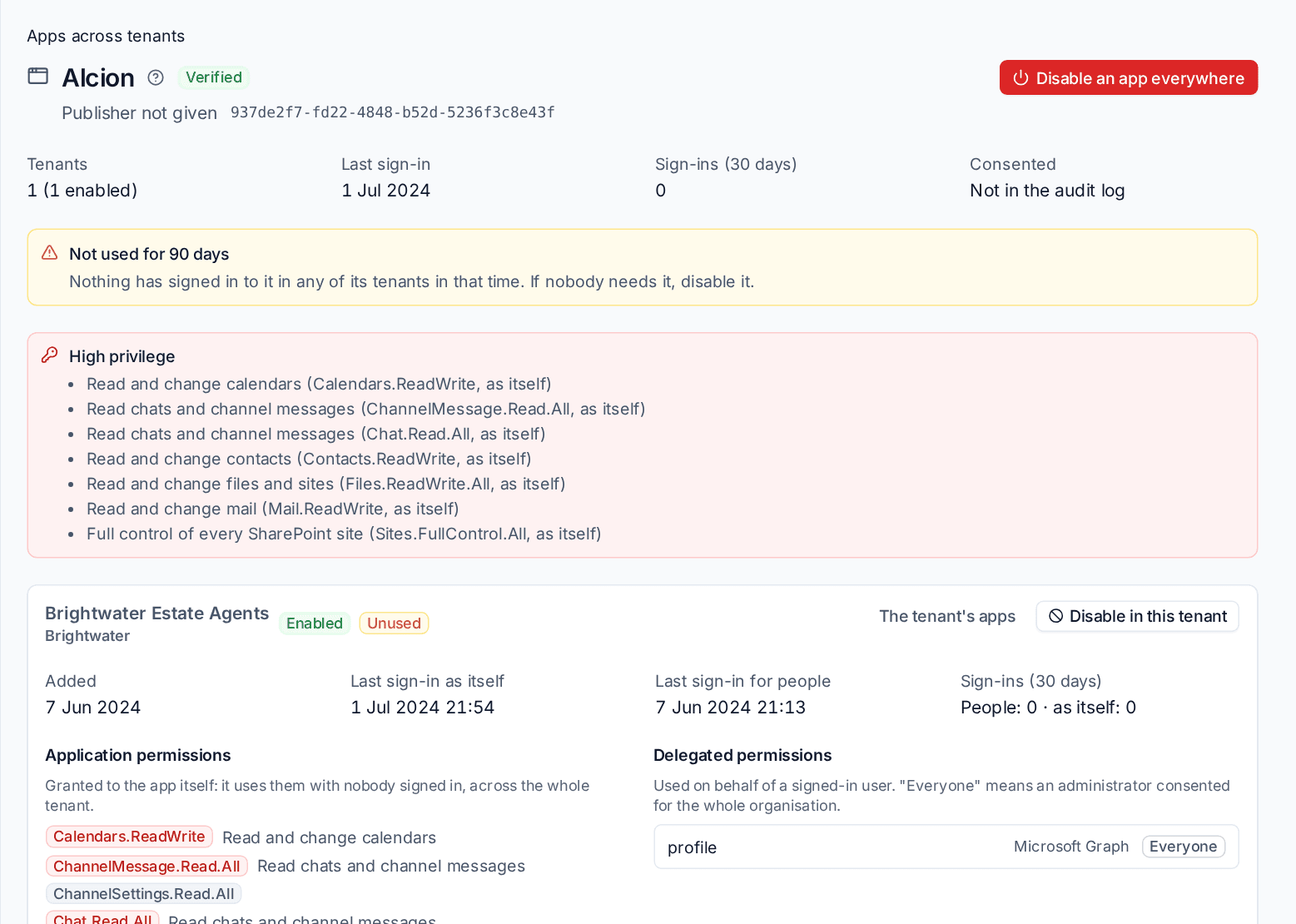
The top shows the App ID, how many tenants it is in, the last sign-in, sign-ins in the last 30 days and the newest consent. Callouts say why it is worth a look, for example Not used for 90 days or High privilege with each powerful permission spelled out.
Below, each tenant has its own card: whether the app is enabled there, when it was added, the last sign-in as itself and for people, every application and delegated permission (high-privilege ones marked), who consented, its owners, and its secrets and certificates with their dates.
From here:
- Disable in this tenant (or Enable in this tenant) switches the app off in one tenant. Nobody can sign in to a disabled app and it cannot use its permissions, but nothing is deleted. It goes through the change log like any change; see Making changes safely.
- Disable an app everywhere opens the kill switch with this App ID filled in.
Disable an app everywhere
When a vendor's multi-tenant app is compromised, it has to be switched off in every tenant at once, and you need to know where it was and what it did.
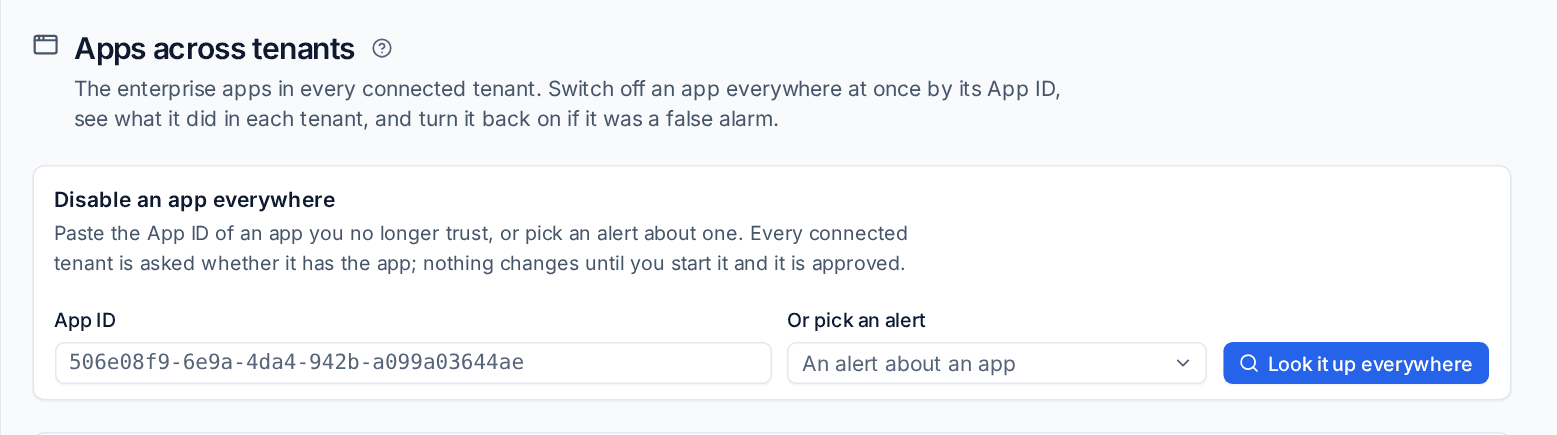
- Paste the App ID under Disable an app everywhere, or choose one from Or pick an alert (an open alert that names an app). A known-bad app alert's fix opens this page with the App ID filled in.
- Press Look it up everywhere. Every connected tenant is asked whether it has the app. Each answers found, absent, refused access or could not ask.
- Check the tenants it was found in. A tenant you may see but not change is listed as Not yours with the reason. Tenants of customers you do not look after are counted, never named.
- Start the run to disable the app in every tenant it was found in. An administrator's own disable starts at once, because a kill switch that waits for a second person in an emergency is not one. Anyone else's goes for approval as one request naming every tenant.
- Each tenant's change runs on its own through the change log. Microsoft's passing errors are tried again. Retry failed (or Try again on one tenant) queues the ones that failed.
Deleting the app instead of disabling it cannot be undone: you type the app's name, and it always waits for its own approval, an administrator's included.
Re-enable everywhere is the undo. It turns the app back on in the tenants where the disable worked, through the same start and approval.
Every look-up, change and undo is listed under Recent runs, newest first. The changes in each tenant are grouped together in Cloud > Changes.
Evidence and incidents
Once a disable or delete has run, Tenvara reads what the app did in each tenant: its own sign-ins (IP address, resource, result and place; this needs Entra ID P1), the directory changes it made, and its activity in the audit log where security monitoring collects the tenant. The evidence view lists them across tenants. Enter addresses or ranges in IOC addresses to mark every record from them and show only those. Pull again reads a wider window, up to Microsoft's 30 days.
Each customer whose tenant had the app gets one security incident with the evidence attached, critical when an IOC address matched. Pulling again updates it rather than opening a second one. See Incidents and response.
Who can do what
Looking at the inventory, an app's page and the runs needs Microsoft 365 View. Disabling, enabling or deleting an app in a tenant needs Microsoft 365 Manage, the role's Change Microsoft 365 switch, and the tenant's customer in your scope. See Making changes safely.
Related
- App cleanup, approved apps and the watchlist: suggestions for apps worth removing, your approved apps list and known-bad App IDs.
- Sign-ins, apps and policies: one tenant's Apps tab.
- SaaS discovery: the apps people sign in to and use.
Was this page helpful?
Thanks for the feedback.