Updating, backing up and managing containers
See which containers have a newer image, update them with Update now or in the patch window with automatic roll back, back up Compose projects with their databases, and start, stop, read logs, open a shell or prune from Tenvara.
Once a device is a Docker host, its Containers tab is where you look after what runs on it: newer images, backups of each Compose project, and the everyday actions that used to mean signing in to the server. Everything here works on Docker Engine hosts; Podman hosts are read only.
Newer images
Every six hours by default, Tenvara asks each image's registry whether the tag a container runs has moved on, with a request Docker Hub does not count as a pull. Each container shows its state:
| State | Meaning |
|---|---|
| Update available | The registry has a newer image for this tag than the one running |
| Up to date | The registry has the image this container runs |
| Pinned to a digest | The image is named by its digest, so it never moves |
| Rate limited | The registry asked for fewer requests: the check waits for its limit |
The updates card under the host counts what has an update. Check for updates asks the registries now rather than waiting.
Private registries
A private registry, or a Docker Hub account for its higher rate limit, needs a sign-in. Open Infrastructure > Docker hosts, click Registries, then Add a registry. Enter the Registry as image names start (docker.io, ghcr.io, or a host and port), choose the Customer (empty for every customer) and a Vault credential that may pull, and click Save. Tick It is inside the network only for a registry on a private address on purpose. The password is only used to ask that registry, and reaches a host sealed to that device for a pull.
Update now
On a Compose project's card (or a standalone container's row), click Update now and confirm.
- A Compose project: the host pulls the newer images and recreates the running services that use them, through Compose, so your compose files stay the truth.
- A standalone container: the host pulls the newer image and recreates the container with the same settings.
Before either, the image being replaced is kept as a tag on the host. After the update, every recreated container must be healthy (or keep running without a restart) for the patch policy's health check time, 60 seconds by default. If it is not, the host goes back to the kept images at once and the card says The update failed its health check and was rolled back.
Roll back goes back to the images kept before the last update, without asking the registry, and checks them again. It never waits for approval: it puts back what ran before.
Note: If your script approval rules ask for a second person (every run for the customer, or anything running on a server), Update now becomes Ask for approval and waits until someone else approves it.
Auto-update in the patch window
Switch on Auto-update for a project or container (or choose Auto-update in the patch window from its menu). It then updates in the device's patch policy window, only while the window is open and the policy installs automatically. The policy's Docker updates setting under Patching says whether auto-updates run, one Docker host at a time or several, the health check time, and whether a failed check rolls back. An image that failed its health check is not tried again automatically.
The Docker Engine and Compose packages install with the device's other operating system updates.
Backing up a Compose project
On a Linux Docker host protected by Tenvara Backup, each Compose project is its own item on the device's Backup tab. Tick it and choose how it is held still while it is copied:
| Choice | What happens |
|---|---|
| Automatic | A dump of each database, the rest left running; paused when there is no database |
| Pause the project | Every container paused while its files are read |
| Stop the project | Stopped while its files are read, then started again |
| Read as it runs | Nothing paused or dumped |
Each backup holds the project's folder and compose files, every named volume and bind mount, a dump of each PostgreSQL, MySQL, MariaDB or MongoDB database (recognised by its image), and the image each service ran. The .env files are sealed apart, so they never appear in browsing, search or downloads. Paused or stopped containers are always started again afterwards.
Restoring a project
On the device's Backup tab, click Restore this Docker project on a recovery point. Choose the host it goes Onto (the same one or another protected Linux Docker host of the customer), check the Project name and Project folder, and tick Bring it up when it is restored if it should start. Replace a project or volumes of the same names asks you to type the project's name to confirm. Approval rules and the malware scan apply as for any restore: see Restoring.
Managing containers
Each container row has a menu with Start, Stop..., Restart..., Logs, Open a shell and Remove..., shown by your role and the container's state.
- Stop leaves the container stopped until someone starts it, and raises no stopped alert.
- Remove takes the container off the host but always keeps its volumes. It refuses a running container unless you tick Remove it even though it is running.
- Logs opens a side sheet with the last lines (100 to 5,000) and, with Follow new lines, every new line as it comes, with Timestamps on request. Following ends after 30 minutes, when the container stops, or when you close the sheet. Logs are not stored.
- Open a shell opens the device's terminal inside the container, under the device's remote access policy and recording.
- Prune... on the host first asks the engine what it would free: Untagged images nothing uses, Every image nothing uses and Build cache nothing uses, each with its size. Tick what to remove and click Prune.
Who can do what
In Roles and permissions, the Infrastructure area has four switches, for administrators by default: Read container logs, Start and stop containers, Remove containers and prune, and Open a shell in a container (which also needs the remote terminal).
A second person on production hosts
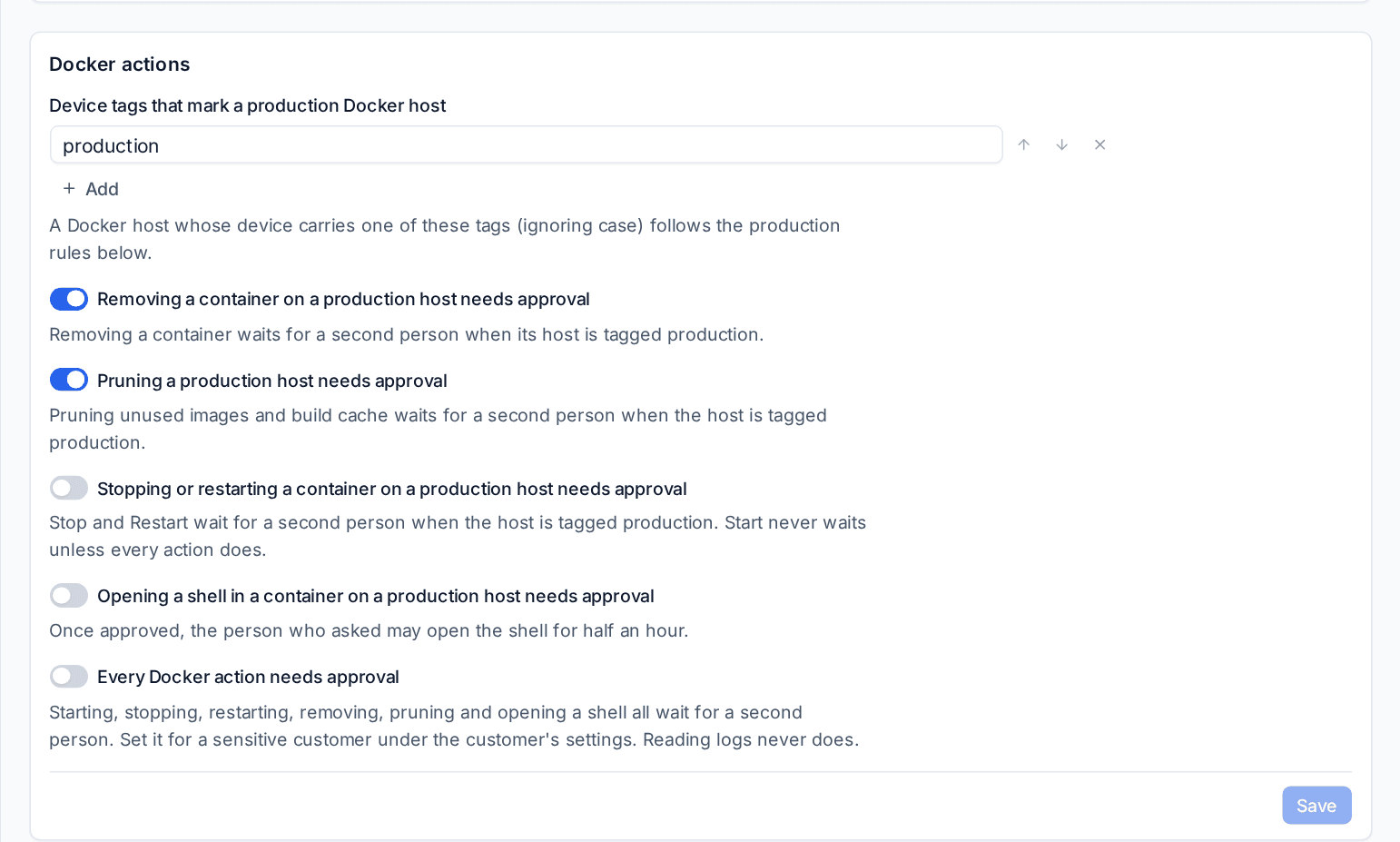
In Settings > Infrastructure, the Docker actions section:
- Device tags that mark a production Docker host:
productionby default. - On a production host, removing a container and pruning wait for a second person (on by default); stopping or restarting, and opening a shell, can too.
- Every Docker action needs approval: for a sensitive customer, set it under that customer's settings.
Anyone with Infrastructure approval rights other than the asker can approve. Every action, log read and shell is in the audit log.
Related guides
Was this page helpful?
Thanks for the feedback.