My virtual desktop in the portal
How people on Remote Desktop Services fix their own stuck desktop from the portal: which desktop they are on, logging off a stuck session, restarting their own desktop, resetting their profile, your per-customer settings and the ticket each request makes.
When someone's virtual desktop hangs, the usual fix is a log off, a restart or a fresh profile, and the usual way to get it is a phone call. My virtual desktop lets people do it themselves from the portal, on their own desktop only, with your rules deciding what is offered and what waits for an approval. It works with Remote Desktop Services deployments that Tenvara has found and you have adopted (see Virtual desktops: finding and adopting deployments).
It is in both editions: in the customer portal and, in the Company edition, the employee portal.
Where people find it
My virtual desktop is in the IT and devices group of the portal's side menu. It shows once you offer self-service to the customer and the person has something to see: a session on a virtual desktop, a personal desktop of their own, a profile, or an earlier request. Anyone else never sees it.
If you switch everything off for a customer, the page says Nothing to do here and asks people to log a ticket if their desktop is stuck.
What people see
The page is headed My virtual desktop and has up to three parts.
Which desktop am I on
A card for each desktop the person is on, with:
- the session host's name, the deployment and Your own desktop when it is a personal desktop;
- the state: Active, Idle since a time, Disconnected with when, or No session now;
- Signed in with the time, From the computer they connected from, Using the published app, and the account they are Signed in as;
- the buttons you offer for it.
When they are not on a desktop right now, it says You are not on a virtual desktop right now.
Your profile
People whose settings follow them in an FSLogix profile see each profile container of theirs, its size against its limit, and whether it is In use now or Not in use.
What you asked for
Their last ten requests, each with its status (Waiting for approval, Being done, Done, Did not work with why, Not approved, Withdrawn or Expired), when they asked and the ticket it is logged on. A request that waits for approval can be withdrawn with Withdraw. A line also says how many requests they may make an hour and how many they have used.
The three fixes
Each button asks the person to confirm first, in a dialog that says what is lost. When the fix waits for an approval, the dialog says so: "This waits for an approval first. You see the answer here, and on its ticket."
Log off a stuck session
Log off my stuck session ends their own session on that host. Anything not saved in apps on that desktop is lost, and their next sign-in starts a fresh session.
Restart their own desktop
Restart my desktop restarts the host, but only a personal desktop or one nobody else is on. On a session host other people share, the button is not available and the card says why, pointing them to log off instead. The desktop is back in a few minutes and they sign in again.
Reset their profile
Reset my profile sets their FSLogix profile container aside so the next sign-in starts with a fresh one: their desktop, app settings and browser favourites go back to how they start, while files in OneDrive or on shared drives stay. The old profile is renamed and kept, never deleted, so things can be copied back. A profile cannot be reset while it is in use: the card asks them to log off their sessions first.
Note: People only ever reach their own sessions, desktops and profiles, matched to them as contacts. One open request per thing at a time, and a limit per hour, stop repeated restarts.
Your settings
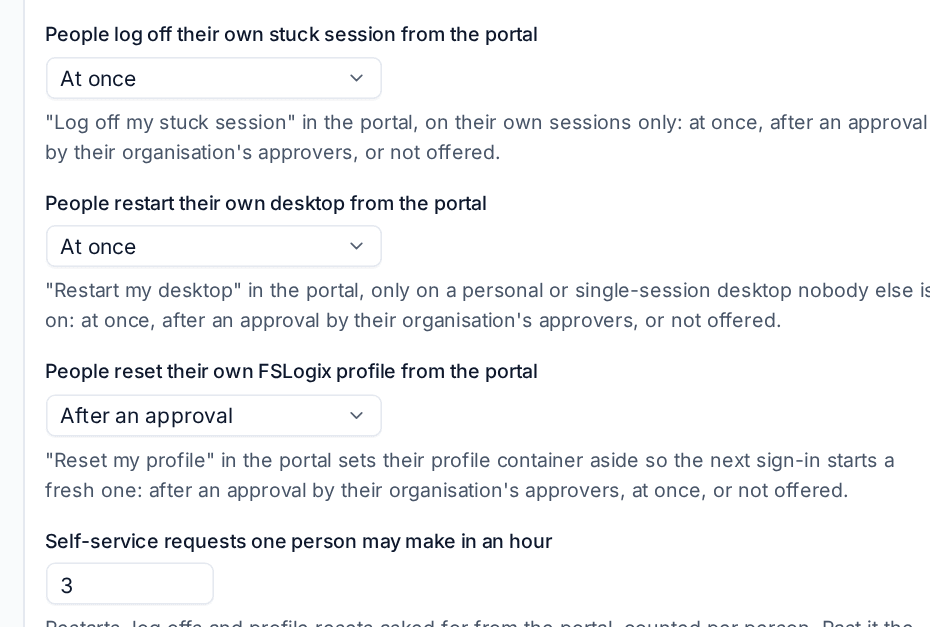
Choose what is offered in Settings > Infrastructure, in the Virtual desktops card, for every customer, and change any of them for one customer on that customer's Settings tab.
| Setting | Choices | Standard |
|---|---|---|
| People log off their own stuck session from the portal | At once, After an approval, Not offered | At once |
| People restart their own desktop from the portal | At once, After an approval, Not offered | At once |
| People reset their own FSLogix profile from the portal | After an approval, At once, Not offered | After an approval |
| Self-service requests one person may make in an hour | 1 to 50 | 3 |
After an approval sends the request to the customer's own approvers, the same people who approve their other requests (in the Company edition, the organisation's approvers). They decide in the portal's Approvals or from the emailed link. Approved, it is done at once, with no second approval from your team; refused, expired or withdrawn, the request says so with the reason.
The ticket each request makes
Every request is logged on a ticket for the person, raised as them from the portal and linked to the host's device, for example "Self-service: Log off my stuck session (BEA-RDSH02)". No "we got your ticket" email is sent. A waiting approval is noted on it, and so is the end: done, did not work and why, or not approved and why. The ticket is then resolved, so it shows in the person's closed tickets in the portal and in the contact's ticket history for your team.
The fix itself is done by Tenvara's self-service account, noted with who asked and the ticket, written to the audit log and to the deployment's activity, so your team sees it beside the work they do themselves (see Sessions, who is on what and connection quality).
Related: Portal roles, Approvals.
Was this page helpful?
Thanks for the feedback.