Repository health, healing and verification
Read a repository's health on Backup > Repositories, see how damaged data heals from the second copy or the source, verify stored data on a schedule or now, compact the index, and keep maintenance on time.
Every backup is stored in a repository: one per customer and source, on one of your storage locations. Storage can go wrong quietly. A disk in a NAS develops a bad sector, an S3 bucket refuses one object, maintenance falls behind while a long backup holds the repository. Tenvara watches for all of this, repairs what it can by itself, and tells you in one place when a repository needs a look.
The health panel
Open Backup > Repositories. The Health column says Healthy, Needs a look or Damaged for each repository, and the Health filter shows only the ones you pick.
Click a repository to open its panel. The Health section shows:
- Index blobs: how many index files the repository has, and when they were counted. Backups slow down past 500, so the panel warns above that.
- Damaged packs: how many pieces of stored data could not be read back, with their size, when and by what each was found (a copy, a restore, maintenance or verification), and what has happened to each since.
- Last quick maintenance and Last full maintenance.
- Last sample verify and Last full verify: when, the result ("No damage found") and how many packs were checked, then Next verify.
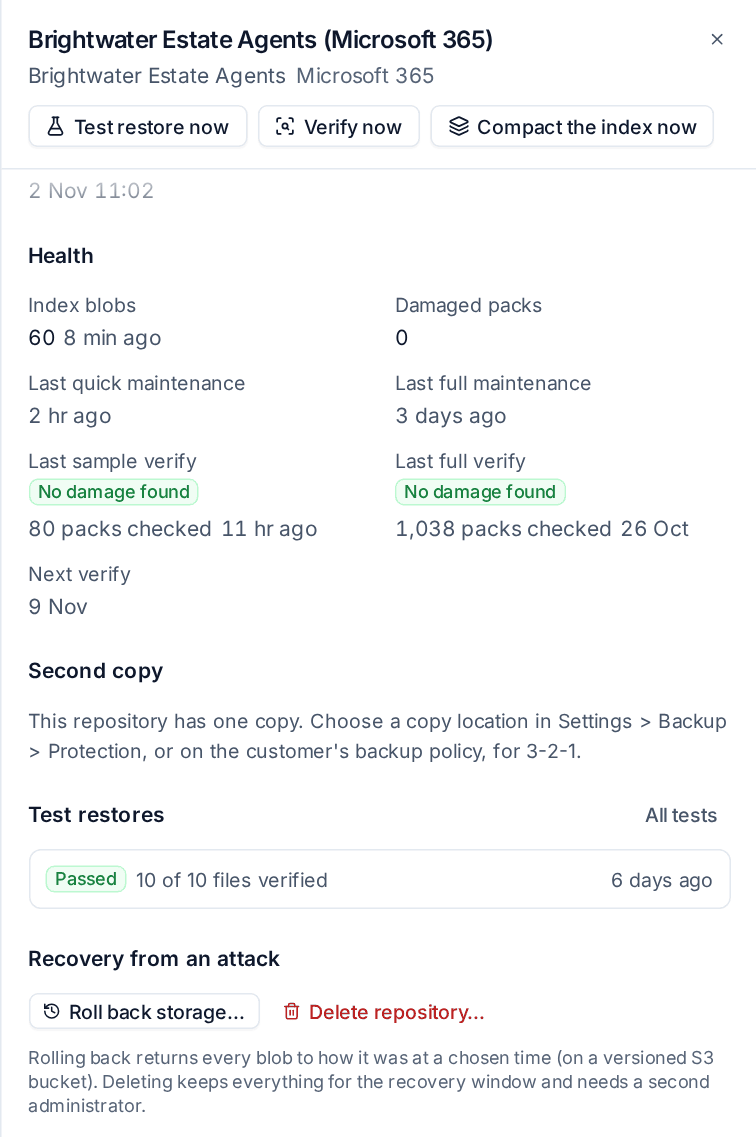
A repository Needs a look when it has more than 500 index blobs, no quick maintenance for 48 hours, no full maintenance for 10 days, partly damaged recovery points or a verification that could not finish. A retired device's kept backups have no maintenance warnings.
The buttons at the top of the panel are Test restore now, Verify now and Compact the index now. They need the Manage permission on Backup.
How damaged data heals
When Tenvara cannot read a pack (the storage refuses it, it is missing, it is shorter than it should be, or its contents fail their check), it records the pack as damaged on that location and raises one Backup repository damaged alert for the repository. More damage found later updates the same alert quietly. Then it puts it right:
- Repaired from the other copy. When the repository has a second copy and the other location holds a good copy of the pack, the pack is read there, written back over the damaged one, read again and checked. The pack shows as repaired.
- Healed from the source. Otherwise the next backup reads the affected files again from the device, Microsoft 365 or Google Workspace and stores them afresh, so older recovery points can be read again. The pack shows as healed.
- Gone at the source too. If the source no longer has a file either (it was deleted in the meantime), the recovery points that used it are marked partly damaged with the list of files. A restore of one of those files says so before it starts, and a restore of a whole point leaves those files out with a line saying which, instead of failing part way.
The alert clears once nothing in the repository is left damaged. A second copy that meets a damaged pack copies everything else and says what it left out, so one bad pack never stops a copy.
Tip: Healing works best with a second copy on another location. See Second copies and the copy list.
Pack verification
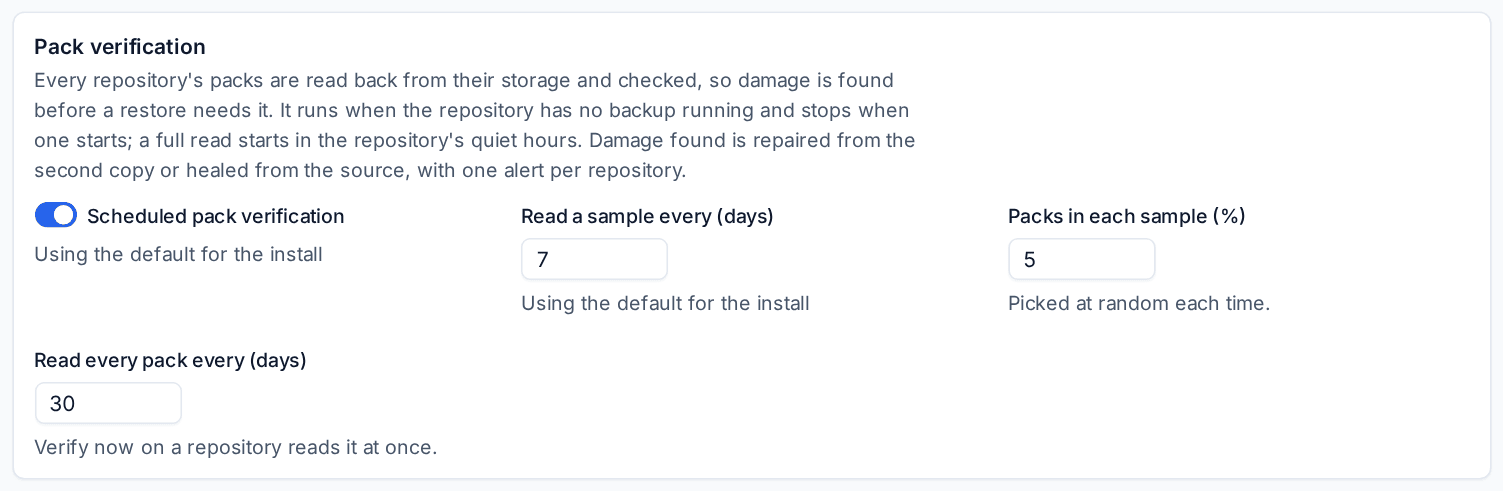
Damage is best found before a restore needs the data, so Tenvara reads stored data back on purpose. Open Settings > Backup, the Protection tab, and find Pack verification:
- Scheduled pack verification: on by default. Turning it off weakens protection, so it waits for a second administrator.
- Read a sample every (days) and Packs in each sample (%): 7 days and 5% by default, a different sample each time.
- Read every pack every (days): a full read, 30 days by default.
Each pack is read whole from the storage and every piece in it is checked. Verification runs only while the repository has no backup running, stops within seconds when one starts and carries on later from where it got to. A full read starts in the repository's quiet hours. Each run is a Pack verification job in Backup > Jobs, saying how many packs it checked and naming any damaged one. Cancelling a scheduled one moves it to the next day.
Verify now on the panel reads the repository at once when it is free, or waits for what holds it ("Waits for Backup of BEA-FS01 to finish") and then runs. It works with scheduled verification off.
When a storage location keeps failing reads
Every read from your storage is watched. When reads from a location fail with storage errors, Settings > Backup, the Storage tab, shows Reads failing on that location with since when, how many reads and the last error. It clears when those reads work again, or after a day of good reads. See Setting up backup.
Compacting the index
Each backup adds index files to its repository, and maintenance compacts them. A repository whose maintenance fell behind can build up thousands, and every backup, copy and restore of it slows down. Above 500 the panel says how many there are: "4,812 index blobs: backups slow down past 500. Compacting is safe while backups run."
To compact it now:
- Open the repository's panel in Backup > Repositories.
- Press Compact the index now.
The panel shows progress ("Compacting the index: 8,331 to 3,204 index blobs so far, stopping under 500") and then the result ("Index compacted: 8,331 to 212 blobs in 6 min"). Backups carry on while it runs. If maintenance is already working on the repository, it compacts the index itself and the button says so.
Settings > System status has a Backup repository indexes row: amber when any repository is over 500 index blobs, red above 2,000, naming the repositories with Open Repositories to compact the index.
Maintenance that keeps up
Quick maintenance runs at least daily for each repository, and full maintenance weekly in its quiet hours, the four hours its own backups were least busy over the last two weeks. Neither waits for other repositories' backups. When a repository's own backups run back to back, its next backup lets maintenance run first, and a long backup pauses between its parts for overdue full maintenance. See Schedules and retention.
A repository with no full maintenance for a week shows Maintenance overdue. One Backup repository maintenance falling behind alert for the install names every repository past the warning levels with its figures, and clears when they have all caught up.
Related
Was this page helpful?
Thanks for the feedback.