Purchasing and IT spend
Purchase requests from employees and IT staff, who approves them, how an approved request becomes a purchase order, and IT spend by department, cost centre, month, supplier and category against your budget.
The Company edition has light purchasing built in. Employees and IT staff ask for what they need to be bought, the department's manager and purchasing approve it, an approved request becomes a purchase order to the supplier, and IT spend is reported by department against the budget. The Purchasing area in the rail takes the place the MSP edition gives to Sales and billing.
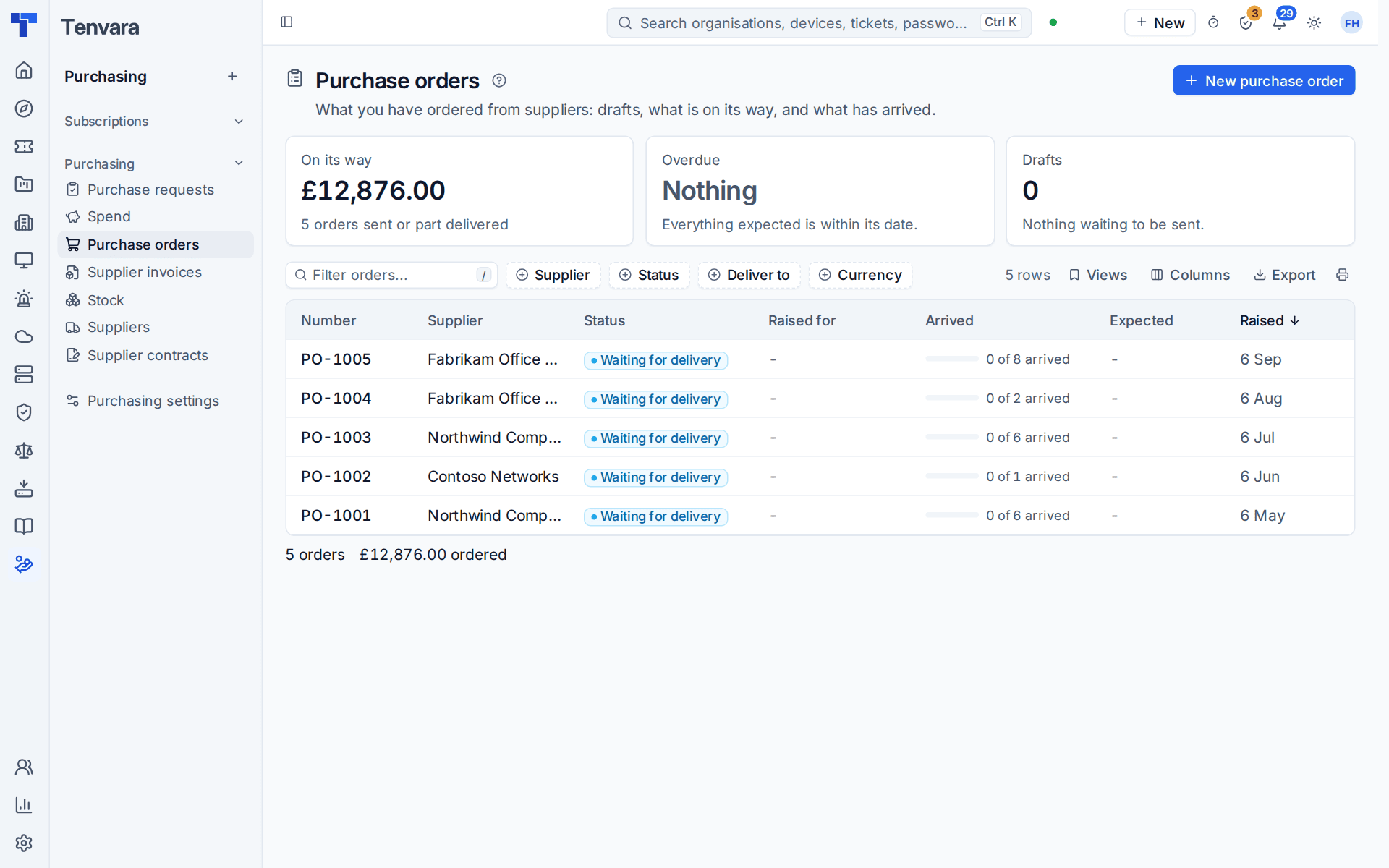
What is in the Purchasing area
| Item | What it is for |
|---|---|
| Licences | Your subscriptions with their seats, cost and renewal dates |
| Purchase requests | What people have asked to be bought, and where each one stands |
| Spend | IT spend by department, month, supplier and category, with a Subscriptions by department tab |
| Purchase orders | Orders to suppliers: drafts, what is on its way and what has arrived |
| Supplier invoices | Invoices from suppliers, matched to orders |
| Stock | What you hold, with serial numbers and reorder levels |
| Suppliers and Supplier contracts | Who you buy from, and the agreements with their renewal dates |
Purchase orders, receiving, stock and suppliers work as the Procurement and stock guides describe. This guide covers what the Company edition adds: purchase requests and spend.
Raising a purchase request
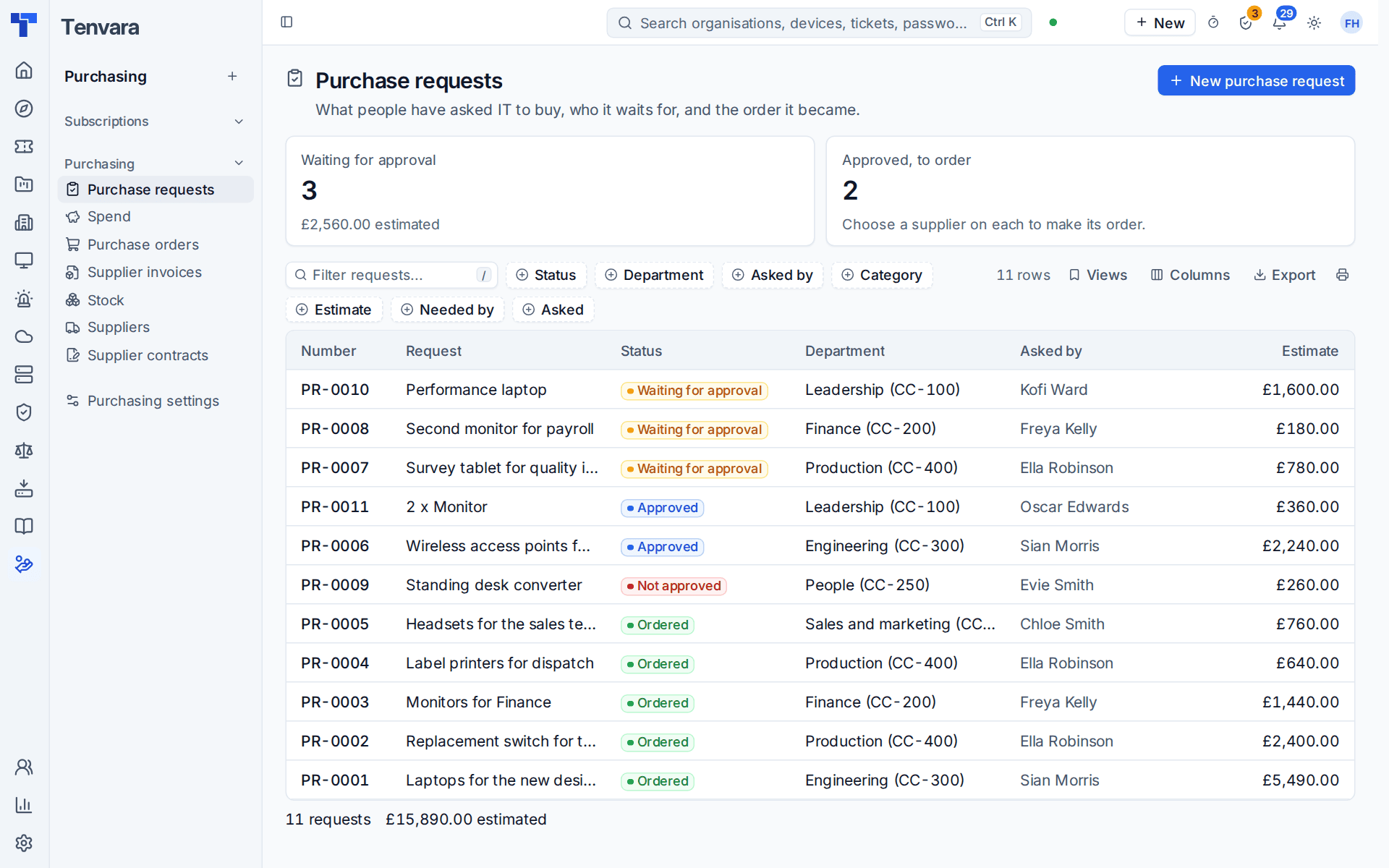
Anyone signed in can ask for something to be bought. Staff raise a New purchase request in Purchasing > Purchase requests. Employees raise one in the portal under Purchase requests, with Raise a purchase request.
A request has:
- a title and the reason for it;
- a category: hardware, software, services or other;
- one or more lines, each either typed in or picked from the catalogue, with how many and an estimate for each (a catalogue item brings its cost);
- the department it is for, which is the employee's own unless you choose another;
- the supplier, when you know it, and the date it is needed by.
Each request gets a number such as PR-0042 and goes for approval at once.
Requests also arrive by themselves from the service catalogue. When an employee's request for a laptop, equipment or software to buy is approved, a purchase request is raised for it. See The employee portal and manager approvals.
Where a request stands
| Status | Meaning |
|---|---|
| Waiting for approval | Raised and with its approvers. The list says who it is waiting for |
| Approved | Everyone has said yes |
| Not approved | Turned down, or the approval ran out of time |
| Ordered | It has become a purchase order |
| Cancelled | Taken back by the person who asked, or by purchasing, before it was ordered |
Employees see their own requests, open ones first, and can cancel one that is not ordered. Seeing everyone's requests needs the procurement view permission.
Who approves
A purchase request is approved in two steps:
- The department's manager. They decide in the employee portal under Approvals, or from the link in the email. This step is skipped when the manager is the one asking.
- Purchasing. Administrators and people who may manage procurement, never the member of staff who asked. They decide in Home > Approvals or on the request's own page.
Set the rules in Settings > Procurement, under Purchase requests (the same settings are on the Manager approvals tab of Settings > Approvals):
- whether the department's manager approves first (on by default);
- Purchasing approves requests over: the amount over which purchasing approves as well. At 0, purchasing approves every request. Purchasing always decides when there is no manager step;
- Make the purchase order when a request is approved (on by default).
A request raised from an approved catalogue request goes to purchasing alone, because the manager has already approved the need. If you need something more involved, a chain for purchase requests in Settings > Approvals, the Chains and thresholds tab, replaces these two steps.
From request to purchase order
When a request is approved and has a supplier, Tenvara makes a draft purchase order to that supplier at once, with the request's lines and estimates, and a note saying which request it came from. If a member of staff approved the purchasing step, the order counts as approved by them too, so it does not wait a second time.
When the request has no supplier, purchasing opens the request and presses Make the order, choosing the supplier there.
The request then shows its order, and the employee sees it as Ordered. From here it is an ordinary purchase order: send it, receive it, and match the supplier's invoice. See Purchase orders and Receiving, serials and supplier invoices.
IT spend
Purchasing > Spend opens the IT spend page: what IT has committed to spend, net of tax, in your base currency. Choose the months to look at with From and To, a Department if you want just one, and the Budget to compare against. It shows totals, then spend:
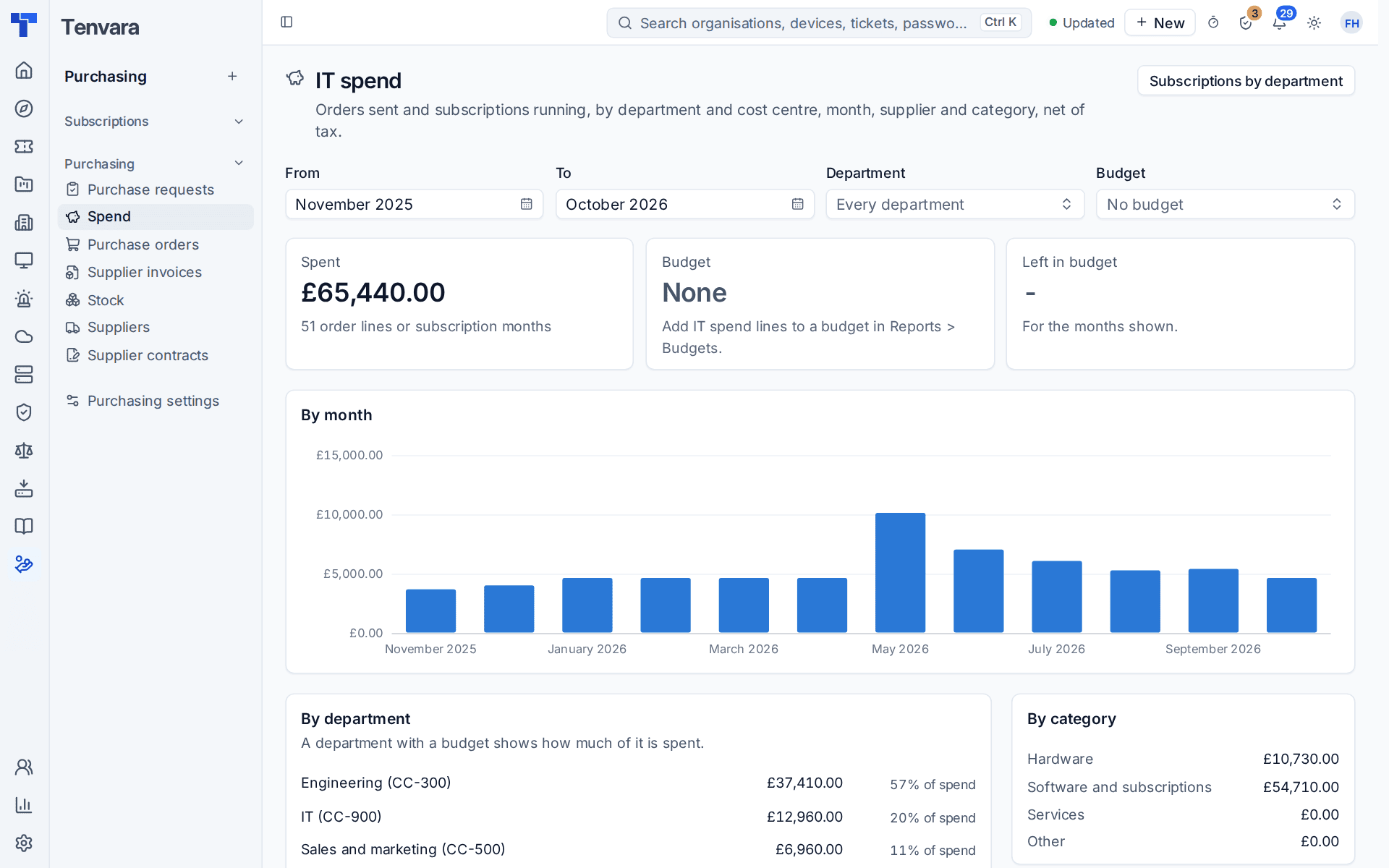
- by department, with its cost centre and its budget;
- by month;
- by supplier;
- by category;
- and every order line and subscription month behind those figures.
Spend comes from two places, and nothing is counted twice:
- Purchase orders, from the month they were sent to the supplier. The department is the one on the purchase request the order came from. An order raised directly, with no request, shows as Not assigned.
- Subscriptions from your licence sources, at their monthly cost for every month they ran, counted as software and subscriptions. Choose the department each subscription is for on the Subscriptions by department tab.
Orders count when they are sent, not when the invoice arrives, so spend shows as soon as IT orders. Months still to come show no spend. An amount in a currency with no exchange rate is left out and counted separately, so you know it is missing.
Seeing Spend needs the procurement view and finance view permissions.
Against your budget
Reports > Budgets has IT spend lines on the Company edition: one for all IT spend, or one per department. Their actual figure is the month's spend, and the budget report shows each against its budget. The Spend page compares against the budget you choose, or else your main budget for that year.
The IT spend report
The report builder has an IT spend by department dataset, with one row per order line or subscription month: the month, department, cost centre, supplier, category, source, reference and amount. Build, save and schedule reports on it as on any other dataset. See The report builder.
Related guides
Was this page helpful?
Thanks for the feedback.