Agent and rollout
The Agent and rollout section of the setup helper: how new devices join, holding them for approval, tamper protection and the uninstall token, the tray menu, rolling the agent out customer by customer, and the checks that prove agents report.
Agent and rollout opens the Devices and monitoring phase and takes about 90 minutes. It covers enrolment, the tray menu and tamper protection, and it follows the rollout of the Tenvara agent across your customers until every computer and server reports.
Open Set up (Health once you have gone live) and choose Agent and rollout. It runs through the same six beats as every section: see Working through a section.
Note: The section belongs to the Monitoring module, which brings the Devices area and the agent, so it joins your plan once Monitoring is on in Settings > Modules (the Company edition starts with it on). Remote access does not have to be on to roll out the agent. Finish Customers and import first, because every device belongs to a customer. The section is marked Owner approves, so Do it for me waits for the owner's approval here. Finishing it unblocks Remote access, Network, assets and lifecycle and Security and SIEM.
What it reads from your data
What we found counts the customers with computers, your computers and servers, how many of them have the agent reporting, and the new devices waiting for approval. It also says whether removing the agent needs the uninstall token today.
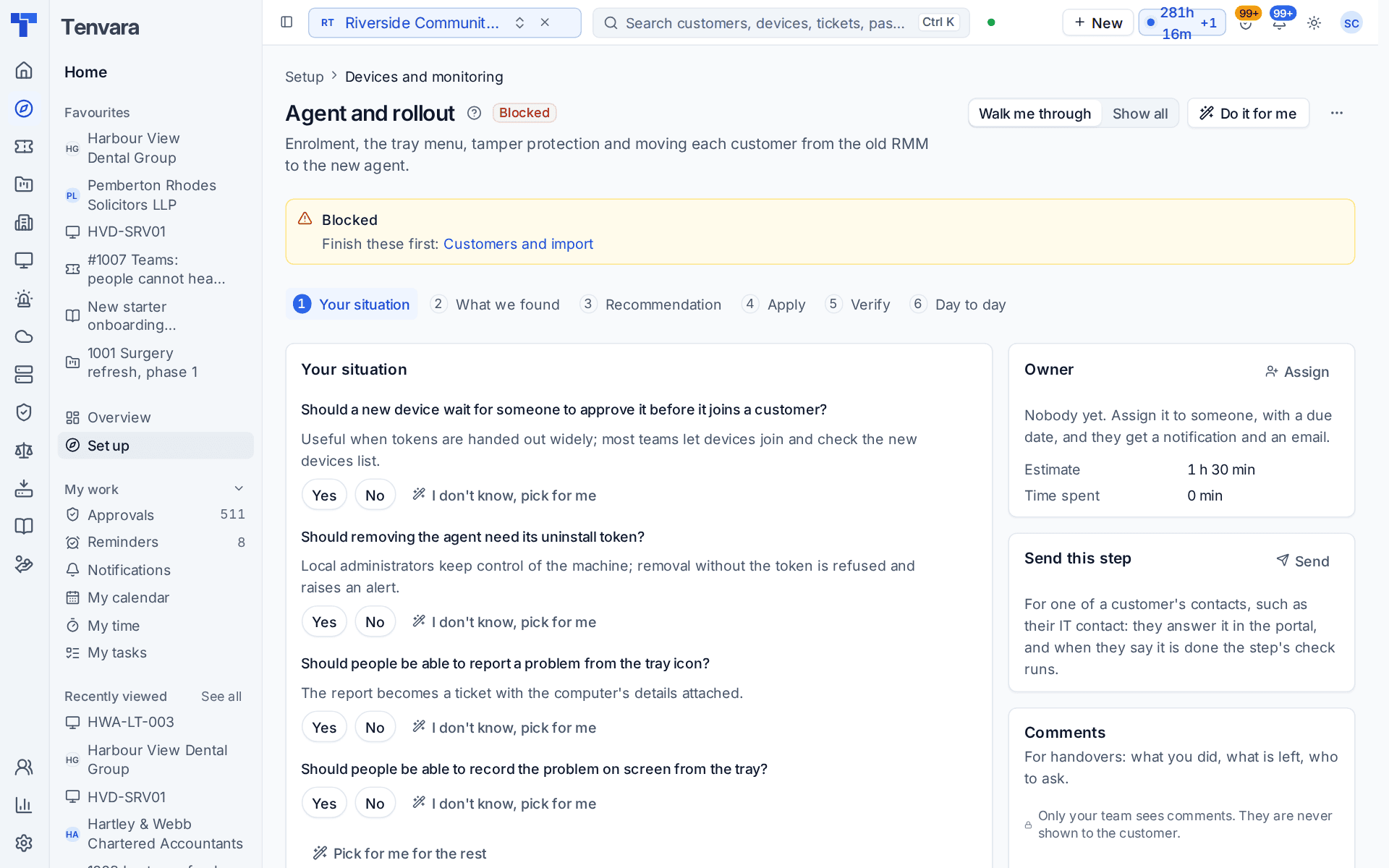
What it asks
| Question | Choices and notes |
|---|---|
| How do you want to move customers to the new agent? | Everyone at once or Customer by customer. Usually answered in discovery, so it shows under Already known |
| Should a new device wait for someone to approve it before it joins a customer? | Useful when tokens are handed out widely. Most teams let devices join and check the new devices list |
| Should removing the agent need its uninstall token? | Local administrators keep control of the machine. Removal without the token is refused and raises an alert |
| Should people be able to report a problem from the tray icon? | The report becomes a ticket with the computer's details attached |
| Should people be able to record the problem on screen from the tray? | Yes or no |
I don't know, pick for me chooses customer by customer, no hold on new devices, the uninstall token required, and both tray options on.
What it recommends
- The agent stays on every device. Removing it needs its uninstall token, it restarts itself, and an attempt raises an alert. Why this? gives the reason: tamper protection is what stops a user, or malware running as one, from quietly switching off monitoring, patching and backup. If you answered no, the agent can be removed without a token, and an alert still says when it is stopped or removed.
- New devices join the way you chose: straight away, or held until someone approves them.
- The tray icon gives people a quick way to reach you, with their computer's details attached. Reporting a problem and recording it on screen follow your answers, and asking for remote help from the tray is switched on.
Check What changes, then press Apply. You can undo an apply for 7 days.
Rolling out the agent
The settings above take minutes. The rollout itself is the long part of this section, and the Verify checks follow it for you.
- In Devices > Enrolment, on the Enrolment tokens tab, make a token for the customer. A device that installs with that token joins that customer.
- Install the agent with the one-line command or a package from the Installers tab. For many Windows machines at once, use Group Policy or Intune.
- If you chose to hold new devices, approve them on the Waiting for approval tab.
- When the customer's devices all report, remove the old tool's agent from them with the old tool's own uninstall.
Customer by customer is the calmer route: you see who is done before you start the next. When the agent is installed on a device you imported, it takes over that device's record, so its documentation and credentials stay linked.
Tip: Rolling out at a customer whose IT contact installs software themselves? Use Send this step with A customer's contact and Agents report for each customer's devices as the check. They get the step in the portal, and the check runs when they say it is done.
Security software
The agent is signed, and the PowerShell scripts it runs are signed too and run from files, never inline or encoded. If a security product still alerts on it, the folders, signer and allow rules to use are in Security software and the agent.
How it is verified
| Check | What it looks at | Where to fix it |
|---|---|---|
| Agents report for each customer's devices | Every customer's computers and servers have an agent that has reported lately. Checked every hour. Needed to go live | Add devices, which opens Devices > Enrolment |
| Old agents are removed | Devices brought across from your old tool no longer run its agent | Remove it with the old tool's own uninstall |
| Tamper protection is on | Removing the agent needs the uninstall token and attempts raise an alert | Open Settings > Agent protection |
| No new device waits long for approval | Held devices are approved or refused promptly | Open the devices waiting for approval |
Day to day
- New devices enrol themselves with their customer's token and appear under Devices with their policies.
- Someone stopping or removing the agent without the token raises an alert. Each customer has its own uninstall token.
- Deleting a device in Tenvara removes its agent too, at once or when it next checks in; Devices > Lifecycle, the Pending uninstalls tab, lists the ones still waiting.
- What the windows and notifications on people's computers show (your logo, the technician's name and photo, your wording, quiet hours) is on Settings > Tray menu, the End-user experience tab. See The windows and notifications people see.
- The pages behind this section are Settings > Devices and agent, Settings > Tray menu (with its End-user experience tab), Settings > Agent protection and Settings > Device lifecycle (where Hold new devices for approval is the default for new tokens), with Devices > Enrolment for tokens, installers and devices waiting.
The next section, Policies: monitoring, patching, software and scripts, decides what those agents do. See Device policies.
Related guides
Was this page helpful?
Thanks for the feedback.