Sequences
Follow up with emails, calls and tasks a few working days apart, sent from your own mailbox, that stop by themselves when the person replies, books a meeting or unsubscribes.
A sequence does the chasing for you. After a webinar, or for a list of prospects, it sends a first email, sets a call two working days later, sends a follow-up after that, and stops the moment the person replies, books a meeting or unsubscribes. Every email goes from the salesperson's own mailbox, so it reads as one-to-one, and every step lands on the person's timeline.
Open Sales and billing > Sequences. The list shows each sequence's Status, Steps, how many are In it now, Enrolled, Replied and Meetings, and its Owner.
Note: Sequences are part of the CRM, in the MSP edition. Their emails go from connected Microsoft 365 mailboxes; see My mailbox and sales email.
Make a sequence
- Press New sequence and give it a Name (such as "After the webinar") and a Description.
- Leave Only in working hours on to run steps inside your business hours (Settings > Ticket setup, business hours), never at weekends or on public holidays.
- Leave Unsubscribe line on to end each email with a link to unsubscribe.
- Choose Open and click tracking: as Settings > Sales says, Tracked or Not tracked.
- Set the steps. Each step has a kind and a number of working days after the step before (the first, after enrolling; 0 for at once):
- Email: one of the built-in sales templates, a shared template, or Written here with a subject and a body. Merge fields such as
{first_name},{their_company}and{my_name}work as in sales email. - Call: a call task for the sender, with its title and notes. The sequence goes on once it is done.
- Task: any other task, with its title and notes.
- Email: one of the built-in sales templates, a shared template, or Written here with a subject and a body. Merge fields such as
- Use Add an email, Add a call and Add a task for more steps, and the arrows to reorder them.
- Press Make sequence.
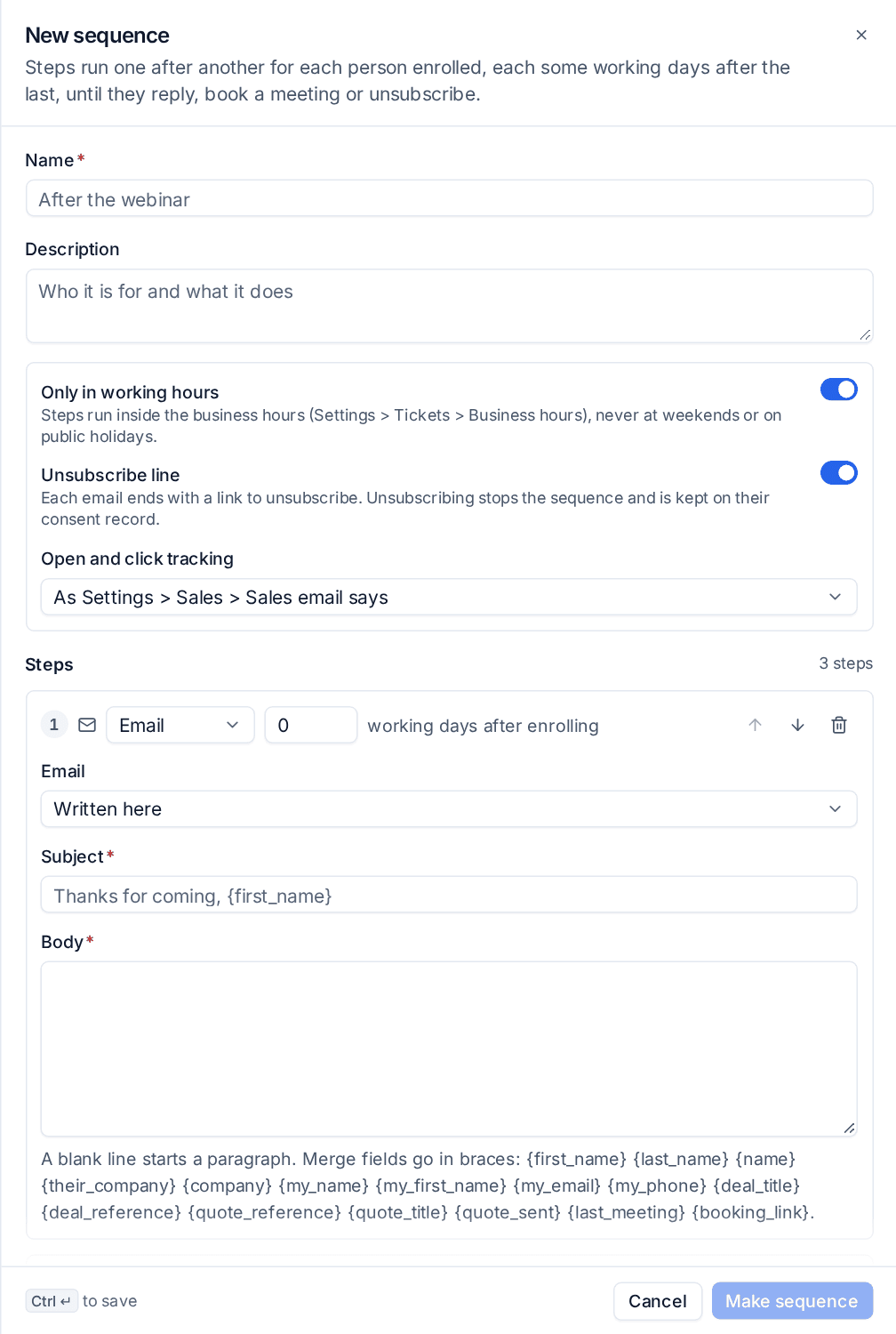
You can change, add, reorder and take out steps at any time. A step that has already run for someone is kept as removed, so its figures stay, and anyone due to run it moves on to the next step.
Enrol people
Put people through a sequence in any of these ways:
- Enrol on the sequence: choose Leads, Contacts or A marketing list (everyone on it).
- On a lead's or contact's Sequences card, Enrol them in a sequence.
- An automation rule's Enrol in a sales sequence step, for example when a lead is created or a deal changes stage.
Choose who the emails go from. Left empty, they go from the lead's owner, else from you.
Some people are left out, and the enrol dialog counts them: anyone already in that sequence, anyone with no email address, anyone unsubscribed or suppressed, and anyone whose consent record does not allow it (legitimate interest on a personal address, or while it is switched off in Settings > Sales). Someone with no consent record at all can be enrolled: a sequence is a salesperson's own emails, each with an unsubscribe line. See Marketing: consent, lists and attribution.
How the steps run
Each enrolment knows its next step and when it is due, counted in working days on your business calendar, at the same time of day as the step before.
- An email step sends from the sender's own connected mailbox and is logged on the person's timeline. Their consent is checked again first. If the email cannot go (no connected mailbox, Microsoft refused it, or the sender has left), the enrolment is paused with the reason; Resume runs the step again, optionally from someone else's mailbox.
- A call or task step puts a task on the sender's My sales day, reminded like any task. The sequence waits for it: once the task is done, the next step is due its working days later.
What stops it
A sequence stops for a person by itself when:
- they reply: an email from them logged on their timeline after they were enrolled;
- they have a meeting: booked on a sales booking page, read from a connected calendar, or logged by hand;
- they unsubscribe, by the link in the email or any other way. That stops every sequence for their address at once.
You can also Stop one person (on their card or on the sequence), Pause a whole sequence (it takes nobody new and runs no steps) and Resume it later, or Archive it, which stops everyone in it and keeps its figures. A call or task already made stays on My sales day when a sequence stops, in case the call is still worth making.
The figures
The sequence's page shows how many are in it now, enrolled, Replied (as a share of everyone enrolled), meetings, unsubscribed and finished, with everyone in it and their next step. For each step it shows how many reached it; for an email, Sent, Opened, Clicked and Replied (a reply counts against the last step that ran before it); for a call or task, made and done; and for every step, the meetings and unsubscribes after it and anything that Could not run.
Tip: Keep sequences short: three or four steps over two weeks. Look at which email gets the replies and move it earlier.
Related: My sales day and activities, Newsletters.
Was this page helpful?
Thanks for the feedback.