Opening device web pages and forwarding ports
Open the web page of a NAS, printer, switch, firewall or UPS from anywhere through an agent on its network, with no VPN and nothing installed on the device, and forward a port for SSH, remote desktop or a SQL client. Who can, what is allowed and how sessions end.
Most kit at a customer's office has a web page of its own. Open web page reaches it from your own browser: an agent on a computer at the site opens the connection to the device on the local network and relays it over the connection it already has to Tenvara. Nothing is installed on the device and no VPN is needed.
The page opens in a new browser tab on an address of its own, so the device's links, sign-in, live panels, uploads and downloads work as they do on the local network.
Open a page
Open web page is on every record with an address:
- a device: More actions > Open web page, for the device's IP address, through its own agent or another on its network;
- a device found by a network scan (a NAS, printer, switch, firewall, UPS or access point): click it in Infrastructure > Network, or on the network tab of a site, and press Open web page in its panel. The open ports the scan found choose https or http;
- a NAS (Infrastructure > NAS and storage), a printer (Devices > Printers) and a firewall or controller (Infrastructure > Firewalls and controllers): the button in the page's header.
For anything else on a site's network, use Open an address on the site's page or its network page: type an IP address or a hostname, choose http or https and the Port.
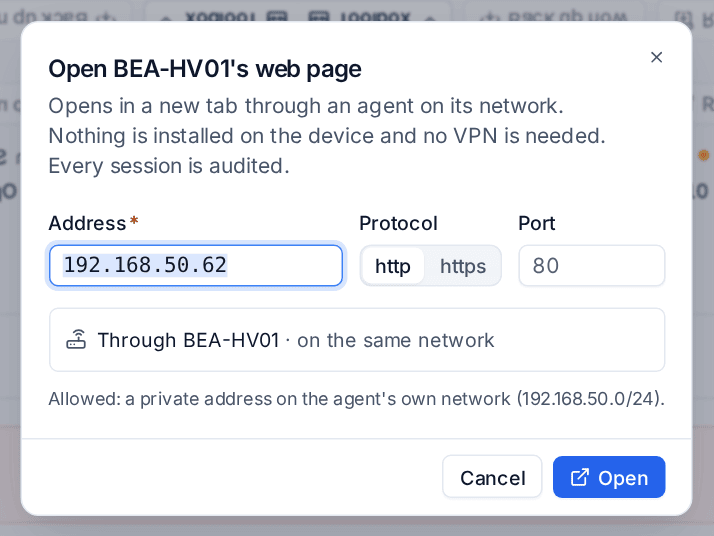
- Check the Address, Protocol and Port.
- The dialog names the agent the page goes through: one on the same network as the address first, else one at the same site. Through another agent lists the other online agents and whether each may reach the address.
- Press Open. The page opens in a new tab. Close the tab when you are done.
Certificates
NAS units, printers and switches usually have a self-signed or expired certificate. The page opens anyway and the dialog says so: the connection is encrypted, but nobody vouched for the device's identity.
What can be opened
Only private addresses (10.x, 172.16 to 172.31, 192.168.x, link-local and IPv6 unique local addresses) on the agent's own networks: the networks of its network adapters and the subnets a network probe on that computer last scanned. A public address, an address on another network and the agent computer's own loopback are refused, and the dialog says why in plain words.
A hostname is looked up by the agent, and every address it has must be allowed. The page then goes to the address that was checked, so a name cannot be pointed somewhere else halfway through.
Forward a port
For tools that are not web pages, such as SSH, remote desktop to a computer without the agent, or a SQL client, use Forward a port on a device (in More actions), a network-scan device or a site.
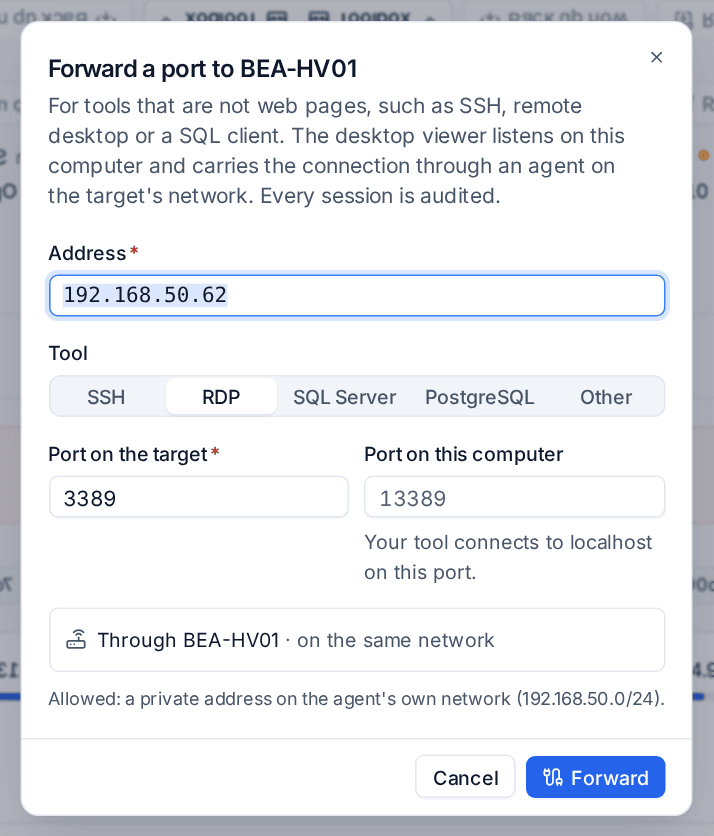
- Check the Address and choose the Tool: SSH, RDP, SQL Server, PostgreSQL or Other.
- Check the Port on the target and, if you like, the Port on this computer.
- Click Forward. Your browser asks to open the desktop viewer, the same app remote control uses. Its window shows the local address to use, for example Connect your tool to localhost:10022, with Copy.
- Point your SSH, RDP or SQL tool at that address.
Stop in the viewer's window, or Close session, ends it. The listener is on your own computer only (localhost), so nobody else on your network can use it. The same rules apply as for web pages: the same permission, only allowed addresses, the same time limits and the same audit. See The desktop viewer.
Who can open pages
The role permission Open device web pages, under remote access. Technicians and administrators have it by default; read-only roles do not. Without it there is no Open web page button, and the customer portal never has one. Change it in Settings > Roles and permissions.
Settings, asking first and switching it off
An administrator sets it up under Device web pages in Settings > Network. Each customer can have its own switch, Ask first, approver and extra addresses on its Settings tab.
| Setting | What it does |
|---|---|
| Allow device web pages | On by default. Off refuses new sessions and closes the open ones. |
| Ask first | Each session waits until the approver agrees, by email or in the portal's approvals. The dialog says it is waiting and offers Open the page once it is approved. |
| Who is asked | The fallback approver, anyone with a contact role, or one person. |
| Also allow | Addresses beyond the private ranges on the agent's own networks: networks such as 10.20.0.0/16, or hostnames. Loopback is never allowed. |
| Session lasts | How long a session stays open (60 minutes by default); it is renewed while you use it. |
| Close when unused for | A session nobody has used for this long closes (15 minutes). |
| Longest session | Renewals never keep a session open longer than this (8 hours). |
Sessions
A session belongs to the person who opened it and ends when its tab closes, when it is not used for a while, when its time is up or when it is closed.
- Devices > Remote sessions, the Device web pages tab, lists your own sessions, with Open to open one again and Close.
- Open sessions under Device web pages in Settings > Network lists everyone's open sessions and those of the last 7 days: who opened each, where, through which agent, since when and the bytes each way, with Close.
Every session is in the audit log (who, which device and address, through which agent, when, how long and the bytes), and in the security events while Security is on.
Session addresses on your own server
Each session has an address of its own: https://p-<id>.<your server>/ when your server has wildcard DNS and a wildcard certificate, otherwise a port of its own on your server's address, from 28100 to 28199. Session addresses in the same settings shows which is in use and the last install check. On a server you host yourself, open those ports in your firewall if you do not use wildcard DNS.
Related
Was this page helpful?
Thanks for the feedback.