Takeover mode
Take a customer over from another provider without the two of you clashing. Agents enrol and report, findings go to one report, and nothing is patched, installed, enforced, automated or backed up until you say so.
Taking a customer over from another provider usually means two sets of management tools on the same computers for a few weeks. Takeover mode lets you install your agents and see everything, while nothing Tenvara does by itself touches the customer's devices or tenants.
What carries on and what is held
While a customer is in takeover mode:
| Carries on | Held |
|---|---|
| Agent installs and enrolment | Patch installs and restarts after patching |
| Inventory | Software installs, updates and removals |
| Monitoring and checks | Hardening enforcement |
| Vulnerability scans and patch scans | Automation steps that change devices or tenants |
| Security event collection | Scheduled and policy scripts |
| Backup discovery | Automatic alert fixes |
| Reading Microsoft 365 | Microsoft 365 changes nobody pressed a button for |
| Tray prompts and messages nobody sent by hand | |
| Backups (unless you start them) |
- Findings, not alerts. Everything the scans find goes to the customer's onboarding findings report instead of raising alerts, tickets and pages. The report is ready when takeover ends. See Onboarding mode and going live.
- Serious detections still alert. High and Critical security detections raise an alert even in takeover mode (a setting, on by default). A detection that raised no alert says why on its page, for example "No alert: Brightwater Estate Agents is in takeover mode, watched only.", and people who manage security can press Raise an alert anyway.
- The agents keep to it themselves. Each agent holds the same actions from its own stored settings, so nothing runs even after a restart with no connection to your server.
- Ticket automation still runs. Only the steps that would change a device or a tenant are skipped, with the reason on the run.
Switch it on
There are three ways a customer gets into takeover mode.
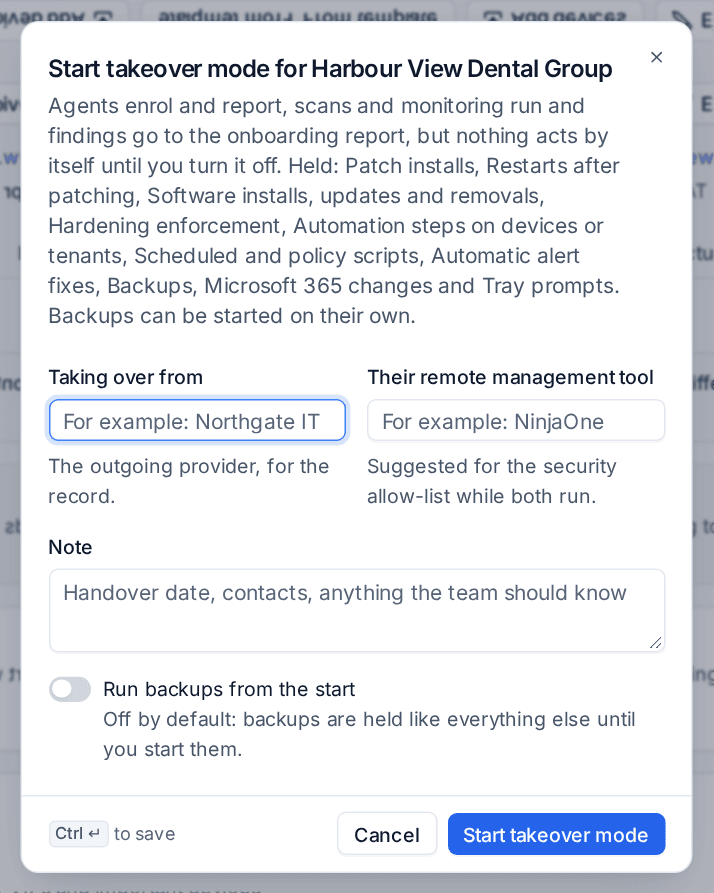
On a new customer. In the New customer form, turn on Taking over from another provider at the bottom. Fill in Taking over from (the outgoing provider) and Their remote management tool, and choose whether to Run backups from the start.
On an existing customer.
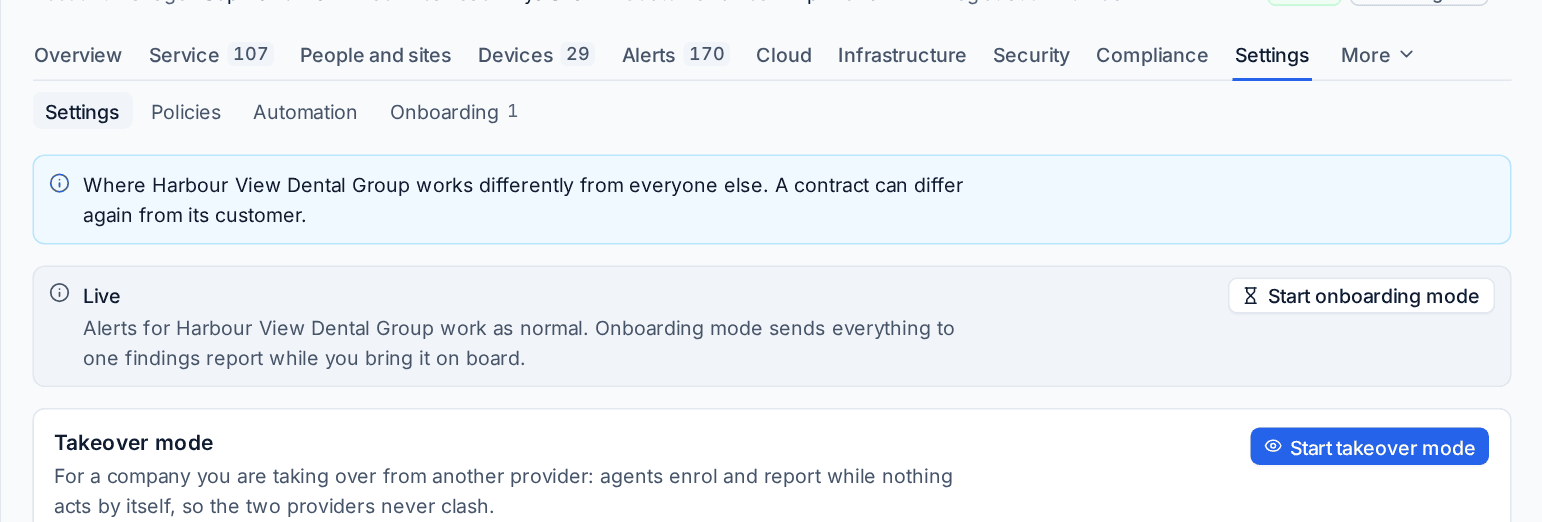
- Open the customer and choose Start takeover mode in the More actions menu, or go to the customer's Settings tab and press Start takeover mode on the Takeover mode card.
- Fill in Taking over from and Their remote management tool. The tool you name is suggested for the security allow-list while both run.
- Add a Note, such as the handover date, and choose whether to Run backups from the start.
- Press Start takeover mode.
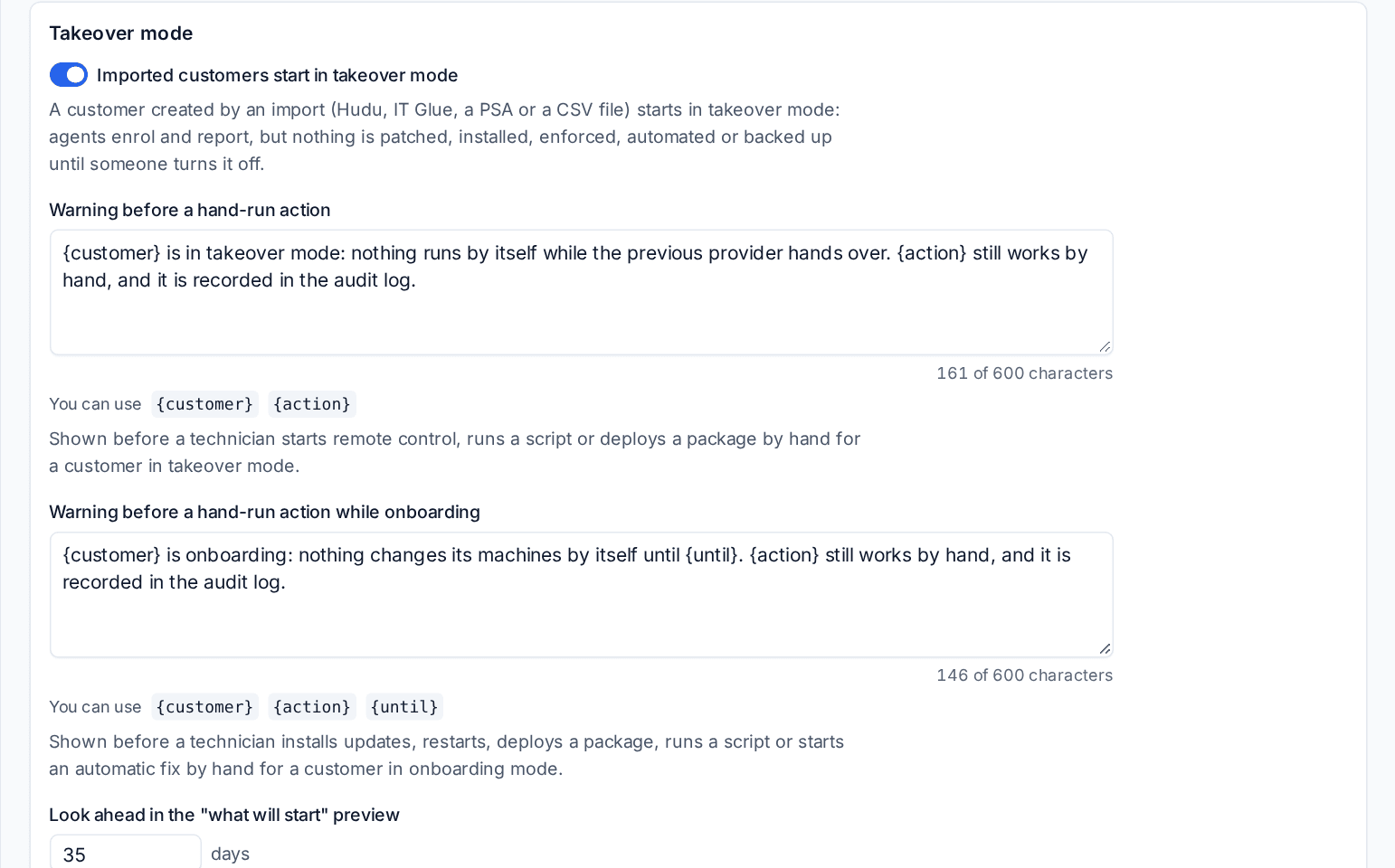
From an import. A customer created by an import starts in takeover mode while Imported customers start in takeover mode is on in Settings > Customers (it is on by default).
While it is on
A banner sits above every tab of the customer: Takeover mode: watching only, no patching, software, automation or backups run. It says who switched it on and when, who you are taking over from and how many actions have been held, with the buttons Start backups now and Turn off takeover.
Customers in takeover mode carry a Takeover badge on the customers list, the device list, the device page and in search. Both lists have a Takeover mode filter, and the In takeover mode block on Home lists the companies you are watching and whether their backups run.
The Takeover mode card on the customer's Settings tab lists What is held: each action, the policy or source behind it, how many times and when.
Start backups early
Press Start backups now on the banner to have your own backups in place before anything else changes. The confirmation shows what will be backed up, and backups then run as their policies say while takeover stays on for everything else. Hold backups stops them again; backups already taken are kept.
Working by hand
A technician can still act on purpose: remote control, a script, a package, a patch install or restart, a hardening run or a Microsoft 365 change, each started by hand.
Tenvara shows a warning first: Remote in asks before it opens, and the Run script and Install software dialogs show it. Every such action is recorded in the audit log. The wording of the warning is yours, under Warning before a hand-run action in Settings > Customers, and a customer can have its own.
Note: Something a person scheduled earlier is held too: a scheduled script or a scheduled Microsoft 365 change is exactly the kind of clash takeover mode prevents. A scheduled run that falls during takeover is skipped, and the next one comes round as usual.
The outgoing provider's remote tools
While a company is in takeover mode, the banner names the remote management agents the tool finder has found on its devices that still raise alerts, with the outgoing provider's first. Allow while taking over allows that tool for the company until takeover's scheduled end, so security alerts stay quiet for a tool you expect to see.
When you turn takeover off, Remove the old RMM offers one choice per tool with its devices. Nothing is ticked for you. The tools you tick are removed from every device of the company once takeover is off. See The remote access and RMM tool finder.
Turn it off
- Press Turn off takeover on the banner (or in the customer's More actions menu or Settings tab).
- Under When takeover mode ends, choose now or At a time. With a time, takeover stays on until then and turns off by itself; Cancel the scheduled end changes your mind.
- Read the preview of what will start, per module: patching (devices per policy, with its first window), software deployments, hardening baselines, script schedules, automation rules, scheduled Microsoft 365 changes and backups. Each line gives its count and when it first runs, or none due.
- When you are turning it off now, tick any old remote management tools to remove under Remove the old RMM.
- Press Turn off takeover now or Schedule the end.
Held work then starts as each policy says, and the findings report becomes ready with one notification to the right people.
Look ahead in the "what will start" preview in Settings > Customers sets how many days ahead the preview looks.
The findings report and what to do with it
The report gathers everything found while you watched. From the customer's Settings > Onboarding tab you can open it, fix or accept each finding, Make a presentation from it for the customer's board, and ask the customer to sign off the findings they decide not to fix. See Customer sign-offs and Presentations.
Related: Onboarding mode and going live, Customers, sites and contacts.
Was this page helpful?
Thanks for the feedback.