Cameras
Add the cameras at a customer's site by hand or from a CSV file, keep their sign-in in the vault, test the stream, show a camera on a screen, and see who saw each camera in its view log.
A rule can put the front door camera on the office screens when the doorbell rings, and you can send a camera to a screen by hand. For that, Tenvara needs to know the camera: where it is, how to reach it and which device at the site can fetch its picture.
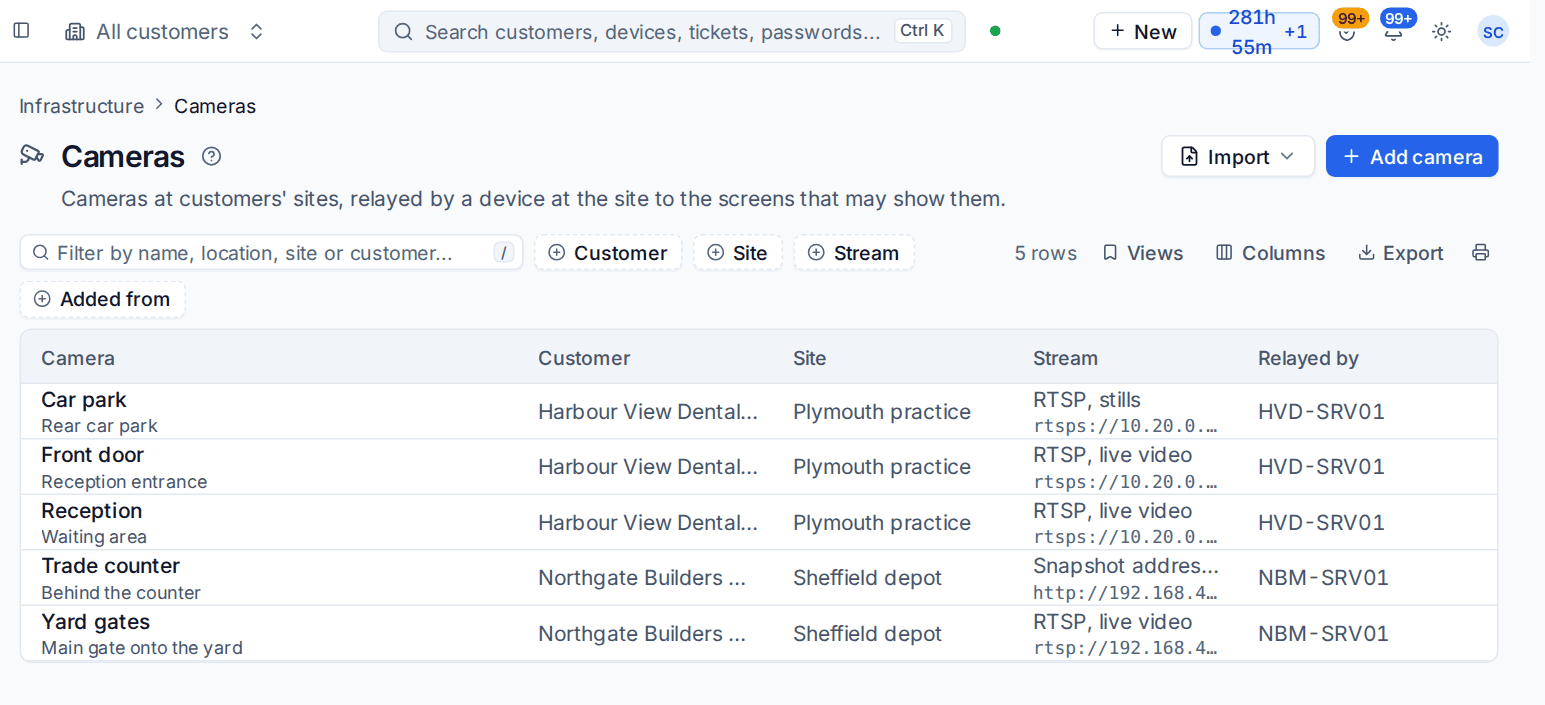
Cameras are records at a customer's site, like printers and devices. Find them under Infrastructure > Cameras, in the Network group, and in the Cameras section of each site's page.
How a picture reaches a screen
A wall screen cannot reach a camera inside a customer's network, so the picture travels through the Tenvara agent:
- A screen is told to show a camera, by a rule or by Send to screens.
- Tenvara checks that the screen may show it, writes the view log, and asks the device you chose at the site to fetch the stream.
- The agent on that device pulls the stream from the camera and passes it on over the connection it already has. Nothing extra is installed on the customer's machine, no ports are opened, and nothing of the camera is stored anywhere.
- The screen plays it. When the overlay ends, or nobody is watching any more, the agent stops pulling the stream.
So a camera is only ever read while a screen, or Test the stream, is showing it.
Adding a camera
You need a device with the agent at the camera's site, on the same network as the camera, such as the site's server.
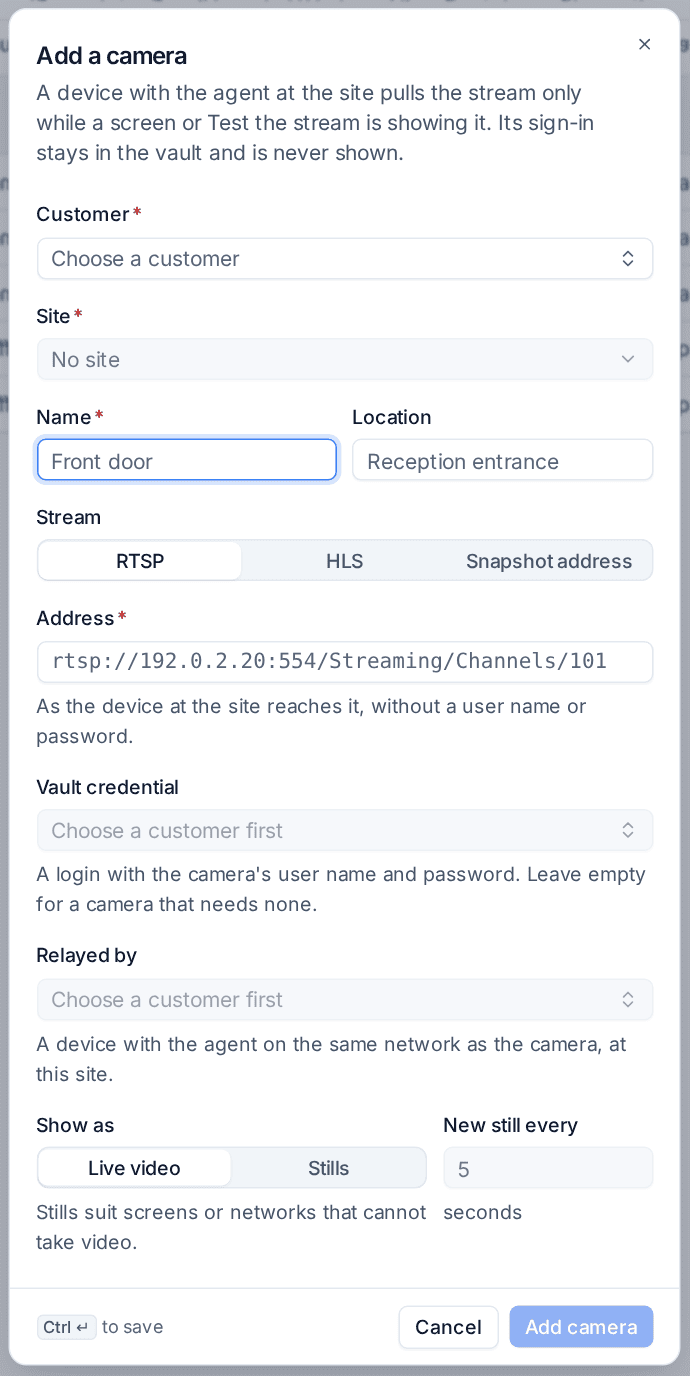
- Go to Infrastructure > Cameras and click Add camera (or Add camera in the Cameras section of the site's page).
- Choose the Customer and the Site. A camera never moves between customers.
- Enter a Name, such as "Front door", and a Location, such as "Reception entrance".
- Choose the Stream: RTSP, HLS or Snapshot address.
- Enter the Address as the device at the site reaches it, for example
rtsp://192.168.40.21/stream1, without a user name or password in it. An address with either is refused. - Under Vault credential, choose the customer's login that holds the camera's user name and password. Leave it empty for a camera that needs none.
- Under Relayed by, choose the device that fetches the stream.
- Under Show as, choose Live video or Stills, and for stills set New still every in seconds. Stills suit screens or networks that cannot take video, and a snapshot address only gives stills.
- Click Add camera.
An RTSP camera sending H.264 video, which nearly all can, plays in every browser. A camera sending H.265 plays where the browser on the screen can decode it; for other screens, set the camera's stream to H.264 in its own settings. The player names the stream's real format, such as "H.264 High 5.1", and whether it carries sound.
Note: The camera's password stays in the credentials vault and is never shown. When the relaying device needs it, it is sealed so that only that device can open it, and the credential's own audit log records it.
Importing from a CSV file
To add many cameras for one customer, click Import and choose From a CSV file. The file needs the columns name and address (or url), and can have site (needed when the customer has more than one), location, kind (rtsp, hls or snapshot), relay (the device's host name), credential (the vault credential's name), mode (video or snapshot) and refresh (seconds).
Check the file runs every row exactly as the import would and changes nothing, so you can put mistakes right first. A camera with the same name at the same site is updated, never duplicated. A file can hold up to 1,000 rows.
The camera's page
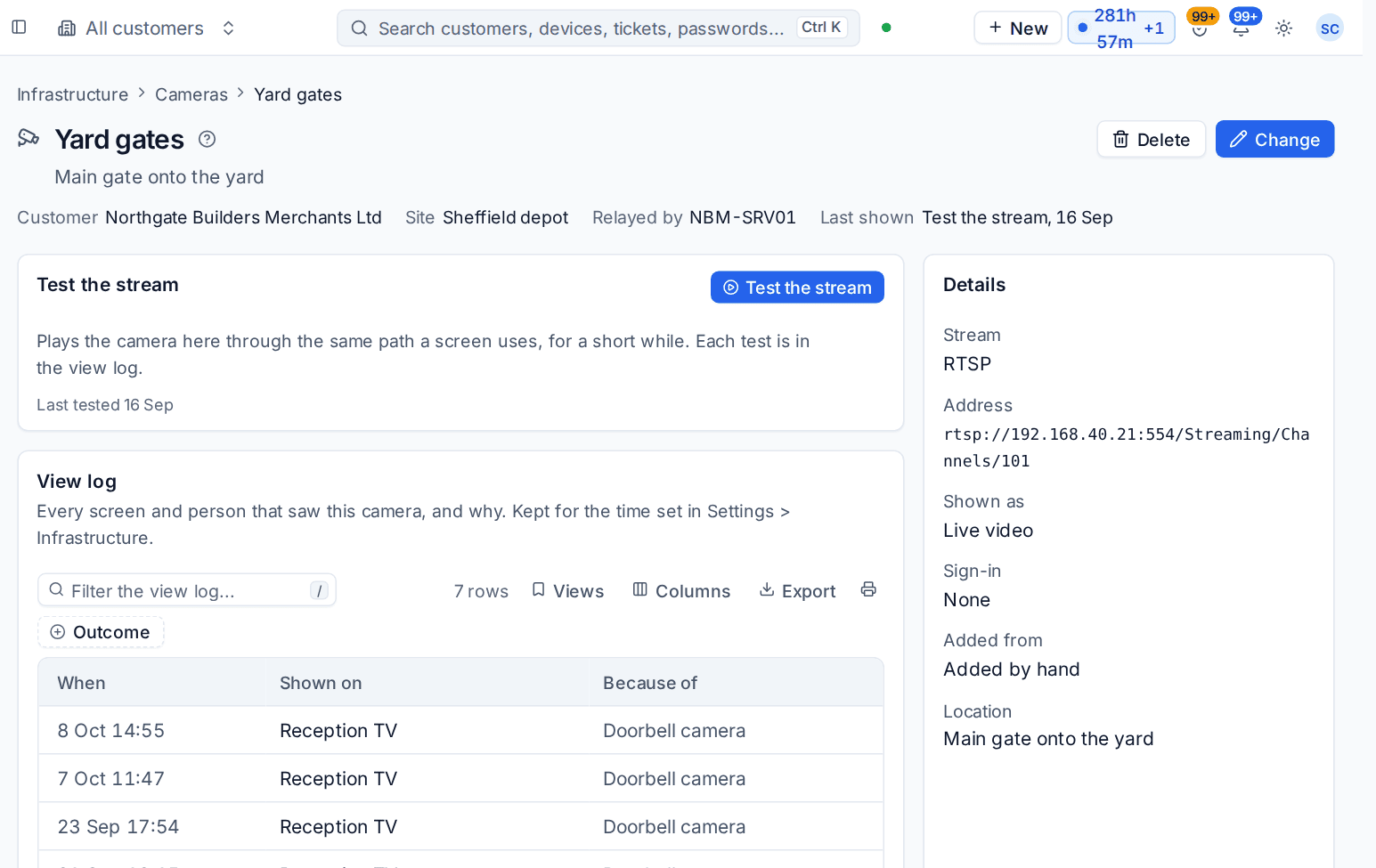
Open a camera to see its customer, site, the device it is relayed by and when it was last shown, with Change and Delete.
Test the stream
Click Test the stream. The camera plays in your browser through the same path a screen uses, for a short while (two minutes by default), and stops by itself, on Stop or when you leave the page. The first picture shows within a few seconds. Each test is in the view log. If the stream cannot be opened or played, the page says why in plain words: no device is set to relay it, the device is offline or busy, the camera cannot be reached, or the browser cannot play the camera's format.
Test every camera once after adding it, before a rule depends on it.
The view log
The View log lists every time the camera was shown: when, on which screen, and because of which rule or person. It also records attempts that were refused and streams that could not be opened. A live picture of someone's premises is personal, so this is the record of who saw it. The log keeps the screen's and the rule's names, so it still reads properly after either has been deleted.
Who may see a camera
These are enforced on the server, for every screen and every stream:
- Only a screen at the camera's own customer, or one of your own office screens, may show a camera. Never another customer's screen.
- Only when the rule, or the person sending to screens, named that camera. Nothing is shown by default.
- A rule for one customer can only name that customer's cameras.
Cameras have their own permission area in Roles and permissions: view to see cameras and their view logs, and manage to add, import, change and delete them, test the stream, and choose cameras in rules and in Send to screens. People limited to some customers only see those customers' cameras.
Showing a camera on a screen
- From a rule: add the action Show on TV screens, choose Camera and pick the camera. The doorbell recipe is in TV screens, doorbells and phone calls.
- By hand: on the Screens tab of Settings > TV dashboards, click Send to screens, choose Camera and pick the camera. See Overlays and Send to screens.
Limits
Cameras in Settings > Infrastructure sets:
| Setting | What it does |
|---|---|
| Stop a camera stream after | The hard limit for one stream on a screen, whatever the overlay asks for (10 minutes by default) |
| Streams one agent relays at once | A screen or person asking for one more stream through that device is told it is busy (4 by default) |
| Test the stream plays for | How long a test plays before it stops by itself |
| Keep the camera view log for | How many days the view log is kept (365 by default) |
Related
Was this page helpful?
Thanks for the feedback.