Company, brand and regional
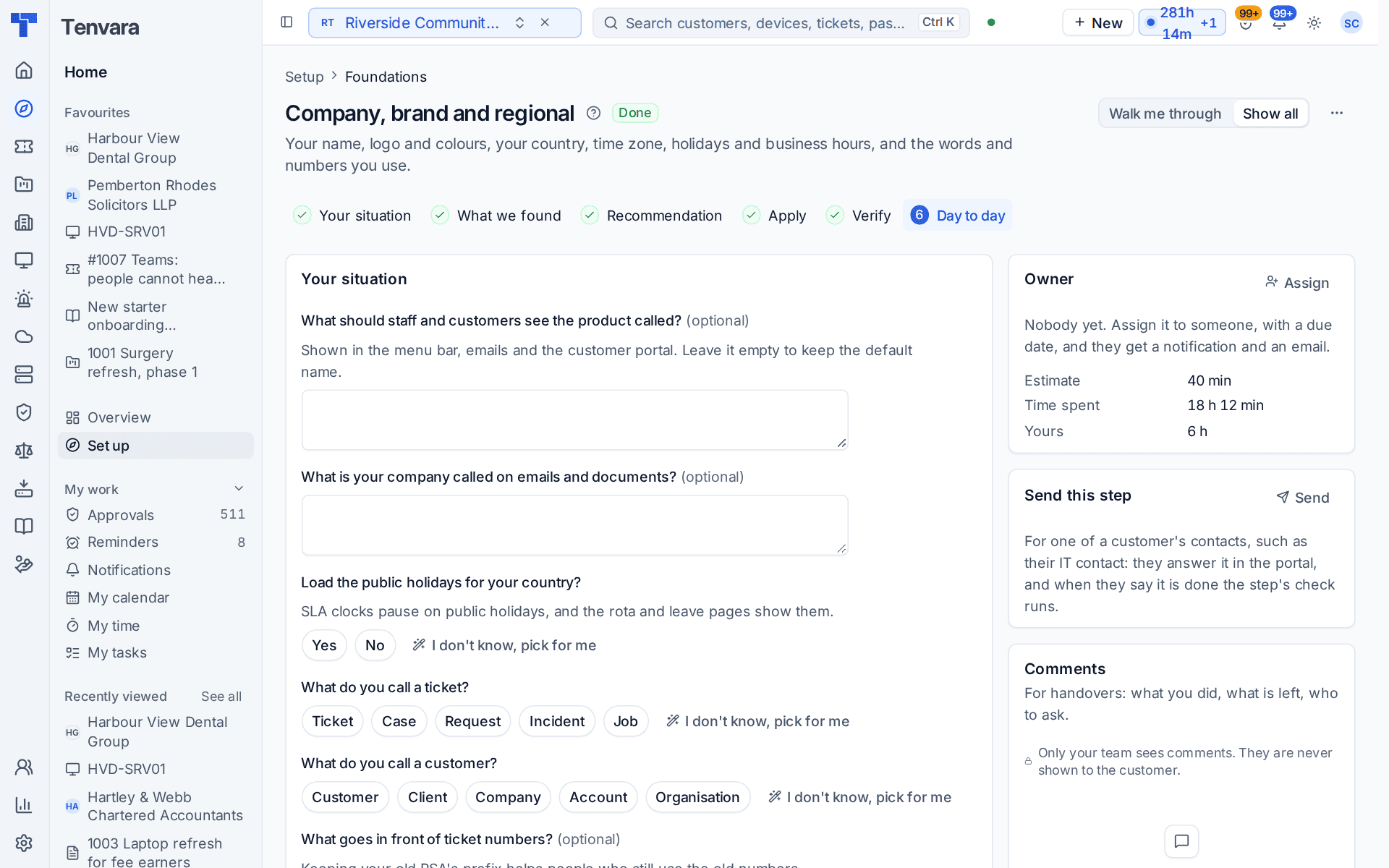
The Company, brand and regional section of the setup helper: the names people see, your logo and colours, business hours, public holidays, the words you use and the prefix on ticket numbers.
Company, brand and regional is in the Foundations phase and takes about 40 minutes. It sets the things every other section builds on: what staff and customers see the product called, when your service desk is open, which days are public holidays, and the words and numbers you use.
Open Set up (Health once you have gone live) and choose Company, brand and regional. It runs through the same six beats as every section: see Working through a section.
Note: Finish Install and licence first. Until then the section is Blocked and says what to finish.
What it reads from your data
What we found lists the name people see, whether a logo is uploaded, your main colour, the number of custom domains, your country, time zone and main currency, whether public holidays are loaded for this year, and how many days are in your business hours.
What it asks
| Question | Notes |
|---|---|
| What should staff and customers see the product called? | Shown in the menu bar, emails and the customer portal. Leave it empty to keep the default name. Optional |
| What is your company called on emails and documents? | Optional |
| When is your service desk open? | Office hours, Extended hours or Around the clock. SLA clocks only run in these hours. Usually answered in discovery, so it shows under Already known |
| Load the public holidays for your country? | SLA clocks pause on public holidays, and the rota and leave pages show them |
| What do you call a ticket? | Ticket, Case, Request, Incident or Job |
| What do you call a customer? | Customer, Client, Company, Account or Organisation |
| What goes in front of ticket numbers? | Keeping your old PSA's prefix helps people who still use the old numbers. Optional |
What it recommends
- Staff and customers see your own names instead of the default.
- SLA clocks count only the hours your desk is open. The business hours are set from your answer, and the preview shows the days and times Now and what they Will be. You can set different hours per customer or per team later in Settings > Ticket setup, on the SLAs and Business hours tabs.
- Public holidays for your country pause SLA clocks and show on the rota.
- Screens and emails use your words for a ticket and a customer.
- Ticket numbers start the way your customers know them.
Press Change something to leave a line out or change a value, then Apply. You can undo an apply for 7 days.
Tip: The logo, colours and custom domains are not questions here, because they need files and DNS records. Set them in Settings > Branding. The checks below tell you when they are missing.
How it is verified
| Check | What it looks at | Where to fix it |
|---|---|---|
| Your name or logo is set | Customers no longer see the default name and logo | Settings > Branding |
| Your main colour is readable on white | The contrast of your main colour. If it is hard to read, switch on automatic adjustment or pick a darker shade | Settings > Branding |
| Custom domains are verified | Every custom domain you added answers. Passes when you use the install's own address | Settings > Branding |
| Public holidays are loaded for this year and next | So an SLA clock never runs through a bank holiday | Load the public holidays, a one-press fix |
| Business hours are set | Without them SLA clocks never run. Needed to go live | Set office hours, a one-press fix |
Your names
The separate Your names section, just before this one, asks for your company's full name and a short name of 2 to 12 letters or digits. The short name is how your server says who it is when it checks your customers' websites. Both are kept in Settings > Branding. See The setup helper.
Day to day
- SLA clocks run in your business hours and pause on public holidays in your country.
- Customers see your name, logo and colours in emails, documents and the portal.
- The pages behind this section are Settings > Branding, Settings > Regional (with the Holidays tab), Settings > Terminology, Settings > Numbering and Settings > Home page.
Related guides
Was this page helpful?
Thanks for the feedback.