Every certificate in one list
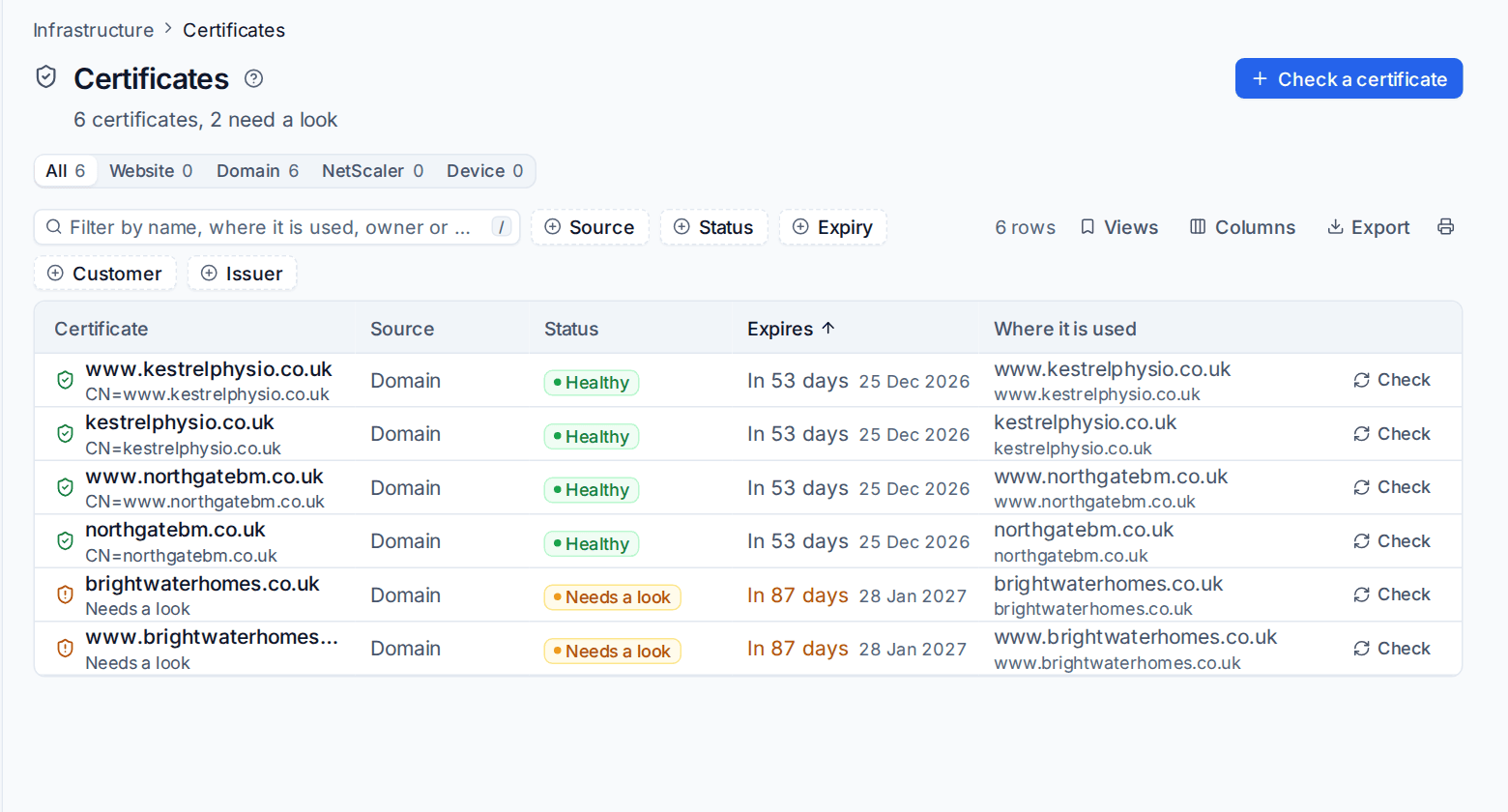
Infrastructure > Certificates lists every certificate Tenvara knows, from websites, domain checks and devices, soonest to expire first, with a Source filter, where each is used and Renew or Check on the row.
A certificate that expires takes a website, a VPN portal or a remote desktop gateway down just as surely as a dead server. Tenvara knows certificates from several places: the sites on your web servers, the checks it runs on hosts under your customers' domains, and the devices that serve one. Infrastructure > Certificates puts them all in one list, soonest to expire first, so nothing is missed because it lived on another page.
The page is in the Domains and certificates group of the Infrastructure sidebar. Older links to separate website and domain certificate lists still land here, with the right source chosen.
Sources
The Source row above the list counts and filters the certificates by where they come from:
| Source | What it holds | Where it comes from |
|---|---|---|
| Website | Certificates the sites on your web servers serve | The agent on each web server. See Certificates, operations and alerts. |
| Domain | Checks of any host and port under a customer's domain: the website, webmail, a remote desktop gateway, a firewall's VPN portal, a mail server with STARTTLS | Discovery under each monitored domain, and checks you add. See Domain and SSL monitoring. |
| Device | Certificates a device serves, such as a remote desktop gateway or broker, or a device an Uptime check watches | The agent on the device, and your uptime checks. |
All shows everything. The Source filter beside the search does the same and can be combined with the others.
Reading the list
Each row shows:
- Certificate: the name it is issued to, with its subject underneath, and an icon for its state.
- Source.
- Status: Healthy, or what is wrong: Expired, Expiring soon, Renewal failing, Check failing, Needs a look (a problem such as an untrusted chain, a name that does not match or old TLS versions accepted), Paused or Not checked yet.
- Expires: how long is left and the date.
- Where it is used: the sites, hosts or roles that serve it, for example "RD Gateway on BEA-RDGW01".
- Check or Renew on the row, where they apply (below).
Add Customer, Issuer, Belongs to and Names it covers from Columns. Filter by Source, Status, Expiry (Expired, Within 14 days, In 15 to 30 days, Later, Unknown), Customer and Issuer, or type in the search box to find a name, where it is used, its owner or customer.
The Views picker has Problems, Expiring soonest, Expiring in 14 days, Expiring in 30 days and Expired ready made. The Infrastructure sidebar also offers Certificate problems and Expiring soonest under Certificates.
With a customer chosen in the customer switcher, the list shows that customer's certificates only.
Opening a certificate
Click a row to open it in the side panel:
- A Domain check opens its full check: its issues with what to do about them, when it expires and was valid from, who it was issued to and by, the names it covers and whether the host's name matches, whether the chain is trusted, the key and signature, the protocol (with any old TLS versions it still accepts), the address, the serial and fingerprint, when it was last replaced, and the chain as the server sent it. Check now checks it again.
- A Website or Device certificate shows what it is, when it expires, where it is used and what it belongs to, with a link to open that record: the site's Domains and TLS tab, the web server, or the device.
Renew and Check
The buttons on a row do the quick thing for that kind of certificate:
- Renew (Renew this certificate now) appears on a website certificate Tenvara issued. It renews it straight away instead of waiting for the automatic renewal, which starts 30 days before expiry by default.
- Check (Check this certificate now) appears on domain checks and on certificates an uptime check watches. It connects to the host again and refreshes what it found.
Certificates issued some other way are renewed wherever they came from; the list tells you where they are used so you know which box to visit.
Adding a check of your own
Press Check a certificate to watch any host and port that serves TLS, wherever it is hosted: a website, Outlook on the web, an RD gateway, a firewall's VPN portal, or a mail server with STARTTLS.
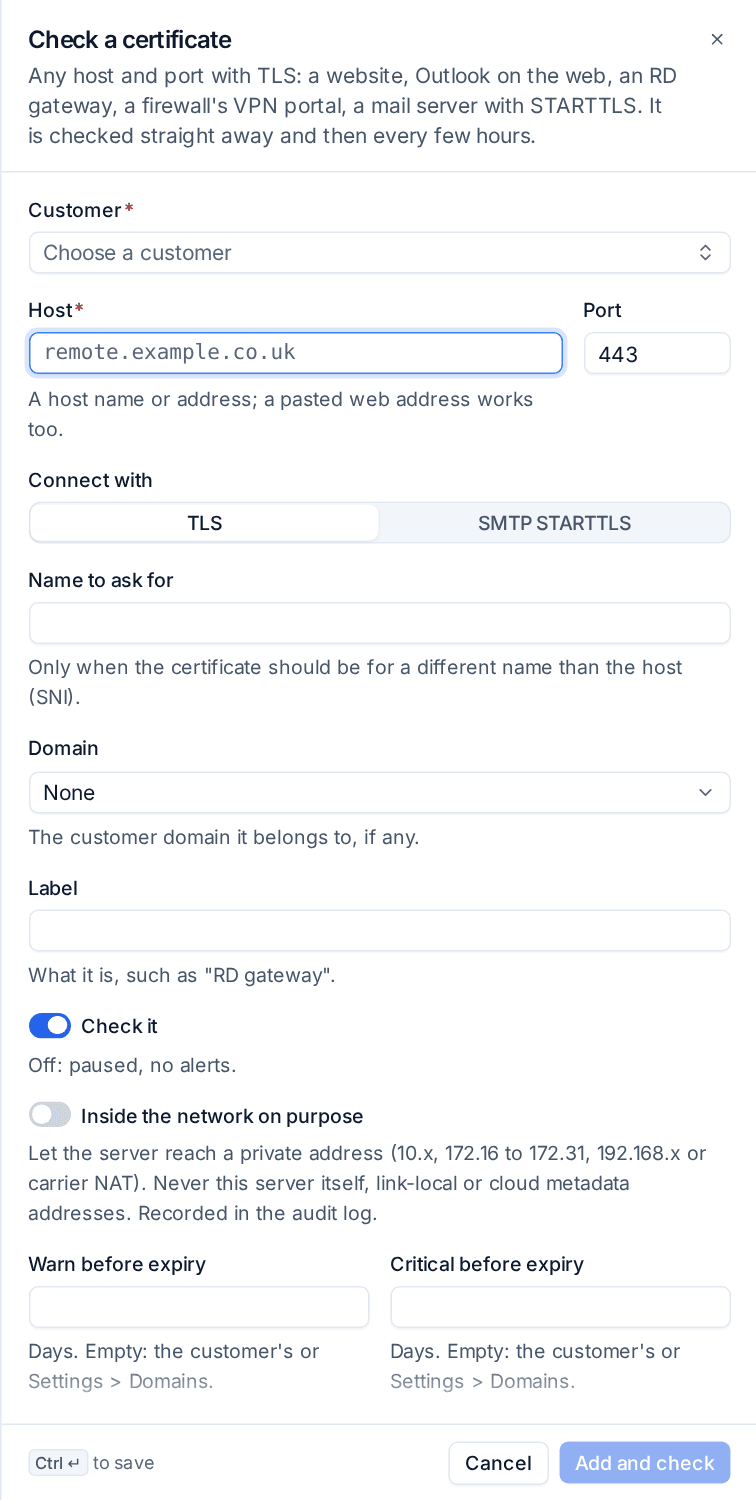
- Choose the Customer.
- Enter the Host (a pasted web address works too) and the Port.
- Under Connect with, choose TLS or SMTP STARTTLS.
- Fill in Name to ask for only when the certificate should be for a different name than the host.
- Link it to the customer's Domain and give it a Label, such as "RD gateway".
- Tick Inside the network on purpose for a host on a private address. Without it the server never connects to private addresses; ticking it is recorded in the audit log.
- Set Warn before expiry and Critical before expiry if this host needs its own; empty uses the customer's or the general setting.
- Press Add and check. It is checked straight away and then every few hours, and appears in the list with the Domain source.
Alerts
Certificate problems raise alerts from the part of Tenvara that owns the certificate: website certificates as web server alerts (expiring, renewal failed), domain checks as domain alerts (expiring, untrusted, wrong name, weak protocols, unreachable). Both appear in Alerts under Domains and certificates or Infrastructure, and their links open this list on the certificate.
Related
Was this page helpful?
Thanks for the feedback.