Microsoft 365 steps and the leaver bundle
Create and change users, groups, teams and shared mailboxes from a rule, run a leaver's whole Microsoft 365 checklist in one step, and see and undo every change on the run.
Rules can do most routine Microsoft 365 work for you: make a new starter's account, add someone to a group, give Full Access to a shared mailbox, close a leaver's account on their last day. Each step is one of Microsoft 365's own actions in Tenvara, run as the rule's owner, so the same permissions, approvals, audit and Undo apply as when a technician makes the change by hand. A step only ever touches the Microsoft 365 tenant of the customer the rule ran for.
You need the customer's Microsoft 365 tenant connected. See Making changes safely for how changes, approvals and undo work in Microsoft 365.
Finding the steps
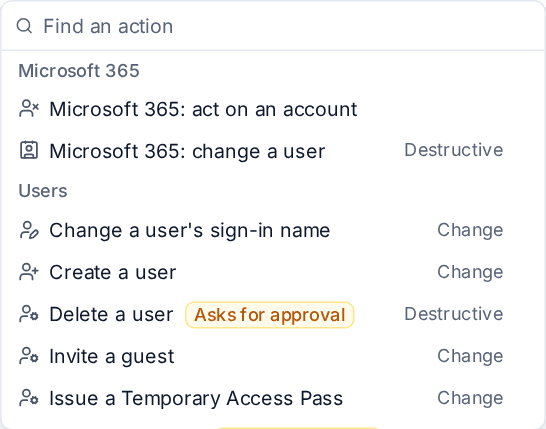
In a rule, click Add an action. Under Microsoft 365 the picker groups the steps:
| Group | Steps |
|---|---|
| Microsoft 365 | Microsoft 365: act on an account, Microsoft 365: change a user |
| Users | Create a user, Update a user's details, Change a user's sign-in name, Set a user's manager, Set a user's photo, Restore a deleted user, Delete a user, Invite a guest, Issue a Temporary Access Pass, Reset a user's MFA, Unlock a user |
| Leaver | Leaver bundle |
| Groups and Teams | Create a group or team, Update a group, Change a group's members, Add a channel to a team, Archive a team |
| Shared mailboxes | Create a shared or resource mailbox, Change mailbox access (Full Access, Send As, Send on Behalf), Change calendar permissions, Forward a mailbox's mail, Add or remove a mailbox alias, Hide or show a mailbox in the address book |
Type in Find an action to filter by name, group or description. Each step shows its risk: Change for routine writes, Destructive for changes that remove something, such as Delete a user or Reset a user's MFA.
Names, not ids
Steps find what they act on by name or address, and placeholders work everywhere, so one rule serves every customer:
- a user by sign-in name, email address or display name (a display name two users share is refused: use the address);
- a group, distribution list, team or mailbox by name or address;
- people to add (members, owners, who gets access) as addresses or names, one per line or separated by commas.
A form's answers fit straight in, for example {{form.picked.leaver.upn}} from a person picker or {{form.answers.group}}. See Form triggers and the ready-made starter and leaver rules.
A step looks only in the trigger's customer's own tenants. If an address belongs to another customer's tenant, the run log says so and nothing is done; a trigger with no customer does nothing. Someone who is not in the object's tenant is left out of a membership change, and the run log names them.
Creating a user
Create a user takes the first name and surname, and builds the sign-in name from a pattern ({first}.{last}@{domain} to start with; {f} and {l} are initials, accents are dropped, spaces and apostrophes removed). It can set the display name, usage location, job title, department, office, phones, manager, one licence and groups. When the name is taken, the step adds a number (jo.bloggs2@) or stops, as you choose. A missing manager, licence or group stops the step before anything is made.
The new password is never shown or logged. It goes by text to the person's mobile (through your SMS channel) or as a one-time link to their manager, the ticket's requester or an address, and the step checks that delivery can happen before the account is made. A Temporary Access Pass is sent the same way.
Later steps in the same rule can use the new account as {{created.m365_user}}, for example to add it to groups or give it mailbox access.
The leaver bundle
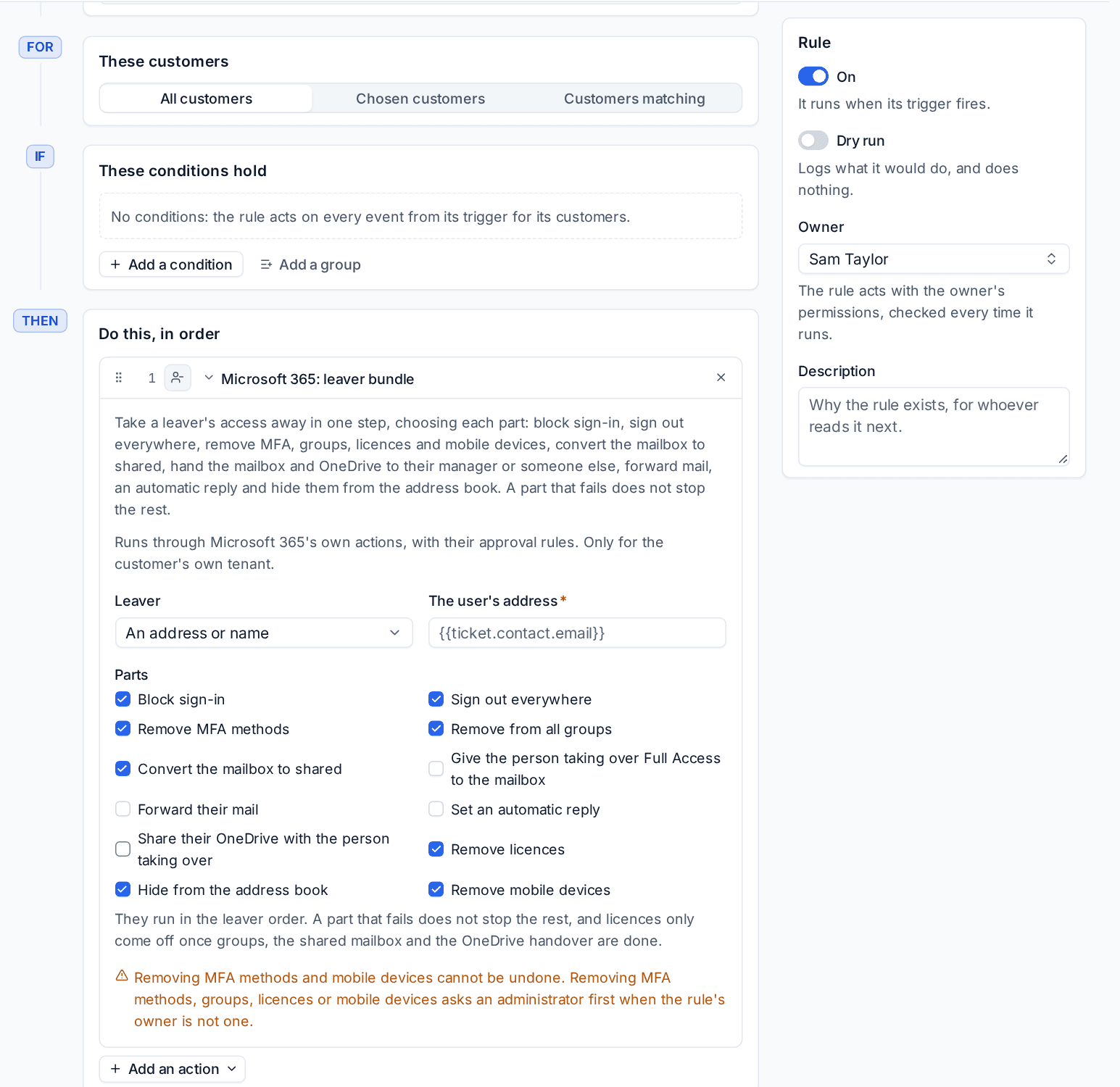
Leaver bundle takes a leaver's access away in one step. Choose Leaver (an address or name, for example {{ticket.contact.email}}) and tick the Parts you want:
- Block sign-in, Sign out everywhere, Remove MFA methods, Remove from all groups
- Convert the mailbox to shared, Give the person taking over Full Access to the mailbox, Forward their mail, Set an automatic reply
- Share their OneDrive with the person taking over, Remove licences, Hide from the address book, Remove mobile devices
How it runs:
- In the leaver order, whatever order you ticked them in: sign out, block, MFA, groups, devices, reply, forwarding, Full Access, convert, hide, OneDrive, licences. Licences only come off once groups, the shared mailbox and the OneDrive handover are done.
- The person taking over is the leaver's manager in Microsoft 365, or an address or name you give. With nobody to hand over to, those parts fail and say so.
- The automatic reply comes from the tenant's leaver template when the rule gives none.
- A part that fails does not stop the rest. The other parts carry on; the step then fails naming the part that did not work, so the owner is told and the rule's later steps do not run on a half-done leaver.
- Parts the person cannot have are left out with the reason (no mailbox, a mailbox that is already shared), and a leaver already running for the same person from Cloud > Starters and leavers or a service request stops the step.
Removing MFA methods and mobile devices cannot be undone. The other parts can be.
Approvals
High-risk changes (adding members to a group that holds administrator roles, changes to an administrator's account) always ask an administrator, as they do by hand. Destructive changes (Delete a user, Reset a user's MFA, removing Full Access, and the leaver's MFA, groups, licences and mobile devices) need someone to type a confirmation by hand; a rule cannot, so when the rule's owner is not an administrator, the step sends the change to an administrator for approval and carries on with Sent to an administrator for approval. The picker marks these steps Asks for approval.
With Ask for approval before risky steps on (the General tab of Settings > Channels), a rule owned by someone who is not an administrator also needs an Ask for approval step before any Microsoft 365 step.
Dry run
In dry run a Microsoft 365 step finds the person, group or mailbox and says what it would do, part by part for the leaver bundle (Would be done, or why a part is left out). Nothing is sent to Microsoft. A step that names something an earlier step would create says so rather than looking it up.
Every change on the run, with Undo
Each change a step makes is listed on the run's page under its step: what changed, on which object, its status (done, waiting for Microsoft, waiting for approval, failed, undone), and the values before and after where known. Undo is beside every change that can be undone: an account made is deleted, a group membership put back, a mailbox converted back, a forward removed. Undo runs as the person pressing it with their own permissions and is audited; undoing a destructive or high-risk change is for administrators. See The run log.
Related
Was this page helpful?
Thanks for the feedback.