Firewalls and controllers
Watch pfSense, OPNsense and MikroTik firewalls and routers through an agent at the site with a read-only account, with one shared set of alerts, a daily configuration backup in the vault, and firewalls found on the network offered to add.
A customer's firewall is the one box every user depends on, and it rarely runs an agent. Tenvara reads it over its own API through an agent at the site, using a read-only account you make on the firewall: interfaces and WAN links, gateways, VPN tunnels, high availability, certificates, services and firmware. Every make shares the same alerts, and the configuration can be backed up every day into the customer's documentation.
This guide covers pfSense (CE and Plus), OPNsense and MikroTik RouterOS 7. They are added on Infrastructure > Firewalls and controllers, in the Network group. It needs the Monitoring module.
How it reads a firewall
- An agent at the site does the reading, on a computer that is usually on and can reach the firewall's address. Nothing is installed on the firewall.
- It uses a read-only account. Tenvara only ever reads: it never sends anything that changes the box, and the credentials are kept encrypted and only ever sent, sealed, to the agent that reads it.
- It polls every minute or so (Poll every on the form, 30 seconds to 15 minutes). Certificates and firmware are read hourly, DHCP leases and the ARP table every five minutes.
- Anything the account is not allowed to read is left out and listed on the firewall's page under Not readable by its account, so you can give it more rights or leave it be.
The read-only account for each make
| Make | How Tenvara reads it | The account to make |
|---|---|---|
| pfSense | REST API package, else SSH (the default), or SSH (read-only commands) | With the pfSense REST API package installed: a user with only the read privileges of its endpoints, and an API key for that user. Without it: a user with only the "User - System: Shell account access" privilege, with a password or an SSH key. |
| OPNsense | Its built-in REST API over HTTPS | A user in no group (so no administrator rights), with the Lobby: Dashboard privilege and the status pages you want read (interfaces, gateways, IPsec, OpenVPN, WireGuard, services, certificates, configuration history, firmware, ARP and DHCP leases), and an API key and secret for it. |
| MikroTik RouterOS | The REST API over HTTPS (www-ssl) |
A group with only the read, api and rest-api policies (leave write and sensitive off), and a user in it allowed from the agent's address. |
The form's How to set it up link and its help text say the same for the make you choose.
Tip: pfSense keeps some readings (pf, the gateway monitor, IPsec, OpenVPN status, leases and the configuration file) for root. To read those over SSH, install the sudo package, add a rule for exactly the read commands the form's help lists, and tick Use sudo for root's read commands. Without it, everything else is still read.
Adding a firewall
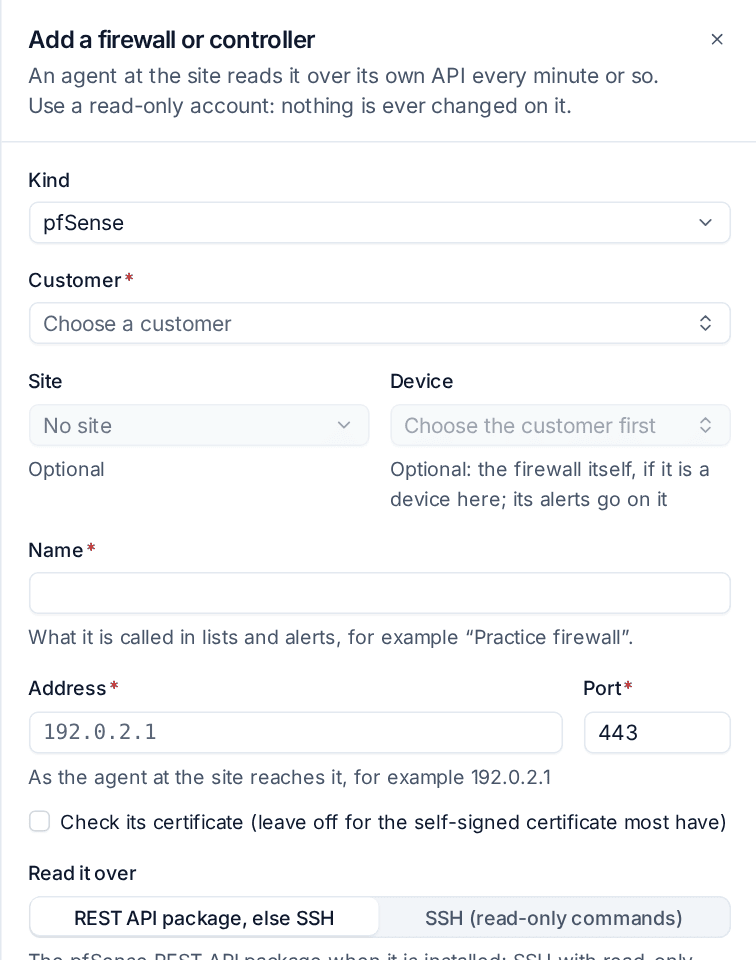
- Go to Infrastructure > Firewalls and controllers and press Add controller.
- Choose the make under Kind.
- Choose the Customer, and optionally the Site and the Device (the firewall itself, if it is a device in Tenvara: its alerts then go on it).
- Give it a Name, such as "Practice firewall", and the Address and Port as the agent at the site reaches it.
- Leave Check its certificate off for the self-signed certificate most firewalls have, or tick it if the firewall has a trusted one.
- Under Read it over, choose how to read it (pfSense and MikroTik offer a choice), then fill in the credentials of the read-only account. For pfSense over SSH you can paste the firewall's SSH host key so only that key is trusted; left empty, the first key seen is kept and a changed one refused.
- Choose Polled by: the computer at the site whose agent reads it.
- Set the alert thresholds and tick Back up its configuration daily into its documentation, sealed in the vault if you want the backup (below).
- Press Add controller. The first reading arrives within a minute of the agent getting it.
The firewall's page
Click a firewall in the list to open it. You see:
- Polled by, Polled (when), Read through (for pfSense, which way it was read and why), Up for, the model, serial number and firmware.
- CPU, Memory, Disk, Temperature and Sessions.
- Its interfaces, with link, speed, address and traffic. WAN interfaces are the ones watched for alerts, since a firewall has many ports that are down on purpose.
- Gateways with their latency and packet loss.
- Tunnels: IPsec, OpenVPN and WireGuard, with peers and connected clients.
- HA: CARP on pfSense and OPNsense, VRRP on MikroTik, with this box's role and whether the members agree.
- Certificates in use, with their expiry, services running or stopped, and Firmware with any Update available.
- Configuration backup, when it is switched on.
Poll now reads it again straight away. Any item can be ignored with Ignore, for example a tunnel that is only up when someone needs it: it stays on the page marked Ignored, with who ignored it and when, and raises no alert. Stop ignoring puts it back.
The tiles at the top of the list count Controllers, those Not answering, Tunnels down and Licences to renew, so you see the state of every customer's firewall at a glance.
The shared alerts
Every make raises the same alerts, with thresholds set on the firewall's own form. An empty threshold switches that alert off.
| Alert | Severity | Threshold |
|---|---|---|
| Not answering | Critical | Not answering, polls in a row |
| WAN interface, gateway or tunnel down | Critical (a warning while another of its kind is still up) | Tunnel down (min) |
| Gateway losing packets or slow | Warning | Gateway loss (%) and Gateway latency (ms) |
| HA out of sync, or a failover | Warning | |
| Firmware update available | Information, a warning when it fixes security advisories | Alert on firmware updates |
| Certificate expiring or expired | Warning or critical | Certificate expiry (days) |
| Memory or disk use high | Warning | Memory or disk (%) |
| Configuration changed | Warning, kept until a person closes it | Alert when its configuration changes |
| Service stopped | Warning | Service stopped (min) |
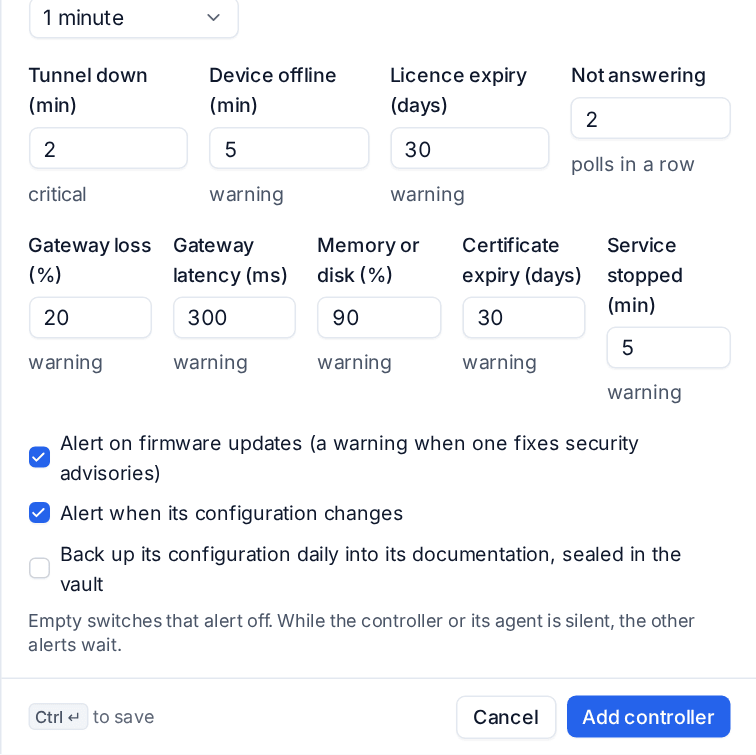
While the firewall or its agent is silent, the other alerts wait, so one dead link does not flood you. Alerts appear in Alerts like any other and follow your alert rules into tickets.
The daily configuration backup
With Back up its configuration daily into its documentation, sealed in the vault ticked, the agent fetches the firewall's configuration once a day and keeps it in the customer's documentation, as a Firewall configuration record linked to the firewall's device and site:
- pfSense: its configuration file, read over SSH (so a pfSense read through the REST API needs the SSH account too).
- OPNsense: its configuration file from the configuration history (the user needs Diagnostics: Configuration History).
- MikroTik: the configuration as read from its menus. With
sensitiveoff, it holds no passwords or keys.
The configuration is stored as a vault secret, because it holds password hashes, keys and certificates' private keys. Opening it is a reveal, with the vault's permission and audit log. A new copy is kept only when the configuration changed, and the vault keeps the earlier ones. The firewall's page shows when it was last changed and checked, with Open it in the documentation. See The credentials vault.
Firewalls found on the network
Firewalls the network scan, a syslog source or a network card's maker recognises, and that no firewall of the customer is at yet, are offered at the top of the page: "A firewall was found on the network". Each shows Found through (the device that saw it) and how it was recognised.
- Add opens the form already filled in with the make, its port, the customer, site and address. Add the read-only account and save.
- Ignore stops it being offered again. Show ignored brings ignored ones back into view.
A firewall's DHCP leases and ARP table are then joined with the site's network scan: see Network discovery and topology.
Related
Was this page helpful?
Thanks for the feedback.