Verifying who a caller is
Check that the person asking for a password reset, an MFA reset or an access change is who they say they are, using only the details you already hold, with a policy per customer, a blocker on sensitive tickets and a record of every check.
The easiest way into a customer's Microsoft 365 is to ring their IT provider and ask for a password reset. Verify identity makes the check part of the ticket: the technician asks Tenvara to confirm the person, Tenvara uses only details already on file (never a number the caller gives you), and the result, the method and who did it are kept on the ticket, the contact and the audit log.
It works the same in the Company edition, where the people are your organisation's employees.
Start a check
Verify identity is in three places:
- on a ticket, in the Request line under the header, for the ticket's requester,
- on a contact's page, in the Identity checks card,
- on the call card when a call is matched to a contact.
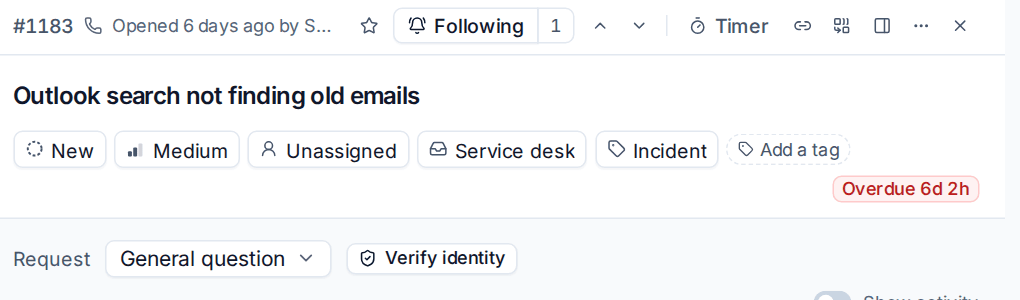
- Press Verify identity.
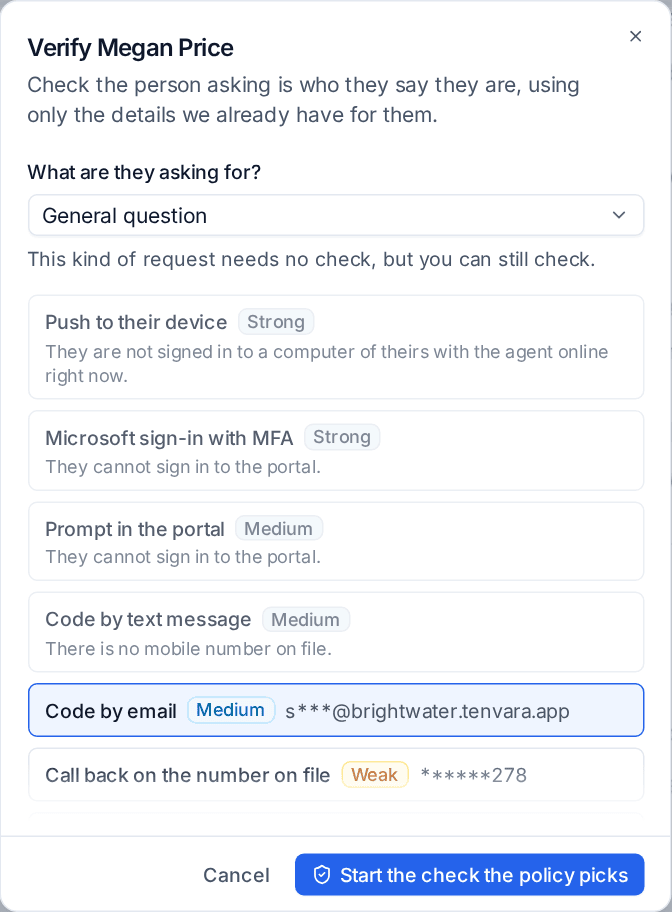
- Under What are they asking for?, choose the request, such as Password reset, MFA reset, Access change or General question. The dialog says what that request needs.
- Pick a method from the list, or press Start the check the policy picks to use the strongest one the policy allows. Each method shows its strength and where it goes, masked (for example
s***@brightwater.co.uk), or why it cannot be used for this person ("There is no mobile number on file"). - Optionally add Their request, in a few words. It is kept with the check and shown to an approver.
- Follow the dialog: read out the number, type in the code they give you, or record the callback. It shows the time left.
The methods
| Method | Strength | How it works |
|---|---|---|
| Push to their device | Strong | A window opens on the person's own managed Windows computer, on top of their other windows: who is asking, why, and three numbers. The technician reads out the right one; the person picks it, or presses Deny |
| Prompt in the portal | Medium | A banner in the customer portal says "Your support team asks you to confirm it is you". Review opens the request; they pick the number the technician reads out and Approve, or Deny. Someone not signed in gets an email with a link that opens the portal's sign-in first |
| Code by email | Medium | A one-time code to the email address on file, which they read back to you |
| Code by text message | Medium | A one-time code to the mobile number on file, sent through your own SMS provider (Text messages in Settings > Channels). Offered only when one is set up |
| Call back on the number on file | Weak | You ring the number on file and record whether it was them |
| Manager approval | Weak, or strong with one other passed check | Their manager, a customer approver or your own approvers approve it in Approvals. They sign in to decide, and the technician who asked can never approve it |
Push to their device is offered only when the person is signed in to a computer of theirs with the agent online and the tray on; the dialog says why not otherwise. A wrong number fails the check at once (start another if they misheard), closing the window without choosing fails it, and the window never takes the keyboard, so a key pressed as it opens cannot answer it.
The policy
Settings > Ticket setup, the Identity checks tab, holds your default policy:
- Methods that may be used: untick a method to stop it being offered.
- What each request needs: for Password reset, MFA reset, Access change and General question, the strength needed and whether it Warns (a banner, and the technician can go ahead) or Blocks.
- Which tickets are which request: a ticket in one of these categories, or under it, counts as that request. A technician can still change it on the ticket.
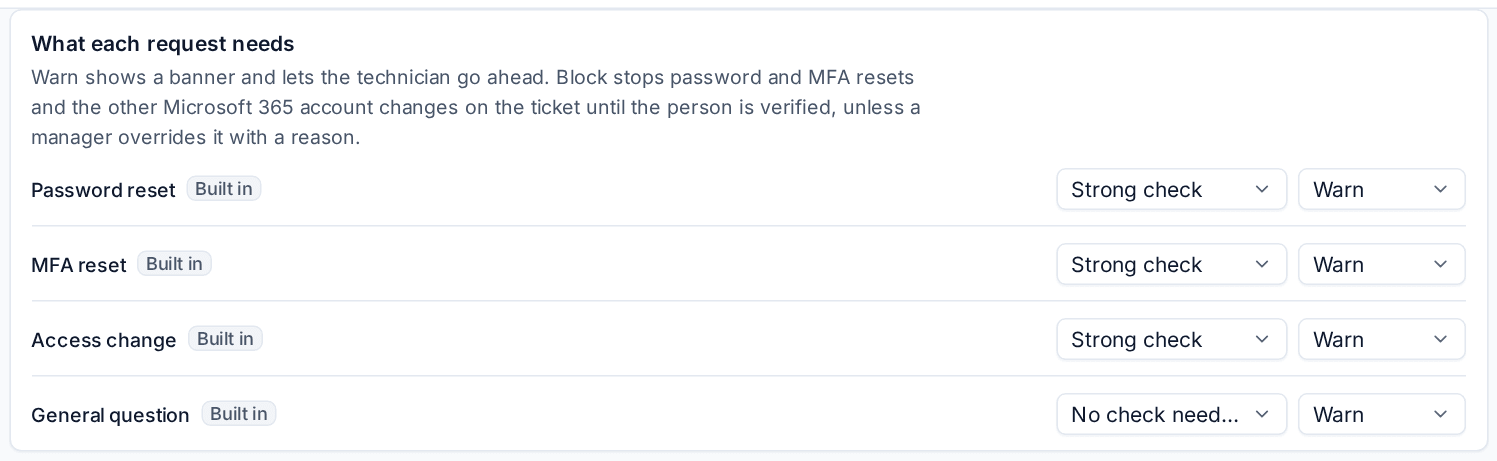
By default every request warns. A customer can have its own policy: open the customer's Settings tab, Identity checks (MSP edition). Anything left empty there follows your default.
The same tab sets the timings and limits: how long a check can be answered for (5 minutes), how long a manager can take (30 minutes), wrong codes before a check fails (3), checks of one person an hour (5) and by one technician (20), the lockout after someone declines (15 minutes), how long changed contact details count as recent (14 days) and how long a passed check counts for (60 minutes).
Blocking sensitive changes
When a request is set to Block and the person is not verified strongly enough, the ticket shows a blocker and refuses the sensitive Microsoft 365 changes started from it: password and MFA resets, Temporary Access Passes, unblocking sign-in, unlocking, admin roles, group and mailbox access, forwarding and sharing. Someone with the role switch Override identity checks (administrators by default) can let the ticket go ahead with a reason, which is recorded. Automation rules and approved changes are not held up, as they never come from a caller.
Built against tricks
- Push fatigue: one live check per person at a time, limits per hour, and a Deny (or an approver's no) locks out new checks of that person for a while and raises a security alert.
- SIM swaps and taken-over mailboxes: a mobile number or email address changed recently counts one step weaker, and the dialog says why. Whoever changed the detail cannot verify the person by it.
- Hijacked mailboxes: a code by email is never enough on its own for a strong request.
- A rogue technician: nobody can verify themselves, and every start, result and override is recorded.
Results and reports
Each check ends Verified, Failed, Expired, Declined or Cancelled. The result, the method, who started it, who answered and from which computer show on the ticket and in the contact's Identity checks card, and go in the audit log with the details masked. Checks by technician, at the bottom of the Identity checks tab, lists every check and override for 7, 30 or 90 days. The monthly customer report gets an Identity checks section when there were any.
Related
Was this page helpful?
Thanks for the feedback.