Email in and out
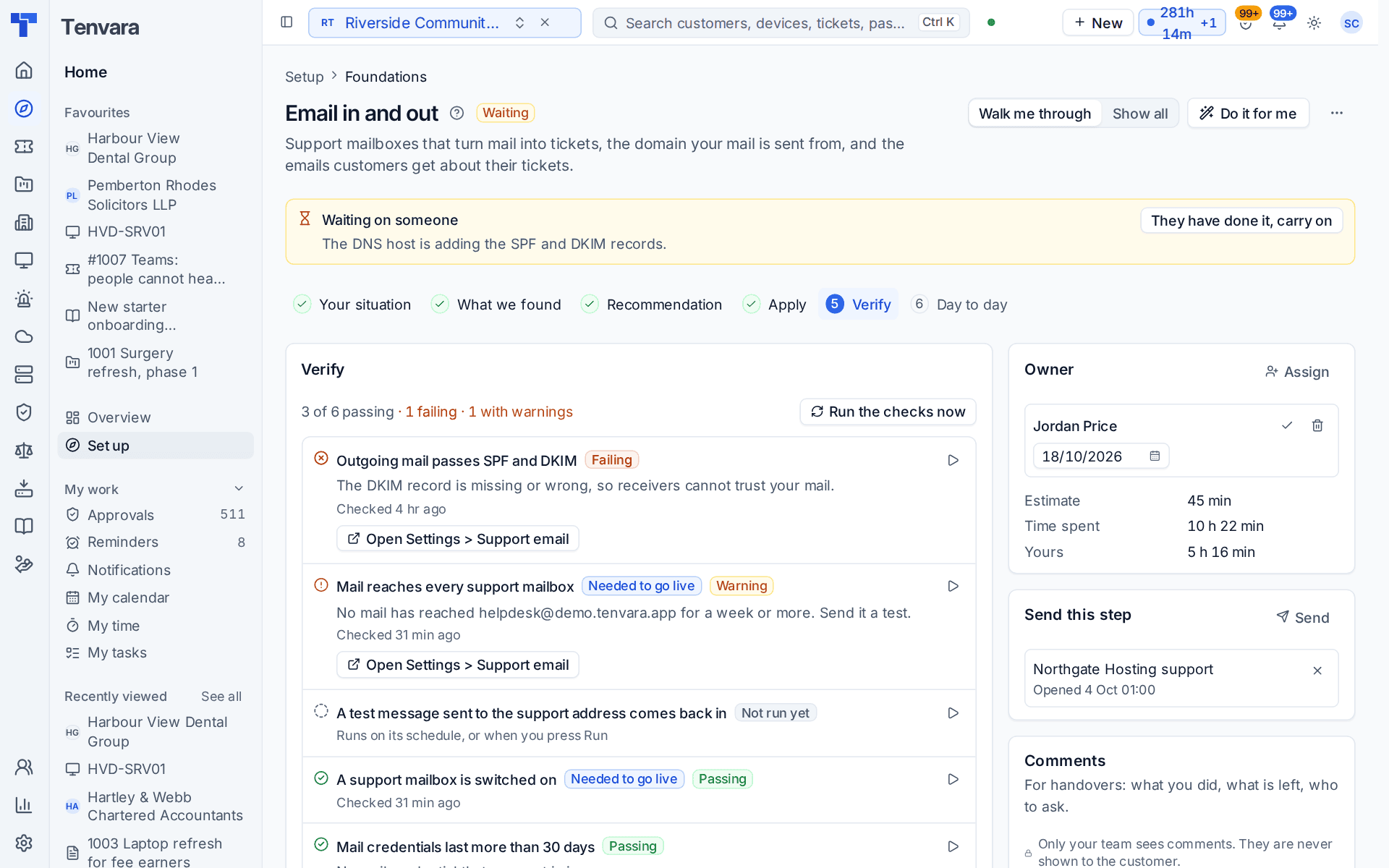
The Email in and out section of the setup helper: support mailboxes that turn mail into tickets, the domain your mail is sent from, the emails customers get about their tickets, and the checks that prove mail flows both ways.
Email in and out is in the Foundations phase and takes about 45 minutes. It covers the support mailboxes that turn mail into tickets, the domain your mail is sent from, and the emails customers get about their tickets.
Open Set up (Health once you have gone live) and choose Email in and out. It runs through the same six beats as every section: see Working through a section.
Note: Finish Company, brand and regional first. The section works best after Staff, roles, teams and sign-in, and it is marked Owner approves, so Do it for me waits for the owner's approval here.
Before you start
The section checks your mailboxes; it does not create them. Add your support mailbox and your sending domain in Settings > Support email, on the Mailboxes tab:
- A mailbox is a Microsoft 365 mailbox, or an address you forward to the inbound address Tenvara gives you.
- When your own Microsoft 365 tenant is already connected (see Microsoft 365), add the mailbox through it: press Add mailbox, pick the tenant, type the address and press Check mailbox. There is nothing to set up in Entra. Tenvara reads the mailbox with the app the tenant already trusts, and replies wait until the tenant has given permission to send (Consent again asks for it), then go out. Without a connected tenant, a mailbox can use an app registration of its own, restricted to that one mailbox.
- A sending domain needs SPF and DKIM records at whoever hosts your DNS.
See Email to ticket and alert rules for the steps.
What it reads from your data
What we found counts the support mailboxes switched on, how many are Microsoft 365 mailboxes and how many are forwarded, when the last mail was received, mailboxes with an error in the last day, and your sending domains and how many are verified.
What it asks
| Question | Notes |
|---|---|
| Send customers an email when their ticket is logged? | It confirms you have it and gives them the reference |
| Email customers when their ticket is resolved? | Yes or no |
| Put a button in ticket emails that opens the ticket in the portal? | Yes or no |
| What happens when a customer marks an email as important? | It becomes a high priority ticket or Nothing different |
| Flag a contact whose email bounces? | Yes or no |
I don't know, pick for me chooses yes for each, and a high priority ticket for mail marked important.
What it recommends
- Customers hear from you at the moments they care about, and every email can take them to their ticket. The acknowledgement, the resolved email and the portal button follow your answers.
- An email marked important becomes a high priority ticket. If you chose Nothing different, it is triaged like any other, so customers cannot jump the queue by flagging everything.
- A contact whose mail bounces is flagged, so someone fixes the address before the next reply is lost.
Check What changes, then press Apply. You can undo an apply for 7 days.
How it is verified
| Check | What it looks at | Where to fix it |
|---|---|---|
| A support mailbox is switched on | At least one mailbox takes mail. Needed to go live | Settings > Support email |
| Mail reaches every support mailbox | Mail has arrived at each mailbox lately. Needed to go live | Send the address a test, then Settings > Support email |
| A test message sent to the support address comes back in | Tenvara sends a labelled test email to your support address and waits for it to arrive. It never becomes a ticket | Press the play button on the check to run it |
| Outgoing mail passes SPF and DKIM | The DNS records for your sending domain, so receivers can trust your mail | Settings > Support email |
| Mail credentials last more than 30 days | No mailbox credential is about to run out | Settings > Support email |
| Invitations and password resets are sent | System mail leaves the install | Settings > Support email |
When the fix is someone else's
The SPF and DKIM records usually belong to whoever hosts your DNS. Two ways to hand that over without losing track:
- Press Send beside Send this step and send the step to a colleague or to a customer's contact, with Outgoing mail passes SPF and DKIM chosen under Check it with. The check runs when they say it is done.
- Or mark the section Waiting on someone with a reason, such as "The DNS host is adding the SPF and DKIM records". The section shows Waiting on the hub until you press They have done it, carry on.
Day to day
- Mail to a support address becomes a ticket, or a reply on the ticket it belongs to. Replies go out from the same address.
- The wording of every email customers get is in Settings > Support email, on the Email templates tab. Every customer email goes out under one sender name, the one your portal wears, and the page shows it.
- The Mailboxes tab shows each mailbox's last mail and any error, and has the rules for spam, bounced email and senders.
Related guides
Was this page helpful?
Thanks for the feedback.