Sales, proposals and procurement
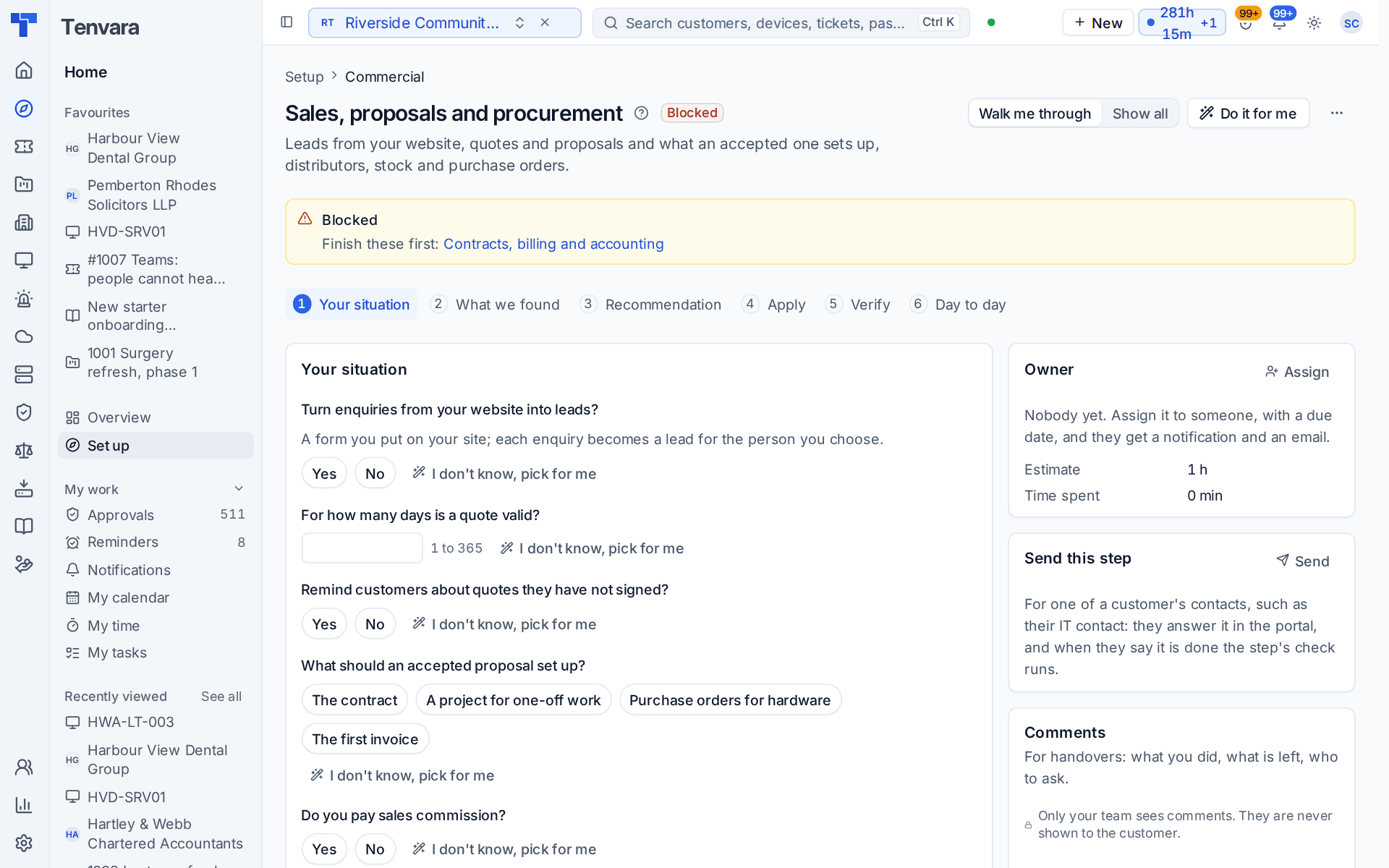
The Sales, proposals and procurement section of the setup helper: leads from your website, how long quotes are valid, reminders, what an accepted proposal sets up, commission, low stock warnings and distributor feeds.
Sales, proposals and procurement is in the Commercial phase and takes about an hour. It covers leads from your website, quotes and proposals and what an accepted one sets up, and the buying side: distributors, stock and purchase orders.
Open Set up (Health once you have gone live) and choose Sales, proposals and procurement. It runs through the same six beats as every section: see Working through a section.
Note: Finish Contracts, billing and accounting first, because an accepted proposal makes a contract and that needs billing to be set. This section is part of the MSP edition; the Company edition has purchasing in place of sales.
What it reads from your data
What we found counts your proposal templates, open opportunities, stock locations and the distributors connected.
What it asks
| Question | Choices and notes |
|---|---|
| Turn enquiries from your website into leads? | A form you put on your site. Each enquiry becomes a lead for the person you choose |
| For how many days is a quote valid? | 1 to 365, with the usual lengths offered. The default is 30 |
| Remind customers about quotes they have not signed? | Yes or no |
| What should an accepted proposal set up? | Any of The contract, A project for one-off work, Purchase orders for hardware and The first invoice |
| Do you pay sales commission? | Yes or no |
| Warn when stock runs low? | Yes or no |
What it recommends
- Your first proposals start from a template with the usual sections already written. The starter proposal templates are added, so nobody begins with an empty page.
- Quotes stay valid for the days you chose and customers are reminded. A signed proposal sets up what you chose. This is the line that saves the most retyping: the customer signs, and the contract, the project and the orders exist without anyone copying figures across.
- Website enquiries, commission and stock warnings follow your answers.
Check What changes, then press Apply. You can undo an apply for 7 days.
After you apply
Two answers need a little work from you afterwards:
- The website form. Settings > Sales has Enquiry form and Put the form on your website. See Leads.
- Distributor feeds. Each feed uses your own account with the distributor, connected in Settings > Integrations on the Distributors tab. See Suppliers and distributors.
How it is verified
| Check | What it looks at | Where to fix it |
|---|---|---|
| There is a proposal template to start from | At least one proposal template exists | Add the starter templates, a one-press fix |
| An accepted proposal becomes a contract | What an accepted proposal sets up includes the contract, so won work is billed | Open Settings > Proposals, under When a proposal is accepted |
| Distributor feeds return prices | Each distributor feed you connected answers with prices | Settings > Integrations, the Distributors tab |
Day to day
-
Quotes and proposals are sent from the opportunity. When a customer signs, the contract, project and orders you chose are set up for you.
-
Hardware is ordered on purchase orders from your distributors. Stock arrives into a stock location and is allocated to the customer.
-
The pages behind this section are Settings > Sales, Settings > Proposals and Settings > Procurement. The work itself is in Sales and billing: Quotes, Proposals, Opportunities and Leads under Sales, and Purchase orders, Stock and Suppliers under Purchasing.
-
The CRM sits beside the sales pages in the MSP edition: My sales day for every sales task due, My mailbox, Account management, Marketing and Sequences. Pipelines, stages, targets, lead scoring and the rule that salespeople see only their own leads and deals are in Settings > Sales, for people with the Manage sales settings permission. See My sales day and activities. To bring your old CRM across, see Importing from Zoho CRM, HubSpot or Pipedrive.
Tip: Stock locations and the low stock rule are in Settings > Procurement. Add a location for each store room or van before the first delivery arrives, so received items have somewhere to go.
Related guides
Was this page helpful?
Thanks for the feedback.