Running IT service management with Tenvara
An end-to-end tour for an internal IT team: incidents, requests and the catalogue, approvals, problems, major incidents, changes, SLAs by department or VIP, knowledge, assets, purchasing, spend and reports.
This guide walks an internal IT team through IT service management on the Company edition, from the first ticket to the quarterly report. Each part is short and points to the guide that covers it in full. Where those guides say "customer" and "contact", read your organisation and its employees.
Incidents: when something breaks
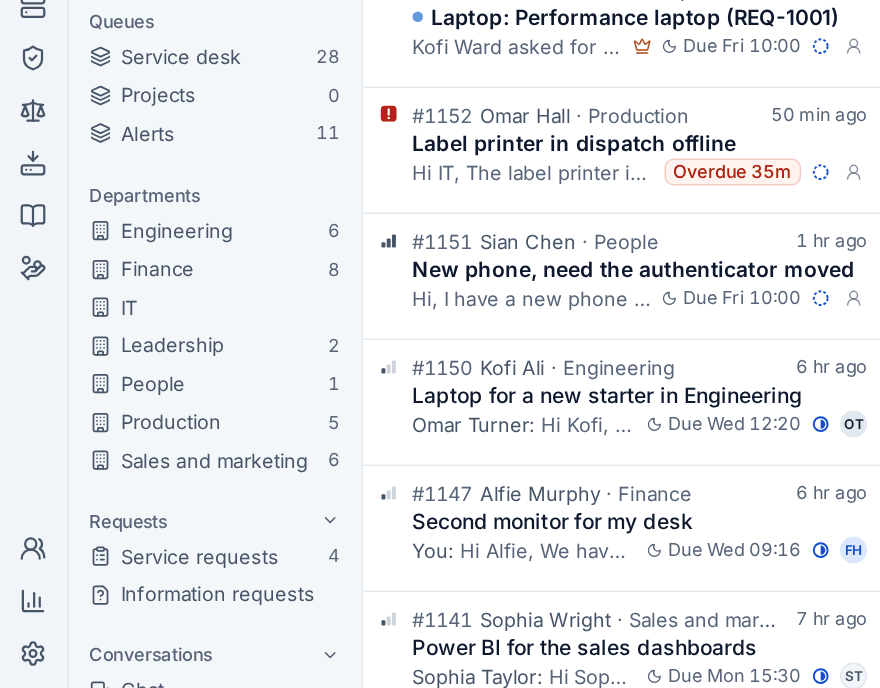
Employees tell IT about a problem the way that suits them: from Report a problem in the employee portal, by email to your support address, or by chat. Monitoring and alerts can raise tickets too. Everything lands in Service desk, where the sidebar has your views (such as Employee replied, On hold and Probably not support for newsletters and automatic mail), your queues with their statuses and counts, and a Departments group, so you can see at a glance which department is waiting on what.
- The ticket inbox covers the views, filters and keyboard work.
- Working a ticket covers replies, internal notes, status, time and the details panel, where the employee, their other tickets and their device sit beside the conversation.
- Email and alert tickets covers mailboxes and tickets from monitoring.
Checking who is asking
Before IT resets a password or MFA for someone on the phone, check it really is them. Verify identity on a ticket, an employee's record or a call card sends a code by email, records a callback to the number on file, asks their manager to approve, or puts a prompt in the employee portal or on their Windows computer where they pick the number the technician reads out. You choose in Settings > Ticket setup, the Identity checks tab, whether a missing check only warns or blocks password and MFA resets, and each result is kept on the ticket.
See Verifying who a caller is.
Out of hours
Decide who handles each queue out of hours: nobody, your own on-call rota, a third-party provider or a mix. With nobody, alerts and tickets wait for business hours with no pages and the SLA clock stopped, and a morning list shows what came in overnight. With a provider, urgent work reaches them by email, forwarded ticket or signed webhook, and the employee portal can show employees who to contact. See Out-of-hours cover per queue and On-call.
Requests and the service catalogue
Asking for something is not the same as reporting a fault, so employees use Request something in the portal. Each catalogue item has its own form, approval and fulfilment, and the request becomes a ticket with the answers written out. The Company edition starts with items made for employees, such as a laptop, a monitor or other equipment, software to buy and access to a system, alongside new starters, leavers and password resets.
- The service catalogue covers items, forms and what happens next.
- Forms and question types covers building the questions.
- Information requests covers sending employees a set of questions to answer, for example before a move.
Approvals
A request goes to the employee's department manager first, then to IT. A department with no manager sends it straight to IT with a note saying why, and a manager who is away is stood in for by their delegate. Managers decide in the portal under Approvals or from the email, and IT decides in Home > Approvals.
- The employee portal and manager approvals covers the chain and the Manager approvals settings.
- Approvals covers the Approvals inbox and approvals on tickets.
- Approval rules, delegation and out of office covers chains, thresholds and delegates.
Problems: fixing the cause once
When the same fault keeps coming back, raise a problem in Service desk > Problems and link the tickets it explains. Record the root cause and the workaround once; publishing a workaround with a root cause makes it a known error, and Tenvara drafts a knowledge base article from it for you to check and publish. Several reports of one issue can also be grouped as parent and child tickets, so you answer once.
See Problems and major incidents.
Major incidents: when many people are affected
An outage that hits many people at once is declared as a major incident in Service desk > Major incidents, or from the ticket that first reported it. It gets one timeline, an incident lead and an impact. Post an update sends the same words to everyone affected, a banner shows in the portal while it is open, and a post-incident review starts from your template once it is resolved. Link it to a problem so the cause is worked afterwards.
See Problems and major incidents and, for a public view of your services, Status pages.
Changes and the change calendar
Planned work on your systems, such as a firewall swap or a Conditional Access policy, is written up as a change in Service desk > Changes: standard, normal or emergency, with risk, impact, an assessment and the implementation, rollback and test plans. Your change approvers decide before it runs. The Change calendar tab shows changes by month or week with patch and maintenance windows behind them, and warns about clashes. After the work, record how it went and write the review.
See Change management.
Service levels by priority, department or VIP
SLA policies set response and resolution targets by priority. On top of that, a department can have its own policy, for example a production team that works in shifts, and people with the VIP role can have theirs. A ticket follows a policy chosen by hand, then the first policy whose conditions match, then the requester's department, then the VIPs' policy, then the default. Escalations warn before and after a target is missed, and each ticket's SLA block says which policy it follows.
Knowledge and self-service
IT's own how-tos and processes live in Docs as knowledge base articles, with folders, templates, review dates and approval before an article goes live. Articles you share appear in the employee portal's Help centre, and as an employee types in "How can IT help?" on the portal's Home, matching answers show before they raise a ticket.
Assets
Every device the agent manages carries its hardware, software, user and site, and each device belongs to the department of the person who uses it. Record purchase and warranty details, look warranties up, and let Tenvara decide which devices to replace now, plan for, or leave. Each device's purchase cost is written down to a book value, and its cost centre comes from its department.
Purchasing and IT spend
Employees and IT staff raise purchase requests, which the department's manager and then purchasing approve. An approved request becomes a purchase order to the supplier, and requests for a laptop, equipment or software from the catalogue raise their purchase request by themselves once approved. Purchasing > Spend shows what IT spends by department and cost centre, month, supplier and category, against the IT spend lines of your budget.
See Purchasing and IT spend and Supplier contracts.
Reports
Reports has the service desk reports (tickets, SLAs, satisfaction, service requests and help deflection), Budgets with your IT spend lines, and the report builder, with an IT spend by department dataset. Build dashboards from saved reports, schedule reports by email, and once a quarter make the IT leadership update, a deck from the IT team to your own management.
- Reports overview
- The report builder
- Saved and scheduled reports
- Dashboards and your Home layout
- Presentations
Related guides
Was this page helpful?
Thanks for the feedback.