Information requests
Send a customer's contacts the questions you need answered, let them fill them in at their own pace in the portal, and chase, review and complete each request from one list.
Some work cannot start until the customer tells you things: the numbers to port, who needs a phone, the new starter's details, what is moving to the new office. An information request sends one of the customer's contacts a set of questions to answer in the portal. They answer a page at a time, their answers are saved as they type, and Tenvara reminds them until it is done. You then review the answers and mark the request complete, or send back the questions that need changing.
Information sets
The questions come from an information set: a form kept in Settings > Forms. Tenvara comes with seven starter sets, and you can edit them or build your own (see Forms and question types):
| Set | Asks for |
|---|---|
| New customer: getting started | What you need to look after a new customer from day one |
| VoIP: number porting | The numbers to move, the current provider and the account details |
| VoIP: users and extensions | Who needs a phone and how calls should reach them |
| Broadband or line install | What the engineer needs to install a new connection |
| New starter | The person joining, so everything is ready on their first day |
| Leaver | What to close down and what the business needs to keep |
| Office move | What moves, where to, and when |
A request keeps the version of the set it was sent with, so editing a set later never changes a request that is already out.
Send a request
You can ask from where the work is:
- a ticket: Request information in its More actions menu,
- a site: Request information in the site page's actions menu,
- a project: Request information on its Information tab,
- a customer's onboarding: Information from the customer, under Onboarding on the customer's Settings tab.
In each case the dialog is the same:
- Press Add a set and choose the information set. Add as many as the work needs.
- For each set, choose Who answers it: any of the customer's contacts. Different sets can go to different people, such as the porting details to the finance contact and the list of users to the office manager.
- Give each a due date if there is one.
- Press Send request (or Send 2 requests and so on).
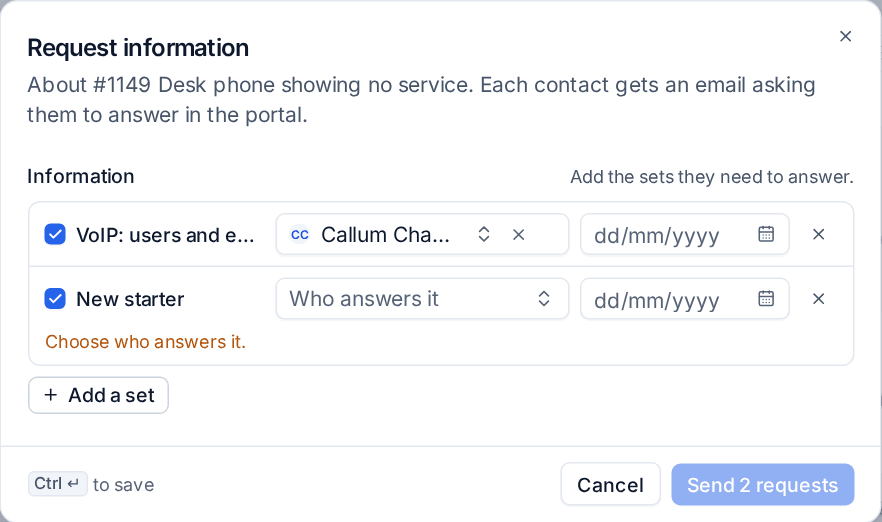
Each contact gets an email asking them to sign in to the portal and answer. A contact without portal access gets an invitation that signs them straight in.
Requests that send themselves
You do not have to remember to ask. A project template, a service, a product sold on quotes and a supplier contract type can each list the information sets they need and who answers each one: a contact role, such as the billing contact, or the project's contact. When a customer accepts the quote or a service order is approved, the requests go out by themselves. On a project made from a template, the sets are ticked for you in the Information step, where you can change who answers and when it is due.
What the contact sees
The request appears in the To do list on the contact's portal Home and under Information requests in the portal menu. They answer one section per page with a progress bar, and can press Finish later at any point: their answers are saved as they type. Files upload straight away, tables take rows pasted from a spreadsheet, and some answers arrive already filled in from what Tenvara knows, for them to confirm. Passwords, PINs and porting codes go straight into your vault and are never shown with the other answers. Submit checks the required questions and sends the answers to you.
See To do, sign-offs and presentations in the portal.
Reminders and Nudge
Tenvara chases for you. By default a contact is reminded 2 days after the request is sent, then every 3 days until it is due, then every day once it is overdue, at 09:00 in their own time zone. Reminders stop when they send their answers.
Change the timings under Information requests on the What customers see tab of Settings > Customer portal (Reminder settings on the Information requests page opens it), or turn Remind contacts automatically off. A customer can have its own values.
To chase now, open the request and press Nudge. The request page shows how many reminders have gone and when the next one is planned.
Review the answers
When the contact submits, the request moves to To review.
- Open the request from the To review tab. Answers filled in from what Tenvara knew are marked Filled in from what we know, and secrets show as Kept in the vault.
- If everything is right, press Mark complete.
- If something needs changing, press Send back on the question, or on a whole section, and say what needs changing. Then send them back. The contact sees only those questions, changes them and submits again; everything else is kept as it was.
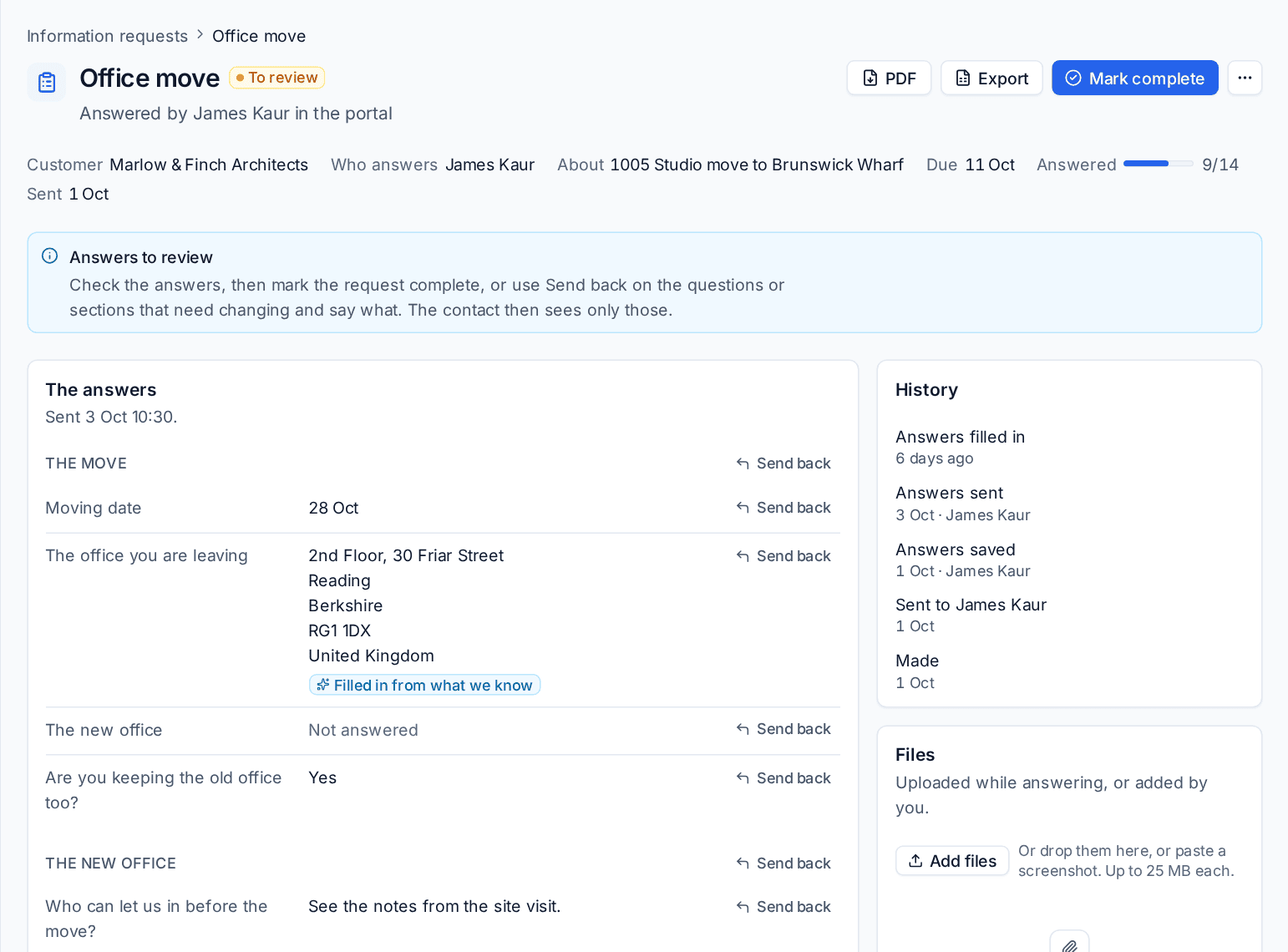
The History card records when the request was made, sent, opened, answered, reminded, sent back and completed. Files holds what the contact uploaded while answering, and anything you add. Cancel request, in the ... menu, takes it out of the contact's portal and stops the reminders; the answers so far are kept.
The list of all requests
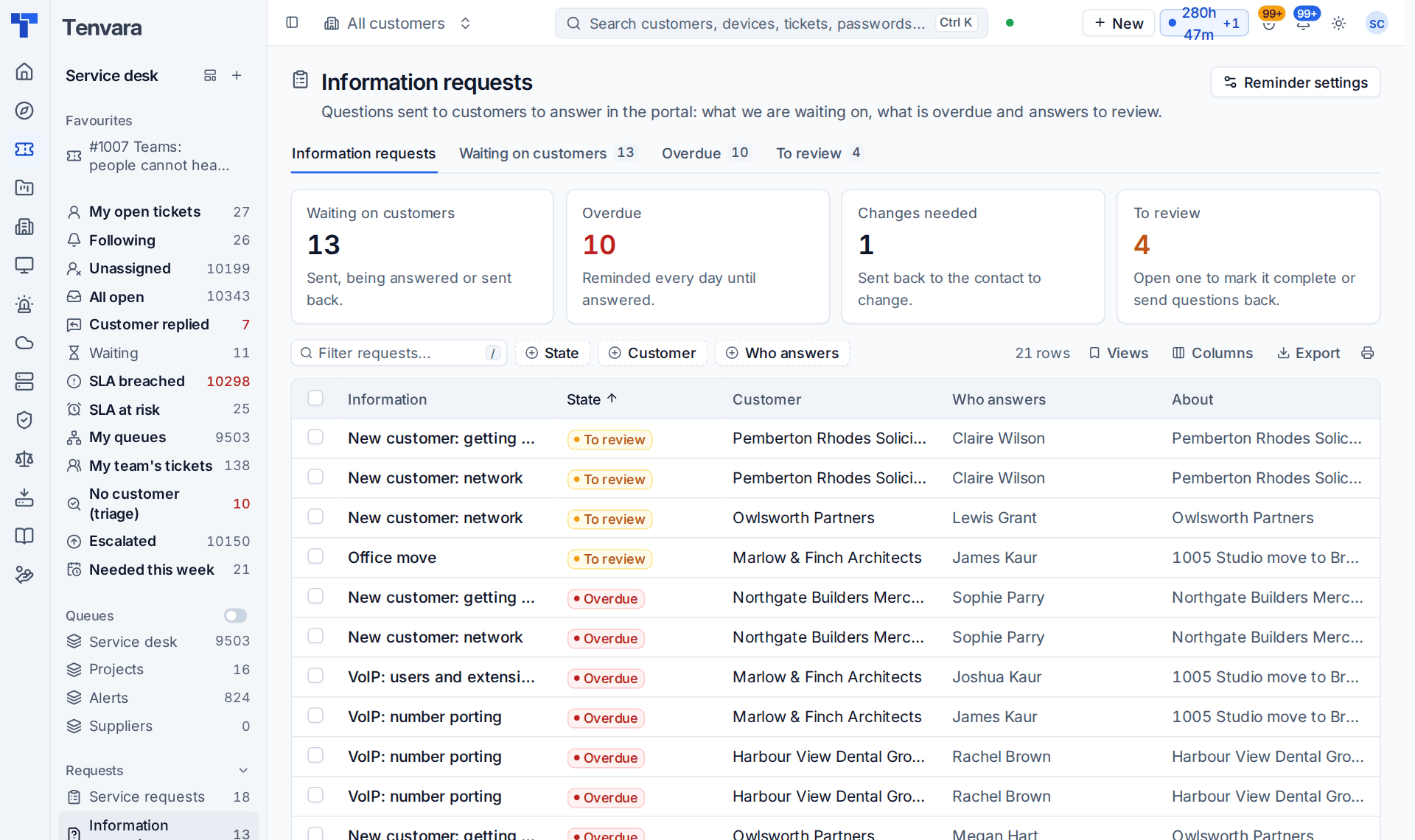
Service desk > Information requests lists every request with its State, Customer, Who answers and what it is About. The tiles and tabs at the top split it:
| Tab | Shows |
|---|---|
| Waiting on customers | Sent, being answered or sent back for changes |
| Overdue | Past their due date and reminded every day |
| To review | Answered: open one to mark it complete or send questions back |
The list opens on every request still in progress, whatever its age, plus those completed or cancelled in the last 14 days; the Finished view holds the rest. Filter by State, Customer or Who answers, and save your own views. On Home, the Waiting on customers block shows the same list for everything you are still waiting for, and a project's Information tab shows that project's requests with how much of each is answered.
Related
Was this page helpful?
Thanks for the feedback.