Portal roles
The portal roles in each edition, holding more than one, what each role sees (costs, billing, security, records, reports), the quote acceptance limit, department heads and changing what a role gives.
Portal roles decide what each of your customers' contacts sees and does in the portal. Rather than ticking a long list of permissions for every person, you give each contact one or more roles, such as Finance for the person who pays your invoices and IT lead for their in-house IT. Everything that depends on who someone is follows their roles: prices and costs, billing, the security pages, shared records, reports and the company dashboard.
The roles
| Edition | Role | Who it is for |
|---|---|---|
| MSP | User | Their own tickets, quotes and devices. |
| MSP | Finance | Invoices, statements, paying, quotes, agreements and what things cost. |
| MSP | Manager | Everything for their company, including people, approvals, reports and billing. |
| MSP | IT lead | Their in-house IT: every ticket and device, alerts, device security and backups. |
| Company | Employee | Their own tickets, requests and devices. |
| Company | Department head | Also the tickets and requests of the people in the departments they manage. |
| Company | Admin | Everything for the organisation, including people, reports, security and backups. |
User and Employee are the same role in the two editions, as are Manager and Admin. Everyone with portal access, whatever their roles, raises tickets and sees their own, sees the quotes sent to them and answers what is waiting on them under Needs you.
More than one role
A contact can hold several roles and gets everything they give together. A finance director who also signs off IT decisions can be Finance and Manager; an office manager who looks after the computers can be User and IT lead. Where one role already covers another (User beside Manager), the extra one is dropped.
To give a contact their roles:
- Open the contact from Customers > Contacts or the customer's People and sites tab.
- In the Customer portal card, press Change permissions.
- Tick one or more roles under Portal roles.
- Below, under "Besides raising tickets and seeing their own, name can:", tick anything else this one person should have. What their roles give is already ticked and marked "(from their portal role)".
- Press Save.
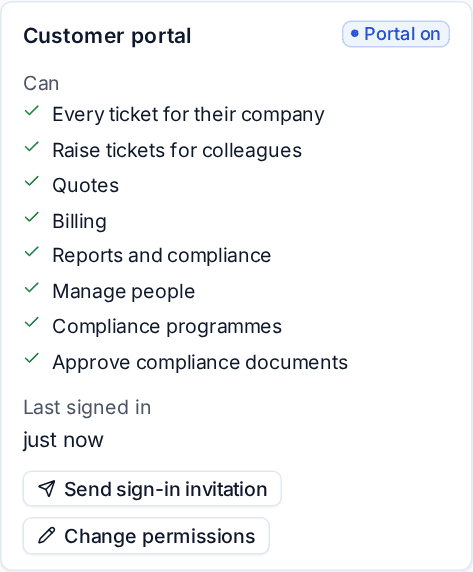
The card then lists their Portal roles and everything they Can do. Contact roles (billing contact, approver, decision-maker) can add permissions in the MSP edition too: the billing role gives billing, approver and decision-maker give every quote. See Portal permissions and people for each permission.
What each role sees
As the roles ship:
| Area | User | Finance | Manager | IT lead |
|---|---|---|---|---|
| Colleagues' tickets | Yes | Yes | ||
| Raise tickets for colleagues | Yes | |||
| Devices | Their own | None | Every device | Every device |
| Invoices, statements and paying | Yes | Yes | ||
| Every quote, without a limit | Yes | Yes | ||
| Prices and costs | Yes | Yes | ||
| Dashboard and board pack | Yes | |||
| Security findings and device security | Yes | Yes | ||
| Alerts and technical detail | Yes | |||
| Reports, reviews and presentations | Yes | |||
| Backup status and restoring colleagues' backups | Yes | Yes | ||
| Manage people | Yes | |||
| Records shared with managers | Yes | Yes | ||
| Password manager | Yes | Yes | Yes | |
| Share password vaults with your team | Yes |
In the Company edition, Employee and Department head are like User, and Admin has everything Manager has plus alerts and technical detail. Money (invoices, paying, quotes) is MSP edition only.
A few things that follow from the roles:
- Costs and prices: licence prices, cloud costs and budgets, spend and the cost of project changes show only to roles that give prices and costs. Others see seats and work without amounts. The person a project change asks to decide always sees what it costs.
- Billing: the charges on a ticket, services and agreements with the support hours used, questions about an invoice and the "Your account is on hold" notice reach only people who see billing.
- Security pages: the Security page and Device security are for Manager and IT lead. Being the customer's primary contact does not open them, nor the company dashboard.
- Shared records: a record you share in the portal goes to managers and IT leads unless you choose everyone, a site's people or chosen contacts for it.
- Reports: reports, business reviews, presentations, backup tests, compliance reports and every project are for Manager. Someone who reaches a project only through a to-do of theirs sees just their to-dos.
- Sign-up mail: bills, renewals and failed payments go to people who see billing or costs; the rest to managers and IT leads.
- The bell: invoice and report notifications only reach people whose roles still give them.
The quote acceptance limit
A User can accept a quote sent to them up to a limit. Above it, the quote tells them "You can accept quotes up to limit for your company, and this one comes to value in its first year", and asks them to forward it to a colleague who can, or to ask you. The value counted is the first year's total with tax: the one-off total plus twelve months of everything recurring.
Finance and Manager, and anyone given the Quotes permission, see every quote for the company and accept any amount. A contact who does not use the portal holds no portal role, so a quote emailed to them is accepted as before.
Set the limit in setup with Up to what amount may a User accept a quote sent to them? (below). 0 means a User cannot accept quotes.
Department heads
In the Company edition, a Department head sees the tickets and requests of the people in the departments they manage, and the departments under those, as well as their own. They also see those people's devices and purchase requests, read only: cancelling a request stays with whoever raised it. The department's manager is set on the department in Tenvara. See The organisation, departments and employees.
Changing what a role gives
What each role gives is set once for all your customers, in Set up, in the Customer portal, chat and phone section:
- Open Set up and the Customer portal, chat and phone section.
- Under What can each portal role see and do?, each row is something a contact may see or do and each column a role. Tick or clear cells; for Devices pick None, Their own or Every device.
- I don't know, pick for me puts back what the roles ship with.
- Answer Up to what amount may a User accept a quote sent to them? in your main currency.
- Apply the section. The preview says what each role gives now and will give.
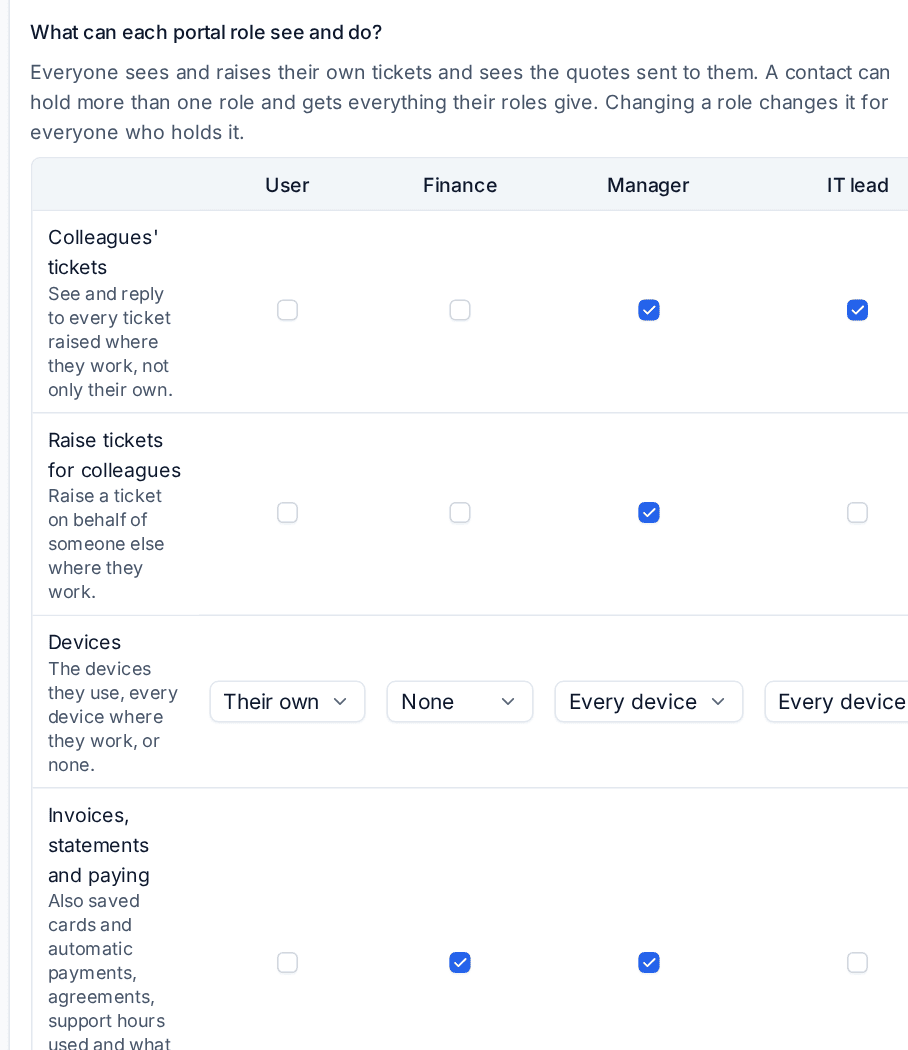
Changing a role changes it at once for everyone who holds it, and undo puts back exactly what each role gave before. Applying the answers never switches a part of the portal off for every contact: an area some role has is switched on, and the roles decide who sees it. Whole sections are still switched on or off per customer on the Sections tab of Settings > Customer portal (see Setting up the portal).
Tip: After changing roles, use See the portal as a contact with someone holding each role to check what they see.
Related: Portal permissions and people, Company pages for managers.
Was this page helpful?
Thanks for the feedback.