Installing winget and updating any app
Put winget on Windows devices that lack it, update apps that are not in your catalogue, and fix a vulnerability from its own row with Update or Install and see what happened.
Keeping third-party apps current is most of the work in closing vulnerabilities. Three things make it quicker: Tenvara can install winget where Windows did not ship it, it can update apps that are not in your software catalogue, and a vulnerability row can start its own fix and tell you how it went.
Installing winget
On Windows, app updates run through winget, Microsoft's package manager. Some devices do not have it, most often servers. When a device's last software check says winget is missing, its Software section offers Install winget.
On one device
- Open the device and find Software on its Overview tab.
- Click Install winget.
- Read the dialog. It says whether this Windows is supported, and that the device downloads winget from Microsoft and GitHub, so it needs outbound HTTPS access to both.
- Click Install winget.
The agent installs the App Installer and the frameworks it needs, then checks the device's software again so its updates show. The job appears on the Software section while it runs, with Cancel to stop it, and ends with how it went and why.
On many devices
- In the device list, tick the Windows devices.
- In the bulk bar, click More and choose Install winget....
- Tick Include Windows Server 2019 devices (not supported by Microsoft) if you want them included.
- Click Install winget.
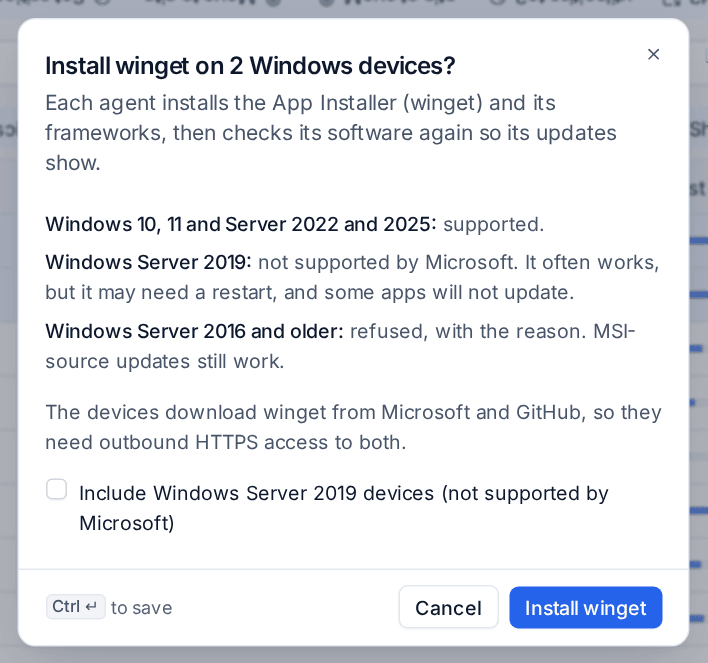
Each result shows on its device's Software section. If some devices could not take it, a second dialog lists them with the reason.
Which Windows it supports
| Windows | What happens |
|---|---|
| Windows 10, Windows 11, Windows Server 2022 and 2025 | Supported: they get winget from Microsoft. |
| Windows Server 2019 | Not supported by Microsoft. It often works, but it may need a restart and some apps will not update. On one device you tick Install it anyway to confirm you understand. |
| Windows Server 2016 and older | Refused, with the reason. Updates from an MSI source still work. |
Updating apps outside the catalogue
Your catalogue holds the apps you deploy. A device usually has plenty more that winget on Windows or Homebrew on a Mac knows how to update. Tenvara lists those too, so they are not left to go stale.
On one device
Open the device, find Software and choose its Updates tab. Each app with a newer version shows the installed version, the version available and Update.
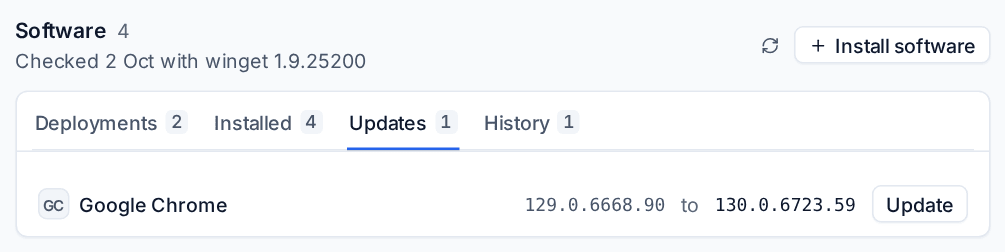
An app installed more than once, such as the 64-bit and 32-bit copies of a runtime, has a row for each copy, and Update updates exactly that copy, in its architecture and for the machine or the one user it was installed for. Old side-by-side copies are removed as the device's policy says, and an app whose version line gets no more fixes says so, so you know to move it to a newer line. The .NET SDK and the ASP.NET Core Hosting Bundle are in the catalogue too.
An app that is not in your catalogue is marked as such, and hovering over it says which package manager updates it and under which id. It can be updated but not deployed: to install it on other devices, add it to the catalogue first. See Software deployment.
Across every customer
Go to Devices > Software and choose the App updates tab.
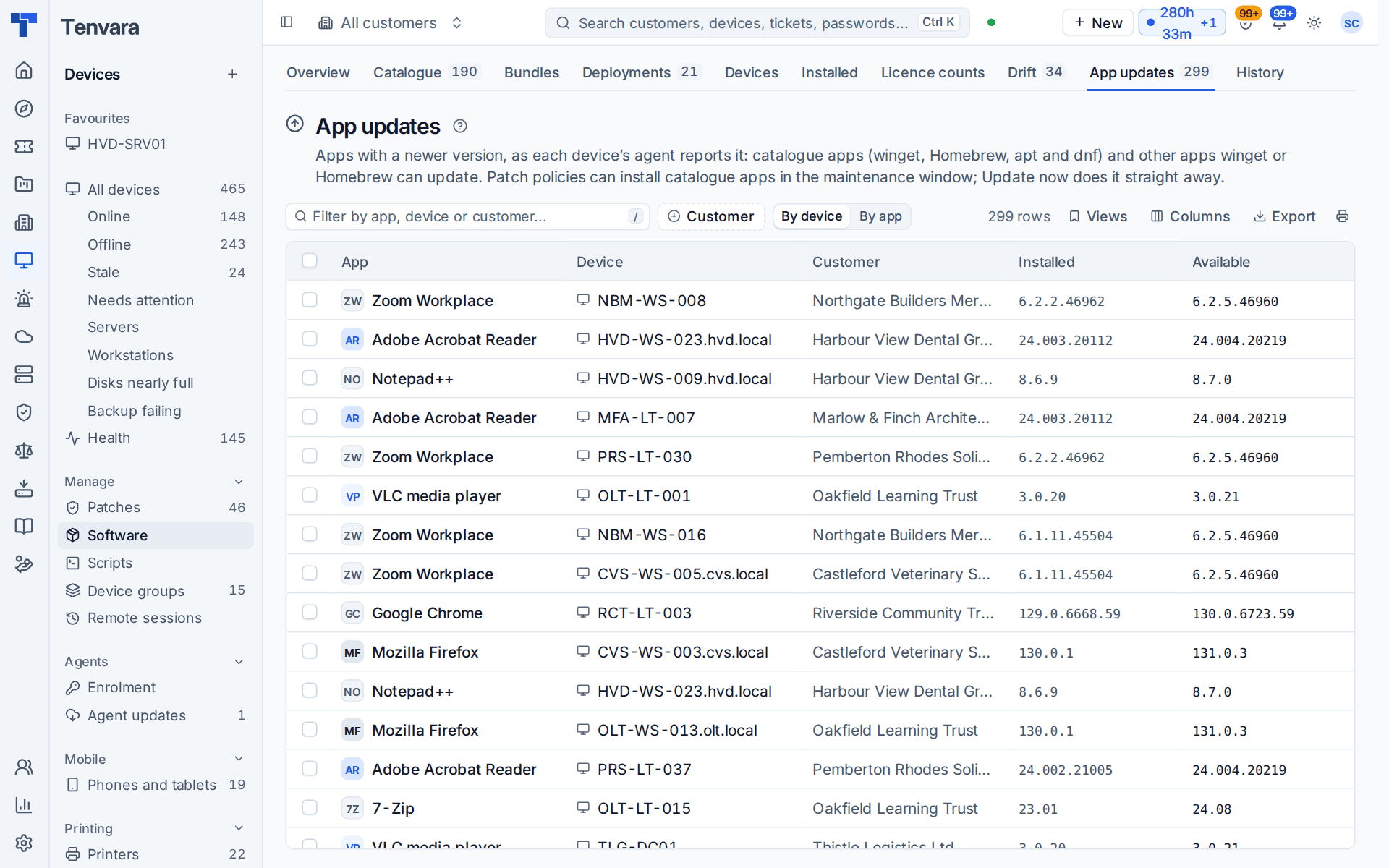
Switch between By device and By app, filter by Customer, and tick rows to act on several at once.
Patch policies can install catalogue app updates in the maintenance window. Updating from here does it straight away. See Patching.
Fixing a vulnerability from its row
When the fix for a vulnerability is an app update or a patch, you do not need to leave the finding to apply it.
- Go to Security > Vulnerabilities and choose the Findings tab, or open a device and find Vulnerabilities.
- Find a row whose Fix column names an update, for example Update Mozilla Firefox to 131.0.3.
- Click Update when the fix is an app update, or Install when it is a patch. With a row selected, pressing
fdoes the same.
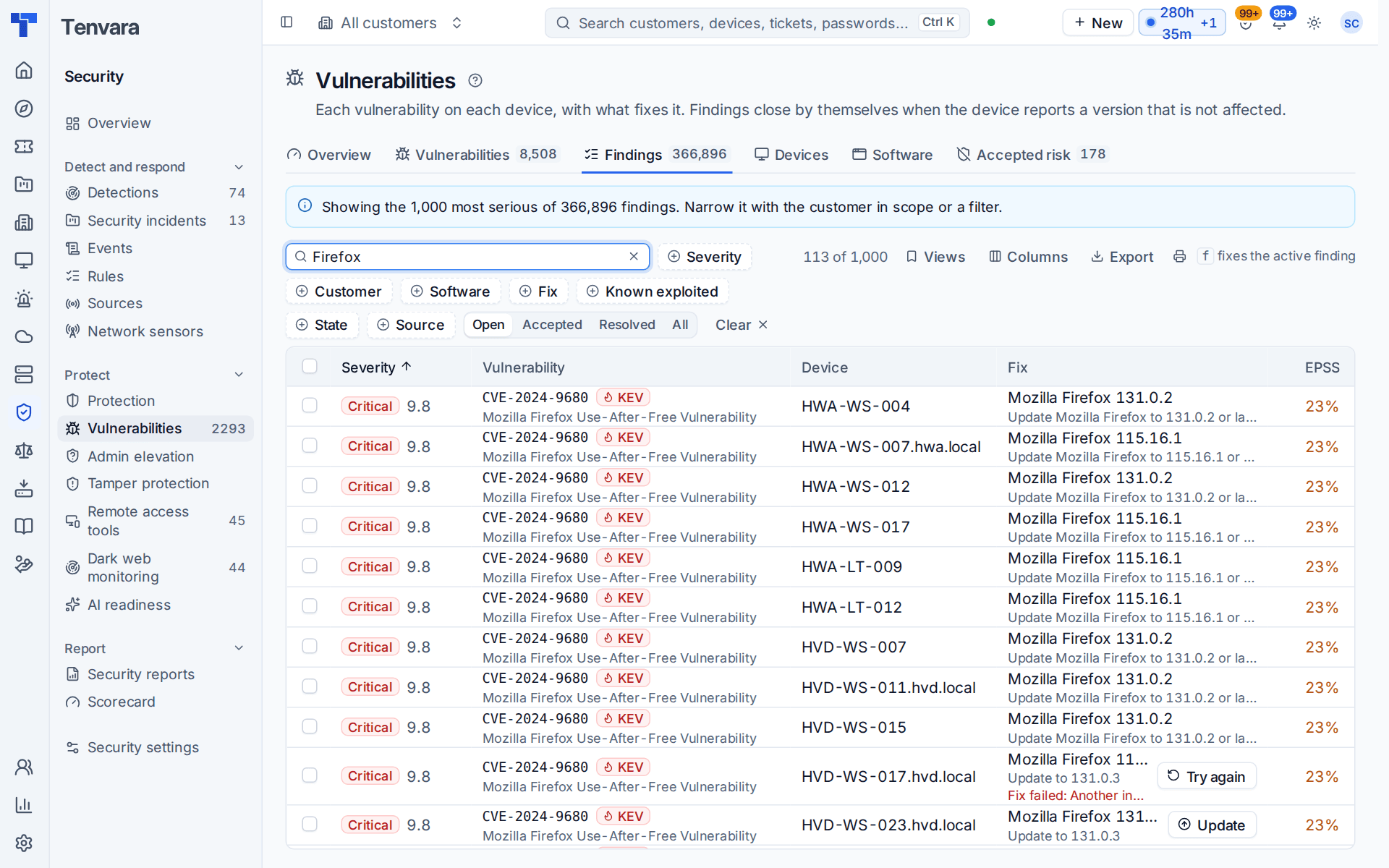
Opening a finding gives the same choice as Update the app or Install the fix.
The Fix column
Once asked, the row shows what is happening to the fix instead of the button:
| Status | Meaning |
|---|---|
| Queued | Asked for; the device runs it when its agent is connected. |
| Installing | The update or patch is running on the device. |
| Waiting | The fix is waiting before it can run. |
| Installed | The update or patch went on. |
| Fixed | The device reported a version that is not affected, and the finding closed. |
| Fix failed | It did not install. The row gives the reason and the installer's exit code. |
| Still vulnerable | The installer ran but did not replace the vulnerable version. |
| Cancelled | The job was cancelled before it finished. |
Try again
A fix that failed, was cancelled or left the device still vulnerable offers Try again on the row. Read the reason first: another install running at the same moment is worth a second attempt, while an app that will not update itself needs doing by hand.
Findings close by themselves when the device next reports a version that is not affected, so there is nothing to mark as done.
Related
Was this page helpful?
Thanks for the feedback.