Install and licence
The Install and licence section of the setup helper: your licence and seats, updates, the health of the install, who hears when something on it breaks, and the modules you do not need.
Install and licence is the first section of the Foundations phase and takes about 20 minutes. It makes sure the ground everything else stands on is sound: the licence is valid, the install is healthy and up to date, and somebody is told when the install itself has a problem.
Open Set up (Health once you have gone live) and choose Install and licence. Like every section it runs through six beats, from Your situation to Day to day: see Working through a section.
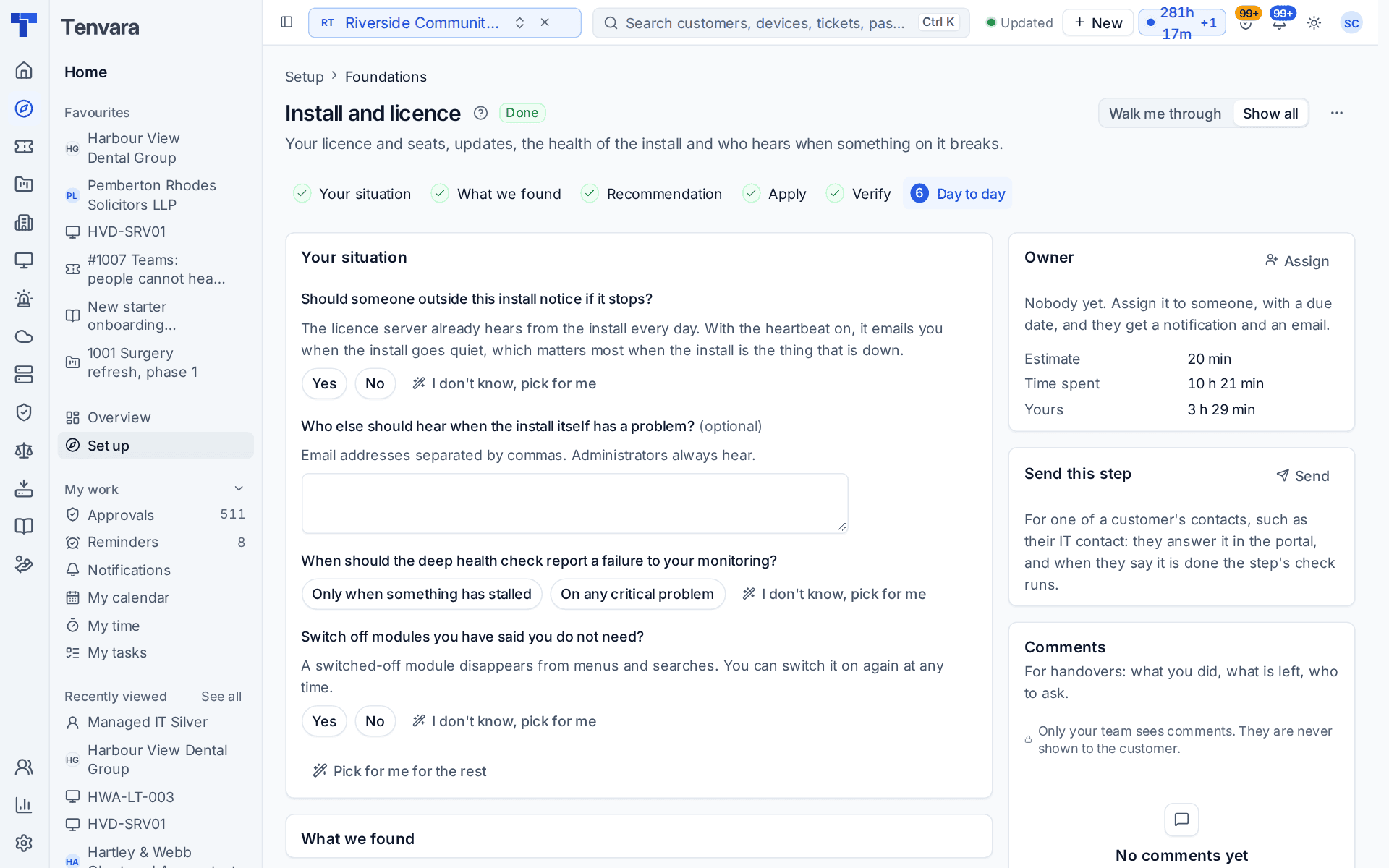
What it reads from your install
What we found shows what Tenvara already knows:
- the state of your Licence, the staff seats in use and the seats the licence holds;
- the last successful check-in with the licence server;
- whether the install is on the latest release it may run;
- whether an External heartbeat is set up;
- how many install health checks are not passing;
- which modules are switched off.
What it asks
| Question | Why it matters |
|---|---|
| Should someone outside this install notice if it stops? | The licence server already hears from the install every day. With the heartbeat on, it emails you when the install goes quiet, which matters most when the install is the thing that is down |
| Who else should hear when the install itself has a problem? | Email addresses separated by commas. Administrators always hear. Optional |
| When should the deep health check report a failure to your monitoring? | Only when something has stalled or On any critical problem. This decides what an outside monitor that watches the install sees as a failure |
| Switch off modules you have said you do not need? | A switched-off module disappears from menus and searches. You can switch it on again at any time. Only asked while a module your discovery answers rule out is on, which is usually an install that has had everything on for a while: a new install starts with the service desk, so there is nothing to switch off |
I don't know, pick for me answers a question with the sound default: the heartbeat on, a failure only when something has stalled, and modules left on.
What it recommends
- The heartbeat is switched on, so an outage is noticed even when nobody is looking. An install that is down cannot email you about itself, so the warning has to come from outside.
- The people you named hear about install problems as well as the administrators.
- Your monitoring of the install reports what you asked for.
- Modules your discovery answers do not need are switched off, to keep menus short. This line only appears when you answered Yes. The alternative it offers: leave them on if you may sell them soon, because nothing in them runs until you set them up.
What changes shows each line with its value Now and what it Will be. Press Apply when it is right. You can undo an apply for 7 days.
How it is verified
Verify runs six live checks:
| Check | What it looks at | Where to fix it |
|---|---|---|
| The licence is valid | The licence has not run out and is not in its grace period. Needed to go live | Settings > Licence |
| The install checked in with the licence server in the last day | The daily check-in works | Settings > Licence |
| Every part of the install is healthy | No part of the install reports a problem. Needed to go live | Settings > System status |
| Certificates have more than two weeks left | Certificates the install relies on are not close to running out | Settings > System status |
| Someone outside the install notices if it stops | The heartbeat is on, or your own monitoring address is set | Switch on the heartbeat, a one-press fix |
| The install runs the latest version it may | A newer release your licence covers is waiting | Settings > Updates |
Two of them are go-live gates, so the hub's We're live button waits for them. See Go-live and Health.
Server size
A self-hosted install sizes itself for its server: the installer and every update pick a small, standard or large profile from the server's CPUs and memory. As a guide, 2 vCPUs and 8 GB of memory look after up to about 1,000 devices, and 4 vCPUs and 16 GB up to about 3,000. Beyond that the backup service runs best on its own server.
Settings > System status shows the profile in use and says when the install has outgrown it. See Install settings and profiles and Installing self-hosted.
Day to day
- The install checks its own health every minute. Administrators, and the people you added here, hear by email when a part stops, and Settings > System status shows the history.
- New releases appear under Settings > Updates with their release notes. Your licence says which ones you may install.
- Settings > Modules is where you switch the next module on when you start to use it, and the hub's Ready for the next one? suggests which. See Switching modules on.
Tip: After go-live this section's checks keep running in Health, so a licence that is about to run out or a part of the install that stops shows there as well as in your inbox.
Related guides
Was this page helpful?
Thanks for the feedback.