Deploying the Windows agent with Group Policy or Intune
Install the Windows agent silently on many devices with Group Policy, Microsoft Intune or another deployment tool, detect it, remove it with the uninstall token, and move installs made before the agent was renamed.
The Windows agent is one signed MSI that installs silently, so any tool that can run msiexec can put it on devices: Group Policy, Microsoft Intune, Configuration Manager or another management tool. This guide covers the command, how to detect the agent, how to remove it and what to exclude in security software.
For one machine at a time, the one-line command from an enrolment token is quicker: see Installing the agent. For Windows 7, 8.1, Server 2008 R2, 2012 and 2012 R2, use the Lite agent instead: see Older Windows and the Lite agent.
What you need
- The package. Go to Devices > Enrolment, choose the Installers tab and find Packages for a customer. Choose the customer to get the signed MSI (
tenvara-agent-<version>-x64.msi, with an-arm64.msipackage offered for Windows on ARM), the customer's brand transform (tenvara-agent-<version>-x64.mst) and a bundle with both and aninstall.cmd. The transform puts your brand's name, icon and support links on the agent without changing the signed MSI. - Your server's address. The Installers tab shows it under Agents connect to.
- An enrolment token. On the Enrolment tokens tab of Devices > Enrolment, click New token. A token decides which customer, and optionally which site, the devices join.
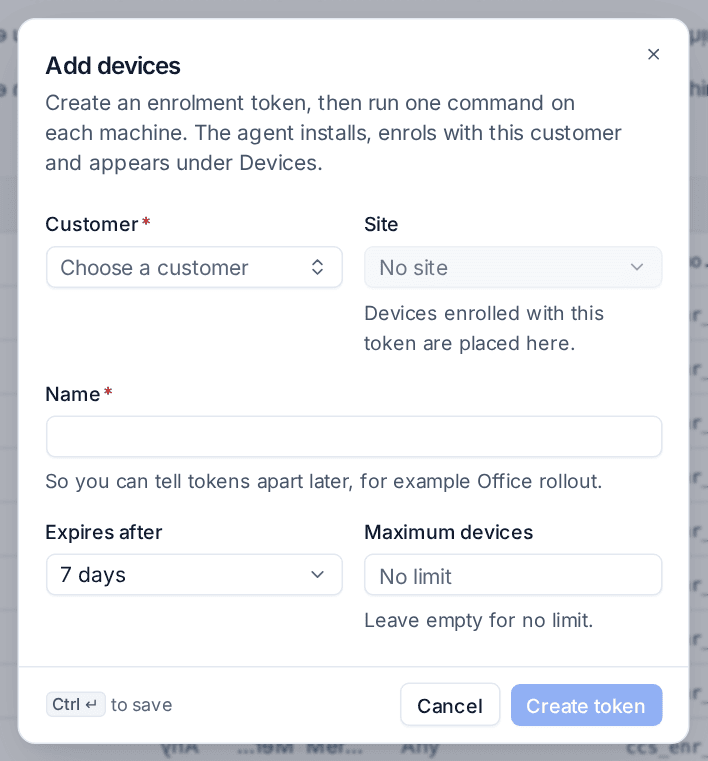
Warning: Anyone who has a token can enrol a device as that customer. Keep it out of logs and screenshots, give it an expiry and a Maximum devices, and replace it once the rollout is done.
The install command
msiexec /i tenvara-agent-<version>-x64.msi TRANSFORMS=tenvara-agent-<version>-x64.mst /qn TENVARA_SERVER=https://<your server> TENVARA_TOKEN=<token>
Leave out TRANSFORMS= for an install without a brand. The token is kept out of the installer's log, and the agent deletes it once the device has enrolled. If the network is not up yet (a startup script, a device still being set up), the install still succeeds and the agent keeps trying to enrol every minute.
Note: The settings are
TENVARA_SERVERandTENVARA_TOKEN, exactly as written. A command copied before the agent was renamed installs the agent without enrolling it, so copy your install commands again from Devices > Enrolment.
Microsoft Intune (Win32 app)
- Wrap the MSI and the transform with Microsoft's Win32 Content Prep Tool into an
.intunewinfile. - Install command: the command above. Install behaviour: System.
- Uninstall command:
msiexec /x {product code} /qn UNINSTALL_TOKEN=<the customer's uninstall token>. Intune fills in the product code it reads from the MSI. - Detection rule: a File rule with the path
C:\Program Files\Tenvara\Agent, the filetenvara-agent.exeand "File or folder exists". Or a Registry rule with the keyHKEY_LOCAL_MACHINE\SOFTWARE\Tenvara\Agent, the valueVersionand "Value exists". - Requirements: 64-bit Windows 10 or Windows Server 2016 or later.
Warning: Do not detect the agent by its MSI product code. Every version of the agent has a new one, so after the agent updates itself Intune would think it is gone and install it again.
The agent updates itself from your server, so there is no need to publish each new version to Intune. Keep the app for new devices and let the agent's own updates do the rest. See Agent updates and release channels.
Group Policy
Group Policy software installation cannot pass settings such as the token on the command line, so a device installed that way cannot enrol. Use a computer startup script instead:
- Put the MSI and the transform on a share that domain computers can read.
- Create a GPO linked to the computers' OU.
- Under Computer Configuration > Policies > Windows Settings > Scripts > Startup, add a script that installs only when the agent is not there yet:
if not exist "%ProgramFiles%\Tenvara\Agent\tenvara-agent.exe" msiexec /i "\\server\share\tenvara-agent-<version>-x64.msi" TRANSFORMS="\\server\share\tenvara-agent-<version>-x64.mst" /qn TENVARA_SERVER=https://<your server> TENVARA_TOKEN=<token>
The script runs as SYSTEM at the next restart. Anyone who can read the GPO can read the token, so use a token for this customer only and replace it once the devices have enrolled.
What the install leaves on the device
C:\Program Files\Tenvara\Agent\:tenvara-agent.exe(the service),tenvara-updater.exe,tenvara-rc.exe(remote control),tenvara-tray.exe(the tray icon) and the signed scripts inscripts\.C:\ProgramData\Tenvara\Agent\: the device's identity, keys, settings, queues and logs. It stays when the agent is removed, so a reinstall is the same device.- The service
TenvaraAgent(display name "Tenvara Agent", or your brand's agent name), the registry keyHKLM\SOFTWARE\Tenvara\Agent, and the "Tenvara Agent" entry in Apps and features (or your brand's).
The full list, with Linux, is in The agent's names, folders and services.
Security software exclusions
The agent is signed and should not need any. If a security product still blocks or alerts on it, allow by the publisher first and add path exclusions only for what is still flagged:
C:\Program Files\Tenvara\Agent\and itsscripts\folder.C:\ProgramData\Tenvara\Agent\(the backup helpertenvara-backup-helper.exeruns frombackup\).- The Lite agent:
C:\Program Files\Tenvara\AgentLite\andC:\ProgramData\Tenvara\AgentLite\.
Security software and the agent has the rules product by product.
Removing the agent
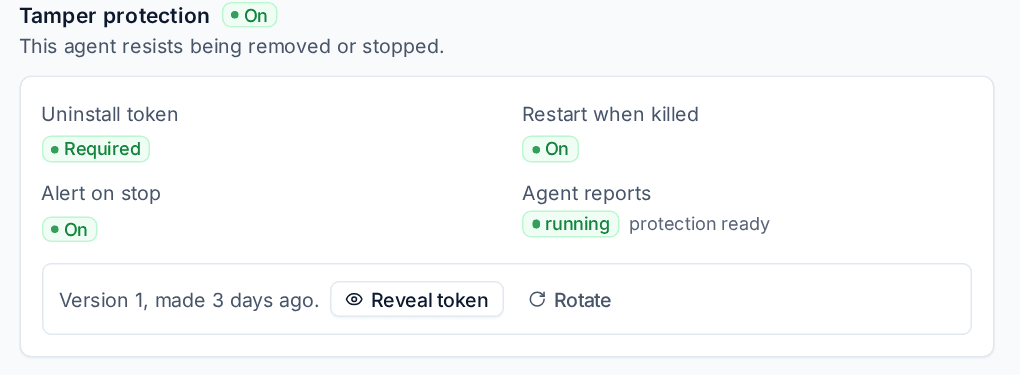
With tamper protection on, the agent can only be removed with the customer's uninstall token:
msiexec /x {product code} /qn UNINSTALL_TOKEN=<token>
Without the right token the removal stops, nothing is removed and the attempt is reported. The token is on the customer's page and on each device's Tamper protection card, behind Reveal token. See Tamper protection.
Devices installed before the rename
The agent installs as Tenvara Agent on Windows. A device that was installed under the earlier names moves to the new ones at its next update, whether the update comes from your server (Devices > Agent updates), from Intune or Group Policy installing the new MSI, or from someone running it by hand:
- The device keeps its identity: the same device, its history and its settings, with no new approval.
- The service, folders, programs and registry key are replaced by the ones above, and nothing is left under the earlier names.
- Tamper protection stays on and the same uninstall token still works.
- The update raises no tamper, stopped or removed alert, and the device's software list shows the agent's new name, not a removal.
Afterwards, point Intune detection rules, startup scripts and security software exclusions at the new paths and remove the ones for the earlier paths.
Related
Was this page helpful?
Thanks for the feedback.