Ctrl+Alt+Del in a remote session
When the Ctrl+Alt+Del button works in a remote session, how the device page shows which Windows policy blocks it, how to allow it in Group Policy or from the device page through approval, and how to sign in when it stays blocked.
The Send Ctrl+Alt+Del button in a remote session, in the browser viewer and the desktop app, asks Windows for its secure screen, the same as pressing the keys at the device. Windows only lets a service do that when its policy allows it. The agent allows it for the moment of each press and then puts the policy back exactly as it was, so the button works on any device where Group Policy does not forbid it. The device page tells you in advance whether the button will work, and the button tells you what happened every time you press it.
This was checked on Windows 11 and Windows Server 2019, 2022 and 2025.
When it works
Windows decides with one policy value, SoftwareSASGeneration:
| Value | Who may send Ctrl+Alt+Del |
|---|---|
| 0 | Nobody |
| 1 | Services |
| 2 | Ease of Access applications |
| 3 | Services and Ease of Access applications |
The agent is a service, so it needs 1 or 3. Allowing services to send Ctrl+Alt+Del does not let ordinary programs fake it: only services running as SYSTEM, like the agent, can.
See whether it works on a device
Open the device and find the Remote Ctrl+Alt+Del card in the side column of the Overview tab. It says Works, or Ctrl+Alt+Del from a remote session is blocked, with:
- the policy's value;
- who sets it: a Group Policy object (by name), the device's Local Group Policy, or the registry only;
- whether the device's sign-in and lock screens need Ctrl+Alt+Del at all.
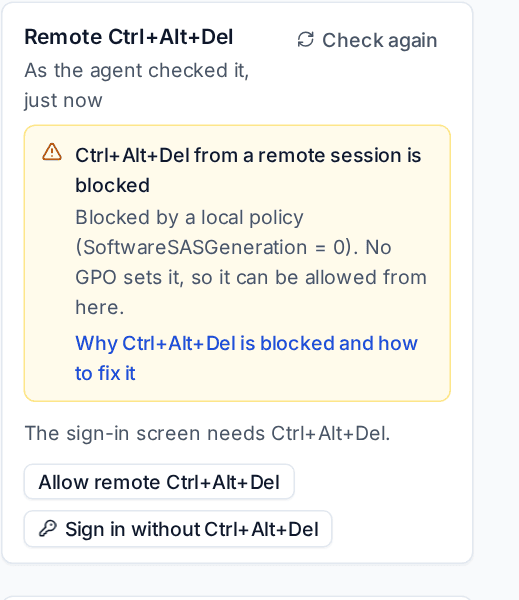
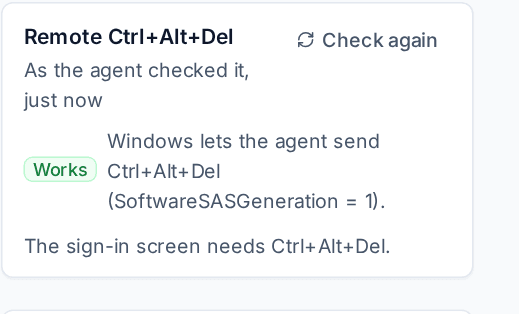
Check again asks the agent to read the policy now, which takes a few seconds on a domain member. The agent also checks by itself shortly after it starts, every few hours and after a change.
In a remote session the button shows a warning sign while Ctrl+Alt+Del is blocked, and its tooltip gives the reason.
Allow it in Group Policy
When a GPO blocks it (often a security baseline), the fix belongs in that GPO. Tenvara never changes a setting that a GPO or the device's Local Group Policy controls: the policy would put it back at its next refresh, and it is your administrator's decision.
- In Group Policy Management, edit the GPO the card names.
- Go to Computer Configuration > Policies > Administrative Templates > Windows Components > Windows Logon Options.
- Open Disable or enable software Secure Attention Sequence, choose Enabled and set it to Services (or Services and Ease of Access applications).
- On the device, run
gpupdate /forceor wait for the next policy refresh, then click Check again on the card.
When no GPO sets it
With a current agent there is nothing to do: the card says it works, and the policy's value stays what it was. Each press sets it for a moment and puts it back, and the agent's log has a line for each press. If the agent was stopped in the middle of a press, it puts the value back when it starts again.
An agent that has not been updated yet shows the card as blocked. Update the agent where you can; otherwise the card offers two buttons:
- Allow remote Ctrl+Alt+Del sets the policy to Services on the device, keeping Ease of Access if it was already allowed.
- Sign in without Ctrl+Alt+Del sets Windows' Interactive logon: Do not require CTRL+ALT+DEL on the device. Its sign-in and lock screens then show the password box on a key press, and you type the password in the remote session, or use a credential from the vault.
Each one is sent for approval first and recorded in the audit log:
- Click the button and say why.
- The approvers named for remote sessions in Settings > Approvals are asked. See Approvals.
- Once approved, the agent makes the change and the card updates.
Whether these changes need approval is set under Remote access approvals in Settings > Device management.
Note: If the device is already at its lock screen when you choose Sign in without Ctrl+Alt+Del, that screen still asks for Ctrl+Alt+Del, so the agent switches it to the sign-in screen. The person's session stays open, as with Switch user, and your remote session follows the device to the sign-in screen: press a key and sign in as the same person to return to it. See Remote control.
Put back
Once a value has been changed from the device page, the card shows Put back. It returns the value the device had before the first change, exactly: a value that was absent is removed again. Putting it back needs no approval.
What the button says
| Message | What it means |
|---|---|
| Ctrl+Alt+Del sent. Windows is showing its security screen. | It worked. |
| Ctrl+Alt+Del sent to the sign-in screen. | The device was already at its sign-in screen; the password box should now show. |
| Ctrl+Alt+Del may not have worked | Windows took it but did not show its security screen. Try again. |
| Ctrl+Alt+Del was not sent: blocked by policy | A GPO or the device's Local Group Policy blocks it, named in the message. |
| Ctrl+Alt+Del was not sent | The agent on the device could not send it. Reconnect, or restart the agent. |
| No answer about Ctrl+Alt+Del | The device's agent is too old to report it. Update the agent. See Agent updates and release channels. |
Administrator prompts (UAC) in a remote session
When something on the device asks for administrator rights, Windows shows the prompt on its secure desktop, the same one as the sign-in and lock screens. The remote session follows it there: you see the prompt and can answer it with the mouse or the keyboard, and the viewer shows Secure desktop in its toolbar (the desktop viewer in its title) until the prompt is gone. The picture is back as soon as you answer Yes.
Older Windows
Devices on the Lite agent (Windows 7, 8.1, Server 2008 R2, 2012 and 2012 R2) have the Remote Ctrl+Alt+Del card on their page, the basic remote has a Ctrl+Alt+Del button that reports its result, and Allow remote Ctrl+Alt+Del and Sign in without Ctrl+Alt+Del go through the same approval. See Older Windows and the Lite agent.
Related
Was this page helpful?
Thanks for the feedback.