Newsletters
Design a branded email in blocks, send it to a marketing list now or at a time, reach only the people who may be sent marketing, and see opens, clicks and unsubscribes.
Newsletters are designed emails to a marketing list: a customer newsletter, a security alert to every client, an invitation to an event. They go out in your brand, through a sending service rather than your support mailbox, and only to the people on the list who may be sent marketing.
Open Sales and billing > Marketing and choose the Newsletters tab. The list opens on drafts, scheduled newsletters and those sending, then the ones sent or stopped in the last 30 days; the views reach the rest.
Note: Newsletters are part of the CRM, in the MSP edition. They send through your own SMTP relay or a verified sending domain, set up once by an administrator.
Set up sending (administrators)
Press Sending on the Newsletters tab.
- Under Send through, choose an SMTP relay (your bulk email provider's SMTP address, with its own login) or a Sending domain through the sending service (a domain of yours, verified and signed).
- Set the From name and From address, where Replies go to (a sales inbox, not the support desk) and where Bounces go to.
- Set Messages a minute (your provider's limit, or lower) and Messages a batch.
- Set Soft bounces before suppressing. A hard bounce suppresses an address at once.
- Press Try it to check the connection, then Save.
The Bounce and complaint webhook address is for your sending service to report bounces and spam complaints back; New address replaces it if it ever leaks. Newsletters never go through the support mailbox, so replies, bounces and complaints stay out of the service desk.
Write a newsletter
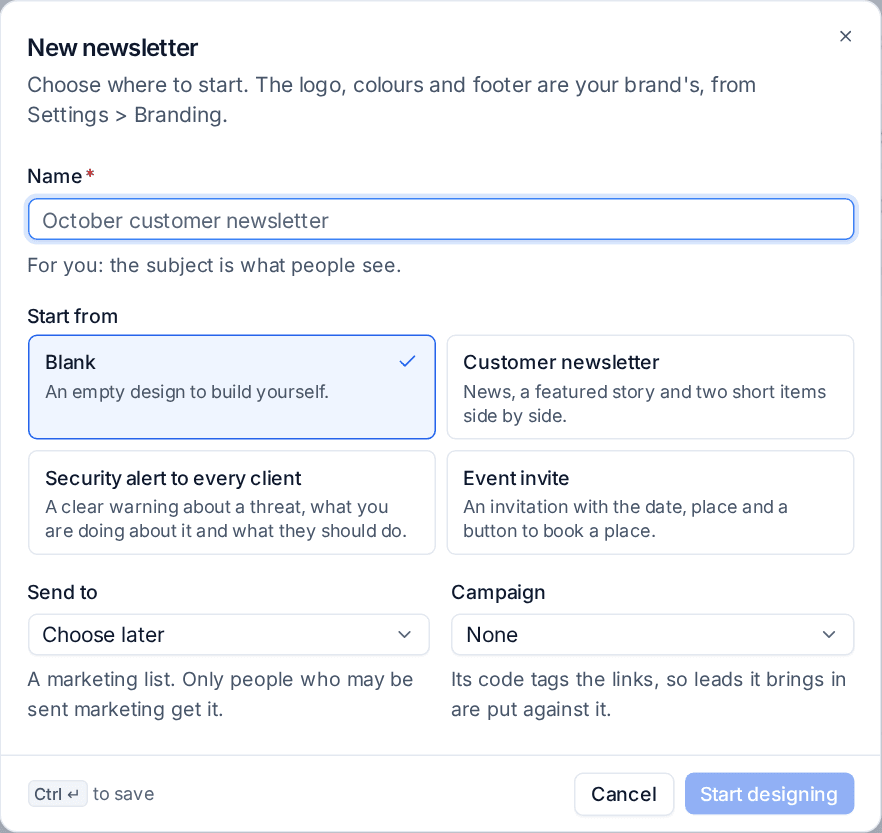
- Press New newsletter.
- Give it a Name (for you; the subject is what people see).
- Under Start from, choose Blank, Customer newsletter (news, a featured story and two short items side by side), Security alert to every client or Event invite, or a design you saved as a starting point.
- Choose who to Send to (a marketing list, or Choose later) and the Campaign, whose code tags the links so leads the newsletter brings in are put against it.
- Press Start designing.
The designer
A newsletter is a column of blocks:
- Heading (three sizes), Text, Image (uploaded or from an https address), Button and a divider;
- Two columns or Three columns, each holding those blocks. Columns stack on a phone.
The look is your brand's from Settings > Branding: your logo or name at the top, your accent colour on buttons and links, and your email signature and footer at the foot. Merge fields {first_name}, {name}, {company} and {email} work in the subject, preview text, headings, text and buttons; one with no value leaves no gap.
The preview beside the designer is exactly the email people receive. Make a copy starts a new newsletter from this one, and Save as a starting point keeps the design, subject and preview text to start the next newsletter from.
Send yourself a test
Send a test goes to up to five addresses, as the design is now, with "[Test]" before the subject, no tracking, and nothing recorded against the list.
Send or schedule
Press Send or schedule and choose Now or At a time. When the time comes, the recipients are the list's members who may be sent marketing at that moment, once per address, and each is checked again just before their message goes, so someone who unsubscribes during a send is skipped. Unschedule a newsletter that has not started, or Stop sending one that is going out: whoever has not had it yet will not get it.
Every message carries a one-click unsubscribe in its headers and a link in the footer to a page where the person stops marketing emails without signing in. Unsubscribing withdraws their consent and puts their address on the suppression list. See Marketing: consent, lists and attribution.
Tip: Send to a list of decision-makers at your managed customers for service news, and to everyone with consent for event invites. Keep security alerts short: what the threat is, what you are doing and what they should do.
What happened
A sent newsletter's page shows:
- Sent, Delivered, Opened and Clicked, with rates of those delivered;
- Bounced, Unsubscribed and spam reports;
- each link's clicks and how many people clicked it;
- every recipient with what happened to their message, and anyone skipped with the reason.
Count opens, Count clicks and Add UTM tags to links are switched per newsletter. The UTM tags (newsletter, email and the campaign's code) mean leads the newsletter brings in are attributed to it.
Opens are a sign, not proof: some mail apps block the tracking image and others load it for everyone. A click counts as an open, and clicks are the better measure.
Related: Sequences, Marketing: consent, lists and attribution.
Was this page helpful?
Thanks for the feedback.