Golden images
Keep the golden image of each RDS collection with every version, then build, test on an isolated host, sign off and roll out a new version in stages, with roll back and drift alerts.
A golden image is what a collection's session hosts or pooled desktops are built from. Tenvara keeps one per Remote Desktop Services (RDS) collection, with every version of it, on the Images tab of Infrastructure > Virtual desktops. A new version goes through Build, Test, Sign-off and Rollout: a version that fails its tests is never offered for sign-off, one nobody signed off never reaches a host, and a rollout goes a few hosts at a time with Roll back one click away.
Two ways to build an RDS image
| Platform | What a version is | How it rolls out |
|---|---|---|
| RDS standard build | The session hosts themselves, patched in place. A reference session host is drained, patched, given its apps and scripts, and recorded as the version | The other session hosts are drained and patched the same way, a few at a time |
| RDS template | A snapshot of a template VM on a hypervisor managed in Tenvara | The broker recreates the collection's pooled desktops from it, a collection at a time |
Setting up an image
- Adopt the deployment first (see Virtual desktops: finding and adopting deployments).
- On the Images tab click New image, or on the deployment's Golden images section click No golden image yet: set one up beside a collection.
- Choose the Deployment, the Pool, catalog or collection and the Platform, give it a Name, the Template VM for an RDS template, and Versions to keep.
- Click Set up.
- Open the image and click More > Record the version in use. This records what the hosts run today, signed off by you, so the first build has something to compare with and roll back to.
Each pool row on the deployment's Golden images section then shows its image, the Version in use, the Last rollout, Hosts on it ("2 of 3") and its Drift: In step or Drifting.
The image page
The header shows the Pool, catalog or collection, Current version, Hosts on it, Versions kept and Last run, with Build a new version, Roll back and More (Record the version in use, Prepare the agent, Edit, Archive). Its tabs:
- Versions: every version with its Patch level, OS build, apps, tests and sign-off, and Compare two versions.
- Run: the current run's stages and steps with their logs; Stop, Resume, Retry and Cancel run.
- Hosts: which host runs which version, and its ring.
- Build, Tests, Sign-off, Rollout and Hygiene: the settings and results of each stage, below.
Build
On the Build tab, choose what it builds from (the Reference host for a standard build, the Template VM for a template) and what a build does:
- Windows and Office updates through patching, with Rounds of updates (scan and install again until nothing approved is missing).
- Apps from the software catalogue, each at a pinned version or the latest.
- Scripts from your library, in order.
- Prepare the agent for cloning, so every machine made from the image enrols as itself. See Pool machines and non-persistent desktops.
Build on a schedule runs it by itself: Patch Tuesday plus some days, A day of the month or A day of the week, at a time in your time zone. A build already in progress is never queued twice. Its commands and output stream live in the live job console.
Test
Before anyone sees it, the new version is tested on a test host of its own: for a template, a one-desktop collection only the test account can use; for a standard build, the reference host the build patched, kept from new connections while it is tested. It is removed or given back afterwards. Set the checks on the Tests tab:
| Check | Passes when |
|---|---|
| The test host boots and registers | Its agent comes online and the broker sees it |
| A test user logs on | The Test account signs in within the minutes allowed. Slower than Logon time allowed (seconds) is a warning, with the profile, Group Policy and shell times |
| Apps that must start | Each app opens a window as the test user |
| Check the FSLogix profile attaches | The profile container is attached |
| Drives that must map, Printers that must map | Each is mapped for the test user |
| The agent is healthy, Security tools that must run | The agent reported and the named services run |
| No new critical vulnerabilities | Nothing critical the hosts do not already have |
| Test scripts | Each library script ends with exit code 0 |
| Take a screenshot of the desktop | A picture of the test user's desktop, kept on the version and shown with the sign-off request |
The test logon is a real Windows sign-in. Any failed check stops the run with the version Failed its tests; a retry is a fresh round on a fresh test host.
Sign-off
A tested version goes to the image's Owners on the Sign-off tab: People here (asked in Approvals, by email and in the app) and the customer's contacts (asked by email; they decide from the email or in the customer portal). Each sees what changed against the version the hosts run now, how its tests went and the screenshots.
Under How it is signed off choose Who must say yes (Any one owner on each side or Every owner), whether Staff sign off first, and the Time to decide (hours). Nobody deciding in time sends the version back. A version Sent back with a note never deploys; the next build makes a new one. With no owners named, your fallback approvers decide.
Rollout and roll back
Signed off, the version goes out by the plan on the Rollout tab:
- The Pilot first: a Pilot pool and the hosts your Pilot users are on. With A person confirms before the rest, the rollout waits for someone to say go; Let the pilot run first (minutes) adds a soak.
- Then any other Rings, then The rest, in batches of Hosts in a batch with Wait between batches (minutes).
- Each batch only starts inside the Maintenance window. Its hosts stop taking new sessions, the people on them are told to sign out by a deadline (Time to sign out (minutes), a Last warning and your Message to the people on a host), then whoever is left is logged off, the host is rebuilt or patched, and it must pass the health check (A host is healthy when it is registered and available, takes new sessions, its agent checks in) within Health check time (minutes).
A batch that fails stops the run there and raises "Golden image rollout stopped": the next batch never starts. Roll back takes the hosts back to the signed-off version before, the same careful way; a rollout that stopped part way is cancelled first.
Hygiene and drift
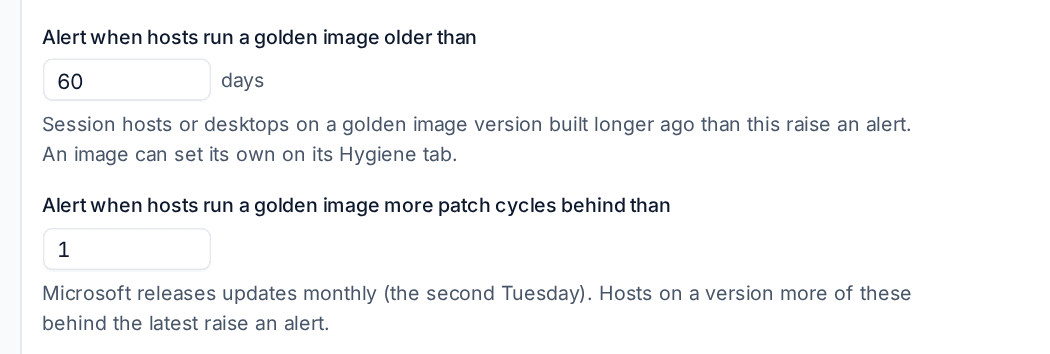
Every 15 minutes Tenvara checks each image and raises one alert per problem, which clears by itself once it is put right:
- Hosts on an out-of-date version: older than Alert when hosts run a golden image older than (60 days) or more patch cycles behind than allowed (1).
- A version nobody signed off is running on a host.
- The master VM was left running outside a build, or changed outside the process (Accept the changes on the Hygiene tab when it was expected).
- Old versions could not be removed: older versions past the keep are removed automatically unless you turn that off.
The defaults are in Settings > Infrastructure, the Virtual desktops section; an image sets its own on its Hygiene tab, which also shows each version's size and monthly storage cost. The report builder has Golden image age, Virtual desktop patch compliance, Golden image versions and Golden image rollouts reports.
Was this page helpful?
Thanks for the feedback.