The Outlook add-in
Deploy the Tenvara add-in to your salespeople's Outlook, so from the email they are reading they see the sender's contact, lead, company and deals, log the email, and add a lead or a task.
Salespeople spend their day in Outlook. The Outlook add-in brings the CRM to them: open an email and a pane beside it shows who the other side is in Tenvara, their deals and open tasks, with buttons to log the email, add a lead or set a task, without leaving the inbox.
Note: The Outlook add-in is part of the CRM, in the MSP edition. It is deployed to your own Microsoft 365 users, either for everyone by a Microsoft 365 administrator or by each person for themselves.
What the pane shows
For the email being read, the pane looks at the other side: the sender, or for an email you sent, the first recipient. It shows:
- the contact with that address, and their company, or a customer whose email domains include it;
- the lead with that address;
- their deals, open ones first, with the stage, the one-off and monthly value and the close date;
- their open tasks.
Who sees which deals in Settings > Sales applies here too: a salesperson who sees only their own leads and deals sees nobody else's in the pane.
From the pane:
- Log this email puts the email on the best record (an open deal, then a lead, the contact, the company) or one you choose, with its subject, text, sender, recipients and time. Logging it again updates the one line, and an email your mailbox sync has already logged is not logged twice. The pane then says where it was logged, with a link.
- Create lead adds a lead for someone not in the CRM: the company (suggested from the address's domain), the contact's name and address, and notes, owned by you, with the email logged on it. An address that already has an open lead is refused.
- Create task adds a task on any record shown, titled "Reply to ..." to begin with, with a due day. It lands on My sales day and is reminded like any task.
Links open the record in Tenvara in your browser. Pin the pane and it follows you from email to email.
The add-in reads the open email only, through Outlook itself: it asks your tenant for no mailbox permissions. To have every email logged by itself, connect your mailbox too; see My mailbox and sales email.
Get the manifest
Open Settings > Outlook add-in.
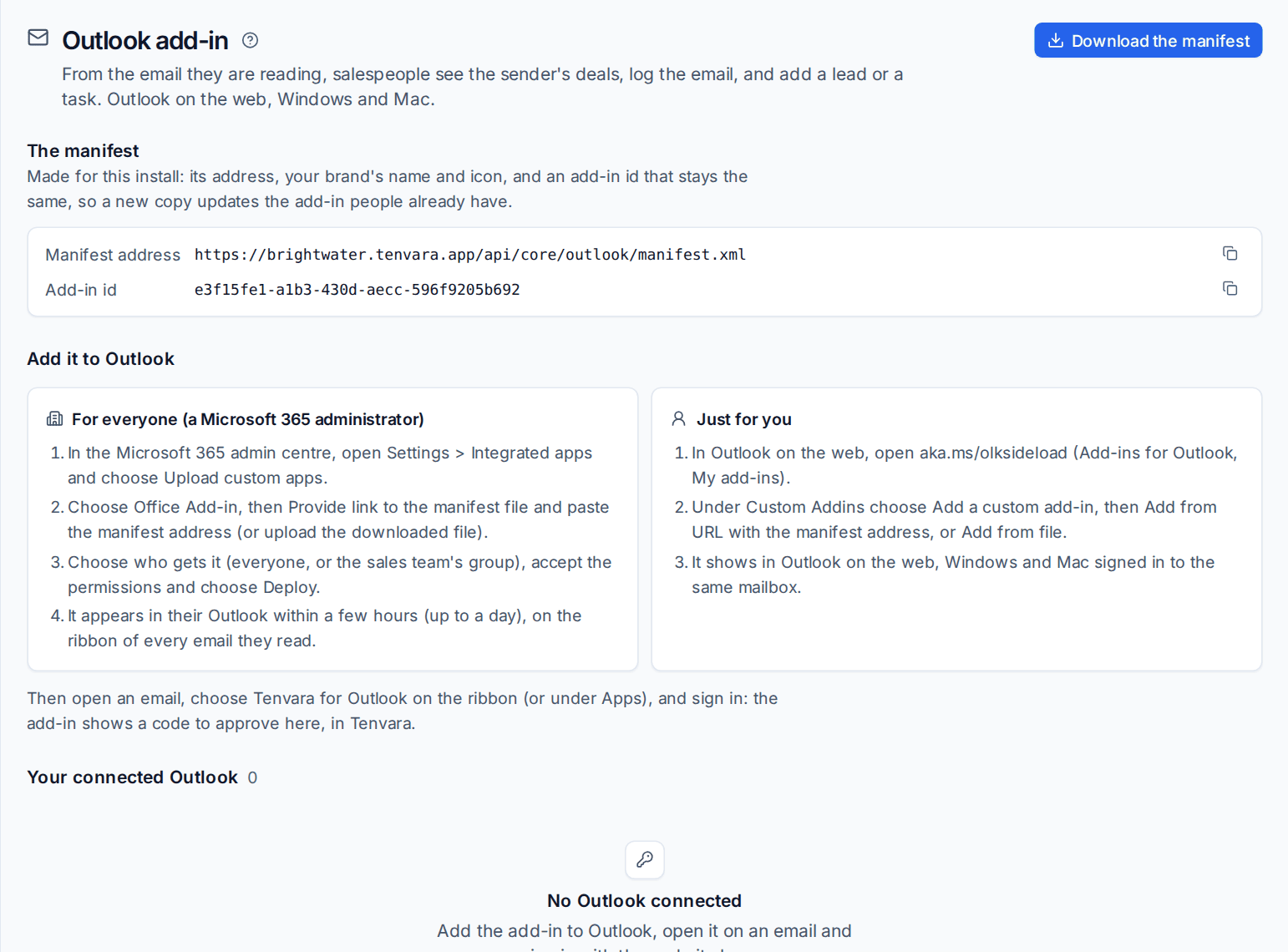
- Download the manifest saves the add-in's manifest file, made for your install: your brand's name ("... for Outlook") and icon, and your install's address.
- Manifest address is the same file's web address, for the admin centre to fetch (Copy manifest address).
- Add-in id stays the same for your install (Copy add-in id), so a new copy of the manifest updates the add-in people already have.
Add it to Outlook
For everyone (a Microsoft 365 administrator)
- In the Microsoft 365 admin centre, open Settings > Integrated apps and choose Upload custom apps.
- Choose Office Add-in, then Provide link to the manifest file and paste the manifest address (or upload the downloaded file).
- Choose who gets it (everyone, or the sales team's group), accept the permissions and choose Deploy.
- It appears in their Outlook within a few hours (up to a day), on the ribbon of every email they read.
Just for you
- In Outlook on the web, open aka.ms/olksideload (Add-ins for Outlook, My add-ins).
- Under Custom Addins, choose Add a custom add-in, then Add from URL with the manifest address, or Add from file.
- It shows in Outlook on the web, Windows and Mac signed in to the same mailbox.
Sign in
- Open an email and choose your add-in (such as "Tenvara for Outlook") on the ribbon, or under Apps.
- Press Sign in. The pane shows a code.
- Tenvara opens in your browser, where you are already signed in (with two-factor or single sign-on as usual). Check the code matches and approve it.
The pane then has its own sign-in, which reaches only what the add-in needs and acts as you, with your permissions. It lasts as long as your install's token policy allows. Your connected Outlook on Settings > Outlook add-in lists your connections, each with Sign out; signing out in the pane, turning your account off or changing your password ends it too.
Tip: Deploy to the sales team's group from the admin centre rather than everyone, and ask each salesperson to sign in once from the first email they open.
Related: My sales day and activities, Leads.
Was this page helpful?
Thanks for the feedback.