Form triggers and the ready-made starter and leaver rules
Start rules when a form is sent or approved, test the answers in conditions and use them in steps, wait until a date, use the four ready-made form rules, and start rules from sales events.
Many requests arrive as forms: a new starter, a leaver, access to a shared mailbox. With the form triggers, the rule picks up where the form stops: the customer's approver says yes, and the account is made, the groups set and the ticket noted, with nobody typing anything twice.
The two form triggers
In the rule builder, the Forms group of the trigger picker has:
- A form is submitted: a service request is sent (from the portal, or raised by your team for a contact), an information request is answered, or a sign-off is signed by everyone.
- A form answer is approved: a service request whose approval steps all said yes, or an information request whose answers your team marked complete. A request with no approval steps is approved at once and never fires this trigger.
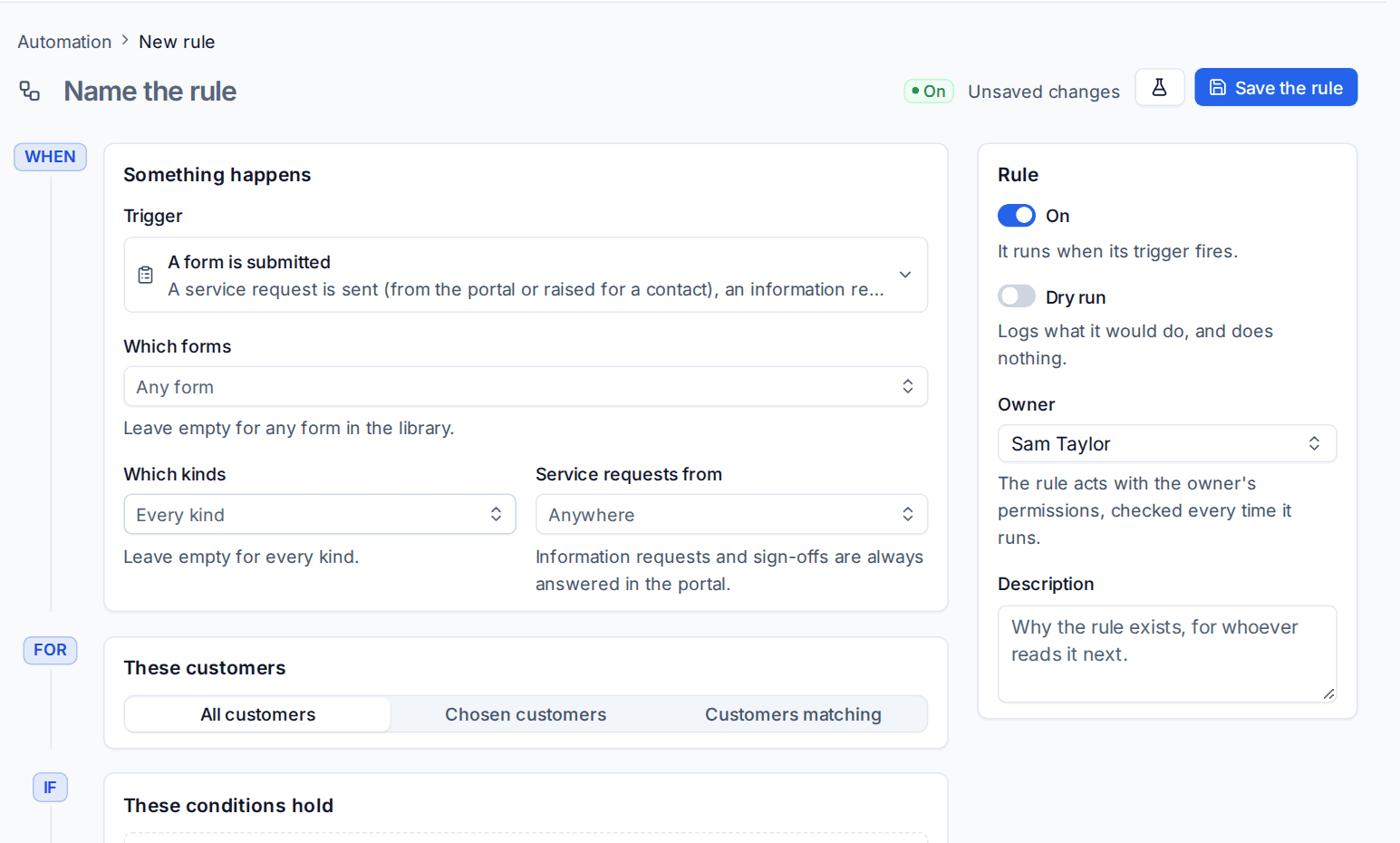
Each trigger has its own settings:
| Setting | What it does |
|---|---|
| Which forms | Any form in the library, sign-off forms included. Any form when left empty |
| Which kinds | Service requests, information requests, sign-offs. Every kind when left empty |
| Service requests from | Anywhere, from the portal, or raised by your team for a contact. Information requests and sign-offs are always answered in the portal |
Each submission fires once. A catalogue form sent as an information request becomes a service request when it comes back, and only the service request fires.
The rule gets the form's customer, its ticket and the person who sent it as the contact, so every customer action and placeholder works as for other triggers.
Answers in placeholders
With forms chosen, the placeholder menu lists their questions by name. Each answer comes three ways:
| Placeholder | Gives |
|---|---|
{{form.answers.<question>}} |
The answer in words: a choice's label, a date as people read it, the names of what a picker chose |
{{form.values.<question>}} |
The answer as stored: dates as YYYY-MM-DD, numbers, yes or no, choice values |
{{form.picked.<question>.<what>}} |
What a picker chose: always id and name; upn and mail for a Microsoft 365 user, mail for a group, address for a mailbox, email for a contact |
There are also {{form.name}}, {{form.reference}}, {{form.submitted_by}}, {{form.submitted_at}}, {{form.ticket}}, {{form.approved_by}} (approved trigger) and {{form.signed_by}} (sign-offs).
So {{form.picked.leaver.upn}} hands a Microsoft 365 step the exact account the customer chose, and {{form.values.last_day}} gives Wait a date. A secret answer never reaches a rule, and a picker only ever offers the customer's own users, groups, mailboxes, contacts and devices. A question that allows several choices fills a placeholder as "A, B", and the group, mailbox access and create user steps work through each name in turn.
Conditions on answers
Under If, the form's questions are offered as conditions, tested by their type: numbers (more or less than, set or not), dates (before, after, within the next days), choices and yes or no (is, is not), and everything else as text. You can also test the form's name, kind and where it came from. For example: only run when Department is Finance, or when the Start date is within the next 14 days.
Wait until a date
Wait has a mode for forms: Until a date, from a placeholder such as {{form.values.last_day}}, at a time you choose, in the customer's business hours time zone unless you pick one. A date already passed carries on at once. See Actions.
The four ready-made form rules
The service catalogue has four forms made for rules, and the template gallery's Forms group has a rule for each. The forms start unpublished, so customers see nothing until you publish them in Settings > Service catalogue.
| Form | Rule, after the customer's approver says yes |
|---|---|
| New starter (automatic) | Creates the account (sign-in name from the pattern, numbered when taken, job title, department, mobile, manager, the licence and groups chosen), sends the first password to the manager as a one-time link, gives Full Access to each shared mailbox chosen, emails the manager a welcome and notes the ticket |
| Leaver (automatic) | Waits until 17:30 on the last working day, runs the leaver bundle (block sign-in, sign out, groups, convert to shared with Full Access and forwarding for whoever takes over, the automatic reply, OneDrive, licences, hide from the address book) and notes the ticket |
| Shared mailbox request | Gives Full Access to each mailbox chosen, so it opens in Outlook by itself, and notes the ticket |
| Add to group | Adds the person to each Team or group chosen and notes the ticket |
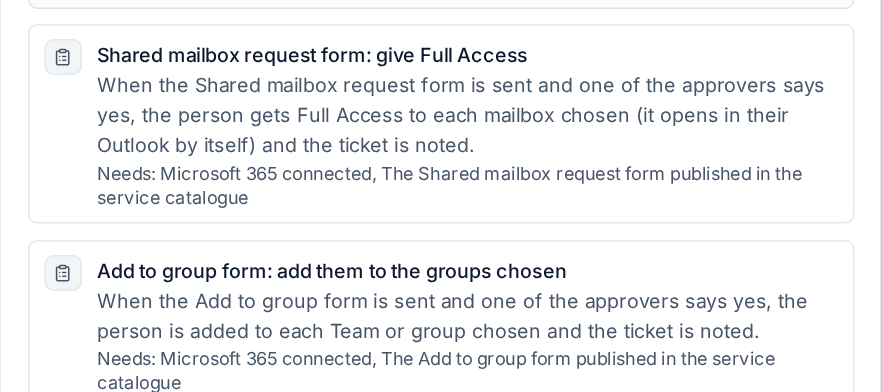
Each rule starts with Ask for approval of the customer's approvers (from their approval matrix), so nothing changes until one of them agrees, even when the request needed no approval of its own. Like every template, they open in dry run: send a test form, read the run, then turn dry run off. Each needs the customer's Microsoft 365 tenant connected and its form published. See Microsoft 365 steps and the leaver bundle.
Tip: Test a form trigger with Test in the builder: it lists recent service requests, answered information requests and signed sign-offs to try the rule against.
Sales triggers
In the MSP edition, the Sales group of the trigger picker also starts rules from the CRM:
| Trigger | Fires | Its setting |
|---|---|---|
| A lead is created | Once per new lead, however it came | The lead sources |
| An enquiry comes in | The website enquiry form, or a lead made from an email or a chat with someone new | Where from |
| A deal changes stage | Every move to another stage, including won, lost and reopened | The stages |
| A deal is won or lost | Once per win or loss | Won, lost or either |
| A deal is going cold | Nothing done on an open deal for a number of days, once per quiet spell | Days (the going cold days in Settings > Sales to start with) |
| A sales task is overdue | A task on a lead, contact, customer or deal still not done after it was due | Days after it was due |
Conditions cover the lead's source, status, owner, value and company, the deal's stage, pipeline, owner, value and monthly amount, and the task's owner. The actions Give the lead or deal to and Add a sales task go with them, and Notify people can tell The lead's or deal's owner.
The gallery's Sales group has three ready-made rules: an enquiry gets a task to reply today and its owner is told; a deal going cold gets a task for its owner; a won deal gets a hand-over task. See My sales day and activities.
Related
Was this page helpful?
Thanks for the feedback.