The verdict and the plan
How Tenvara decides whether a customer is Ready, Nearly or Not yet for Copilot, which blockers keep it at Not yet, and how the plan puts root causes first with an honest effort and owner for each item.
A director asking "can we switch Copilot on?" wants an answer, not a number. AI readiness gives every customer a verdict, Ready, Nearly or Not yet, and a plan that says what stands between them and Ready, who does it and roughly how long it takes. The score is still there, as the measure of progress, but the verdict and the plan are what you talk through with the customer.
The verdict
The verdict is first on the customer's AI readiness overview, in the Verdict column of Security > AI readiness, in the customer portal, on page 1 of the report and on the presentation's verdict slide.
| Verdict | When |
|---|---|
| Not yet | At least one blocker is open, or a blocker could not be read |
| Nearly | No blocker is open, but critical or high items are still open |
| Ready | No blocker and nothing critical or high left |
Other AI tools never decide the verdict on their own: the verdict is about what the customer's own Copilot can reach and who can sign in.
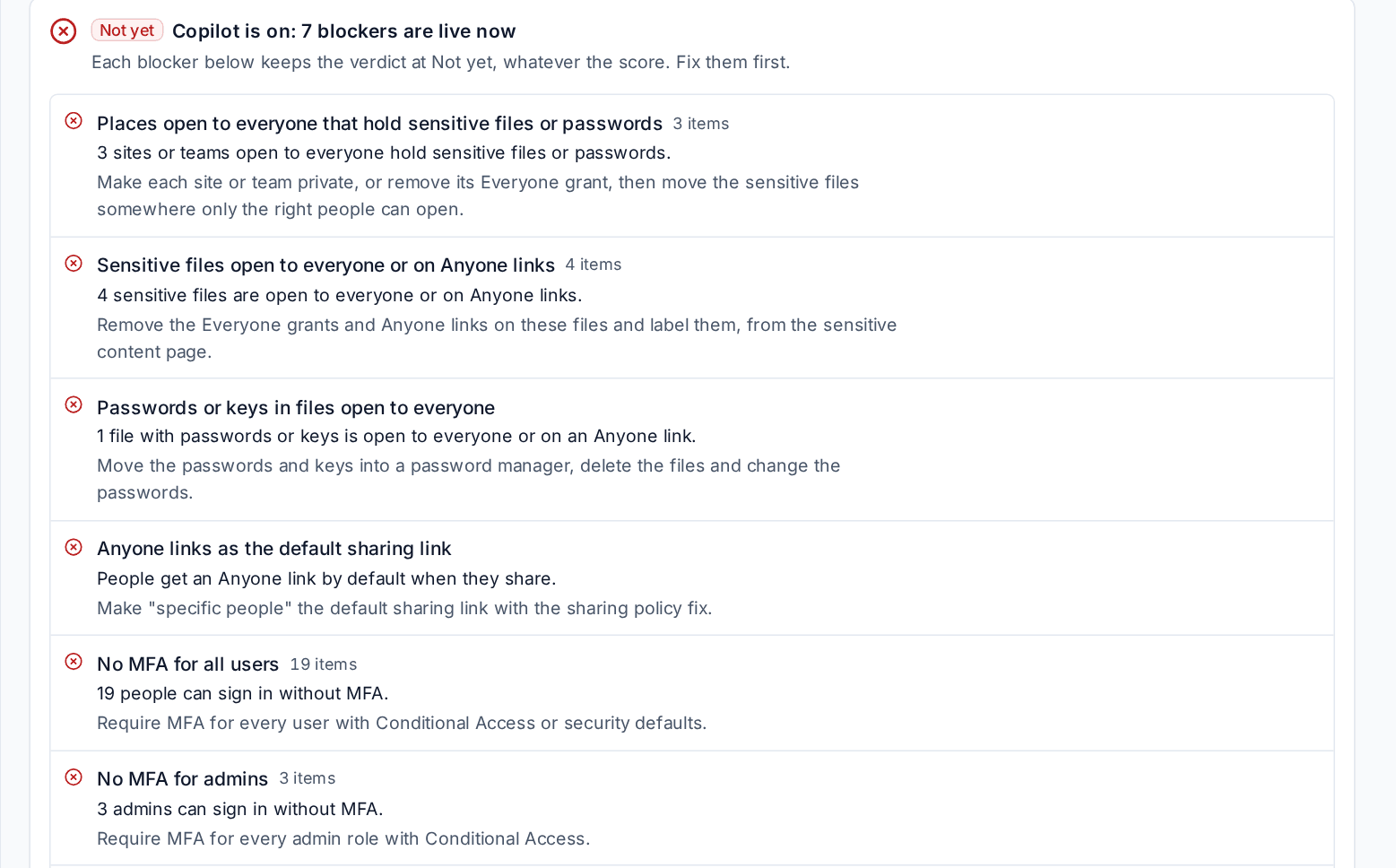
The wording follows where the customer is. Before Copilot is in use it reads, for example, "Not yet ready to switch Copilot on: 2 blockers are open" or "Nearly ready to switch Copilot on: no blockers, 3 high items still open". Once Copilot licences are given out and used it reads "Copilot is on: 2 blockers are live now", "Copilot is on with no blockers live: 3 high items still open" or "Copilot is on and the tenant is ready for it".
The blockers
Each blocker keeps the verdict at Not yet, whatever the score:
| Blocker | What it means | The fix |
|---|---|---|
| Places open to everyone that hold sensitive files or passwords | A site or team every member of staff can open holds sensitive files | Make the site or team private, or remove its Everyone grant, then move the sensitive files |
| Sensitive files open to everyone or on Anyone links | Sensitive files any member of staff, or anyone with the link, can open | Remove the Everyone grants and Anyone links and label the files |
| Passwords or keys in files open to everyone | Files holding passwords or keys anyone can reach | Move them into a password manager, delete the files, change the passwords |
| Anyone links as the default sharing link | People get an Anyone link by default when they share | Make "specific people" the default with the sharing policy fix |
| No MFA for all users | Not everyone is asked for MFA on every sign-in | Require MFA with Conditional Access or security defaults |
| No MFA for admins | An administrator can sign in without MFA | Require MFA for every admin role with Conditional Access |
| Legacy sign-in allowed | Old protocols that never ask for MFA still work | Block legacy authentication with Conditional Access |
| The audit log is off | Nobody can see what Copilot or anyone else opened | Turn the unified audit log on |
| Sharing or sensitive content not read | The scans have not finished, or too little was read to judge | Let the scans finish, or grant the permission a refused scan names |
Organisation-wide links are not blockers: Copilot uses a file through one only for the people who have opened it.
Under the verdict, each open blocker says how many items it covers and its one fix, with a link to the page where the fix is. A blocker that could not be read is listed as Could not be read, never treated as clear, and the headline names it in plain words. Blockers that are clear are folded away. What was not checked lists, section by section, the checks that could not be read.
Choosing the blockers
All blockers count by default. To switch one off for every customer, go to Settings > AI readiness, the Scoring and alerts tab, and find Verdict. A customer can have its own choice, for example where it has accepted a risk with you in writing.
Note: Whether it is safe to switch Copilot on is answered by the verdict, not by a scored check, so a critical finding is never counted twice.
The verdict over time
The verdict is kept with each assessment and shown under the progress chart as Verdict at each assessment, so you can show a customer the day they went from Not yet to Nearly.
The plan
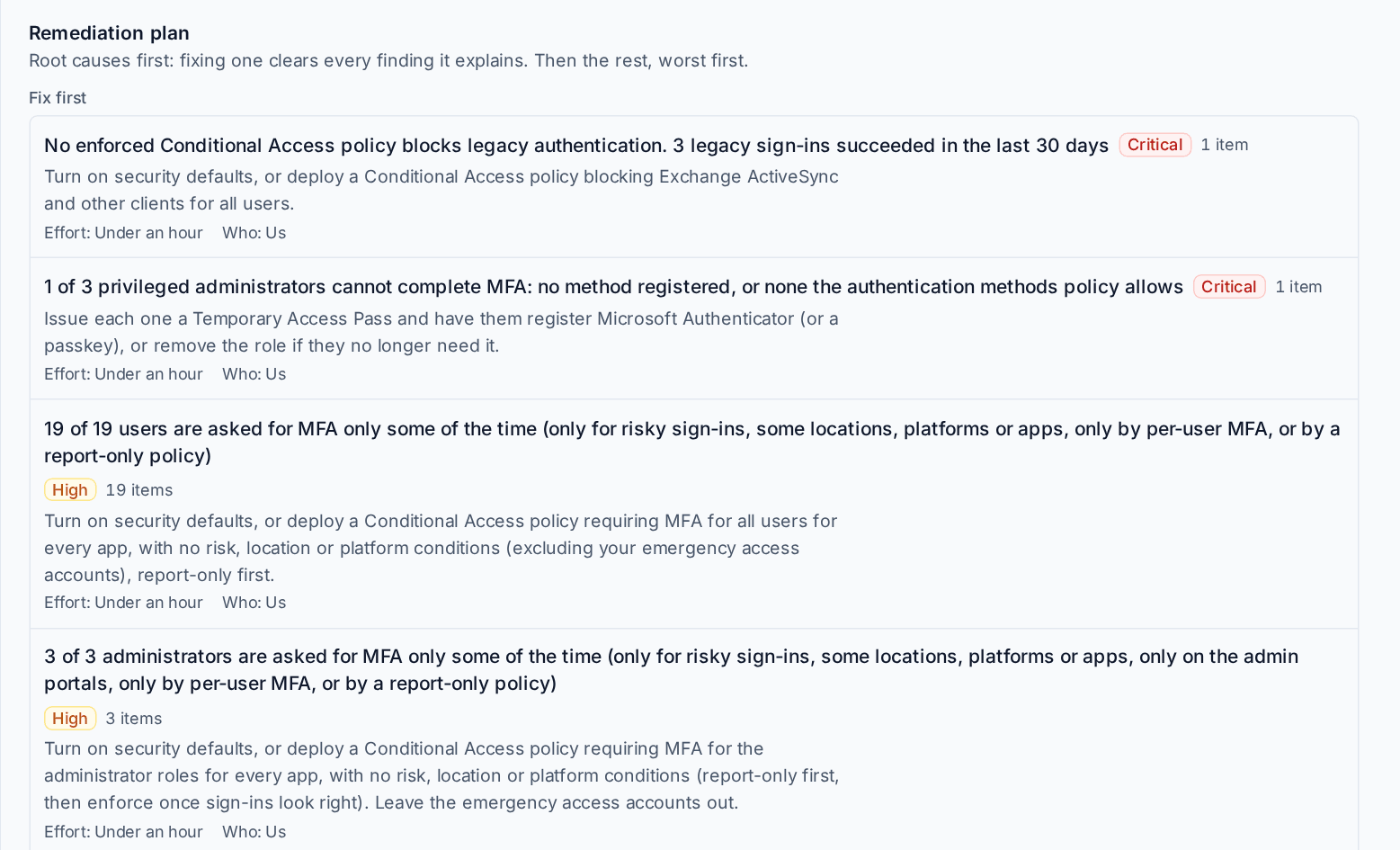
A customer with thousands of findings rarely has thousands of problems. Usually one setting or one team explains most of them. The plan on the customer's Fixes page (under Remediation plan), in the report, in the presentation and in the portal puts those root causes first.
Root causes
A root cause is one thing that explains many findings:
- The default sharing link: when the default is an Anyone link, or a link for the whole organisation, it explains the links of that kind people have made.
- A public team: it explains its site's Everyone grant, its own "public group" finding and the sensitive files open to everyone through it.
- A link made on a whole folder or library: it explains itself and the sensitive files beneath it.
- No published sensitivity labels: it explains every "no label" finding. Until labels are published, the label checks say "No labels exist yet" instead of failing, because there is nothing to label with.
Each root cause carries a Root cause badge and says "Fix this first and N findings clear", with the findings it explains. A finding belongs to one cause at most. Passwords in files are never a consequence of anything: they have to be changed whatever else is fixed.
Fix first, Then, Tidy up
After the causes, every other failing check follows in three groups:
- Fix first: the root causes, the open blockers and anything critical.
- Then: high items.
- Tidy up: the rest.
Checks that need a licence the customer does not have are never in the plan. They are listed in the report under Would need a licence you do not have.
Effort and who does it
Each item has an Effort band worked out from the kind of work, not from a formula:
| Kind of work | Effort | Who |
|---|---|---|
| One tenant setting or policy switch | Under an hour | Us |
| A decision the customer makes with you, such as a team's privacy or a tool | Up to half a day | The customer, with us |
| A label scheme, a data loss prevention or retention policy, an AI policy, training | Days, with the customer | The customer, with us |
| Removing links and moving files | From Under an hour to Several days, by how many links there are and how many people own them | The owners of the files and sites, with us |
Link clean-up is quicker when Tenvara removes the links in bulk with one approval. Once a remediation project exists, each item also shows its task's Owner and Target date, and In the remediation project links to it.
What it costs
The report's first page and the presentation's plan can show roughly what each line you do costs. Go to Settings > AI readiness, the Scoring and alerts tab, and under Report set Price our work from to the SKU of a labour item in your catalogue priced by the hour. Leave it empty to show no prices. See Fixes, reports and the portal.
The plan as a project
Make the remediation project on the overview makes one task per plan item. A root cause is one task with every finding it explains linked to it, so the task completes by itself once they have all cleared at a later assessment.
Related
Was this page helpful?
Thanks for the feedback.