Follow your desktop on your phone
Companion mode lets the Tenvara app show the ticket, alert or device you have open in the web app. How to switch it on and off, what the web app shares, and who can see it.
Companion mode turns your phone into a second screen on your desk. Stand it beside your keyboard, open a ticket in Tenvara in your browser, and the app on your phone can show that ticket with what is around it: the contact, their other open tickets, their devices, alerts and saved passwords. Move to another ticket and the phone follows. You can still use the app for anything else in the meantime.
It is not screen sharing, it does not control your computer, and it is never a way to see what colleagues are doing. Only you, on your own phone, ever see what you have open.
What the phone follows
The web app tells your phone when you open:
- a ticket, in the inbox or on its own page, and whether you are writing a reply or a note;
- an alert, a device, a contact or a customer's page;
- a project task, a booking or visit, or a chat conversation;
- a remote session, once it has connected.
Several tabs or two computers
The one you are using wins. A tab that is on screen and that you clicked or typed in during the last five minutes comes first, and a remote session or a live chat outranks a ticket you only have open. The same record open in two tabs counts once, so two desktops never fight over your phone.
With nothing in use, the phone follows the ticket, task, chat or visit your timer is running on. After ten minutes with nothing at all, the app shows Desktop idle with the last thing you had open.
Switching it on and off
On the web, open your account menu (your initials, top right):
- Phone following: on means the web app is telling your phone what you have open.
- Choose it to switch to Phone following: off. Choose it again to switch back.
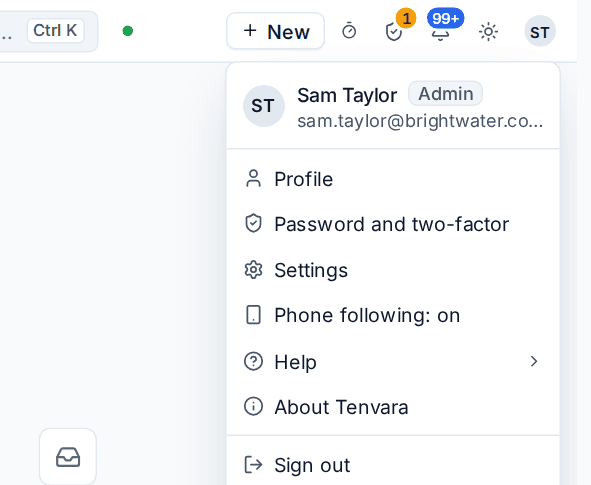
It is the same choice as Let my phone follow my desktop under Your choices in Settings > Mobile app, and in the app's own settings: switch it in one place and it is switched everywhere. It follows you to every phone you sign in on.

The menu says on or off only. It cannot tell whether your phone is listening right now: the phone follows only while the app is open and signed in as you.
When Phone following is not in your menu
Companion mode is on for you only when all three of these are on:
| Switch | Where | Who sets it |
|---|---|---|
| Companion mode | Settings > Mobile app, under For everyone on this install | An administrator, for the whole install |
| Phone follows the desktop | The role's permissions in Settings > Roles and permissions | An administrator, per role |
| Let my phone follow my desktop | Your account menu, Settings > Mobile app or the app | You |
If you do not see Phone following in the menu, an administrator has switched off Companion mode, or your role does not include Phone follows the desktop. Roles built on the service desk technician, service desk manager and field engineer templates have it. Under Your choices, a choice the administrator has switched off for everyone shows as off and locked, with "Switched off for everyone by an administrator".
Switching off Companion mode for the install, or your own choice, takes effect at once. A change to a role is picked up within a minute.
What is shared, and who can see it
- Only what kind of thing you have open and its number, which browser it is in (for example "Chrome on Windows"), whether the tab is on screen, and when you last clicked or typed there. Never titles, messages or passwords: the app loads those itself with your own sign-in, so you see on the phone exactly what you could see on the desktop, within your role, your hidden fields and your customer scope.
- Only you. Colleagues and administrators cannot see what you have open. Nothing is written to a database or a log, there is no history, and it is gone a few minutes after you stop.
- Hiding the tab or locking your computer tells the phone the tab is no longer on screen. Closing the tab removes it.
- Signing out removes everything, and so do signing out everywhere, ending a session with This wasn't me, a session timing out, and a password change or two-factor reset that ends your other sign-ins.
- Nothing is shared while you use View as to see Tenvara as someone else.
In the Company edition it works the same way; the organisation is the only customer, so there is no customer to follow.
Passwords from the companion screen
Saved passwords on the phone still need Face ID or your fingerprint every time, and every reveal is in the vault audit log as usual. A password revealed from the companion screen is logged with what you were working on: the Why column of the vault audit log reads, for example, "Revealed from the companion screen while working on #1234", with a link to the ticket for anyone allowed to open it. See Reviews and the vault audit log and Docs and credentials.
Tip: Companion mode suits a phone on a stand beside the keyboard during a busy shift on the service desk: the caller's details and their devices stay in view while the ticket fills your screen.
Related guides
- Settings > Mobile app: your phones, your choices and the install switches.
- Settings and security: the app lock and signing out.
- Roles and permissions: giving a role Phone follows the desktop.
Was this page helpful?
Thanks for the feedback.