Detect and fix: findings per object, previewed and undoable
Every Microsoft 365 and Intune check names each user, mailbox, device or policy at fault; dismiss one with a reason and an end date, or fix it with a preview, a snapshot, a check afterwards and a rollback.
The Microsoft 365 checks do more than say a tenant fails. Each check names every user, mailbox, device or policy it finds at fault, and many offer a fix. A fix always shows you the exact change first, keeps a copy of what was there, changes one object at a time, checks it worked, and can be rolled back.
Detect and fix lives in Cloud > Findings. It needs the Microsoft 365 module (switched on in Settings > Modules) and connected tenants. It works the same in both editions: the MSP edition lists findings per customer and across them, the Company edition lists your organisation's.
The three tabs
Cloud > Findings has three tabs:
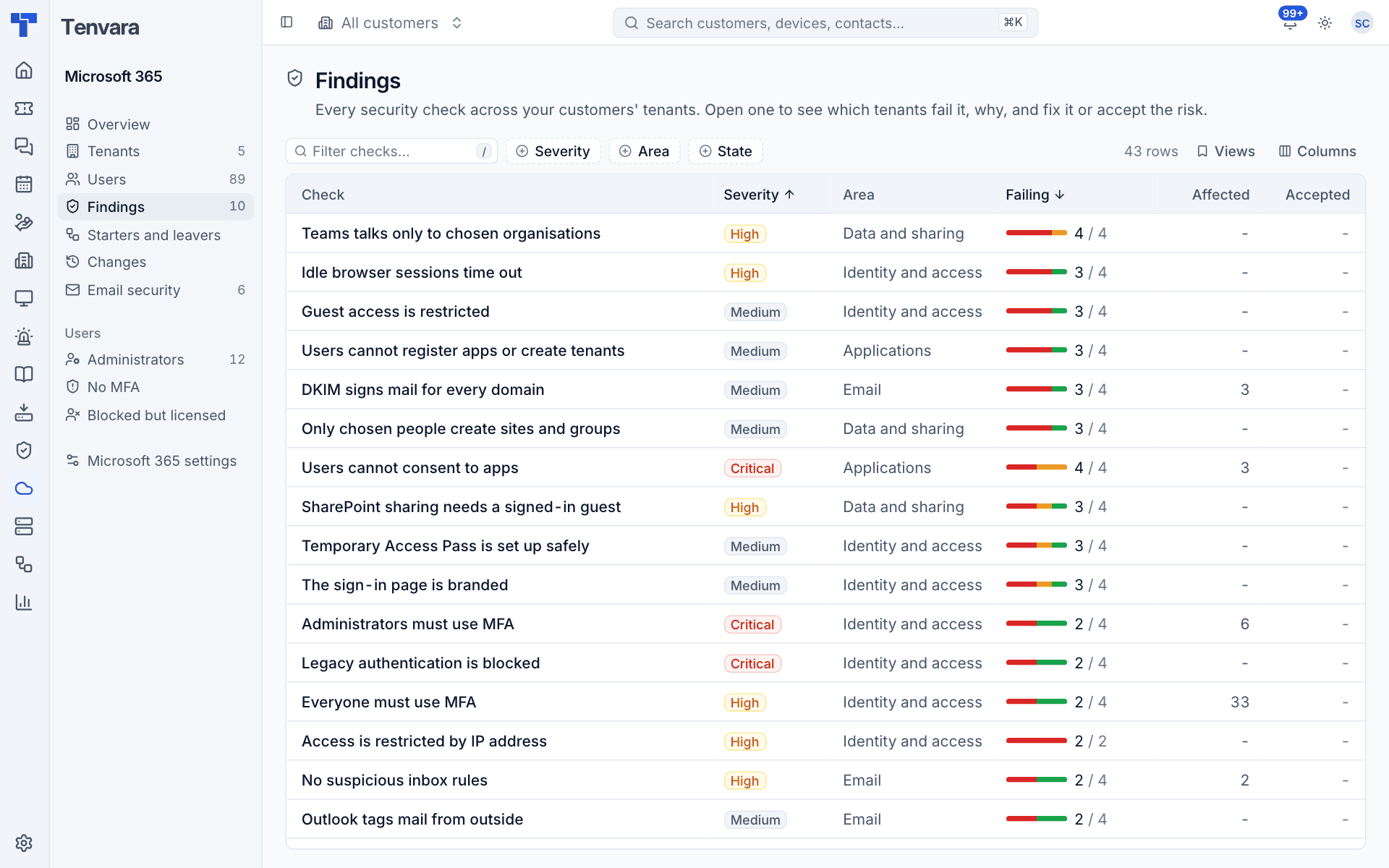
- By check: every security check across the connected tenants, with its Severity, Area, how many tenants are Failing, how many objects are Affected and whether the risk is Accepted. Open a check to see which tenants fail it, why, and its objects one by one. This is the list described in Security findings.
- Each object: every user, mailbox, device or policy a check found at fault, one row each, across every customer. Filter by Severity, Area, Fix (a fix is offered or not) and State. In the MSP edition a Customer column shows whose it is.
- Fixes: every fix and rollback, newest first, with its Kind, Status, Risk, how many Objects and By whom. Open one to follow it, check it again or roll it back.
Findings also show where you work: a customer's Microsoft 365 tab and each device's page have a Microsoft 365 findings block, worst first, with Fix where one is offered. On a tenant's own findings, a check's panel lists its objects with Dismiss and Fix, and Fix all for the fixable ones.
Note: Findings follow each tenant's security sync. An object that no longer matches is resolved by itself; one that comes back opens again and says how many times it Came back. Where Tenvara could not read the data, nothing is resolved: "not known" never counts as a pass.
Reading a finding
Open a row on Each object to see its side panel:
- Why it matters, in plain words;
- Evidence: the facts the check found, with "Read from Microsoft" and when;
- How to put it right: the steps by hand;
- Fixes: one Fix button for each fix offered, and the fix runs that touched this object;
- First found and Last found.
Where no fix is offered, the panel says "There is no automatic fix for this one: change it by hand as above."
Dismissing a finding, and exceptions
Some findings are known and agreed: a shared device on purpose, an account the customer keeps for a reason. Click Dismiss the finding and choose what it covers:
- Only this object, or
- Everything the check finds for this company (in the Company edition, your whole organisation).
Give the reason (Why?: who agreed, and why; everyone sees it beside the finding) and, if you like, an end date in Until. Leave the date empty to keep it until someone reopens it. Nothing changes in Microsoft 365: the finding stops showing as open until the date, then opens again if it still applies. Reopen brings it back at once.
The Exceptions button on Each object lists every active exception, Whole company or One object, with its reason and end date. Withdraw one and what it covered opens again straight away if the check still finds it.
Fixing: the preview
Click Fix on a finding. Nothing is changed yet: a drawer opens with the preview.
- At the top: What it means for people, in their terms (for example, which shared mailboxes can no longer be signed in to directly, and that people keep using them through their own accounts).
- Whether it needs an administrator, and why. If you are an administrator, applying it is the approval, recorded against your name. Anyone else says why it is needed in Why is this needed? and clicks Send for approval; it runs as soon as an administrator approves it, as them.
- Anything that can't be undone automatically, each with its reason.
- Per object: Will change, or Never offered with the rule that stops it; Before you go ahead lists what the object holds (an account's licences and mailbox delegates, its groups and devices); a Before and After table for each setting; and The calls to Microsoft, the exact requests that will be sent.
A fix that removes things asks you to type the number of objects to confirm.
Some changes are never offered, whatever the finding: retiring, wiping or deleting an Entra-joined Windows PC, disabling an account without showing its licences and delegates, removing or blocking the last Global Administrator, and enforcing a Conditional Access policy without an administrator choosing to. Conditional Access is always made report-only first; see Is this report-only policy safe to enforce?.
Fixing: what happens next
When you apply it, the drawer follows the run (Fix progress, "N of M finished"):
- A full snapshot of each object is kept just before it changes.
- Objects are changed one at a time. An object already as the fix leaves it is not changed. One that changed since the preview is skipped, so you never overwrite something newer.
- Each object is checked again after the change. It reads Confirmed by the check only when the check passes for it. Until Microsoft shows the change, the object reads as applied and waiting for the check, and is checked again by itself; Check again does it now.
- If Microsoft refuses a change, the object says so with Microsoft's reason and the others carry on. If Microsoft asks Tenvara to wait, the run waits and carries on.
Every fix and every object lands on the customer's activity and, for a device, on the device's activity.
Rolling back
Open the run on the Fixes tab (or from the finding). Roll back the whole run, or Roll back this one for a single object, makes a rollback preview in the same drawer: What it puts back and the calls that undo each change. Apply it the same way, with the same approval rules.
One fix for many
On Each object, tick several findings of the same check, from any tenants and any customers, and click Fix with the count. One preview covers them all and one run applies them, each object on its own: one failure never undoes the others. Findings of different checks cannot go into one run. Large runs go to the background; see Big bulk actions in the background.
What the checks cover
- Accounts and licences: password attacks, unused accounts, missing licences
- Intune: devices, their people and policy clashes
- Is this report-only policy safe to enforce?
Thresholds such as how many days without a sign-in count as unused are on the Checks tab of Settings > Microsoft 365, and in the MSP edition can be set per customer.
Tip: Work Each object filtered to Fix offered and Severity High first. Dismiss with a reason and an end date what the customer has agreed, so the list holds only what needs doing.
Was this page helpful?
Thanks for the feedback.