The app library for Intune
Keep a Windows app for Intune once, with its versions and every Win32 setting, and deploy it to as many tenants as need it, with a plan per tenant, drift checks and undo.
The app library is where you keep the Windows apps you put into Intune. Add an app once, with its versions and settings, and deploy it to every tenant that needs it, instead of uploading the same installer to each tenant by hand.
Open it at Cloud > Intune, the App library tab. It needs the Microsoft 365 module (switched on in Settings > Modules) and tenants connected with the Intune feature. In the MSP edition the library is shared by all your customers' tenants; in the Company edition it is your organisation's own. It works the same in both.
What it keeps
Each app has its details (name, publisher, description, categories, notes), its versions (every file uploaded, with who, when, size, SHA-256 and whether it is Ready, Packaging or Failed) and each version's Intune settings. The list shows Kind, Publisher, Newest version and Where deployed; archived apps stay hidden until you choose With archived. An app's page has Overview, Versions and Tenants tabs, with Deploy and New version at the top.
Adding an app: three ways in
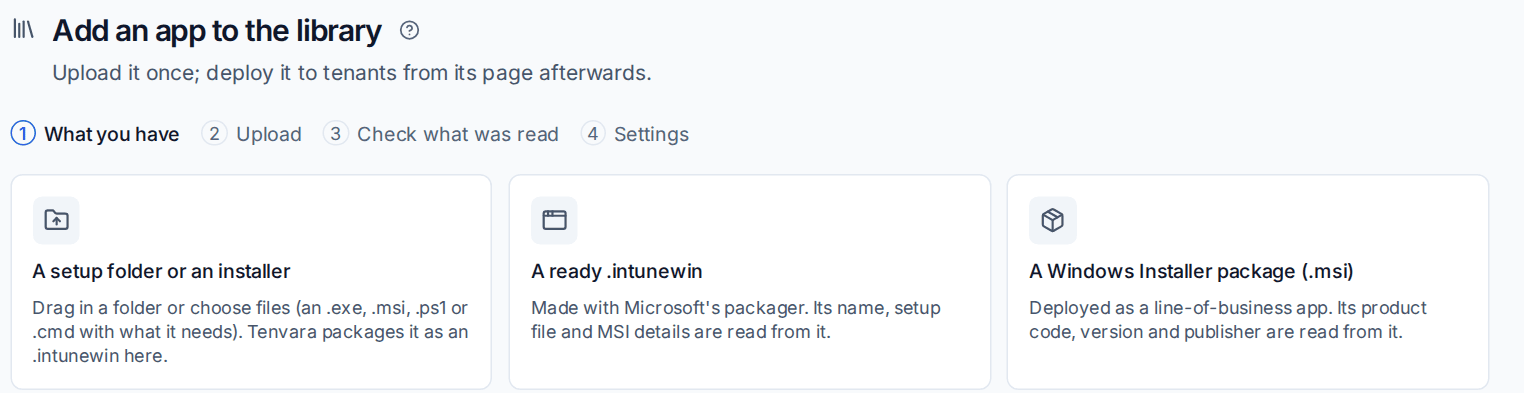
Click Add an app. The wizard's steps are What you have, Upload, Check what was read and Settings. Choose what you have:
- A Windows Installer package (.msi), deployed as a line-of-business app. Its product code, version and publisher are read from the file.
- A ready .intunewin, made with Microsoft's packager. Its details are read from the package, so nothing is packaged again.
- A setup folder or an installer (an .exe, .msi, .ps1 or .cmd with the files it needs). Drag the folder in, pick the Setup file Intune runs, and click Make the package. Tenvara makes the .intunewin in Microsoft's format: no packager or Windows machine needed.
Files go up in small pieces, so an installer of up to 2 GB works on any connection, with Pause, Resume and Cancel; a dropped connection carries on by itself without sending anything twice. Every file is checked for viruses before it can be used (Scanned: no threats found); a file with a threat is removed. The same file (the same SHA-256) is kept once.
Check what was read shows the name, version, publisher, product code and setup file. Correct anything the file got wrong, then click Looks right.
The settings
For a Windows app (Win32) the settings follow the Intune admin centre: App information (including the Company Portal logo), Program (install and uninstall commands, install behaviour, Device restart behaviour, Return codes), Requirements, Detection rules (an MSI product code, a file, a registry value or your own script), Dependencies and Supersedence (other apps from the library). Defaults are filled from the file, a step with something to choose shows how many on its tab, and Reset to the file's defaults puts them back. For an .msi the settings are the install context, extra msiexec arguments and whether to ignore the app's version. Click Save and finish.
Versions
For a new release, open the app and click New version: the last version's settings carry over with the new file's details on top, so you only check what changed. On the Versions tab, tick two versions and click Compare to see which settings differ, Archive a version you no longer want offered (tenants that have it keep it), or Delete one no tenant uses. An app still deployed somewhere can be archived but not deleted.
Deploying to many tenants
Open the app and click Deploy. From a tenant's Apps tab, From the app library opens the same steps with that tenant chosen.
- Version: the newest ready one, or any ready version.
- Tenants: search, select all, or only tenants that do not have it yet. Tenants that are not connected say so.
- Who gets it: assignments are by group name, so the same list works in every tenant. For each choose Required, Available (in the Company Portal) or Uninstall, optionally with an assignment filter by name. Give this tenant its own assignments sets one tenant apart.
- Create missing groups: on, a missing group is made as an empty security group of that name; off, that tenant stops and says which group is missing. Filters are never made.
- The plan: before anything is sent, each tenant says what will happen: made and assigned, already in Intune (adopted, not uploaded again), already deployed, or cannot be deployed with the reason (such as a dependency not there yet).
- Deploy, and the progress page opens.
Note: If the deploy needs an approval, the button reads Ask for approval. An administrator sees it under Cloud > Changes, the Approvals tab, with every tenant listed.
Each tenant then goes through creating, uploading, committing and assigning, on its own. A failure says why and the others carry on:
- Retry carries on from the step it stopped at.
- Undo takes off the assignments this deploy added and deletes the app only where this deploy made it (or Leave the app in Intune, unassigned). An app that was there before is never deleted.
- Cancel the rest stops tenants that have not started.
- Undo it all undoes every tenant, newest first, after you type the number of tenants.
You can leave the page; the deploy carries on.
Keeping tenants up to date
The Tenants tab lists every tenant with its version, state and when Intune was last read. A tenant on an older version is marked Behind. Update everywhere brings them up:
- Supersede: a new app in each tenant that supersedes the old one, with its assignments (tick Uninstall the previous version first if needed). Right for a changed installer.
- Replace: the same Intune app gets the new file and settings, assignments untouched. Right for a small fix.
Choose A pilot first to update a tenant or two before the rest. Remove from all, or Remove from one tenant, takes the app out; the history is kept.
Drift
Each deployed app is compared with what Intune holds (Check drift now does it at once). An app changed in Intune by hand is Drifted, with what differs; one deleted there is Missing. Changes Microsoft makes itself are not drift. Put it back deploys the library's version again as it was; Accept keeps the tenant's change until it changes again.
Adding to one tenant
A tenant's Apps tab still has Add an app. A Windows .msi added there goes into the library on the way; Keep it in the app library to deploy to other tenants later keeps it there. See Intune and Autopilot.
Who can do what
Two switches on a role's Sensitive actions tab in Settings > Roles and permissions, both off until you turn them on:
- Manage the app library: upload apps and versions, change their settings, archive and delete. Needs Microsoft 365 at Manage; it changes nothing in any tenant.
- Deploy library apps: deploy, update, remove, put back and accept. Also needs Change Microsoft 365.
Anyone who can see Microsoft 365 can read the library. Library apps run as SYSTEM on devices, so every upload and deployment is in the audit log with who, the tenant, the version and the file's SHA-256. See What each role switch controls.
Was this page helpful?
Thanks for the feedback.