Known good, your own people and your tooling
Tell Tenvara what is normal for you (your staff admin accounts, the addresses you work from, your sync and backup apps, trusted scripts and tasks) so detections about them are lowered to information and say why, without ever hiding something that is not known.
Much of what looks suspicious in a security log is your own team: a technician changing Conditional Access, three laptops set up at your office for a customer, OneDrive re-reading a library after a rebuild, the agent's own scripts. Tenvara keeps one register of what is normal for you and checks every detection against it before anyone is told.
Security > Known good
Go to Security > Rules and open the Known good tab. It lists every entry with its Kind, Why, Source, Matches in 30 days and when it Expires. Filter by kind, customer, source and expiry.
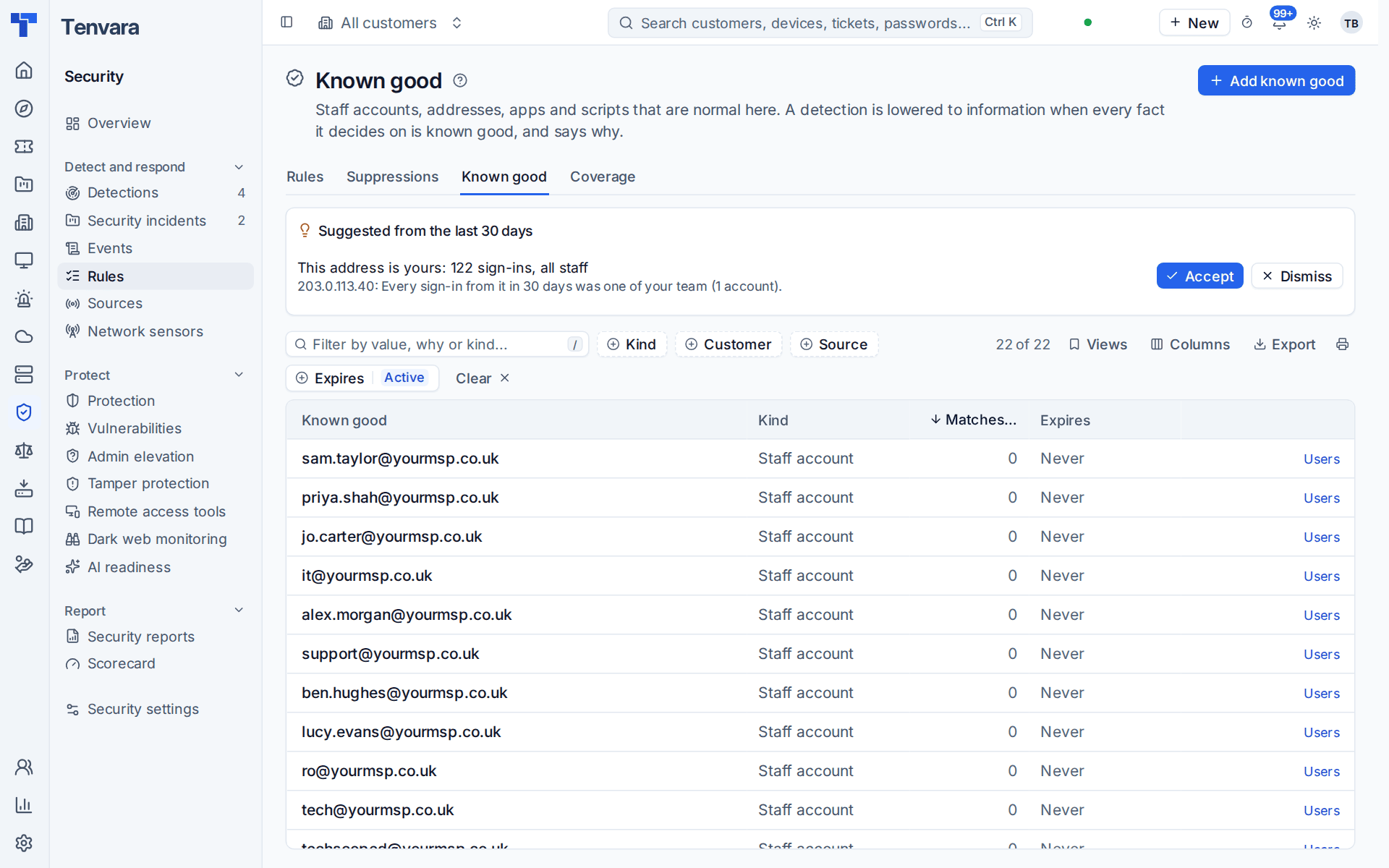
There are five kinds of entry:
| Kind | Value | What it does |
|---|---|---|
| Staff account | A sign-in name (name@domain) or object id | Changes your admins make are information. Always lowered, never hidden, so the trail stays |
| Address | An address or network | Sign-ins and traffic from your office, automation host, build or lab machines |
| App | An app ID or a signer | A sync or backup app reading a lot of data |
| Script | A script's hash or a signer | The agent's own scripts, or a script your team runs |
| Scheduled task | One task | A signed program, or one exact command, that a scheduled task runs |
Some entries are built in and read only, with a link to where they are changed: the staff who sign in to Tenvara, your own Microsoft 365 tenant's domains, the admin accounts kept in a customer's vault, your server's own addresses, Tenvara's own Microsoft 365 app and the agent's signed scripts.
Adding an entry
- Press Add known good.
- Choose the Kind and enter the Value.
- Leave Only for the customer empty for every customer, or choose one.
- Say Why: it is shown on every detection the entry explains.
- Under When it matches, choose Lower to information or Record nothing. A staff account is always kept as information.
- Optionally set when it Expires, then press Add.
Adding, changing and removing entries needs security manage, and an entry for every customer needs someone who works with every customer. Every change is in the audit log with the reason.
Suggestions from the last 30 days
Above the list, Tenvara suggests what its data shows, with the numbers: "This address is yours: 412 sign-ins, all staff", an app that read more than usual on many devices with none of those detections closed as real, or a script that runs on your own team's laptops and only by your team. Press Accept to add it, or Dismiss and it is not suggested again. One sign-in from the address by someone who is not staff, and it is never suggested.
One known fact never hides another
A detection is lowered only when every fact that decides it is known good:
- a sign-in needs both the account and the address: a staff account signing in from an address that is not known still raises, and so does anyone who is not staff from your office;
- a directory or policy change is decided by who made it;
- a mass download is decided by the app: one record by a browser keeps it;
- a script, service or task is decided by the code, never by the account that ran it;
- a security console's alert is never explained by an account alone.
A detection the register explains shows a Known good badge in every list and "Known good:" with the reason and the entry on its page, linking back to the register. Tenvara's own rules about people signing in to Tenvara are never checked against it.
Your own people in Microsoft 365
Two lists under Our own people in Microsoft 365, in Settings > Monitoring, say who "we" are in your customers' tenants:
- Our own offices: the public addresses your team works from. A Microsoft 365 sign-in from one is treated as being at your office, whichever customer's account it is, so it is not a new country, impossible travel or a risky sign-in.
- Our own admin accounts: the accounts your team works through, for every customer and per customer. A sign-in method, password, mailbox permission, forwarding, guest, role or policy change one of them makes is kept as your own work, at information.
Office addresses and staff accounts you add to the Known good register count too, and the suggestions above propose both. Nothing is trusted until a person confirmed it.
The limits are there so a stolen technician account cannot hide:
- a change to a Global Administrator, or a grant of Global Administrator or the privileged administrator roles, is never explained;
- nothing an account does is explained while its own sign-in is flagged (a risky sign-in, an open sign-in detection about it, or a sign-in from a new country), and an explanation is taken back if the account's sign-in is flagged in the hours that follow;
- every administrator gets the Weekly "our own work" digest every Monday: everything kept as your own people's work that week.
Your own tooling
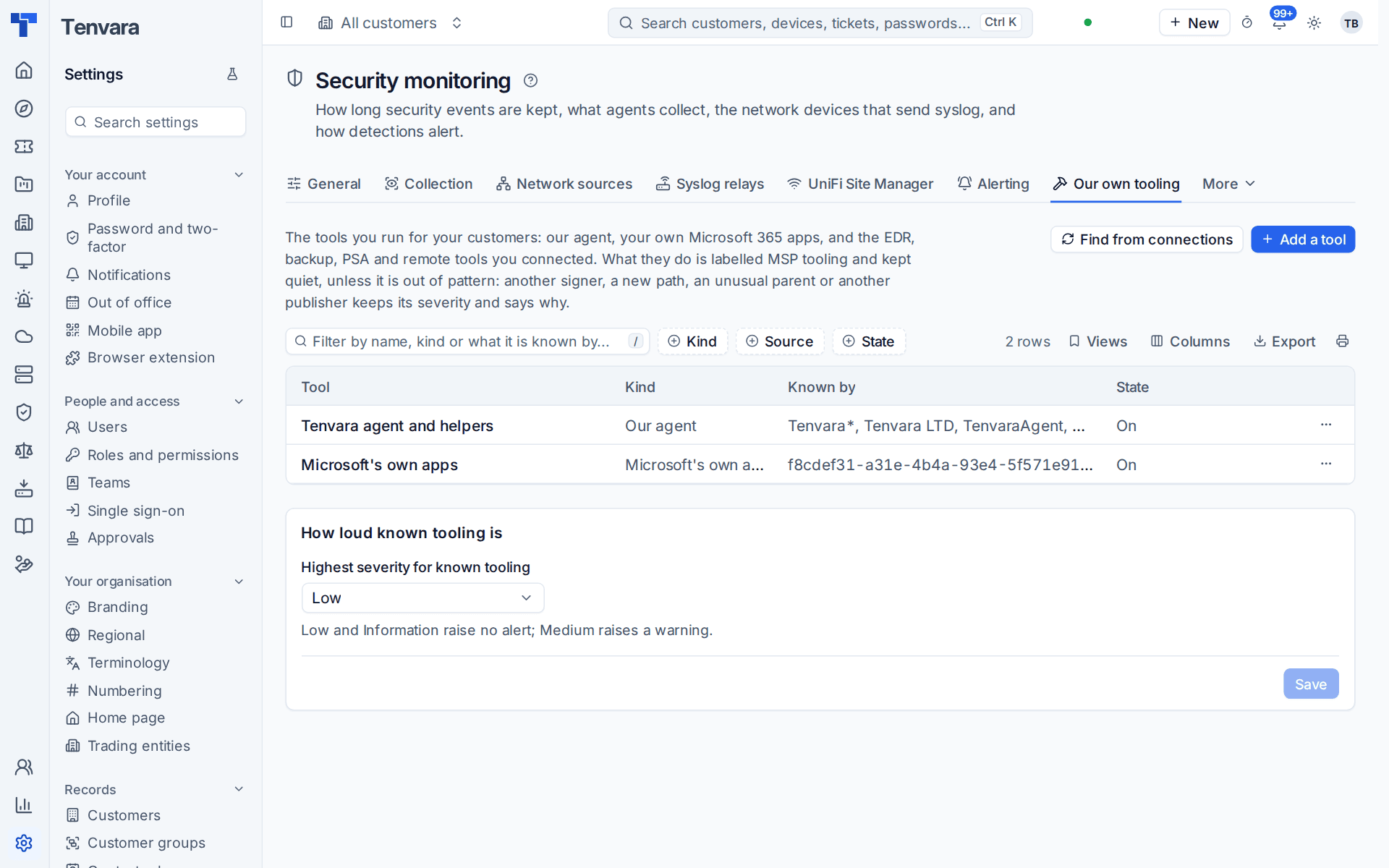
The tools you run for customers have their own list: the Our own tooling tab of Settings > Security monitoring. It holds the Tenvara agent and its helpers, Microsoft's own apps, your own Microsoft 365 apps and the EDR, backup, PSA and remote tools you connected (Find from connections adds them; Add a tool adds another). What they do is labelled MSP tooling and kept quiet unless it is out of pattern: another signer, a new path, an unusual parent or another publisher keeps its severity and says why. Highest severity for known tooling caps them (Low by default).
Rolling one of your tools out to many tenants is one information line, not an alert per tenant, and an approved backup app reading everything is information while its permissions and network stay the same.
From the detection
- A scheduled task detection for a signed program, or one exact delete command, offers Add this task to known good, with the task's command shown in full before you add it.
- After two closes in a row that ended the same harmless way, a detection offers the entry that would explain the next one, in one click.
- Admin changes your own admins make to Conditional Access or roles are matched to the change, ticket or maintenance window that covers them and kept as information linked there, or say that nothing covers them.
In the Company edition, "your own" means your IT team and your organisation's offices. Related: Working detections, What the antivirus did, closes that teach and Blind spots, Detection rules and suppressions.
Was this page helpful?
Thanks for the feedback.