Vulnerability response
Turn a vulnerability into one piece of work across every customer, find every device it hits with why each matched, fix each group of devices by the route that suits it, roll the fix out a canary first, and call a device fixed only once it has been checked again.
A list of every CVE that matches a device is not a work list. A response is: one piece of vulnerability work that says what is vulnerable in plain conditions, finds every device that matches, fixes each group of devices by whatever route exists, and tracks each device until it is checked and clean.
One response covers every customer unless you limit it to some of them. One nginx release that fixes fourteen CVEs is one response, not fourteen. Responses live under Security > Vulnerabilities, on the Responses tab.
Responses sit on top of the vulnerability list you already have: the feeds, the findings, the distributions' own fix data and accepted risk all stay as they are. A finding that a response covers says Tracked in response, with a link to it. In the Company edition everything works the same for your organisation, without customer columns or pickers.
How a response works
- Open it: with New response on the Responses tab, with Open response on a vulnerability or a finding, from the daily Triage, or let a triage rule open it.
- Say which devices are affected with conditions such as "Package nginx below the fixed version and OS family Linux". Tenvara finds every matching device from the inventory and keeps the list up to date as devices change.
- Choose how each platform is fixed: the existing update route, an uploaded package, commands you write, a workaround, or a manual step.
- Roll it out: a canary device first, then waves, inside maintenance windows, waiting for any change approval and the server-set rules.
- Tenvara checks each device again. A device is Fixed, verified only when it no longer matches. A script that exits 0 but leaves the old version behind shows Failed: still vulnerable.
- Track it on the board until it is done. The response closes itself when nothing needs work, and reopens if a matching device turns up later (a restored old virtual machine, a new laptop).
A response's page has the tabs Devices, Fix, Change and tickets, Probes, Timeline, Evidence and Exceptions.
Finding the devices
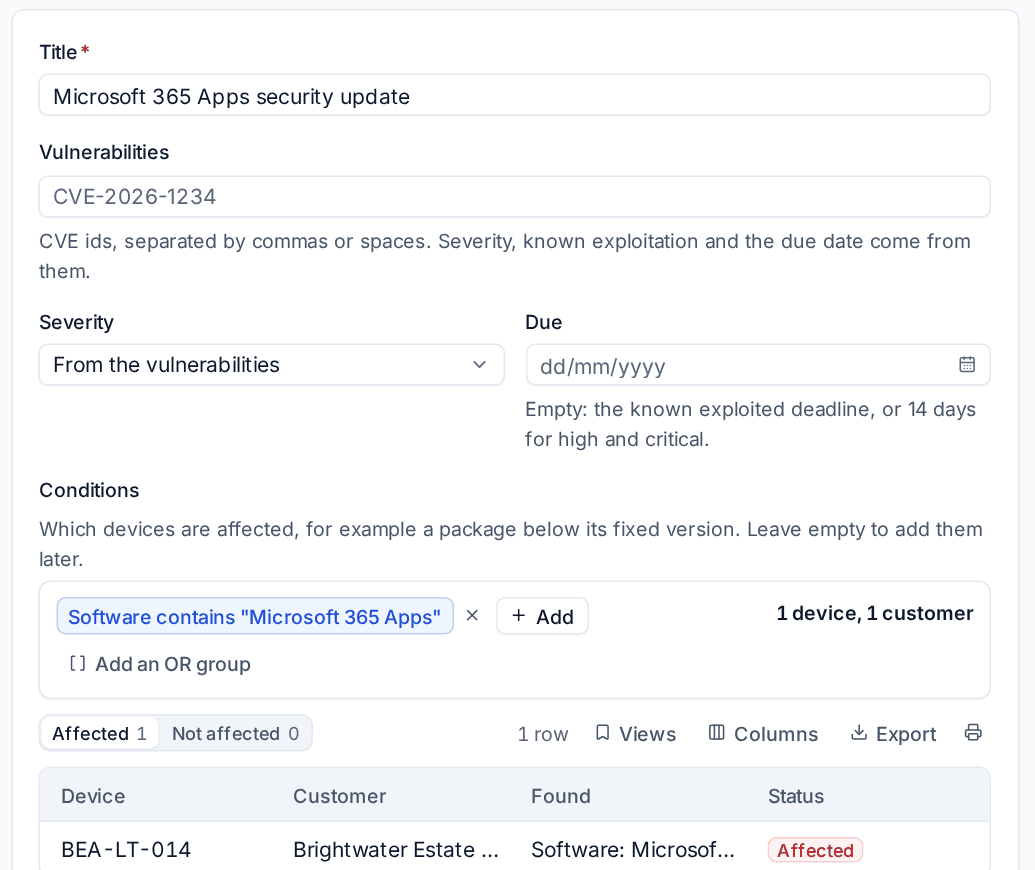
On New response, give it a Title, the CVEs under Vulnerabilities (severity, known exploitation and the due date come from them), and build the Conditions. Each condition is a chip you add with Add condition (or the A key): pick a field, how to compare and a value, and tick Not to turn it round. Chips side by side must all hold; Add an OR group adds alternatives. The live count updates as you go ("1 device, 1 customer"), and each matching device shows what was found on it, which is why it matched.
You can match on:
- OS: family, name, edition, version, build, Windows Server version, Linux distribution and release, kernel version, and whether the OS is still supported.
- Role: device type, server role (domain controller, SQL Server, IIS, Exchange, Remote Desktop Services, Hyper-V and more), domain-joined, server set.
- Software and Packages: name, publisher and version, including below the fixed version. Linux packages are compared by the distribution's own version rules.
- Windows updates: an update (KB) installed or missing, the cumulative update level.
- Running state: a service, a process, a listening port and the address it is bound to.
- Files and registry: a file, a file's version, a registry value.
- Hardware: manufacturer, model, processor.
- Scope: customer, site, tag, device group, online in the last so many days.
Fixed by the distribution. Ubuntu and Debian often patch a package without changing its upstream version number. "Below the fixed version" knows this: a package the distribution has patched shows as Not affected ("Patched by Ubuntu"), not as vulnerable.
Probes, for what the inventory cannot answer
A setting in a configuration file, a loaded module, an exposed admin page: add a probe, a short read-only check (PowerShell for Windows, bash for Linux and macOS) that returns a value. It runs only on the devices the other conditions already match, its answer is kept with the time it was read, and the answer becomes a condition. A device waiting for an answer shows Unknown until probed with a Probe button.
A probe must pass the read-only check, and its first run waits for someone with Approve probes and commands. Your probes are kept under Security > Vulnerabilities, on the Probes tab (New probe writes one), and a response's Probes tab shows its probes and their answers.
Asking in plain English
With AI set up with your own AI provider key and Vulnerability response switched on under Settings > AI, the finder takes a sentence such as "nginx below 1.27.4 on any Linux server" and answers with the same chips, which you check and change before anything runs. Paste an advisory takes a link or an advisory's text and fills in the title, CVEs, products, conditions and a suggested fix for you to check. Nothing about your devices or customers is sent to the AI: only what you type, the advisory and the list of fields. With AI off you build the conditions yourself.
Fixing it
The Fix tab splits the devices that still need a fix by platform (Windows, Debian and Ubuntu, the Red Hat family, macOS) and gives each group a method:
- Auto: an existing update route: Windows and macOS updates through patching, Linux package updates, catalogue and winget app updates, or the move to a supported major version. The group says how many of its devices have one.
- Upload a package: an .msi, .msp, .msu, .exe, .deb, .rpm, .pkg, or a zip with its install script, with the silent arguments, an optional pre-check, the restart behaviour and the success codes. Uploading needs Upload fix packages; the file is scanned for viruses and kept once.
- Commands: what to run on each device, such as an
apt-get install --only-upgradeline or a PowerShell registry change. Commands need approval from someone with Approve probes and commands, then a dry run on one device; the rest get them once it succeeds. Each device's output is kept. - Mitigate (not a fix): a workaround such as turning off a service. The device shows Mitigated with a recheck date and never counts as fixed; at the recheck date it is affected again.
- Manual or external: instructions for a vendor-only fix done by hand.
Above the groups, the company rules say for each affected customer what applies before anything is sent: see Company rules, changes and tickets for vulnerability fixes.
Rolling it out
Start a rollout under the chosen group:
- Canary: one device (the least critical online device is suggested) or one customer's devices. The waves wait until the canary is checked again and no longer vulnerable.
- Waves of a set size, workstations before servers, in each device's maintenance window or now.
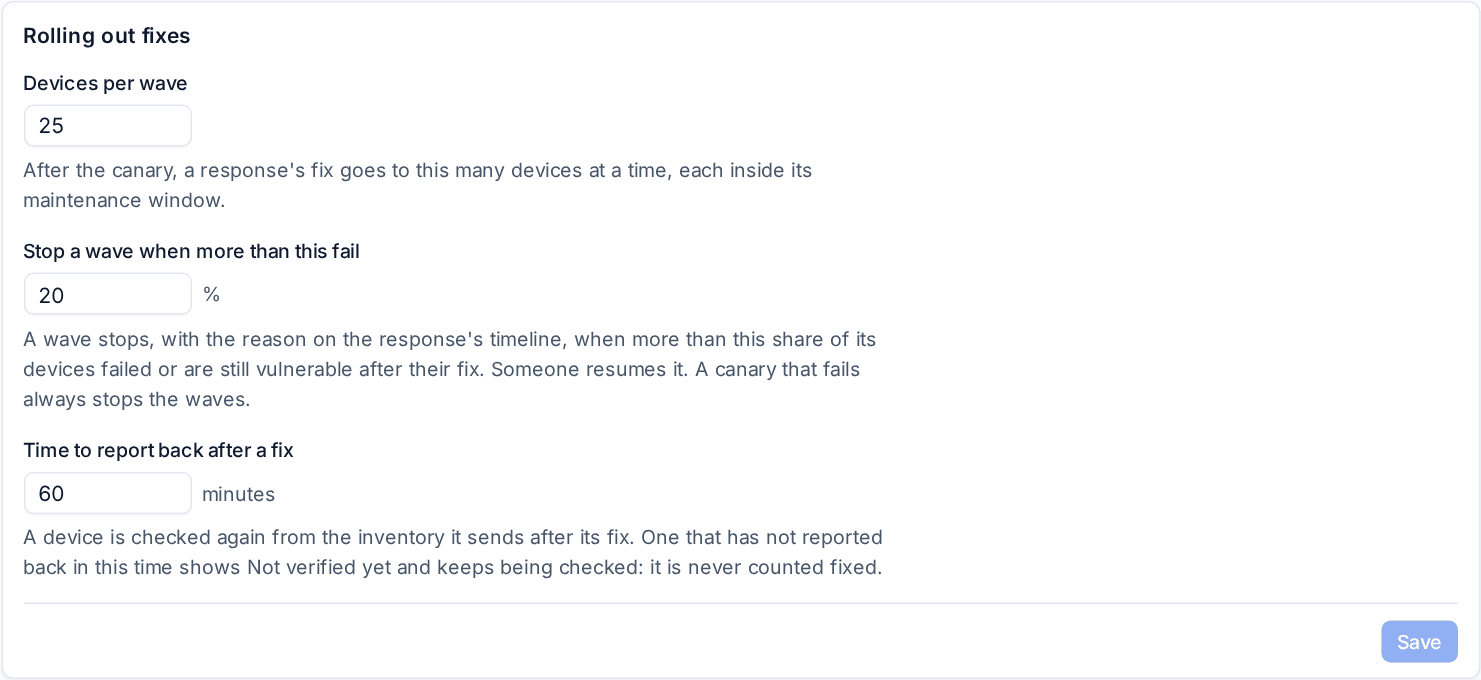
- A wave stops when more than a set share of its devices fail or are still vulnerable (20% by default), with the reason on the timeline, until someone resumes it.
- Servers need someone with Run vulnerability fixes on servers, and the server set rules apply: never both domain controllers at once, one node of a pair or cluster at a time.
Pause, Resume and Cancel a rollout, and Check again a device. Restarts follow each device's patch policy. The defaults are under Rolling out fixes in Settings > Vulnerabilities.
Checking each device again
After a fix, Tenvara asks the device for a fresh inventory and runs the response's conditions (and any probe) again on that device:
- no longer matches: Fixed, verified, with what was found;
- still matches: Failed: still vulnerable, with the output, whatever the exit code;
- no fresh inventory yet: it keeps waiting and is never counted fixed. After the time to report back (60 minutes by default) it shows Not verified yet and is asked again.
The board
The Responses tab is the board: totals for open responses, overdue, due soon, devices to fix, failed and fixed and verified, then each response with its devices by status, a progress bar, customers, age, due date and owner. Filter by severity, due state and state, choose Anyone, Mine or Nobody for the owner, and use By customer to see each customer's work. Due dates, exceptions and the evidence report are in Due dates, exceptions and the vulnerability evidence report; the daily inbox is in Vulnerability triage, the daily digest and triage rules.
Who can do what
Vulnerability response has its own permission area under Settings > Roles and permissions: view sees responses, their devices and timeline; manage changes them. On top of manage:
| Switch | Lets someone |
|---|---|
| Open vulnerability responses | Open responses, from triage and from a pasted advisory |
| Run vulnerability fixes | Send fixes and start rollouts to devices that are not servers |
| Run vulnerability fixes on servers | Send fixes to servers and approve servers in a rollout |
| Approve probes and commands | Approve probes and fix commands, skip a dry run |
| Upload fix packages | Upload and change fix packages |
| Sign off vulnerability exceptions | Except devices from a response |
Every condition, probe, command, package and fix sent is in the audit log with who, what, where and the output. See What each role switch controls.
The API
Everything here is in the public API with the same permissions: responses, the finder's preview, probes, triage, fix methods, rollouts, company rules, changes, tickets, exceptions, the board and the evidence report, so a response can be scripted or driven from your own automation. See Integrations and the API.
Was this page helpful?
Thanks for the feedback.