Marking a test estate
Mark a whole customer or a group of devices as test estate so what it raises is kept as information, tells nobody and stays out of your figures.
Most MSPs run something that is not a customer's live estate: a test Microsoft 365 tenant, a lab, build machines that start and stop test stacks all day. Without a marker, every alert and detection from it is judged, ticketed, paged and counted as if a real customer had a problem. Mark as test estate tells Tenvara once that a customer, or a group of devices, is for testing.
What marking does
Everything the test estate raises is still recorded, at the level of Information:
- Alerts open and show on the device and the customer, but tell nobody: no ticket, no page, no email, no webhook.
- Security detections are kept at Information. They raise no alert, open no incident, are off the response clock and get no customer notice or AI triage.
- Left out of the figures: Home, the alert figures, the wallboard, the security overview, report figures across customers, risk scores and customer health leave the test estate out. So does the learning: noise demotion, known-good suggestions and the weekly noise review.
Each such alert and detection carries a Test badge and a line at the top saying why, for example "Test estate: Kilnworks Lab is marked as test. Kept as information; nobody is told."
Billing, licences and backup still count a marked customer. The marker is about alerts, detections and what is learnt from them.
Note: Only an administrator can mark or unmark. Every change is written to the activity log and the audit log, with who did it and when.
Mark a customer
- Open the customer.
- Click More actions and choose Mark as test estate.
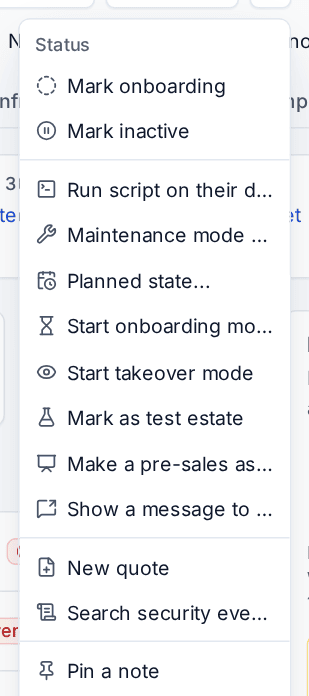
The customer gets a Test badge on its page and in the customer list, and the customer list has a Test estate filter.
In the Company edition there is one organisation, which is never test estate. Mark device groups instead.
Mark a group of devices
Use a device group when only some devices are for testing: a lab, CI runners, a build box.
- Open Devices > Device groups and open the group (or make one, see Device groups).
- Switch on the Test estate card.
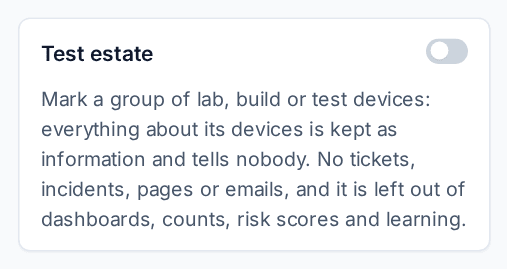
The marker follows the group's members, both those added by hand and those its rules match, so a device that joins the group is covered at once.
Tip: A group can take its members by role. One group with the rule "role is Lab or CI", marked as test estate, covers every lab and build machine you give those roles. See Lab, CI and Test devices.
What happens to what is already open
Marking settles what is open now:
- open alerts become Information and go quiet;
- open detections become Information and their alerts clear;
- pages for any of them, and for incidents the marker covers, are closed with the reason "Marked as test estate by" and the person's name, so escalation stops there and then.
An incident is covered when its customer is marked, or when every one of its detections is about a device in a marked group. A covered incident stays open for you to read and close: its notes, owner, ticket and detections are kept, its severity follows its detections (now Information) and it is off the response clock. An incident that also involves a device outside the marked group is not test estate and goes on as normal.
Finding the test estate
The alert list, the detection list and the incident list leave the test estate out by default. Click Test estate in the toolbar to see only the test estate's rows, and click the cross beside Test estate only to leave them out again. A list narrowed to one customer, device or incident always shows everything of it.
Taking the marker off
Choose Take the test estate marker off in the customer's More actions, or switch off the group's Test estate card.
- Alerts and detections go back to the level they had before, never higher than they would be raised at today.
- Nobody is paged or told about what happened while it was marked. An open incident goes back on the response clock from now.
- Anything new from then on is judged, ticketed and paged as usual.
Test estate, roles and planned states
| Use | For | Effect |
|---|---|---|
| Mark as test estate | A whole customer or a group of devices | Information, tells nobody, left out of figures and learning |
| A Lab, CI or Test device role | One machine | Health only: its alerts are held at their real severity, detections still raise |
| Planned state... Unused or Retired | A device, site or customer you are not using | Alerts closed as planned |
A customer's Planned state... no longer offers a test option: marking it as test estate is the one way to say a whole customer is for testing. See How alerts stay quiet.
Was this page helpful?
Thanks for the feedback.