File versions and SharePoint lists
How Microsoft 365 backup keeps the earlier versions OneDrive and SharePoint hold of each file, how to restore one as current or as a copy, and how SharePoint lists and their items are backed up, restored and downloaded.
Microsoft 365 backup keeps more than the current copy of each file and each document library. It also keeps:
- Earlier file versions: the previous versions OneDrive and SharePoint keep of each file, so a document overwritten between two backups can still go back to how it was.
- SharePoint lists: the lists of every site, group and team that are not document libraries (custom lists, contacts, announcements, issue and task trackers), with their columns and items.
Both are part of the OneDrive, SharePoint and site backups you already run: there is nothing extra to switch on and no extra permission for backing them up.
Earlier file versions
How many are kept
By default each backup keeps the last 10 versions of each file within 90 days. The current version is the file itself and is not counted.
To change it for every customer:
- Open Settings > Backup and the Defaults tab.
- Under Microsoft 365, set Earlier file versions to keep (0 keeps none, up to 500).
- Set No version older than (days) (0 keeps them however old they are).
- Press Save defaults.
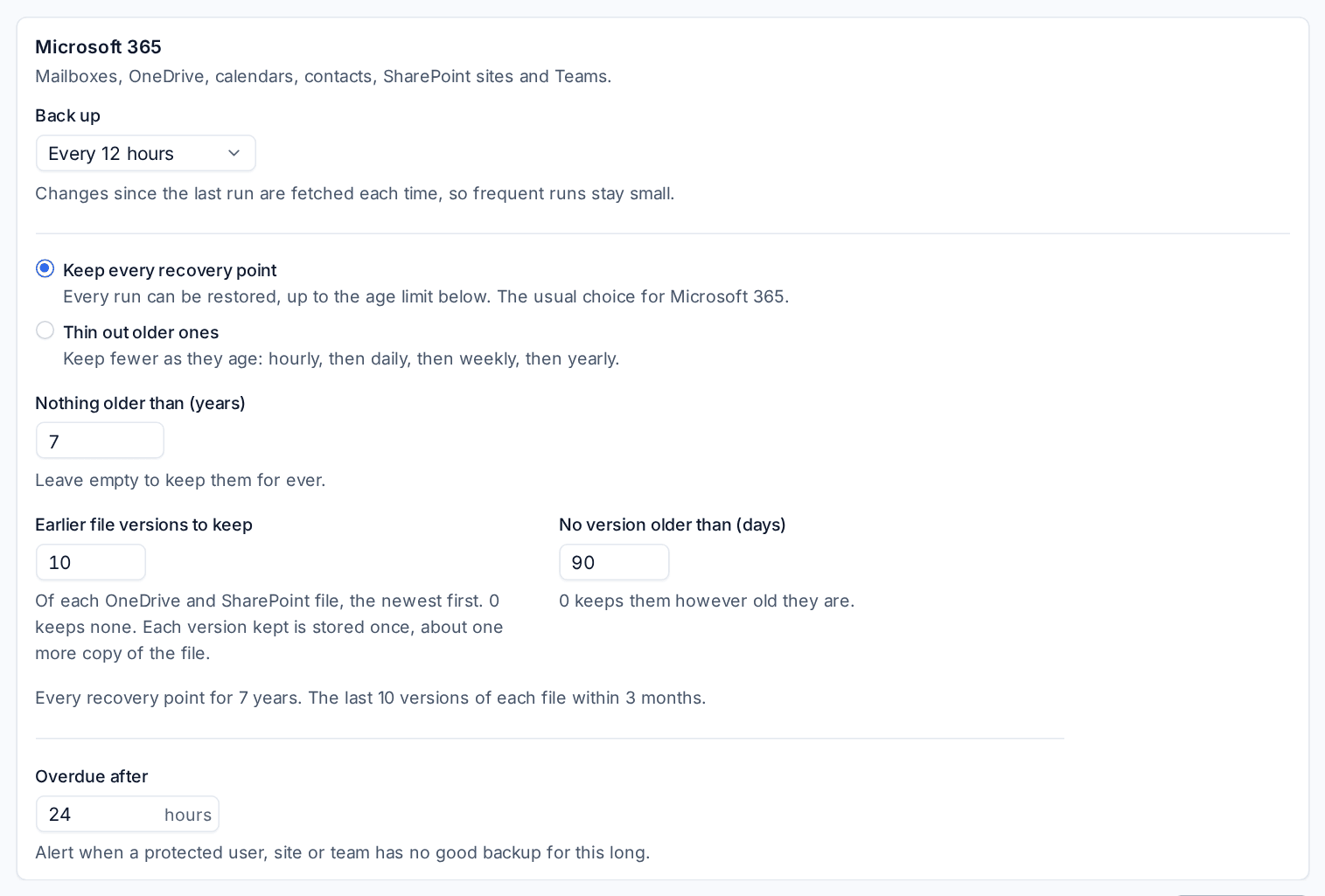
The summary under the retention settings reads it back, for example "The last 10 versions of each file within 3 months". A customer or a tenant can have its own values in its backup policy. See Schedules and retention.
Note: Each version kept is stored once, deduplicated like everything else, so it costs about one more copy of that file. Libraries whose documents are saved many times a day cost the most. Set the count lower, or 0, where storage matters more than earlier versions. Older recovery points keep the versions they already hold until retention removes them.
What a backup reads
After the first backup, only the versions of new and changed files are listed, so incremental backups stay small. A version never changes once stored, so it is never read again. If Microsoft refuses a version on one run, it is never stored empty: the run says how many file versions could not be read, and the next backup reads them again.
Restoring a version
- Find the file in Backup > Restore, or browse the person's OneDrive or the site. See Searching and browsing backups.
- Open the file's Versions. The Versions Microsoft kept part lists each earlier version with its number, when and by whom it was saved, its size and how many backups hold it.
- For the version you want, choose Restore, Download or Add to the basket. A download is named after its version, such as "Budget (version 3.0).xlsx".
Restored to where it came from, a version becomes the current one again, and Microsoft keeps the content it replaces as a version, so nothing is lost. If Microsoft no longer has that version (or the file), the backup's copy is put back under the restore's conflict rule: by default the live file is left as it is; you can choose to rename or, when you ask for it, replace. Restored somewhere else (a folder, another person's OneDrive), it arrives as a file named by its version.
Compare versions shows two versions side by side before you choose.
SharePoint lists
What is backed up
Every site, group and team has a Lists part beside its libraries. For each list that is not a document library, the backup keeps:
- the list itself, with its columns and content types;
- every item with its fields.
Incremental backups read only the items that changed since the last backup. Microsoft does not give backup apps a way to read a list's views or the files attached to list items, so those are not backed up, and SharePoint's own hidden system lists (Access Requests and the like) are left out. The What it covers button on Backup > Microsoft 365 says the same.
Browsing and searching
In the restore browser a site's lists show as folders with their item counts, and a list's items by their titles. A preview shows an item's fields. Search matches list names and item titles.
Restoring
Choose a list (or items in it) and Restore. Where it goes:
- Back into the original list: each item is matched by its id. An item unchanged since the backup is left as it is. An item someone changed since is left as it is too, and the backup's version is added beside it as a new item whose title ends "(Restored
)". A restore never overwrites a later change. An item that was deleted is made again (SharePoint gives it a new id, which the job's log names). - A list that was deleted is made again from its columns and template, under its old name, and its items are made in it.
- Back where it was, in a new folder makes "
- (Restored
)" beside the original. - A folder I name makes the list anew in the same site under that name.
- Another site makes it anew in another site of the same tenant.
Fields SharePoint sets itself (created, modified) are SharePoint's. A person or lookup field is restored only into the same site, because its values point at that site; a field the list no longer has is left out and named in the job's log.
Note: Making a list (a deleted list, or a list as a new list) needs the Microsoft Graph permission
Sites.Manage.Allon your app registration and the tenant's consent. If it is missing, the restore says so and the tenant shows the gap. See Microsoft 365 backup permissions per workload.
Downloading
Download a list, or several, as a zip. For each list it holds a CSV with one row per item (its id, each column people see, when it was made and changed and by whom), the list's schema as JSON, and each item as JSON. The CSV opens straight in Excel; a cell that a spreadsheet would run as a formula is kept as text. One item downloads as its JSON.
Related
Was this page helpful?
Thanks for the feedback.