Vulnerability evidence in the portal
Who sees Vulnerability evidence in the portal and when it appears, what each report shows per device, the PDFs for one vulnerability or the last twelve months, and how a customer signs off a vulnerability exception.
When a certification body, an insurer or a board asks "what did you do about that vulnerability?", the customer can answer it themselves. Vulnerability evidence in the portal lists every vulnerability your team worked on that found one of the customer's devices affected, and for each device says when it was found, how it was fixed and when the fix was proved. Each report opens in the portal and downloads as a PDF.
The reports come from your vulnerability responses: the work your team does in Security > Vulnerabilities, on the Responses tab. See Vulnerability response for how a response finds and fixes devices, and Due dates, exceptions and the vulnerability evidence report for the same report on your side.
This page is in the MSP edition. In the Company edition the organisation's report is on the response's Evidence tab in Tenvara itself, not in the employee portal.
Who sees it
Vulnerability evidence sits in the Security and compliance group of the portal's side menu. It shows to:
- contacts whose portal role gives reports (Manager as the roles ship), or who have the Reports and compliance permission; and
- the customer's decision-makers, the contacts with the decision-maker contact role.
These are the people who see the customer's compliance reports. It also needs:
- The Security module is on.
- The portal's Reports section is on for the customer (Settings > Customer portal, the Sections tab). Vulnerability evidence is part of it, with the other published reports.
- At least one vulnerability response has found one of the customer's devices affected. A response that only found devices already patched by their distribution does not count. Until then the page stays out of the menu.
Anyone else who follows a link to it sees "Vulnerability evidence is for your organisation's managers", with a note to ask their portal manager, or you. See Portal roles to change who holds reports.
The list
The page opens on Vulnerabilities, newest first: every vulnerability your team worked on that found one of the company's devices affected. Each row shows:
- the vulnerability's title and up to three of its CVEs (with "+2" and so on for the rest);
- its severity (Critical, High, Medium or Low), and Known exploited when it is on the known-exploited list;
- how many of the company's devices were affected, how many are fixed and verified, how many are still being worked on, and when the first was found.
Devices that left the response, because they were retired or no longer in scope, still count: they were affected once. The page refreshes by itself every few minutes.
One report
Opening a row shows that vulnerability's report for the company:
- the title and a short summary, with the severity, Known exploited where it applies, and every CVE;
- "We opened this on" the date your team opened the response, and "First published" the date the vulnerability was made public;
- "A device is affected when:" followed by the conditions in plain words, so the reader can see why a device was in or out.
Under Your devices, each device has its status (Affected, Fixing, Failed, Mitigated, Excepted, Fixed, verified or Not affected) and how it was dealt with:
- the fix, in plain words: how it was fixed and, for a package or a command, what was sent;
- Accepted risk with the reason, when the device was excepted;
- Workaround with what was done, and the date by which it is checked again;
- Already patched by the distribution, for a Linux device whose distribution had already fixed it;
- Fixed by normal updates, when the device was fixed by its usual patching;
- Not fixed yet, while work is still under way.
Below that come the check that proved the fix and the dates: when the device was found, when the fix was sent, when it was verified, and, for an exception, when the customer signed it off. A device counts as fixed only once the check has run again on the device and no longer finds it vulnerable; a workaround is never counted as fixed.
The report is built from the record your team kept while working on the vulnerability, not from today's device list, so a report read next year still says what was true then, even after devices are renamed, rebuilt or retired.
The PDFs
- PDF on a report downloads that vulnerability's report.
- Last 12 months as PDF at the top of the list downloads every vulnerability worked on for the company over the last year in one file, ready to attach to a Cyber Essentials assessment, an insurance renewal or a business review.
Each PDF is made when it is downloaded, in your branding: a cover with the company, the period and the totals, then one section per vulnerability with its facts, the devices and how each was fixed, and any exceptions and workarounds. The download links are made for the contact who is signed in and work for ten minutes; an older link says "This download link has expired. Open the Vulnerability evidence page again." Every download is recorded in your audit log with the contact's name.
Signing off a vulnerability exception
A device that cannot be fixed yet, such as a server the vendor has not certified, can be excepted from the response with a reason and an end date, as an accepted risk. You decide whether the customer must sign for that:
- In Settings > Customer portal, open the What customers see tab.
- Under Sign-offs, set Sign-off for accepting a vulnerability risk to Not used, Offered or Required before it takes effect. Like most portal settings, it can differ per customer.
- Press Save.
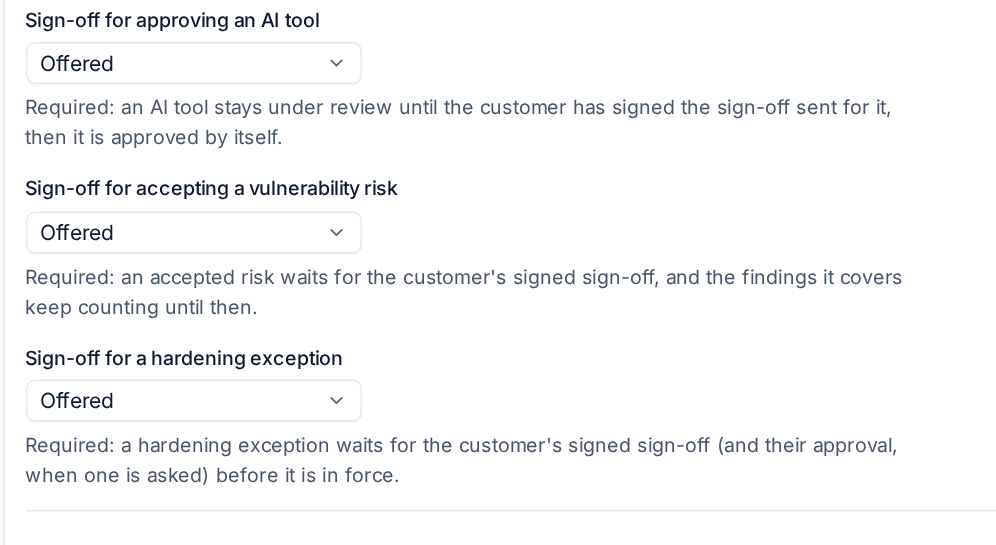
With Required before it takes effect, an exception shows Waiting for sign-off on the response and excepts nothing yet. Ask for a sign-off sends the customer the same sign-off as any accepted risk, and its recommendation names the vulnerability. The signer finds it in To do on Home and under Sign-offs, reads it section by section and signs, as described in To do, sign-offs and presentations in the portal. Once everyone has signed, the devices become Excepted at once, and the response's timeline names who signed.
In the report, an excepted device shows Accepted risk with the reason and the date it was signed off. The PDF adds who accepted the risk, until when, and the sign-off's state: Signed off, Sign-off expired, Sign-off revoked or Sign-off declined. When the exception ends, the device is affected again and back in the work.
Related
Was this page helpful?
Thanks for the feedback.