Emails in tickets, as they were sent
How email shows on a ticket with its own layout and pictures, why remote images wait for Show images, when they show by themselves, the lightbox, Show original and Plain text, and the same viewer in the portal, the mail archive and email files.
Customers write to you from every mail app there is, and suppliers and vendors send newsletters, invoices and notices full of tables and pictures. Tenvara shows each email on a ticket the way it was sent: its layout, colours and inline pictures kept, nothing in it able to run, and its remote pictures held back until someone chooses to see them.
The email frame
A message that arrived as email sits in a frame of its own in the ticket's conversation:
- Its own layout. Tables, colours, fonts and spacing are kept as the sender's mail app wrote them, the way Outlook shows mail, so a newsletter's columns stay columns. Tenvara's own styles never reach into it, so there are no stray grid lines.
- Scaled to fit. A message wider than the conversation, such as a 600 pixel newsletter on a phone, is scaled down to fit, to half size at most; anything wider still scrolls inside the frame, never the page.
- Nothing runs. Scripts, forms, embedded frames and anything that could act are removed before the email is shown, and the frame itself refuses to run anything. Links open in a new tab.
- Your own messages typed in Tenvara (replies and notes) stay as they are, in the conversation's own style.
Show images
Many emails load their pictures from the sender's server when they are opened. That tells the sender who read the mail and when, and the same trick is used to confirm an address is live. So remote pictures in an email wait. A bar above the message says "Remote images are hidden to protect your privacy." with:
- Show images: shows this message's pictures now. It is remembered on the message, so everyone who opens the ticket later sees them too.
- Always show from the sender, and Always show from their domain (and its subdomains): shows them now and from now on, for every message from that sender or domain, on this ticket and every other open one. These two appear only for people who may change the service desk's settings, and each choice is recorded in the audit log.
A public mail service, such as Gmail or Outlook.com, is never offered as an "always" domain: anyone can have an address there, so remember the sender instead.
Shown pictures are fetched by your Tenvara server, never by the reader's browser, so the sender never sees the reader's address, browser or cookies.
Pictures that came inside the email itself, such as a pasted screenshot, are part of the message and always show.
When pictures show by themselves
Some mail is safe to show straight away. The Images in email card on Settings > Support email (the Mailboxes tab) decides which:
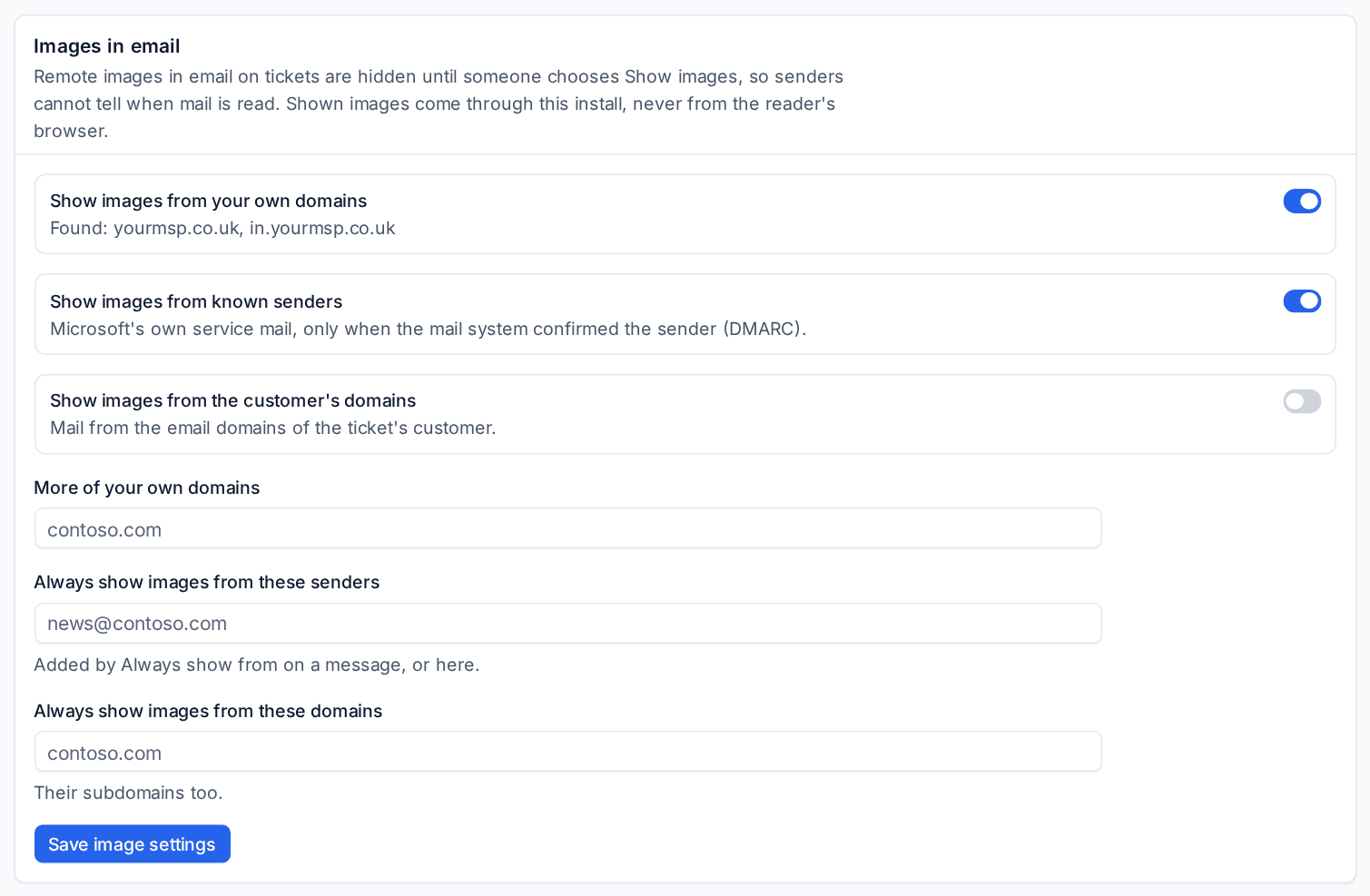
- Show images from your own domains (on by default): mail from your support mailboxes' domains and any you add under More of your own domains. The card lists the domains it found.
- Show images from known senders (on by default): Microsoft's own service mail, only when the receiving mail system confirmed the sender (DMARC). A display name is never enough.
- Show images from the customer's domains (off by default): mail from the email domains of the ticket's customer.
- Always show images from these senders and Always show images from these domains: the lists Always show from adds to. You can add or remove entries here too.
Press Save image settings. Messages already open follow the new rules.
When a message's pictures show by themselves, a quiet line under it says why, for example "Images shown: your own domain", "Images shown: a known sender, verified" or "Images shown: you always show images from this sender". Mail the receiving system says was forged never shows its pictures by itself, whatever the lists say. Your own replies always show theirs.
Note: In the Company edition the first switch reads Show images from your organisation's domains, and there is no switch for the customer's domains.
Pictures full size
Click any picture in an email that is not a link (or select it and press Enter) to open it full size in the file viewer, without leaving the ticket. Next and previous move through the message's pictures, and Esc closes it. Attached pictures open the same way from their thumbnails.
Show original and Plain text
Under each email, three choices change how that one message shows:
- Email: the message as sent, in its frame (the usual view).
- Show original: the whole email as it was received, including the quoted history the ticket leaves out to keep the conversation readable. It appears only when the ticket shows less than the email held.
- Plain text: the email's text alone, useful for copying an error message or reading a message whose layout gets in the way.
Your choice is kept per message and follows you to any browser.
The same viewer everywhere mail is shown
In the customer portal. A ticket's messages that arrived as email show in the same frame for the contact, scaled to fit their phone, with pictures opening full size. Pictures show by themselves under the same rules as in Tenvara (someone on your team pressed Show images, the always lists, your own domains, verified known senders). Otherwise the contact sees the same bar and Show images for that message, remembered on their device. A contact never changes what anyone else sees and has no "always". See Tickets and requests in the portal.
In the mail archive and backups. An email in a Microsoft 365 backup, in the archive, in an eDiscovery case and in the portal's backups shows with its layout and inline pictures too. Archived mail is evidence and old mail, so its remote pictures never show by themselves and there is no "always": Show images works for that message and that view only. See Archiving and legal hold.
Email files. An .eml or .msg file attached to a ticket, a record, a docs article or a chat opens in the file viewer the same way: remote pictures held until Show images, and no "always". Pictures inside an Outlook .msg file show as their description.
Related
Was this page helpful?
Thanks for the feedback.